

Assign and track
This group is about giving leads to the right people and judging which ones to chase first. You build sales teams, let Aureus hand out leads by rules, plan follow-ups, and score leads by their chance of winning.
In simple words: Give each lead an owner, then work the likely wins first.
The flow
New lead or opportunity (no team, no salesperson)
        |
        v
Automatic Lead Assignment is on?
        |
        +-- Manually:    you click Assign now (or Assign Leads on a team)
        +-- Repeatedly:  runs on its schedule, and at once for each new record
        v
Step 1: pick a sales team by the team's Assignment Rules
Step 2: pick a salesperson by the member's rules and free capacity
        v
Owner follows up (activities) --> Probability shows the chance of winning- Teams. Set up your sales teams and add members. See Manage sales teams.
- Assign. Switch on Automatic Lead Assignment and set the rules, as described below.
- Follow up. Plan calls and emails as activities. See Schedule activities.
- Score. Let Aureus calculate a win chance for each record. See Lead scoring.
- Review. Check how leads and activities perform in Reporting.
About the example
Sharma Textiles sends three enquiries in one week. The Sales team has two members. Aureus shares the leads between them, so nobody waits for a manager.
Settings
Automatic assignment is off until you switch it on.
- Go to
CRM → Settings → Manage CRM. - Switch on Automatic Lead Assignment.
- Choose how it runs.
- Click Save changes.
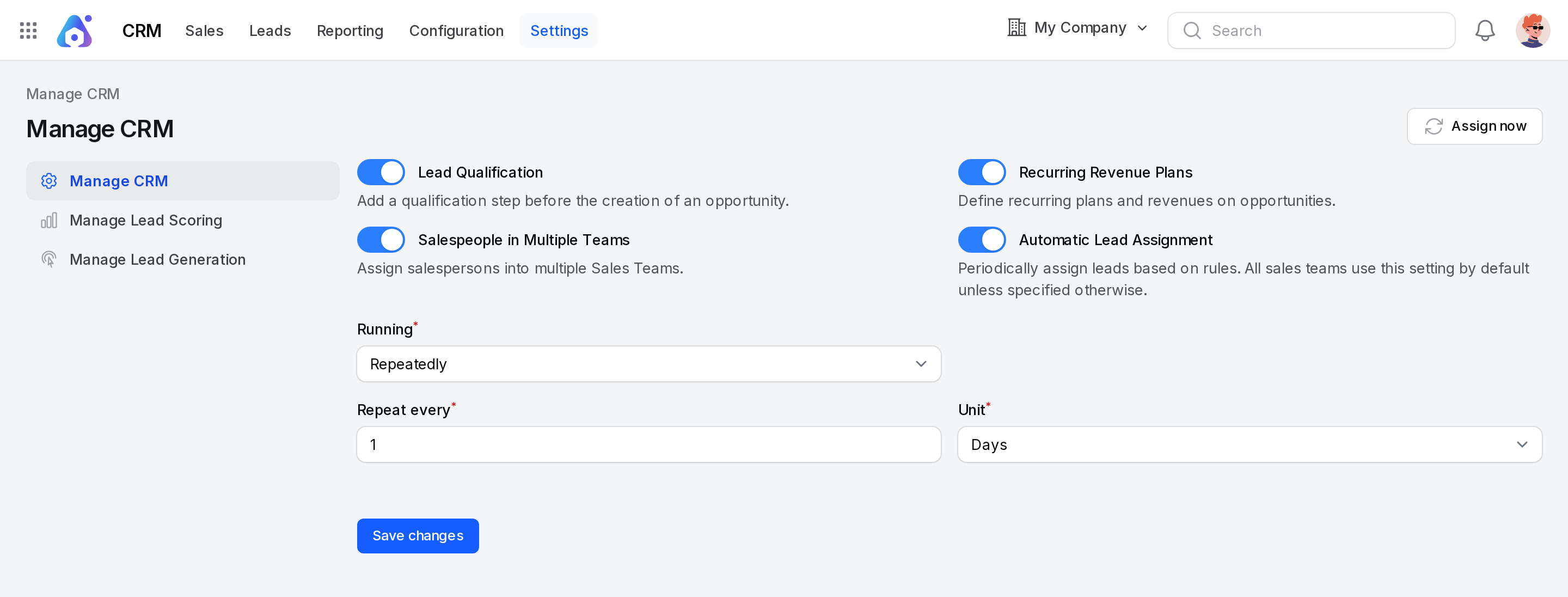
- Automatic Lead Assignment: The main switch. All sales teams follow it by default.
- Running: Required once the switch is on.
- Manually: Aureus assigns only when you ask.
- Repeatedly: Aureus assigns on a schedule, and also each time a new lead or opportunity is created.
- Repeat every: A whole number, at least 1. It shows for Repeatedly.
- Unit: Minutes, Hours, Days or Weeks. It shows for Repeatedly.
Assign now
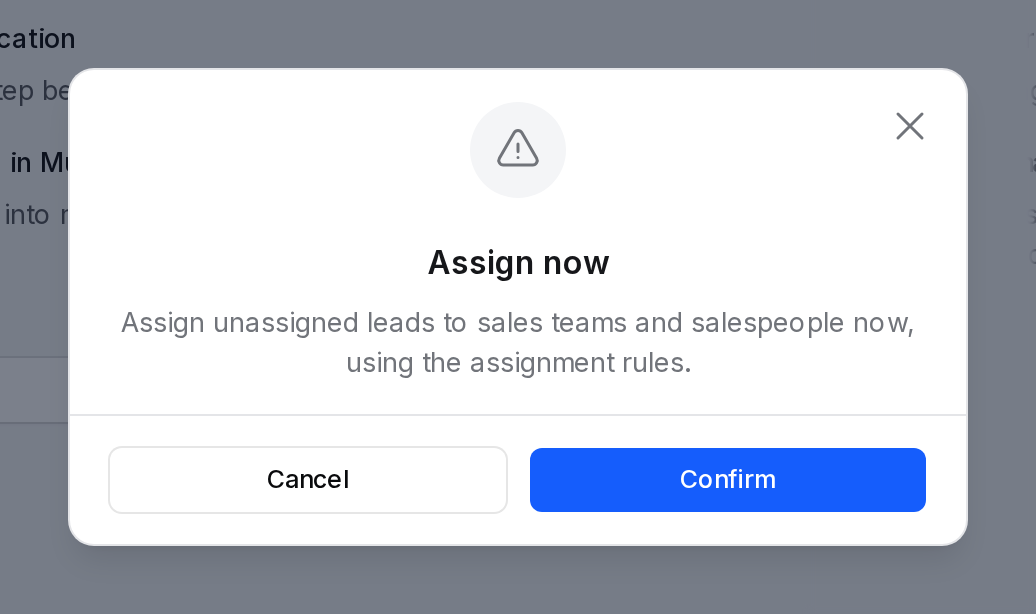
When the switch is on, the Assign now button appears at the top of the Manage CRM page.
- Click Assign now.
- Read the message and confirm.
Aureus then reports how many leads went to teams and how many went to salespeople.
How Aureus assigns
Aureus works through open leads and opportunities that have no owner. It takes those with the highest priority first, then the oldest.
Step 1: the team. A record with no team goes to a team whose Assignment Rules it matches. Only active teams are used, and teams that skip assignment are left out. When several teams match, the one with the most free capacity gets it. If the record already has a salesperson, Aureus prefers a team that salesperson belongs to.
Step 2: the salesperson. A record with a team but no salesperson goes to a member of that team. A member qualifies when all of these are true:
- The member is Active and does not skip automatic assignment.
- The member has received fewer leads than Max leads (30 days) in the last 30 days.
- The record matches the member's own Assignment rules.
If several members qualify, the one with the lightest load compared with their maximum gets the record. When a lead goes to a salesperson and the team works with opportunities, Aureus converts it to an opportunity at once, without creating a customer.
Team assignment rules
Open CRM → Configuration → Sales Teams, open a team, then open its Assignment Rules tab. The tab shows only when automatic assignment is on.
- Conditions: A table with Field, Operator and Value. Click New Rule to add a row. With no rows, every record matches.
- Field: The record detail to test. You can test Type, Name, Contact name, Company name, Job position, Email, Phone, Website, Street, City, ZIP, State, Country, Stage, Tags, Priority, Probability (%), Expected revenue, Expected closing, Created on, Campaign, Medium, Source and Referred by.
- Operator: The test to run, such as contains, is equal to, starts with, greater than, is in, is set or is not set. The list depends on the field.
- Value: What to compare with.
The text above the table says whether a record must match all or any of the rules. The page also shows how many records match now. A window lists them.
Example: For the team Sales, add a rule where Country is in India. Leads from India now go to this team.
Team members
Open the Members tab of the team. Click Add member to add a salesperson. Each member has these fields.
- Salesperson: The user to add. Required. If Salespeople in Multiple Teams is off, a user in another team is moved after you confirm.
- Max leads (30 days): The most leads this person may receive in 30 days. It starts at 30. Required. It shows only when automatic assignment is on.
- Skip auto assignment: Switch on to stop new leads going to this person for now. It shows only when automatic assignment is on.
- Active: Switch off to take the member out of assignment. It starts on.
- Assignment rules: The same rule table as for the team. They limit which records this member can receive.
A card shows the lead limit, such as Lead limit (30 days): 4 / 30.
Assign leads from a team
A team page also has an Assign Leads button. It shows when automatic assignment is on and the team is editable. Aureus lists unassigned leads that fit the team's rules. All are ticked. Remove any you want to keep out, then click Assign. A message tells you how many were assigned and how many could not be given out.
How probability shows on records
Every lead and opportunity has a Probability in percent. You see it in the lead form and on the lead page, and in the Probability column and filters of the opportunity list.
- It is Automatic until you type your own number. Aureus then keeps your number.
- The information icon opens Probability details with the reasons behind the computed value.
- The refresh icon, Use computed probability, returns to the automatic value.
- Moving an opportunity to the won stage sets it to 100 %. Marking it as lost sets it to 0 %.
See Lead scoring.
Pages in this group
| Page | What it helps you do |
|---|---|
| Lead scoring | Calculate the probability of winning from past results. |
| Manage sales teams | Create teams, set targets and add members. |
| Schedule activities | Plan and track follow-ups. |
TIP
Start with Manually and click Assign now a few times. Switch to Repeatedly when the results look right.
WARNING
Rules that match nothing leave records unassigned. Check the Unassigned view in CRM → Leads → Leads after each run.