First steps with Time Off
This tutorial walks through the whole leave flow with one example. You check a balance, ask for three days, approve them and see the balance change. Then you meet a new employee with no days, fix that with an allocation and try a refusal and a half day.
In simple words: You will book leave for Sarah Mitchell, then set up and test leave for Priya Sharma.
Each step ends with a short note on what Aureus does behind the scenes. Links point to the pages that explain each screen. The dates are in 2026. If they are in the past, pick any future Monday to Wednesday.
Prerequisite
Sarah Mitchell is the employee of the admin user, and she has 20 days of Paid Time Off. Priya Sharma is the employee from First steps with Employees. Sample data includes the seven leave types.
The map
Check balance  >  Request 3 days  >  Approve  >  Check balance again (17)
Priya: request denied  >  Allocation  >  Approve  >  Request accepted
Sick allocation  >  Refuse a Sick Time Off request  >  Half day  >  Calendar
Step 1: Check your balance
- Open
Time Off → My Time → Dashboard. - Find the card Paid Time Off. It shows
20.0and the line Valid until 2026-12-31. - Find the card Pending Requests. It shows
0and the line Time Off Requests.
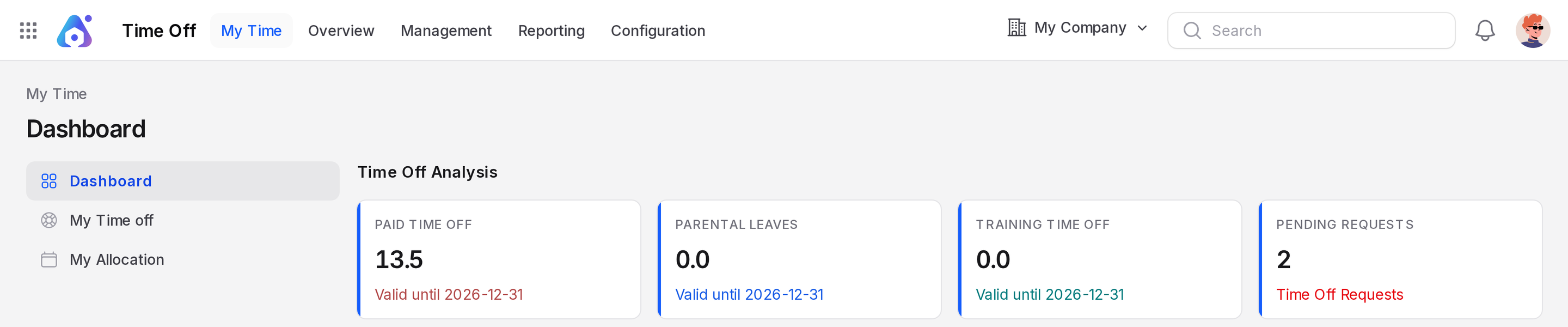
Behind the scenes: Aureus adds up the approved allocations of the type. Then it subtracts the days of every request that is not refused. See My Time.
Step 2: Request three days of Paid Time Off
- On the dashboard calendar, click the green New Time Off button. A window titled Create Leave opens.
- Fill in the form.
- Time Off Type: Required. Choose Paid Time Off.
- Request Date From: Required. Pick Monday, 19 October 2026.
- To Date: Required. Pick Wednesday, 21 October 2026.
- Description: Type
Family function.
The Duration line reads 3 working days.
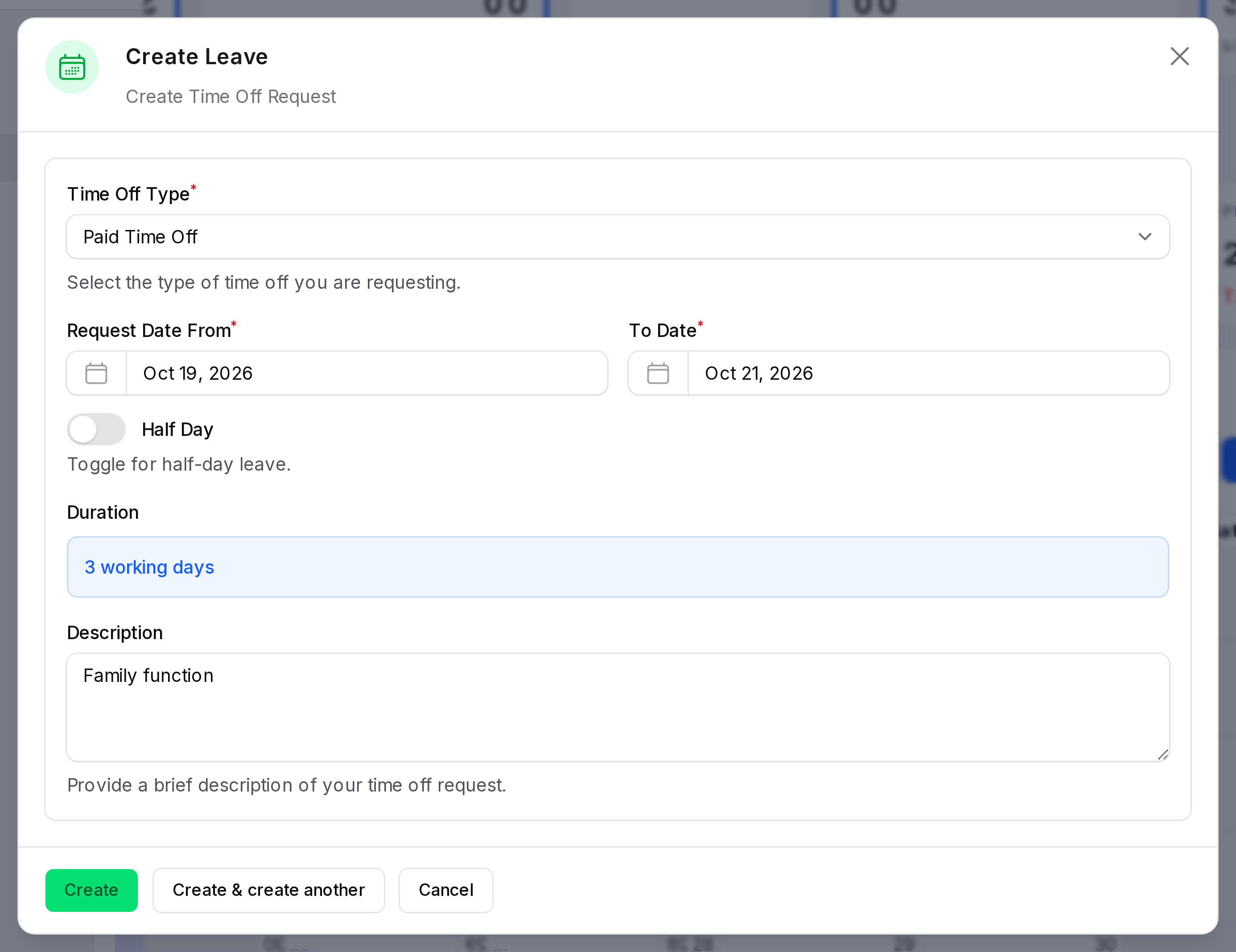
- Click Create. The request appears on the calendar as a bar from Monday to Wednesday.
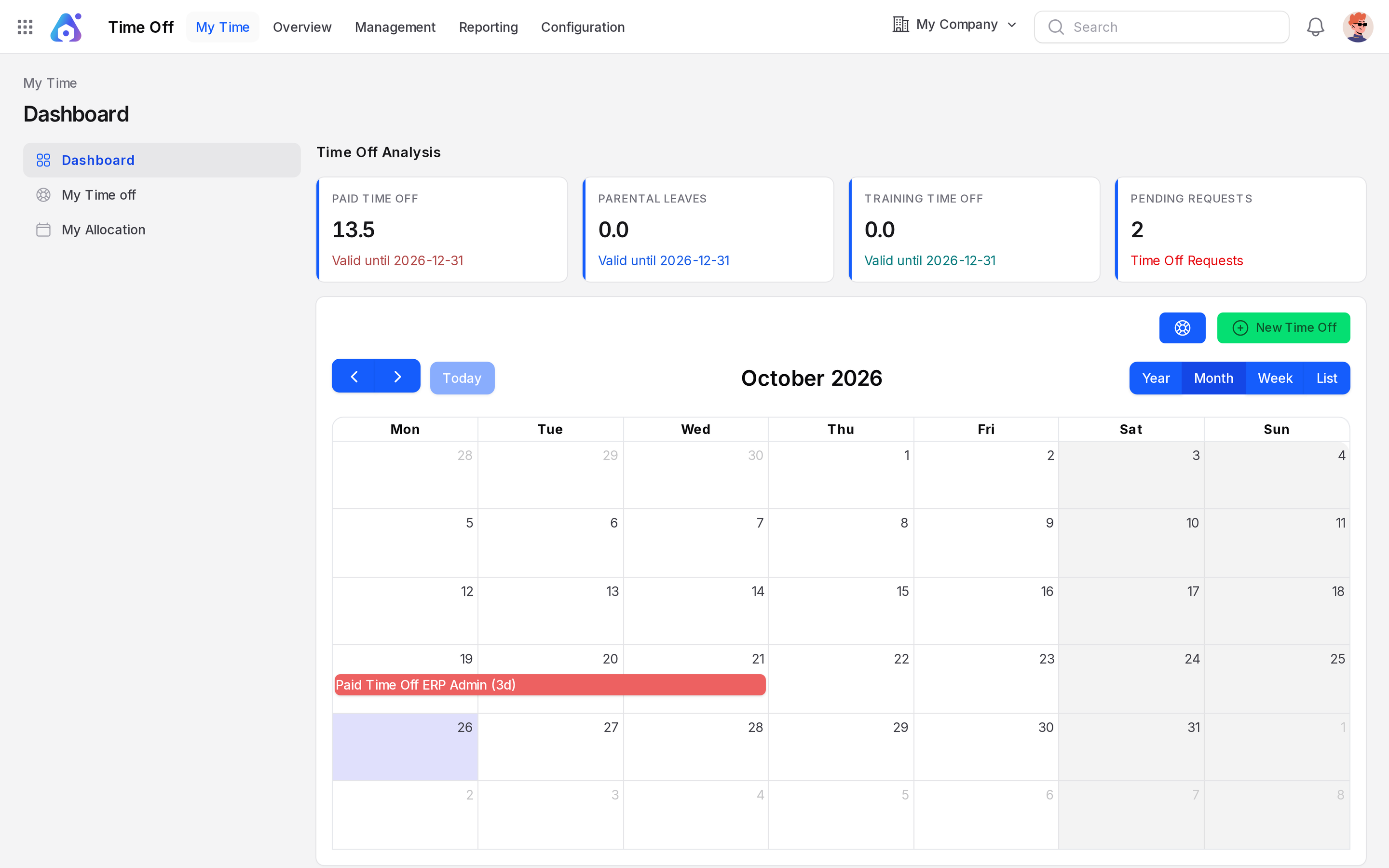
The bar title is the leave type, then the name of the logged in user, then the length. You are signed in as the user ERP Admin, whose employee is Sarah Mitchell. So the title reads Paid Time Off ERP Admin (3d).
- Open
Time Off → My Time → Dashboardagain. The Paid Time Off card already shows17.0and Pending Requests shows1.
Behind the scenes: Aureus counts weekdays only. It also checks that the dates do not overlap another request. The saved request has the status To Approve. See Request time off.
Step 3: Approve the request
- Open
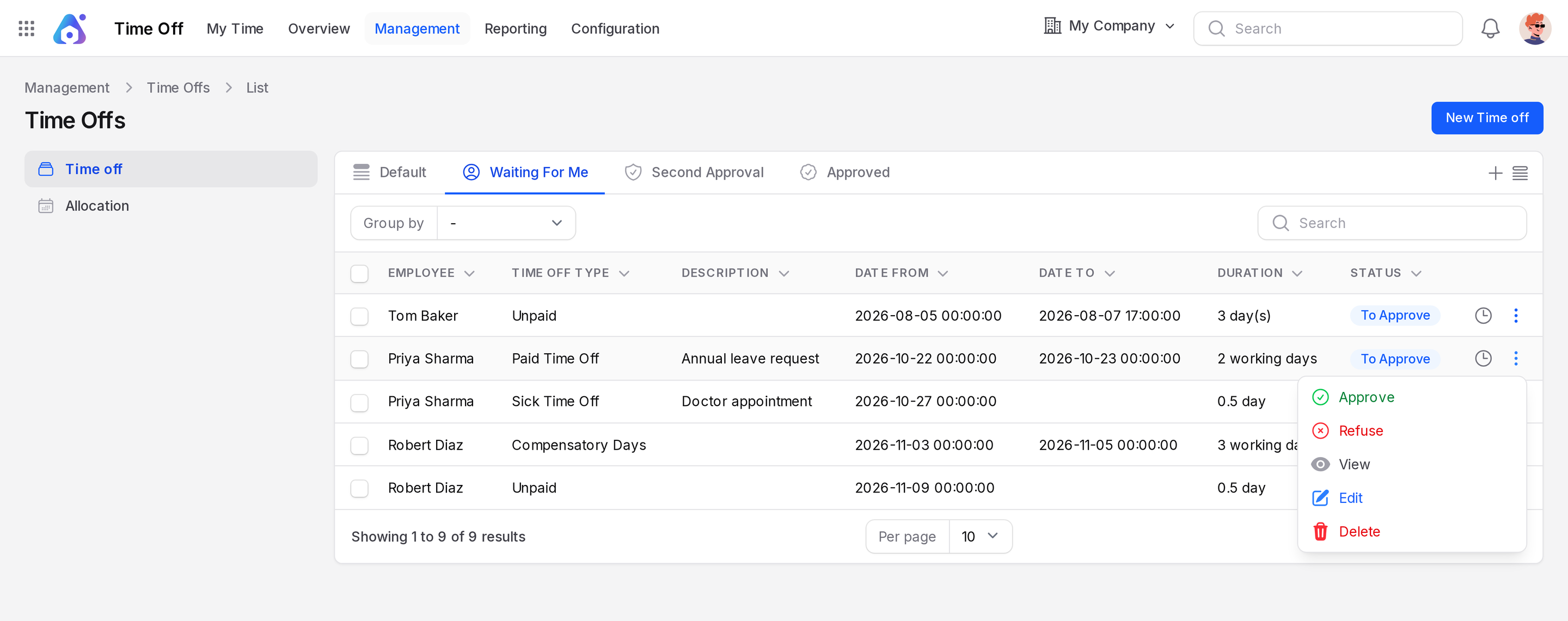
Time Off → Management → Time off. - Find the row of Sarah Mitchell. Click the three-dot icon at the end of the row.
- Click Approve. The status badge changes to Approved. A Time Off approved message appears.
TIP
The list opens on the tab Waiting For Me. Click Default to see every request.
Step 4: Check the balance again
- Open
Time Off → My Time → Dashboard. - The Paid Time Off card still shows
17.0. Pending Requests is back to0.
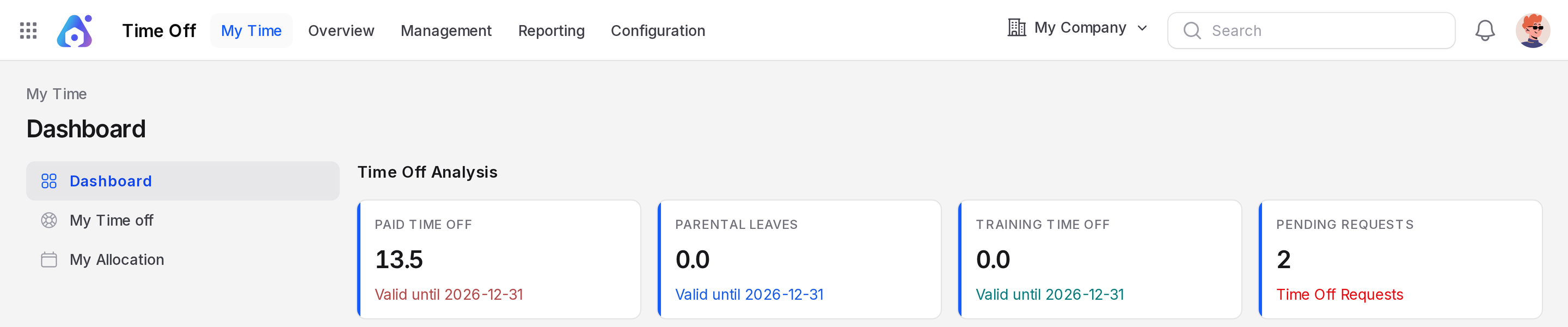
Behind the scenes: A pending request already lowers the balance. An approval keeps it lowered. A refusal gives the days back.
Step 5: A request from Priya without days
Priya has no Paid Time Off allocation yet. Try to book two days for her.
- Open
Time Off → Management → Time off. - Click New Time off. The page is titled Create Time Off.
- Fill in the form.
- Employee Name: Required. Choose Priya Sharma. Department Name fills in by itself.
- Time Off Type: Required. Choose Paid Time Off.
- Request Date From: Pick 22 October 2026.
- To Date: Pick 23 October 2026.
- Description: Type
Annual leave request.
- Click Create. A Leave Request Denied message appears:
You do not have any allocated leave for Paid Time Off.Nothing is saved and the form stays open.
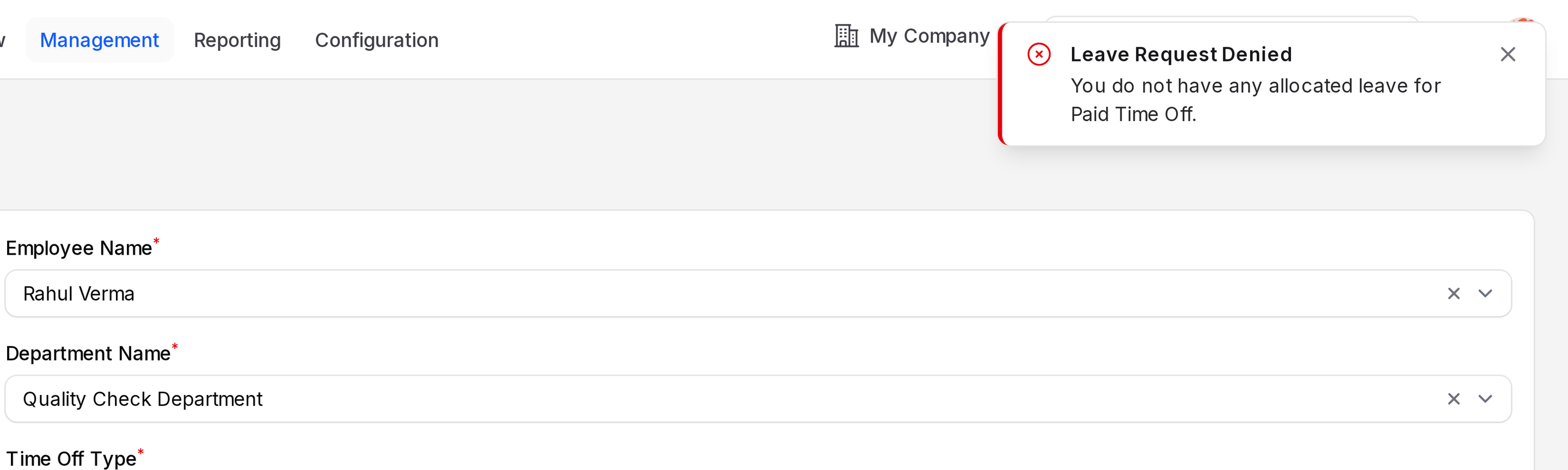
Behind the scenes: A type with Requires Allocation: Yes needs approved days first. See Leave types.
Step 6: Allocate days to Priya
- Open
Time Off → Management → Allocation. - Click New Allocation.
- Fill in the form.
- Name: Type
Paid Time Off 2026. - Time Off Type: Choose Paid Time Off.
- Employee Name: Choose Priya Sharma.
- Allocation Type: Keep Regular. It means a fixed number of days.
- Date From: Pick 1 October 2026. Leave Date To empty. It shows No Limit.
- Allocation: Type
12. - Reason: Type
Annual leave 2026.
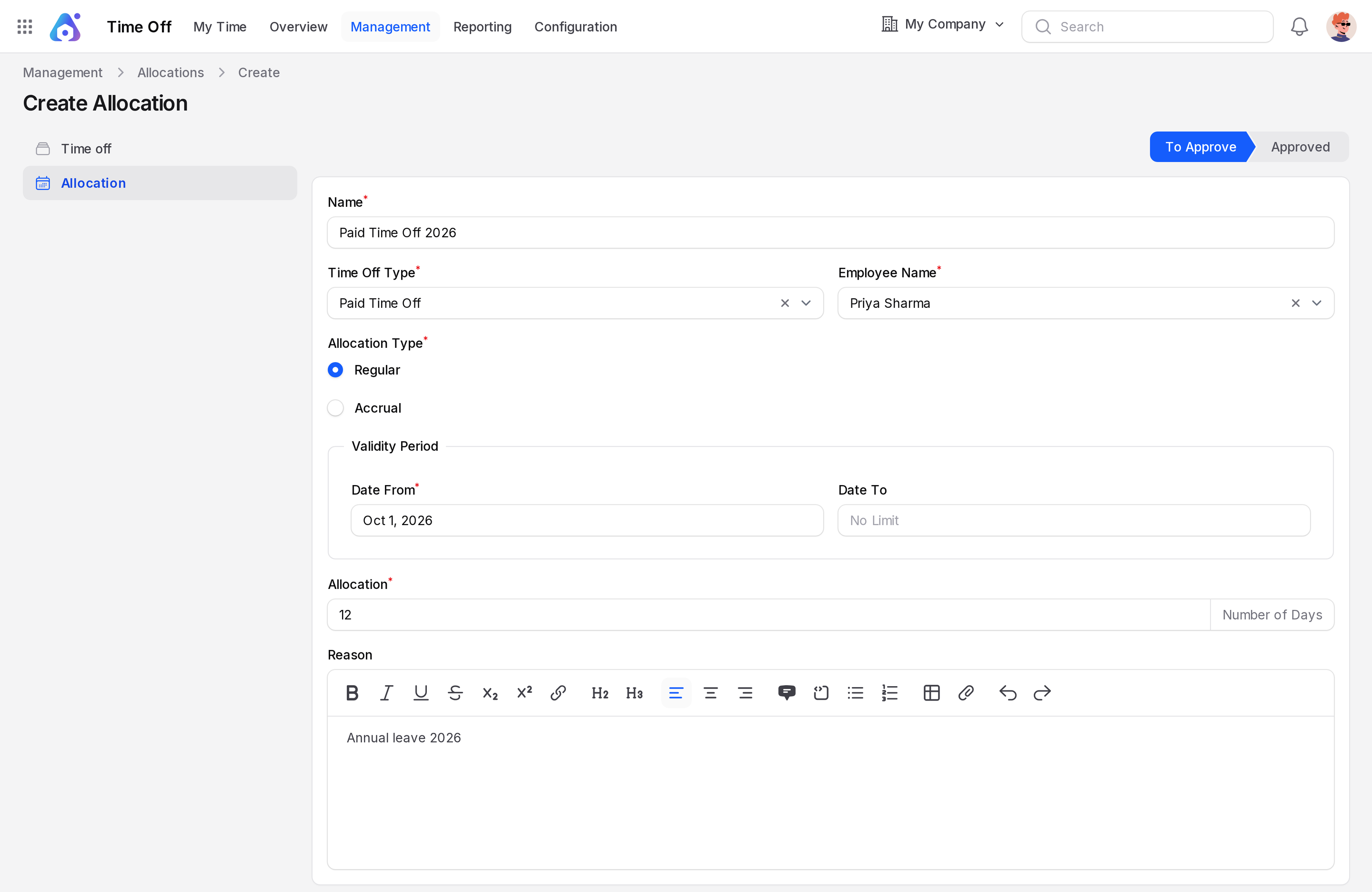
- Click Create. A Time Off created message appears. The app opens the allocation page with the state To Approve.
- Open
Time Off → Management → Allocationand click Default. On the row of Priya, click the three-dot icon and click Approve.
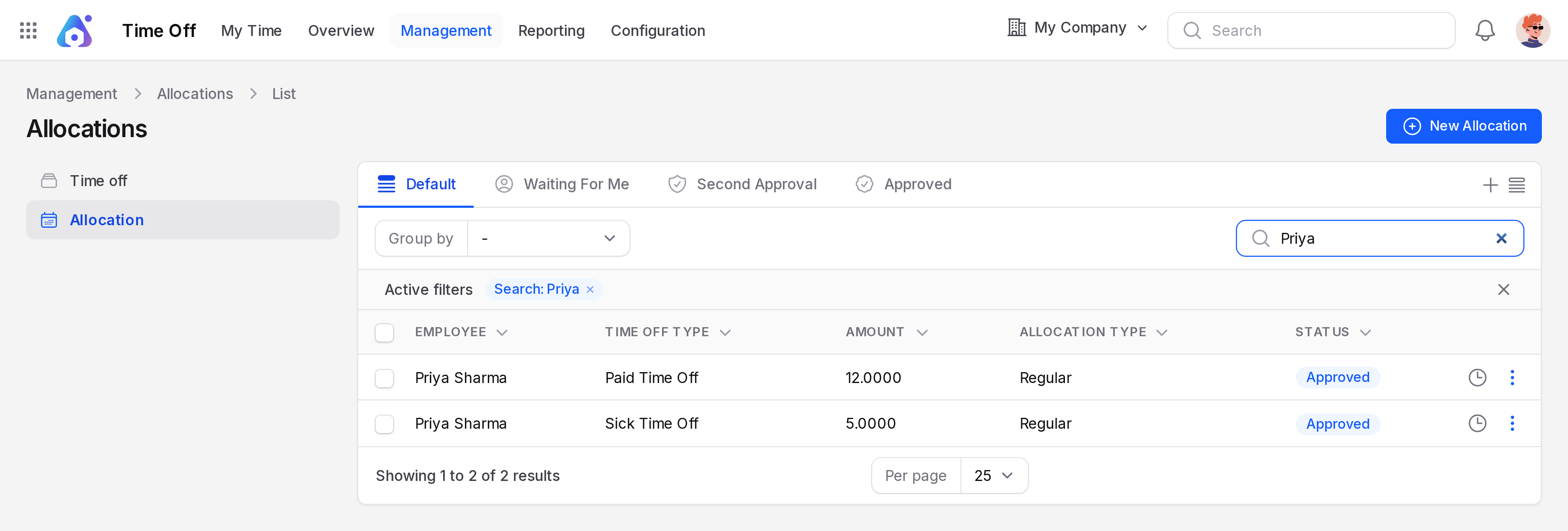
Behind the scenes: Only approved allocations add to a balance. See Manage allocations.
Step 7: Request again and get accepted
- Repeat Step 5 with the same values.
- Click Create. The request is saved with the status To Approve. A Time Off created message appears.
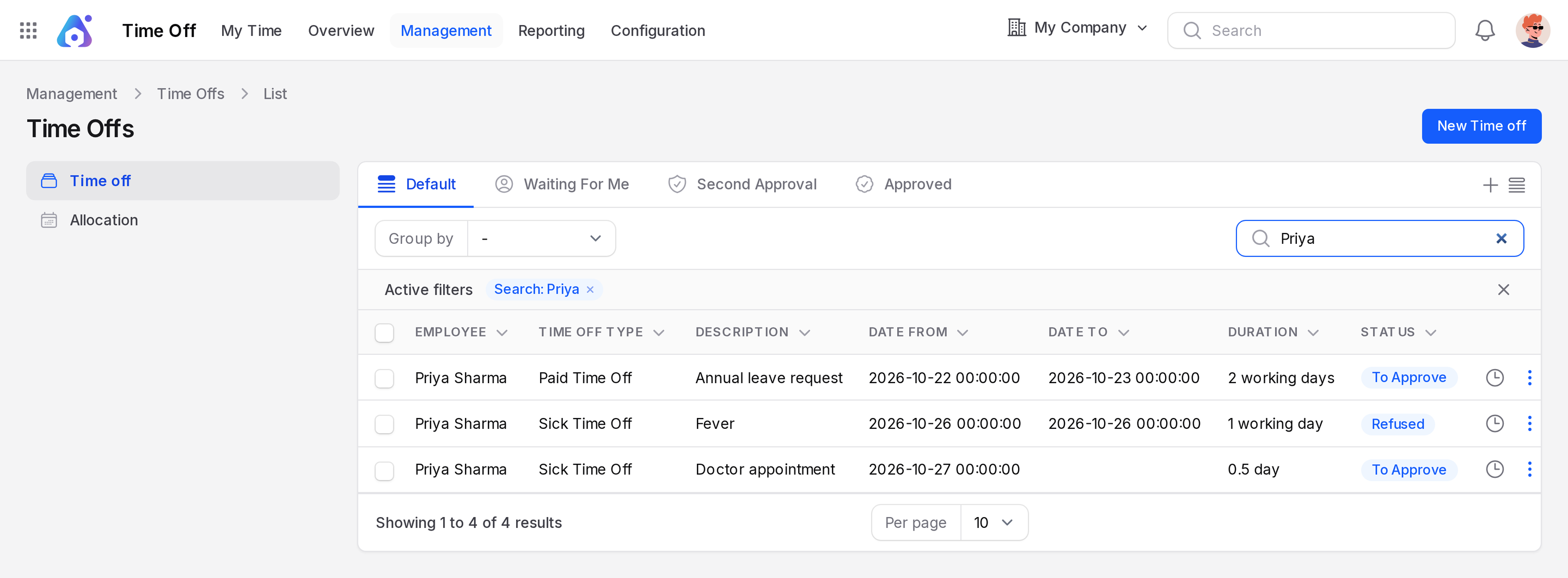
Step 8: Allocate Sick Time Off
Sick Time Off also needs an allocation before Aureus accepts a request. Without one, you see You do not have any allocated leave for Sick Time Off.
Create a Sick Time Off allocation for Priya as in Step 6. Type 5 in Allocation and approve it.
Step 9: Refuse a Sick Time Off request
- Open
Time Off → Management → Time offand click New Time off. Choose Priya Sharma and Sick Time Off. - Pick 26 October 2026 for both dates. Type
Feverin Description. Click Create. Duration reads1 working day. - Click the three-dot icon on its row and click Refuse. A Time Off refused message appears. The badge shows Refused.
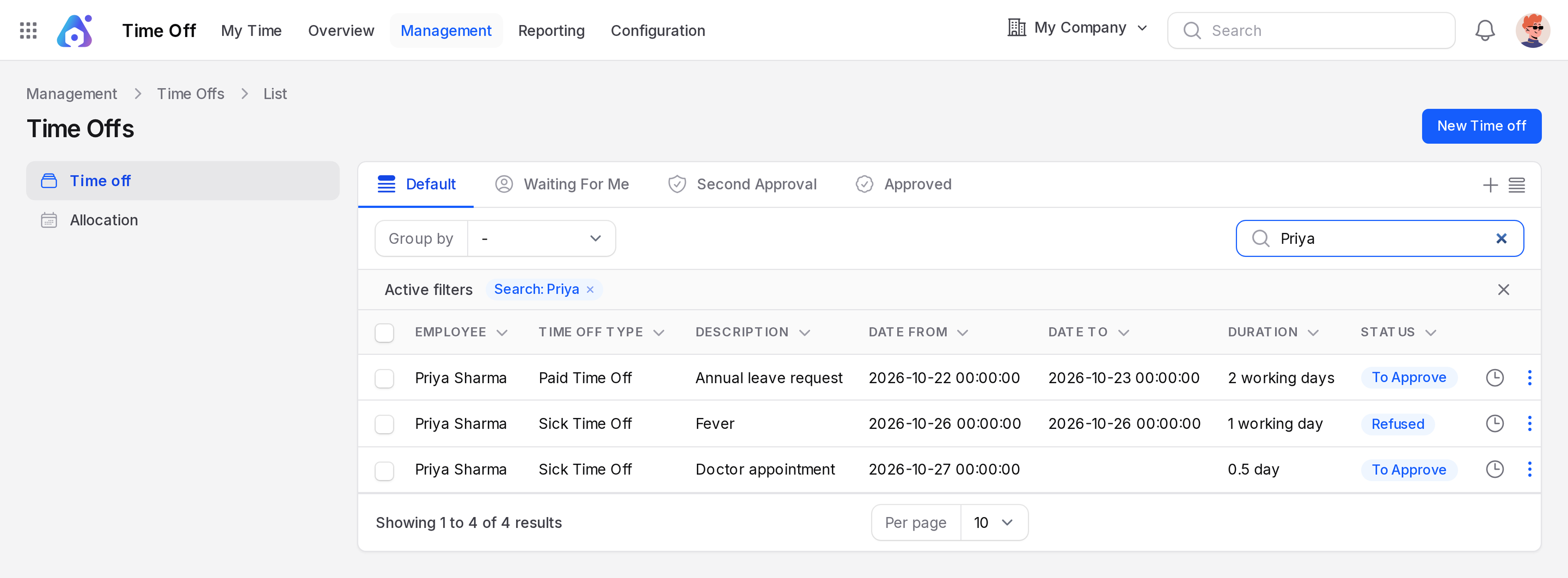
Step 10: Book a half day
- Open
Time Off → Management → Time offand click New Time off. - Choose Priya Sharma. Department Name shows Operations. Choose Sick Time Off.
- Pick 27 October 2026. Turn on Half Day. The To Date field hides and Period appears with Morning already chosen.
- Duration reads
0.5 day. TypeDoctor appointmentin Description.
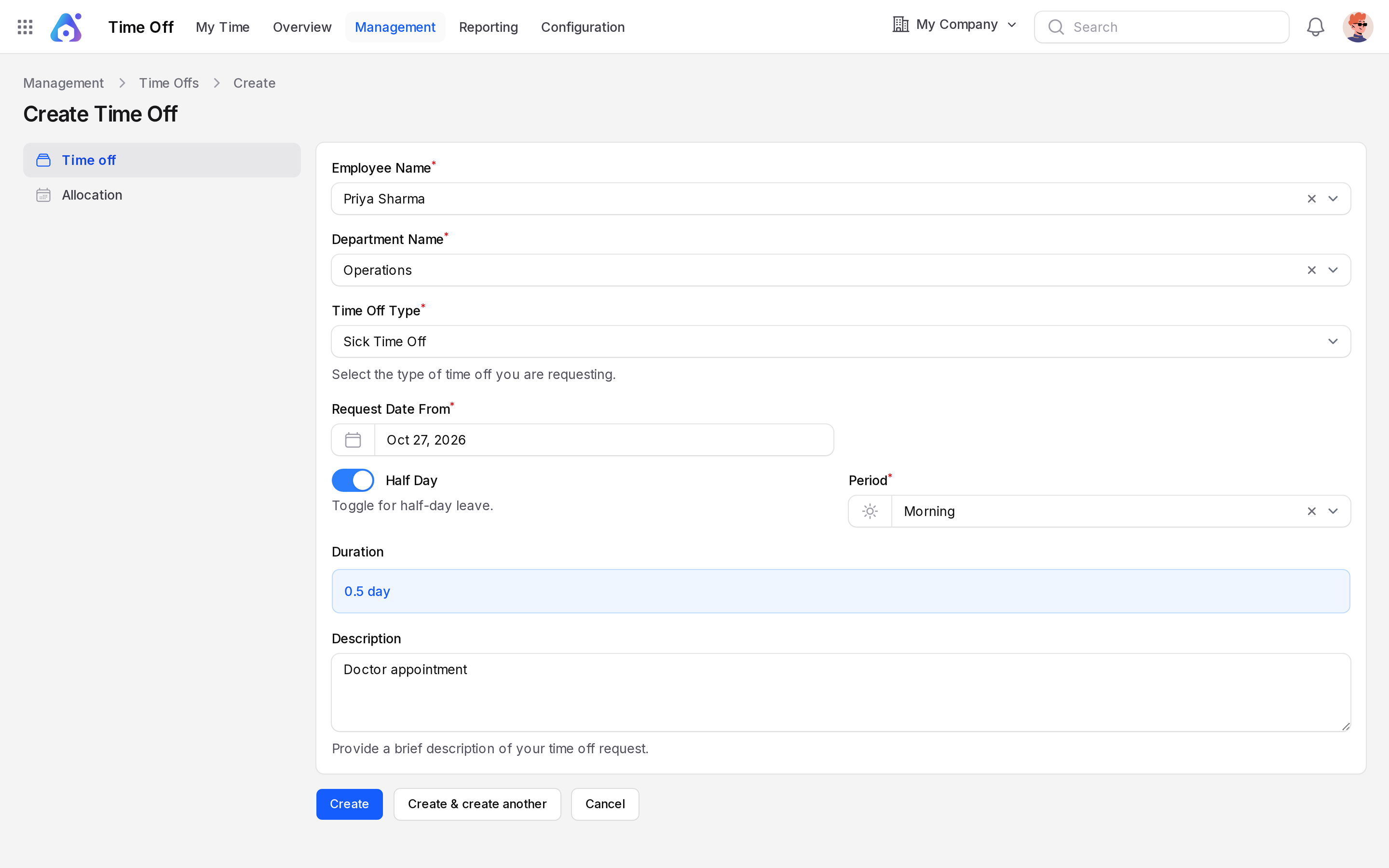
- Click Create. In the list, the Date To cell of a half day is empty.
Step 11: See the calendar
- Open
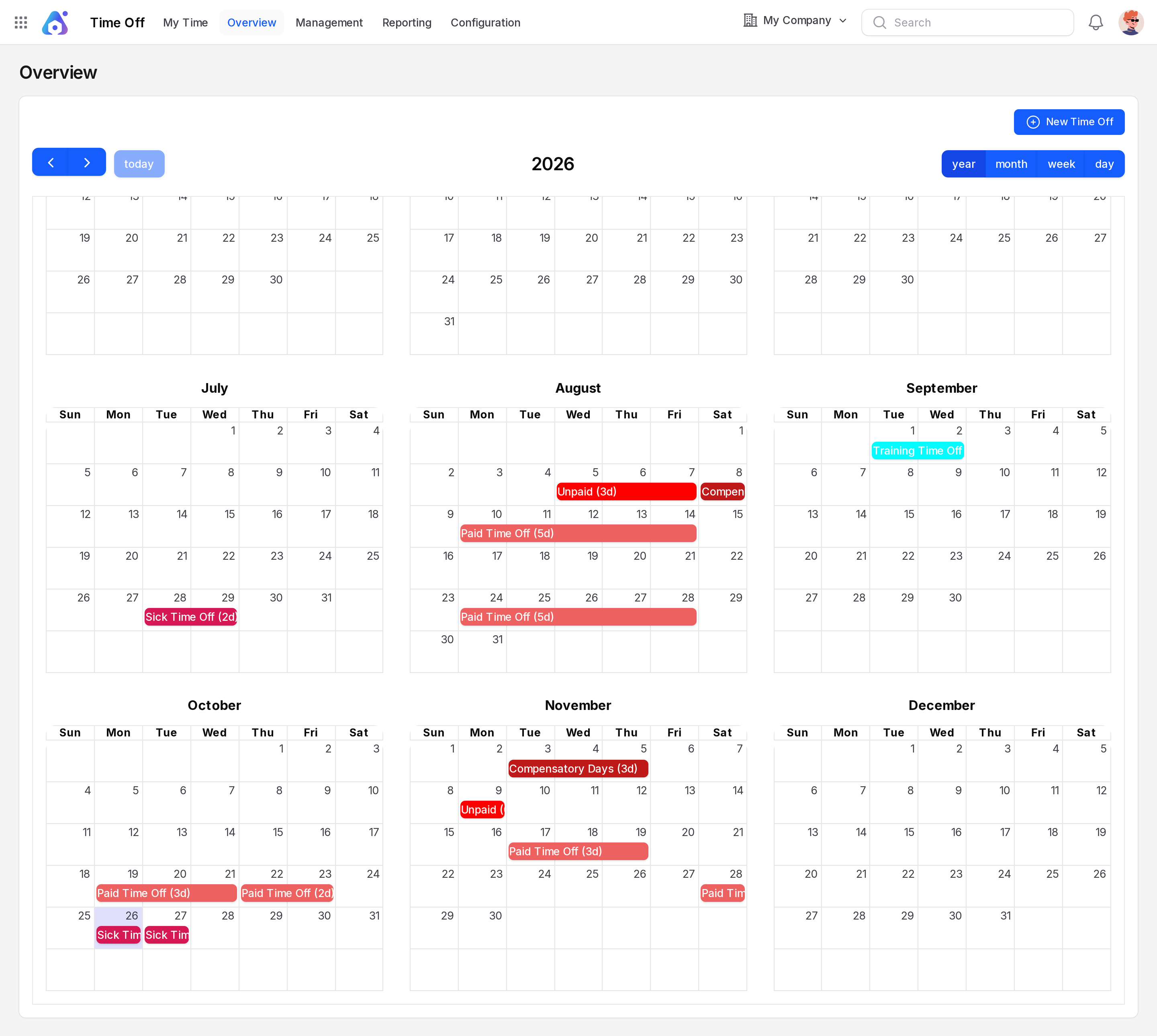
Time Off → Overview. A calendar of the whole year opens. - Find the coloured bars. Each bar is a request, coloured by leave type.
- Click a bar to view it.