

Refuse reasons
A refuse reason explains why you turned down an application. You pick one every time you refuse an applicant. Each reason is tied to an email template, so the applicant receives the right message when you choose to notify them.
In simple words: A refuse reason is the "why" behind a refusal, and it decides which email the applicant gets.
Open Recruitments → Configuration → Refuse Reasons.
Prerequisite
None. Seven reasons come with the sample data. Add your own only if you need them.
Overview
The list has the columns Name and Template. The Template column shows the template code, applicant-refuse or applicant-not-interested. You can search by name, drag rows to reorder them, and open View, Edit or Delete on a row.
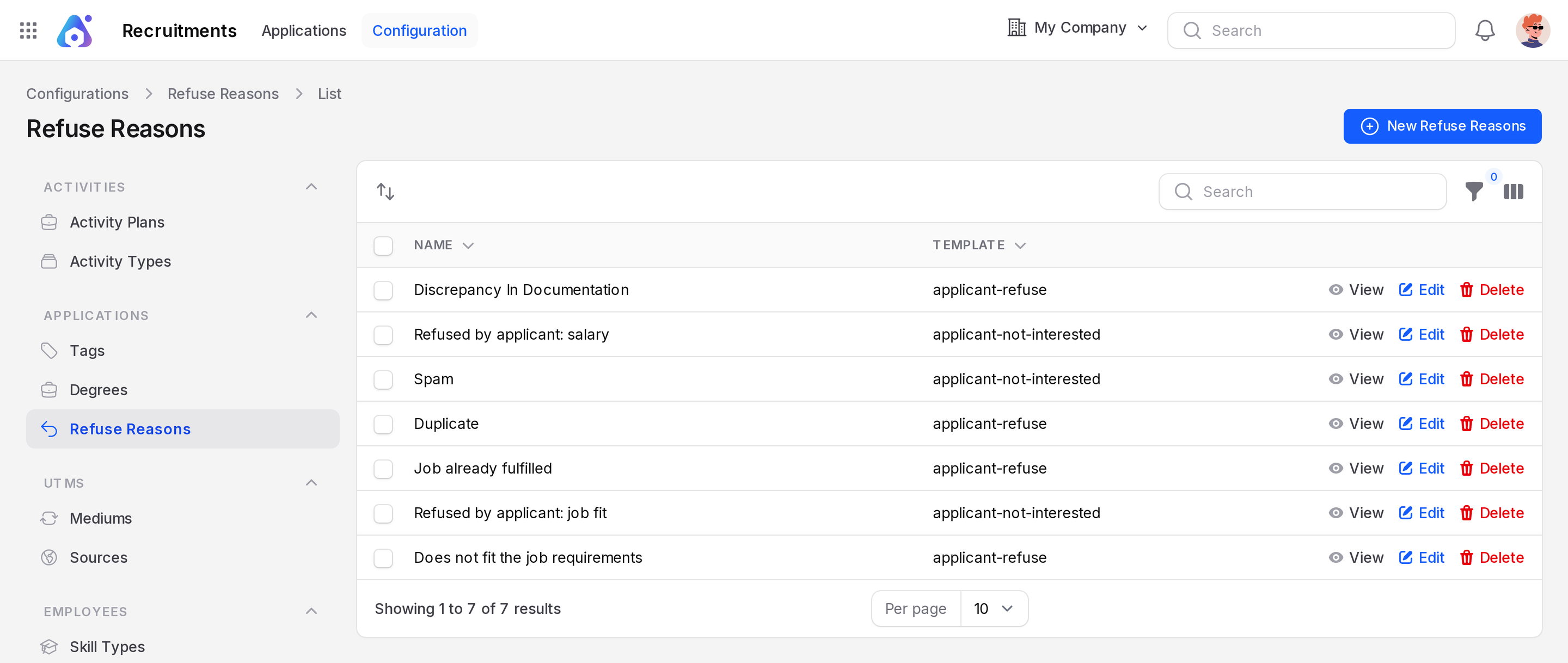
Create a refuse reason
This example adds Overqualified.
- Open
Recruitments → Configuration → Refuse Reasons. - Click New Refuse Reasons. A Create Refuse Reasons window opens.
- Type Overqualified in Name.
- Choose Applicant Refuse in Template.
- Click Create. Use Create & create another to add more.
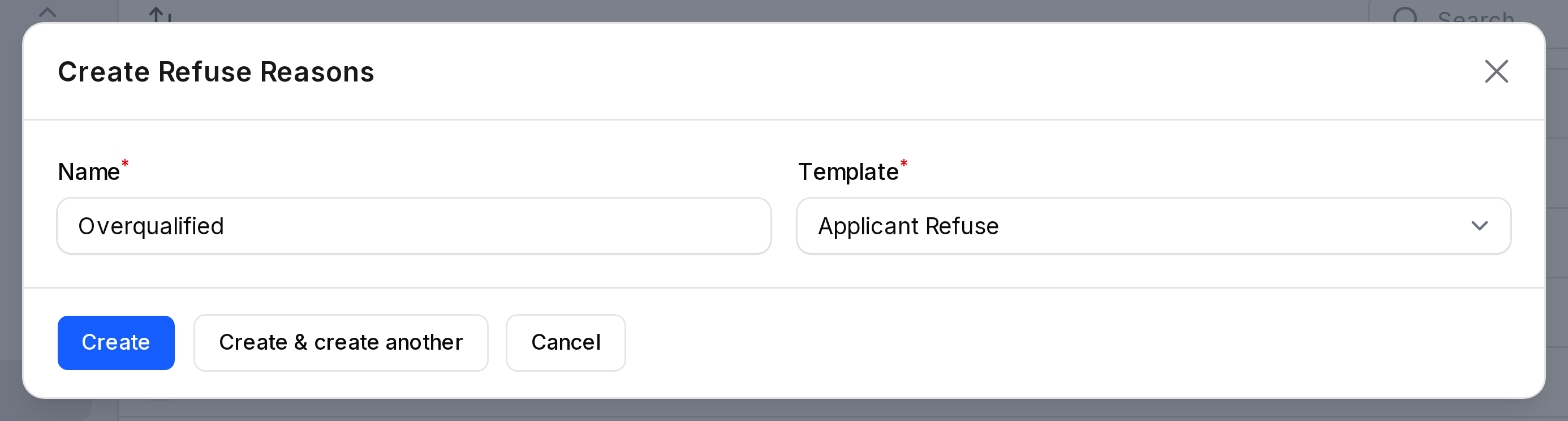
- Name: (required) the reason as your team will read it.
- Template: (required) the email that goes with the reason.
Which template to choose
- Applicant Refuse: use it when you turn the applicant down. The email says the profile is competitive but was not selected.
- Applicant Not Interested: use it when the applicant withdrew. The email thanks the person, keeps the resume on record and promises to be in touch about future roles.
You cannot edit the email text. It is fixed per template.
Sample reasons
| Reason | Template |
|---|---|
| Does not fit the job requirements | Applicant Refuse |
| Job already fulfilled | Applicant Refuse |
| Duplicate | Applicant Refuse |
| Discrepancy In Documentation | Applicant Refuse |
| Refused by applicant: job fit | Applicant Not Interested |
| Refused by applicant: salary | Applicant Not Interested |
| Spam | Applicant Not Interested |
Behind the scenes
On the Refuse window, Notify is on by default after you pick a reason. Email To starts with the candidate's email. When you submit, the applicant is refused and the email of the reason's template is sent.