

Activity plans
An activity plan is a checklist of tasks that you start for an employee in one click. A new hire needs the same steps each time: set up a laptop, plan training, hold a session. A plan stores those steps once. Each step is an activity template with a type, a person and a due time.
In simple words: A plan is a saved to-do list that you launch for an employee.
Open Employees → Configurations → Activity Plans.
Prerequisite
Each template uses an Activity Type such as To-Do or Meeting. Activity types are managed in Settings → General → Manage Activities, under the Activity Types link. Aureus already includes Meeting, Exception, To-Do and Call. For how activities work, see Activities.
Overview
The list has two tabs: All and Archived. Columns are Name, Department, Manager, Company and Status.
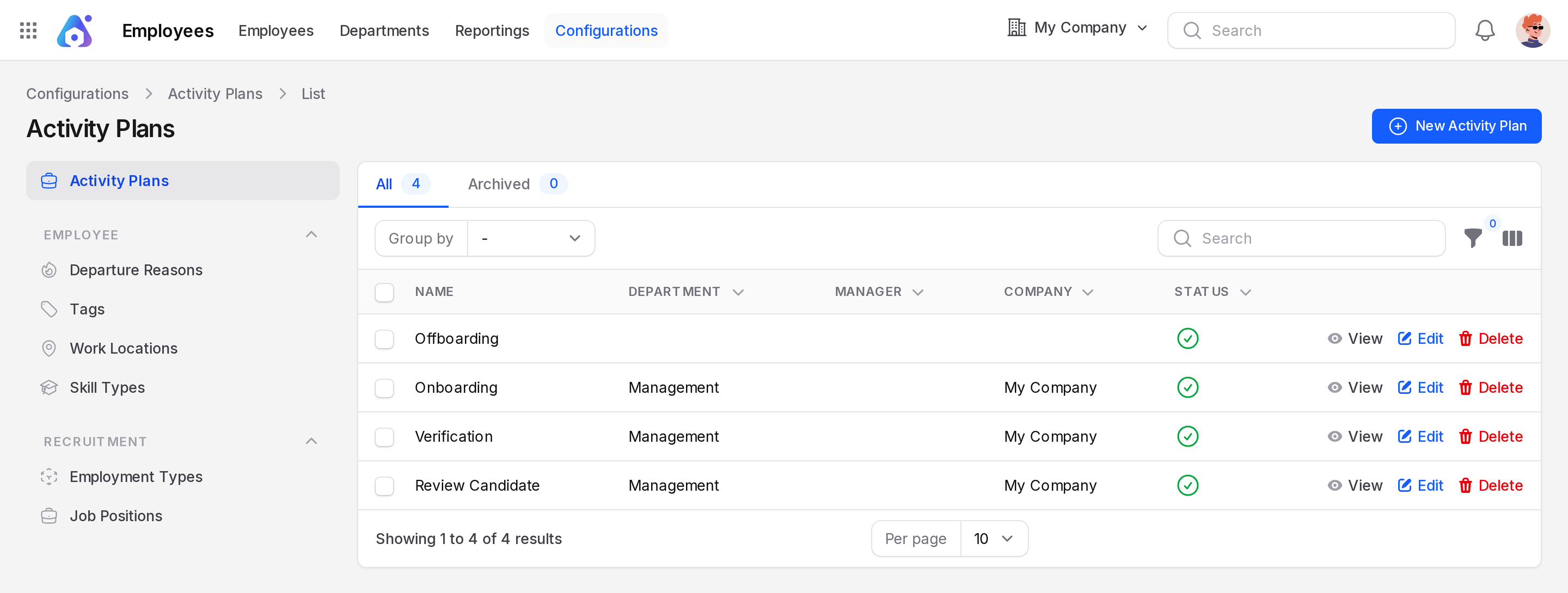
Aureus includes four plans: Offboarding, Onboarding, Verification and Review Candidate. Offboarding has no department or company. Group the list by Name, Created By, Status, Created At or Updated At. Filter by Status.
Create a plan
- Open
Employees → Configurations → Activity Plans. - Click New Activity Plan. A window opens.
- Fill in General Information.
- Name: Required. For example
Warehouse Onboarding. - Department: Optional. Link the plan to one department.
- Company: Fills with your company.
- Status: On means the plan can be launched.
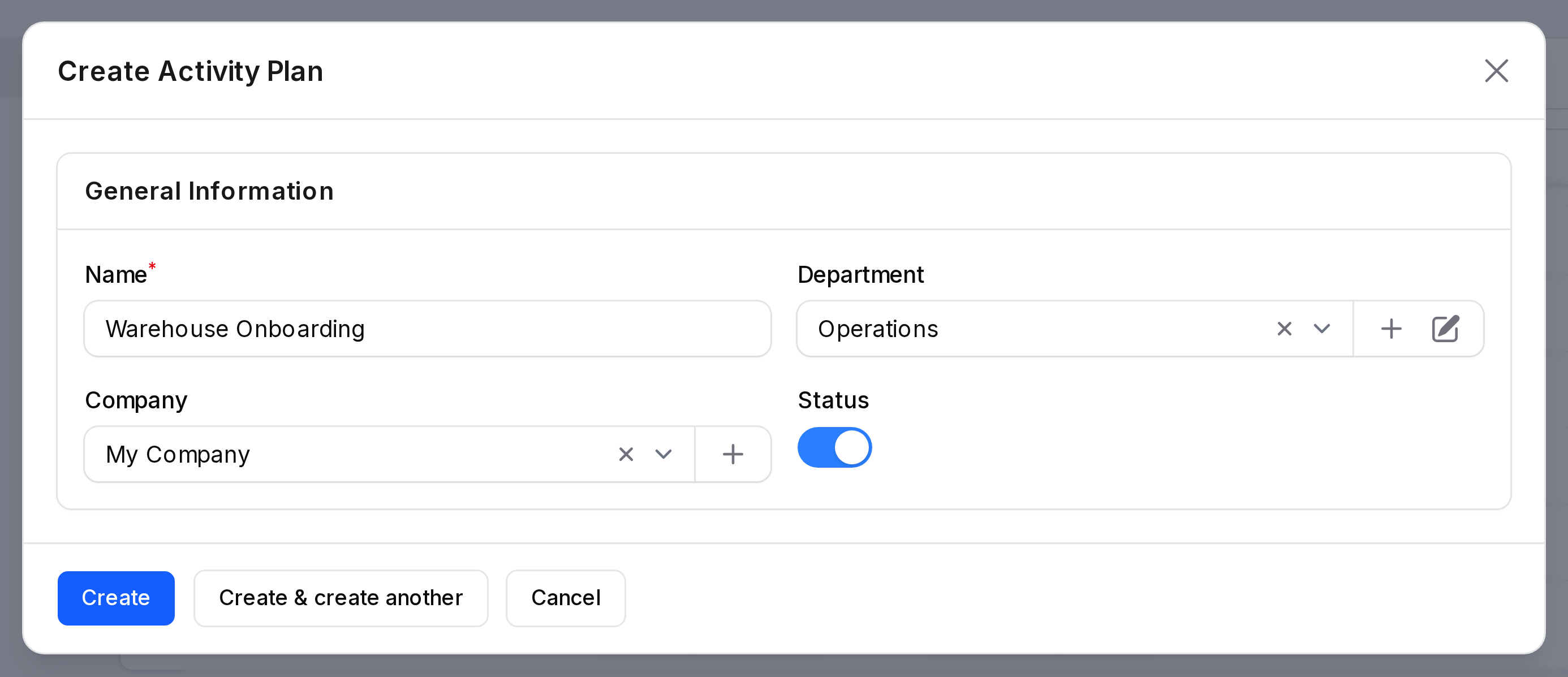
- Click Create.
Add activity templates
A plan does nothing until it has templates. The View page shows the templates table without a create button. Click Edit on the plan. Under the form, find Activity Plan Templates. Click New activity plan template. Activity Type starts as Meeting.
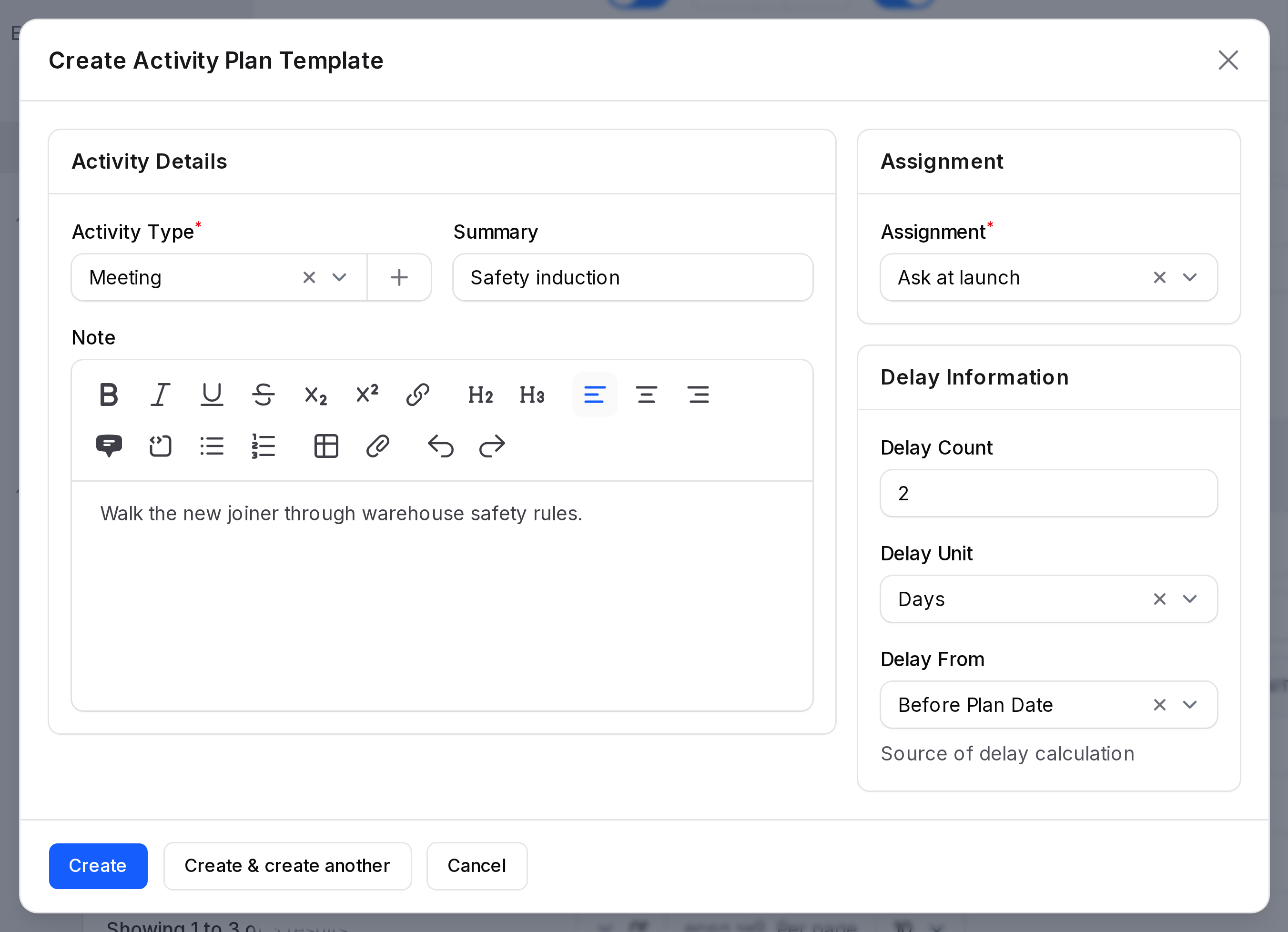
Activity Details
- Activity Type: Required. Pick To-Do, Meeting and so on.
- Summary: A short title for the task.
- Note: Longer instructions.
Assignment
- Assignment: Required. It decides who gets the task. The default is Ask at launch. Other options are Other, Coach, Manager and Employee.
- Assignee: Appears only when Assignment is Other. Pick a user.
Delay Information
- Delay Count: A number, 0 by default.
- Delay Unit: Minutes, Hours, Days or Weeks. Days by default.
- Delay From: Before Plan Date or After Plan Date.
Click Create to save the template.
Example: the Onboarding plan
The Onboarding plan belongs to the Management department. It has three templates. All use the To-Do type, are assigned to the Manager, and have a delay of 0 days before the plan date.
| Summary | Type | Assignment |
|---|---|---|
| Setup IT Materials | To-Do | Manager |
| Plan Training | To-Do | Manager |
| Training | To-Do | Manager |
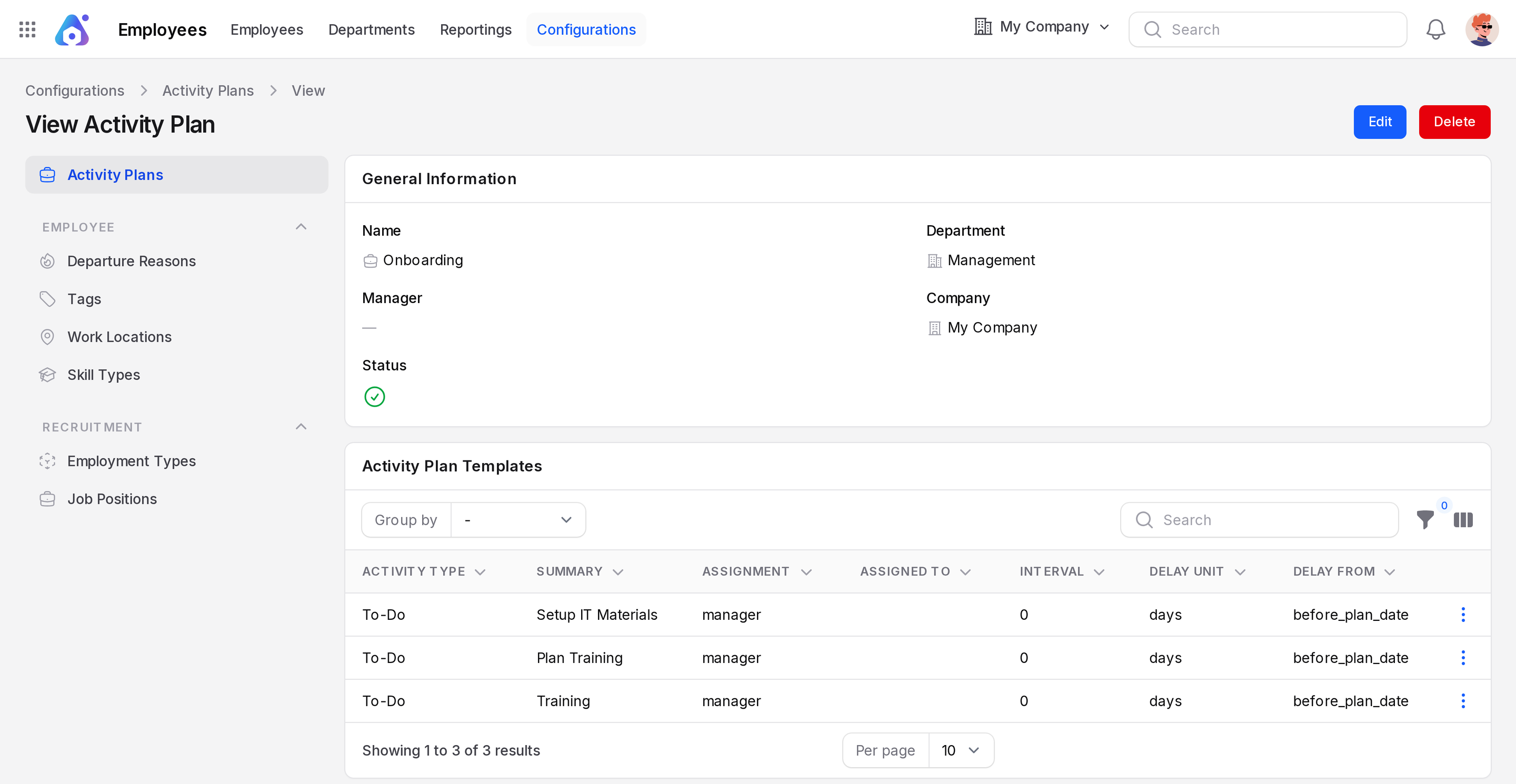
Click View on a plan to see these templates with their Assigned To, Interval, Delay Unit and Delay From. The table shows raw values such as Assignment manager, days and before_plan_date. Assigned To is blank.
Launch a plan for an employee
- Open the employee. See Employee profile.
- Click the blue Chatter icon button with the count badge in the page header. A side panel opens.
- Click Schedule Activity. A window opens.
- Choose the plan in Activity Plan.
- Check the other fields: Activity Type (required), Due Date, Summary, Assigned To (required) and Body.
- Click Schedule, or Cancel to leave.
TIP
Create one plan per situation, such as onboarding and leaving. Keep each plan short.
Edit, archive and restore
Click Edit to change a plan or its templates. Click Delete to archive it. Use Restore on the Archived tab to bring it back.