

Schedule activities
An activity is a planned task, such as a call or a meeting. You attach it to a lead or an opportunity, so nothing is forgotten. The My Activities page lists everything that is due, and lets you clear it quickly.
In simple words: An activity is a reminder to do something for a deal, like a phone call. It has a type, a date and an owner.
For how activities work across Aureus, see Activities. This page covers the CRM screens.
Schedule an activity
Example: you plan a demo for Annual ERP licence - Sharma Textiles.
There are four places to start.
- The Schedule Activity button on the Activities tab of an opportunity or lead.
- The clock icon on a Kanban card or list row.
- The Schedule Activity button on
CRM → Sales → My Activities. - The + button on a column of the activity board.
- Open the opportunity and click its Activities tab.
- Click Schedule Activity.
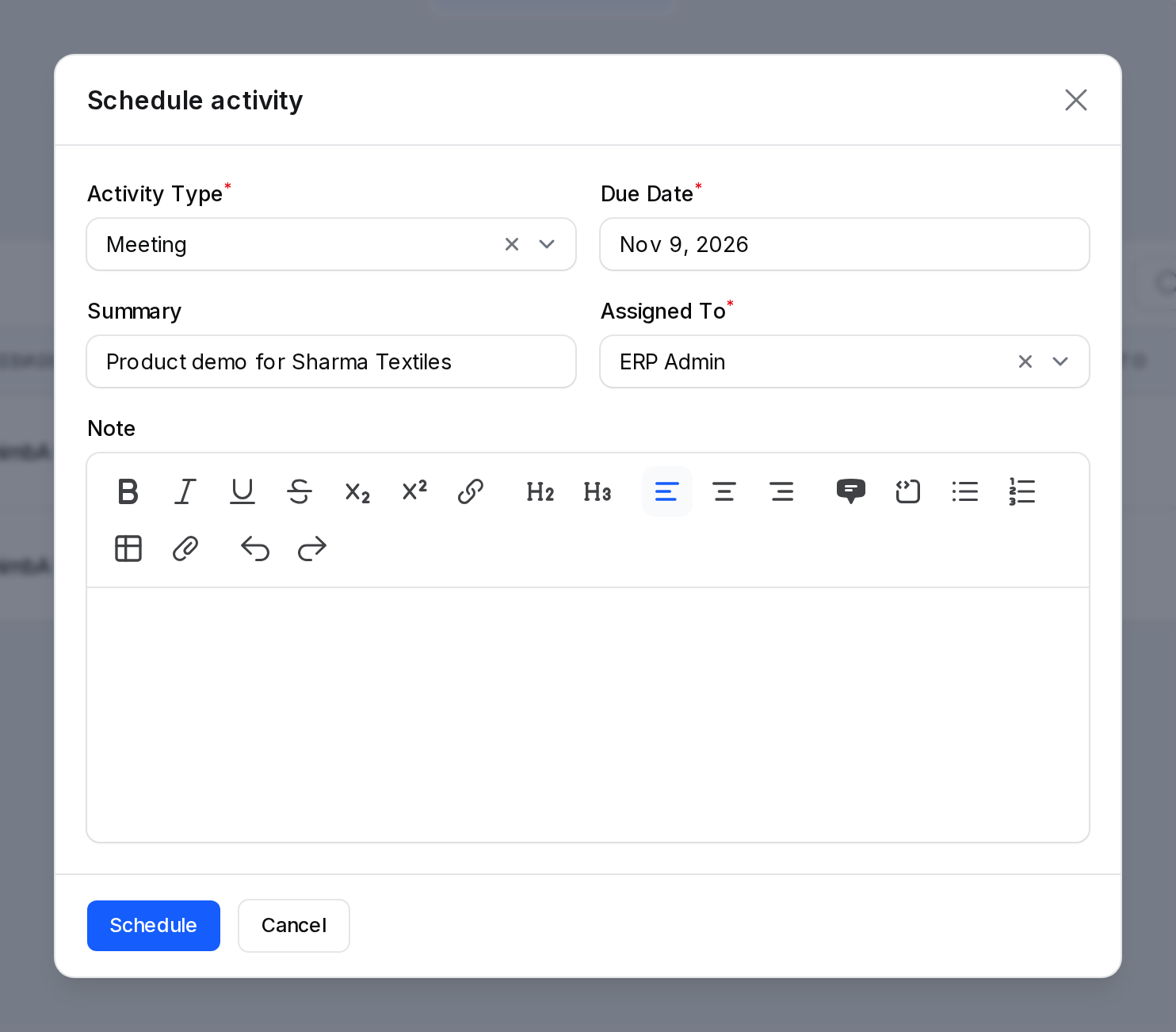
- Fill in the dialog Schedule activity.
- Opportunity: The deal the task belongs to. Required. It shows when you click Schedule Activity on My Activities. It is hidden when you schedule from the Activities tab of a deal.
- Activity Type: The kind of task, such as a call or a meeting. Required. Choosing a type fills the due date, summary and assignee from the type.
- Due Date: The day the task is due. Required. The type sets a default date.
- Summary: A short title, up to 255 characters.
- Assigned To: The user who does the task. Required. The default is the type default user, or you.
- Note: More detail in a text editor.
Example: Opportunity Annual ERP licence - Sharma Textiles, Activity Type Meeting, Due Date next Monday, Summary Product demo for Sharma Textiles, Assigned To ERP Admin.
- Click Schedule. A notification Activity scheduled appears.
INFO
You need permission to edit the deal. Without it, a notification Not allowed appears.
Plans and types are set up in CRM → Configuration → Activity Types and Activity Plans. For plans, see Activities.
TIP
Write a clear Summary. You then know the purpose at a glance.
Activities on one deal
The Activities tab of an opportunity shows its tasks, with a count badge. It has the same columns as below, without the deal and customer. With no tasks it says No planned activities.
On a Kanban card, the clock button opens the same list. Its colour tells the state: red for overdue, orange for today, green for planned, grey for none.
My Activities
Go to CRM → Sales → My Activities.
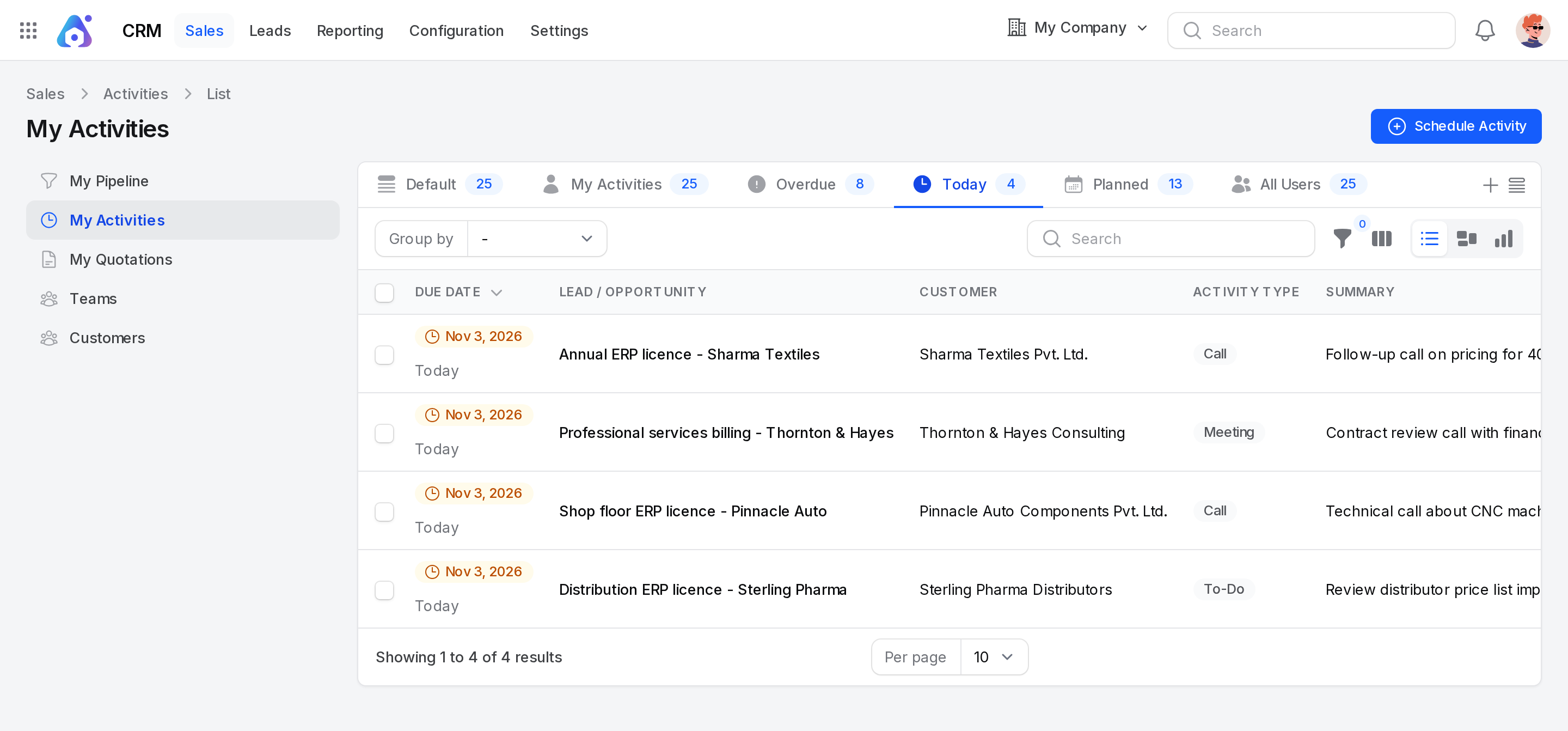
The page has List, Kanban and Graph layouts. The title is Activities.
Views
| Tab | What it shows |
|---|---|
| My Activities | Activities assigned to you. This is the default. |
| Overdue | Your activities past their due date. |
| Today | Your activities due today. |
| Planned | Your activities due later. |
| All Users | Activities for everyone. |
Columns
- Due Date: a badge with the date and a status line: Overdue, Today or Planned.
- Lead / Opportunity: the deal. Click it to open the deal.
- Customer: the customer of the deal. You can hide it.
- Activity Type: the kind of task.
- Summary: the title, cut at 50 characters.
- Assigned To: who does it.
- Hidden by default: Stage and Created At.
Search, filter, group and export
- Search. Type to match the deal name or the summary.
- Filter. Use Due (Overdue, Today, Planned), or build rules on Activity Type, Assigned To, Summary, Due Date and Created At.
- Group by. Activity Type, Assigned To or Due Date.
- Export. Select rows and choose Export.
Kanban
Each column is an activity type. Each card shows the summary, the deal, the customer, the due label, a done button and the assignee. A column header shows the overdue count. Drag a card to another column to change its type.
Row actions
| Action | What it does |
|---|---|
| Opens a dialog with To, Subject and Message, then sends the email to the contact of the deal. Shown only when the deal has an email address. | |
| SMS | Opens a dialog with Recipient and Message, then sends a text. |
| Snooze 7d | Moves the due date seven days ahead. It counts from today, or from the current date when that is still ahead. A notification shows the new date. |
| Mark as Done (check icon) | Asks for optional Feedback, then clears the task and logs it on the deal. A notification Activity done appears. |
| Open Record | Opens the deal. In the row menu. |
| Reschedule | Changes Due Date, Summary and Assigned To. In the row menu. |
| Cancel Activity | Removes the task. In the row menu. |
Bulk actions are Mark as Done, Cancel Activities and Export.
Behind the scenes
- Due status. The status is computed from the due date and today. It changes by itself each day.
- Done. A done task moves from the list to the history of the deal, with your feedback.
- Board indicator. The activity bar on the pipeline columns counts the state of each deal. See Manage opportunities.