

Recruitment dashboard
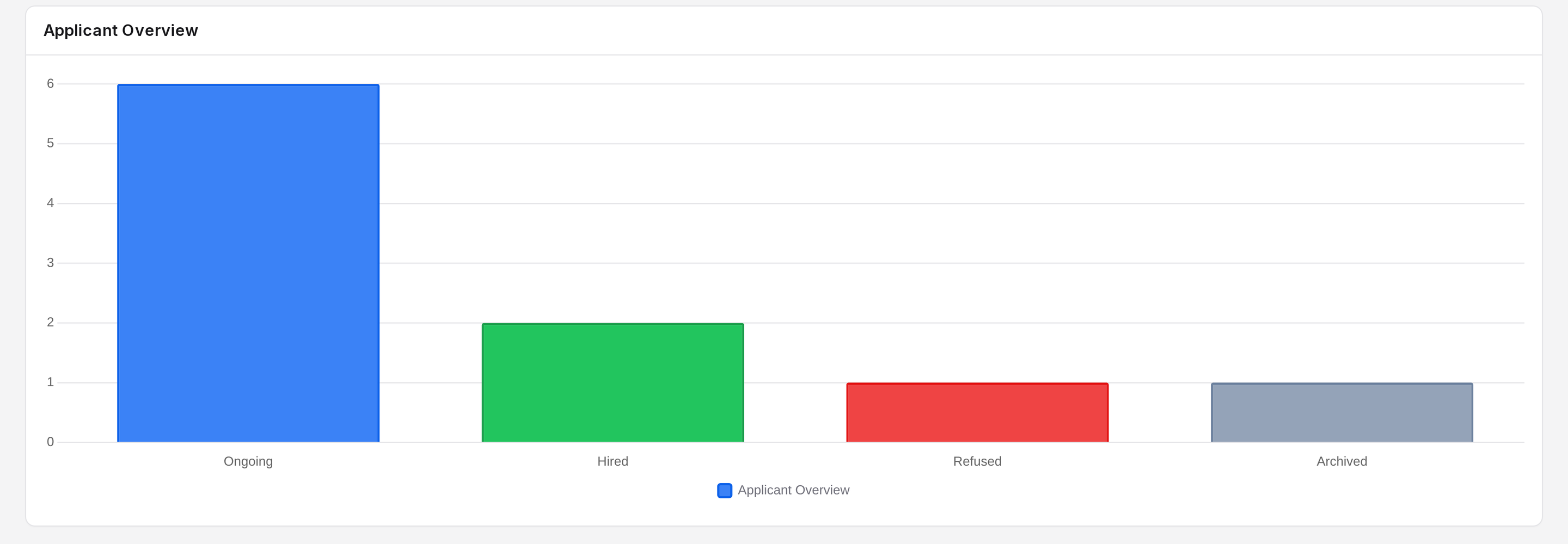
The dashboard gives you a quick count of your hiring. It shows active job positions, applications received and people hired. A chart splits applicants by status. A filter bar sits above the cards.
In simple words: The dashboard shows your hiring numbers at a glance.
Open Dashboard → Recruitment in the main menu. The page title is Dashboard.
Prerequisite
The numbers come from applicants. Add some first. See Add an applicant.
Filters
The filter bar sits at the top. It has six fields. All start empty, except Status and Date Range.
- Job Position: a list of your active positions.
- Departments: a list of departments.
- Companies: a list of companies.
- Stages: a list of recruitment stages.
- Status: choose All, Ongoing, Hired, Refused or Archived. The default is All. Archived means inactive applicants. Refused applicants are inactive too.
- Date Range: a period. It starts as the current calendar year.
Aureus remembers your Status choice during your session. Set it back to All when you want the full picture.

Job Position Overview cards
Three cards sit under the title Job Position Overview. Each card also shows a percentage line with an arrow. It compares the number with the period before.
- Active Job Applications: the number of active job positions created in the date range.
- Total Applications: the number of applicants created in the date range.
- Hired Candidates: the number of applicants who reached a hired stage and have a Hired Date.

Applicant Overview chart
The bar chart has one bar for each status: Ongoing, Hired, Refused and Archived. A taller bar means more applicants in that status. The legend reads Applicant Overview.
TIP
The dashboard is for reading. To act on an applicant, open the Applicant list.