

Print documents
From any transfer you can print the papers that go with the goods: a picking list, a delivery slip, package labels and product labels. All of them sit in one Print menu.
In simple words: Click Print, pick the paper you need, and Aureus makes a PDF.
Open a transfer and click Print in the header.
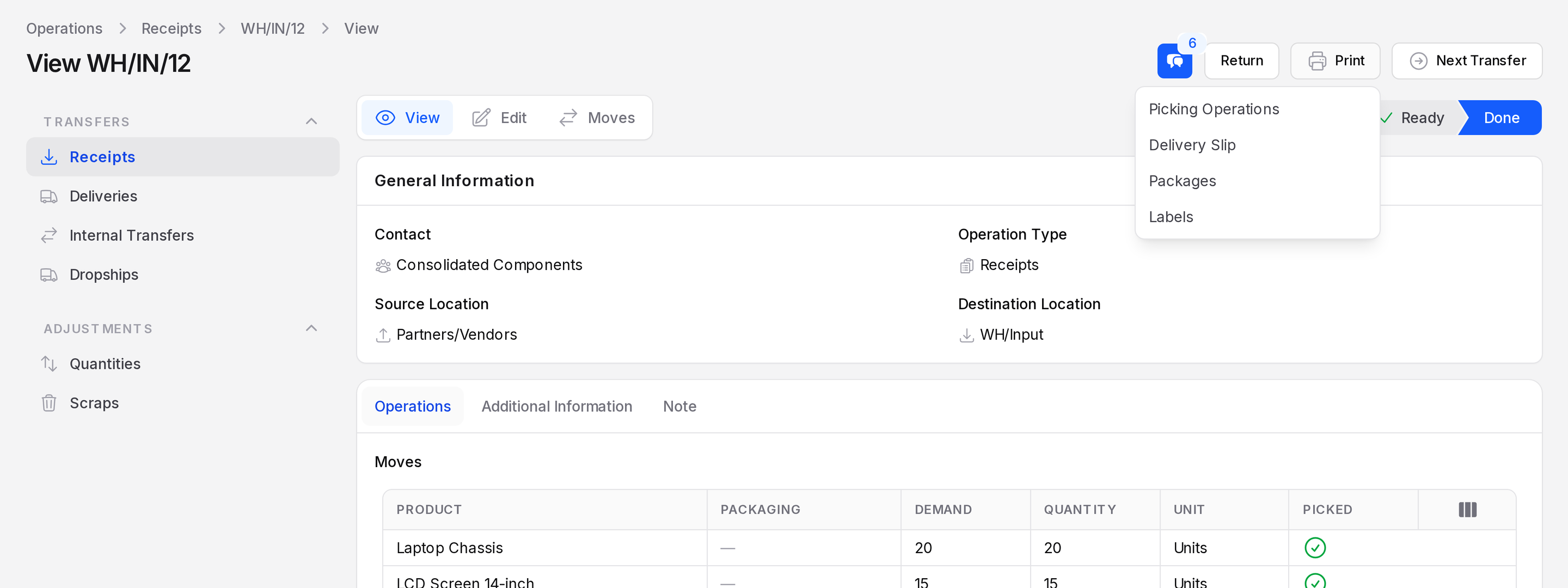
The print menu
| Option | Use |
|---|---|
| Picking Operations | A list for the person who collects the goods. |
| Delivery Slip | A paper that travels with the parcel. |
| Packages | A sheet for the packages in the transfer. |
| Labels | Labels for products or lots. Opens the Labels window. |
The menu has exactly these four options.
Display on Delivery Slips
To show lot and serial numbers on the delivery slip:
- Go to
Inventory → Settings → Manage Traceability. - Turn on Lots & Serial Numbers.
- Turn on Display on Delivery Slips.
- Click Save changes.
Print labels
- Click Print, then Labels. The window titled Labels opens.
- If the transfer has no lot lines, the window has one step, 01 Layout Of Labels. If it has lot lines, a Type Of Labels step comes first: Product Labels or Lot/SN Labels. Click next.
- Choose Quantity To Print from the dropdown: Operation Quantity (the default) or Custom Quantity.
- Choose the Format with the radio buttons.
- Click Submit. Click Cancel to close the window.
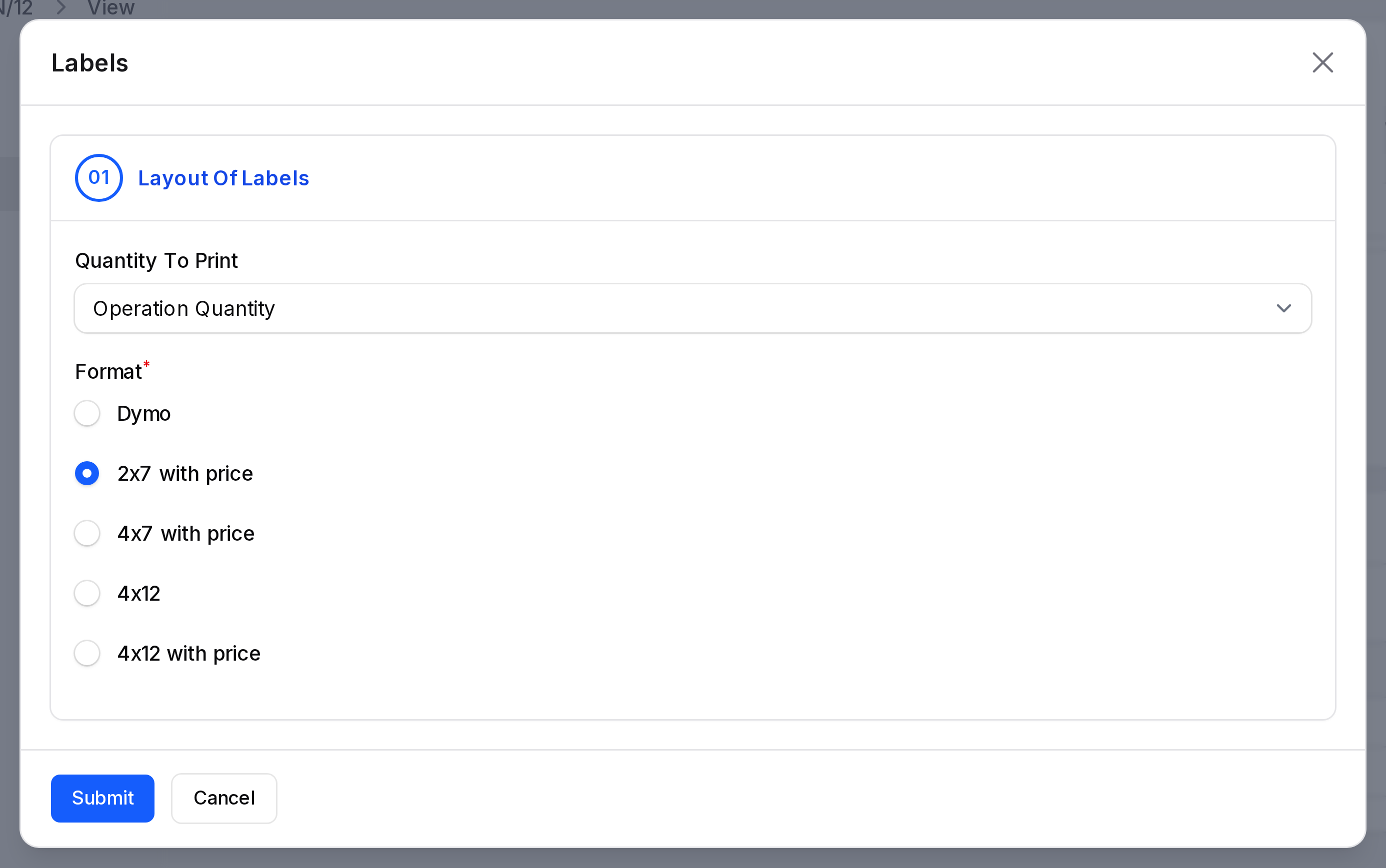
Quantity to print
| Label type | Option | Meaning |
|---|---|---|
| Product | Operation Quantity | One label per unit on the transfer. |
| Product | Custom Quantity | You type a Quantity, from 1 to 100. |
| Lot/SN | One per lot/SN | One label per lot or serial number. |
| Lot/SN | One per unit | One label per unit. |
Formats
- Product labels: Dymo, 2x7 with price, 4x7 with price, 4x12 and 4x12 with price. The default is 2x7 with price.
- Lot/SN labels: 4x12.
INFO
The Type Of Labels step shows only when Lots & Serial Numbers is on and at least one line has a lot.
Actions and statuses
Printing never changes the state. You can print in any state, including Done.