

Chart of accounts
The chart of accounts is the full list of accounts your company uses to record money. Every invoice, bill and payment ends up as debit and credit lines on these accounts. Reports such as the balance sheet and the profit and loss are built from them.
In simple words: An account is a labelled bucket for money, such as "Bank", "Product Sales" or "Rent". The chart of accounts is the list of all buckets.
When to use this page
- You need a new account, for example a separate expense account for travel.
- You want to check which account an amount went to.
- You want to stop using an account without deleting it.
Open the page
Go to Accounting → Configurations → Accounting → Chart of Accounts. This page exists only in the Accounting app.
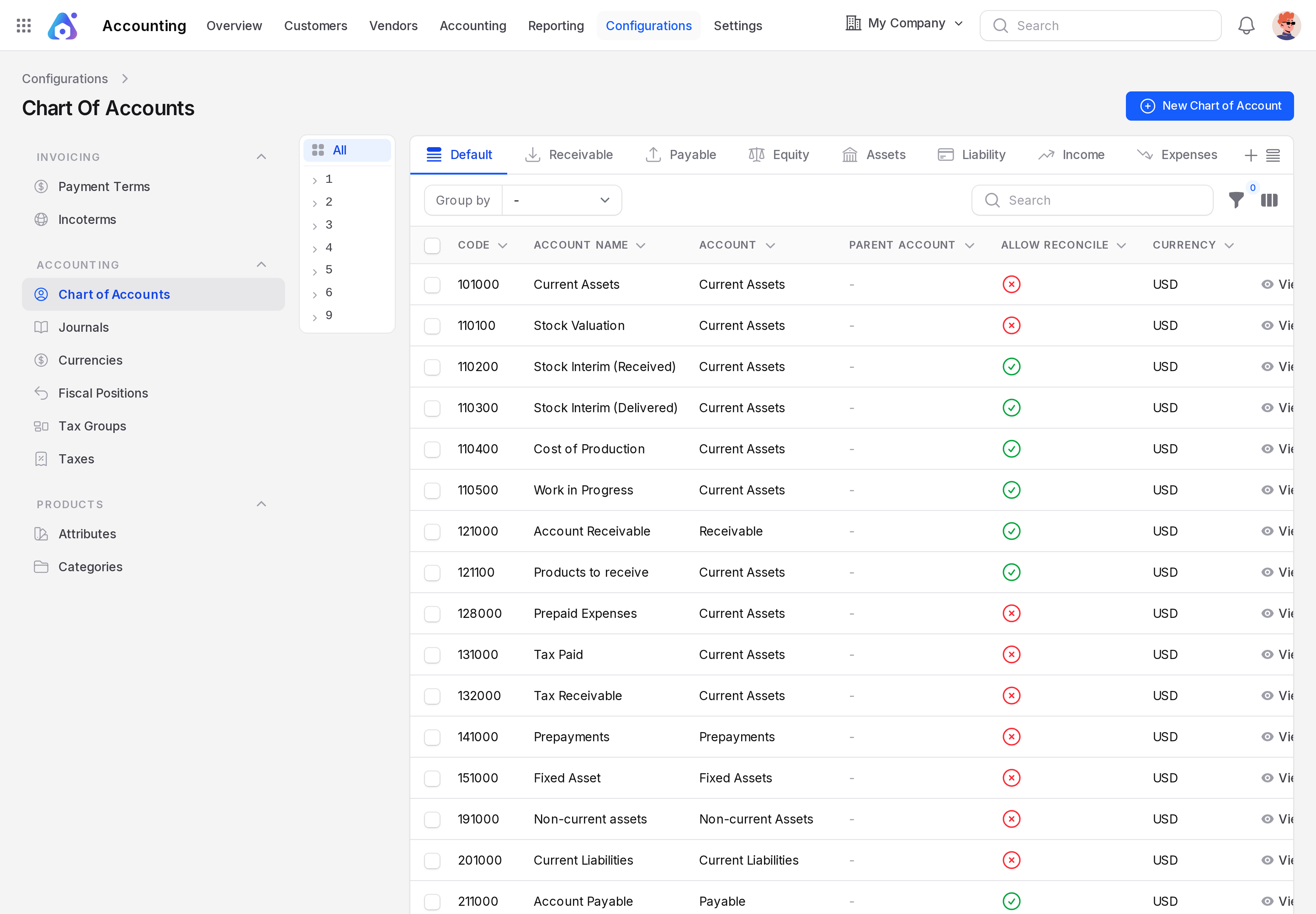
Overview
The list shows the accounts of the current company, 25 per page.
- Code: the account number, for example
101000. - Account Name: the name, for example
Current Assets. - Account: the account type, for example Current Assets.
- Parent Account: the account this one sits under.
- Allow Reconcile: Yes if payments can be matched against it.
- Currency: the account currency.
Find an account
- Code tabs: the number tabs (1, 2, 3 and so on) show only accounts whose code starts with that digit. Click All to remove the filter.
- Type tabs: Receivable, Payable, Equity, Assets, Liability, Income and Expenses show accounts of those types. Default shows all.
- Search: type a code or a name.
- Group by: choose Account type to group the rows by type.
- Filters: Account Type, Parent Account, Journals, Currency, Allow Reconcile and Non Trade.
To learn more about searching, see Search, filter and group.
Create an account
- Go to
Accounting → Configurations → Accounting → Chart of Accounts. - Click New Chart of Account. A window opens.
- Fill in the fields below.
- Click Create.
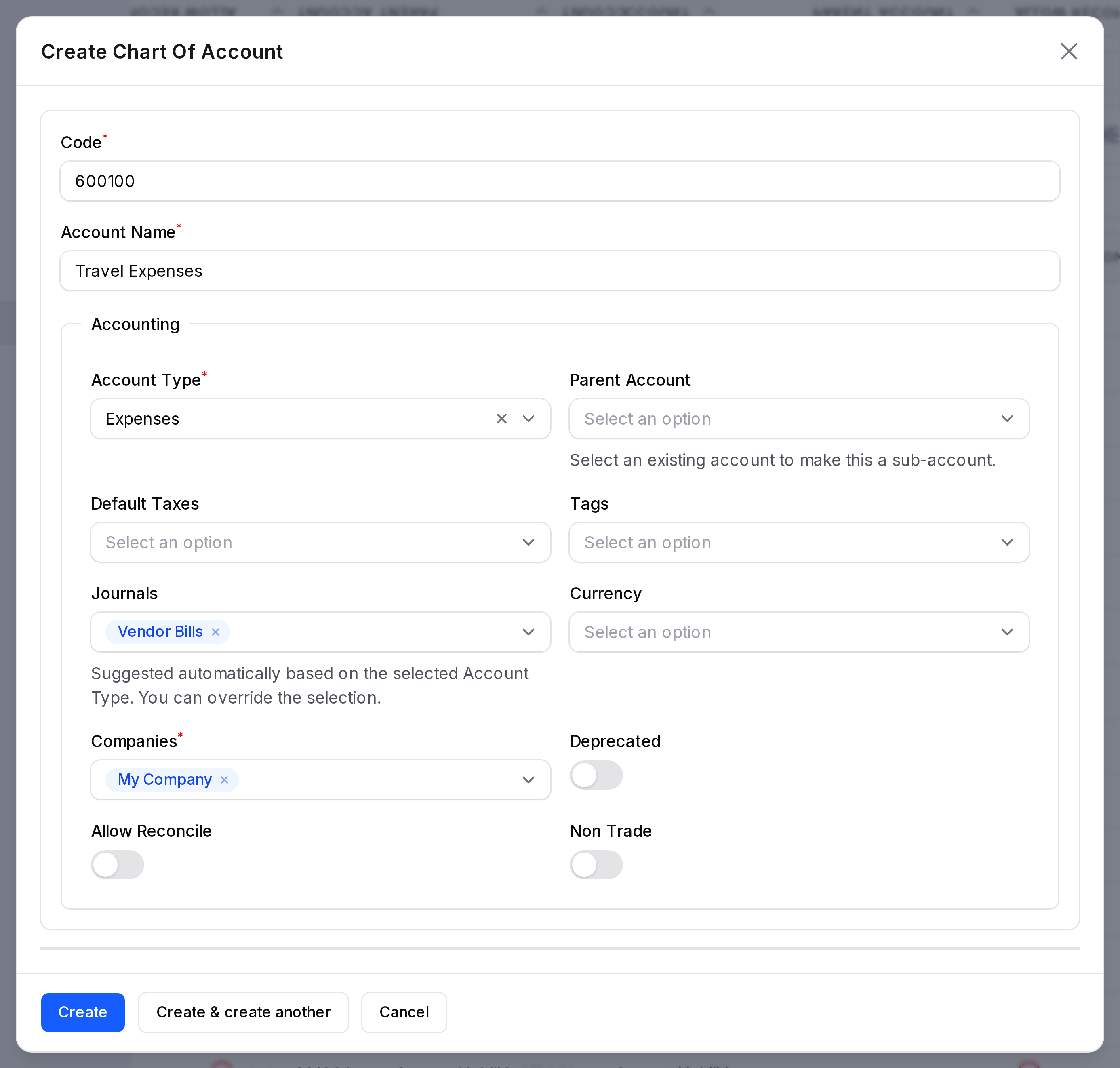
General
- Code: A unique number for the account. Two accounts cannot share a code. Group related accounts with the same first digits, such as
6001for all travel costs. - Account Name: The name people will see in lists and reports.
Accounting
- Account Type: What the account is for. This is required. The type decides where it appears in reports. See the table below.
- Parent Account: Choose an existing account to make this one a sub-account. Leave it empty for a top level account.
- Default Taxes: Taxes proposed when this account is used on a line. Hidden for Off-Balance Sheet accounts.
- Tags: Labels you can attach to group accounts in your own way.
- Journals: The journals that may use this account. Aureus suggests journals when you pick the type, for example Sale journals for an Income account. You can change the suggestion.
- Currency: Fix the account to one active currency. Leave it empty if the account can hold any currency.
- Companies: The companies that can use the account. This is required.
- Deprecated: Turn on to stop using the account. It will no longer be offered in the pickers for default and journal accounts.
- Allow Reconcile: Turn on if you want to match payments against this account. Receivable and payable accounts usually need it.
- Non Trade: Turn on for receivable or payable accounts that are not about customers or vendors, such as staff advances.
Account types
| Group | Types |
|---|---|
| Assets | Receivable, Bank and Cash, Current Assets, Non-current Assets, Prepayments, Fixed Assets |
| Liabilities | Payable, Credit Card, Current Liabilities, Non-current Liabilities |
| Equity | Equity, Current Year Earnings |
| Income | Income, Other Income |
| Expenses | Expenses, Depreciation, Cost of Revenue |
| Other | Off-Balance Sheet |
Example
You want to track flights separately. Create an account with Code 600100, Account Name Travel Expenses, Account Type Expenses. Choose your company under Companies. Now you can pick it on a vendor bill line or as a product expense account.
Edit, view and delete
Each row has View, Edit and Delete. Edit opens the same form.
WARNING
You cannot delete an account that has journal items. Aureus shows "Account deletion failed" and keeps it. Turn on Deprecated instead. Bulk delete follows the same rule.