

Manage sales teams
A sales team groups salespeople who work on the same deals. Each team has a leader, members and a monthly invoicing target. The Teams page shows how each team is doing, and the team form sets it up.
In simple words: A team is a group of salespeople with one goal. You see the goal and the progress on one card.
Settings
Some parts of the team form depend on CRM → Settings → Manage CRM.
- Salespeople in Multiple Teams: when off, a salesperson belongs to one team only. Adding them to a second team asks you to confirm the move.
- Automatic Lead Assignment: turns on the Assignment Rules tab, capacity fields and the Assign Leads button.
See CRM settings.
The Teams page
Open CRM → Sales → Teams. It has two layouts: Grid and List. Grid is the default. The header button New Sales Team opens the team form.
Grid cards
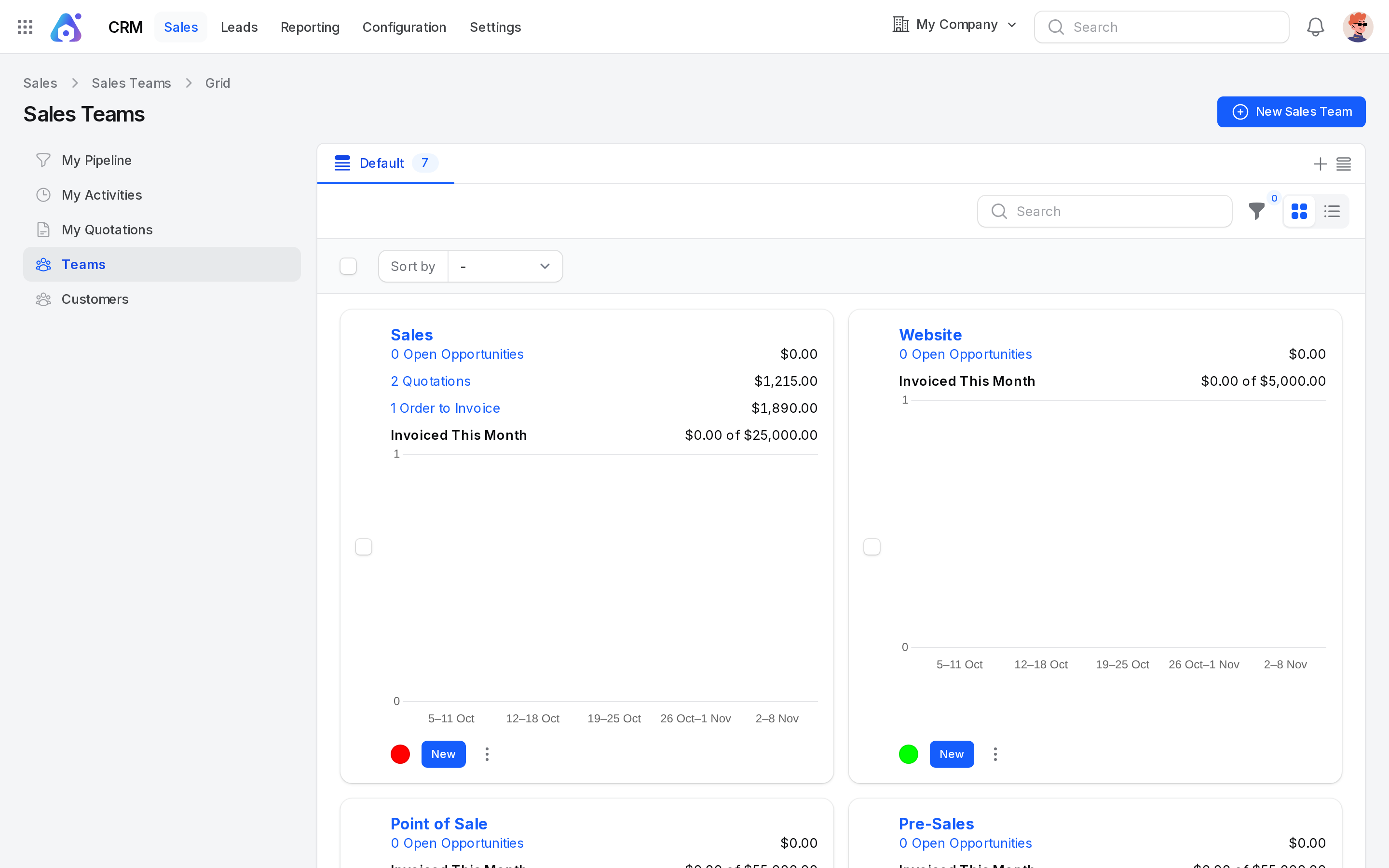
Each team is a card. In the dev data the cards are Sales, Website, Point of Sale and Pre-Sales.
| Line on the card | What it means |
|---|---|
| Team name | Click it to open the team pipeline. |
| Open Opportunities | How many deals of the team are not won or lost. The amount beside it is their Expected Revenue. Click the count to see them. |
| Quotations | Draft and sent quotations of the team, with their untaxed total. Shown only when there are some. |
| Order to Invoice | Confirmed orders waiting to be invoiced, with their untaxed total. Shown only when there are some. |
| Invoiced This Month | Posted invoices of the team since the start of this month, shown as invoiced of target. Shown only when the team has a target. |
| Bar chart | New opportunities per week, for the last five weeks. A grey chart marked Sample data means there are none yet. |
| New | Creates an opportunity in the team pipeline. |
| Colour dot | The team colour. Click it to change the colour. |
Example: the Sales team card shows 2 Quotations $1,215.00, 1 Order to Invoice $1,890.00 and Invoiced This Month $0.00 of $25,000.00.
Click the Team menu (three dots) on a card for shortcuts.
- Leads, Opportunities, Quotations and Sales Orders open that list filtered to the team.
- The four reports, lead analysis, pipeline analysis, forecast and activity analysis, open filtered to the team.
- Configuration opens the team form.
- Color changes the card colour.
List layout
The list has these columns: Sales Team (with the leader underneath), a colour swatch, Open Opportunities, Expected Revenue, Members and Company. You can hide Members and Company. The row action Pipeline opens the team pipeline.
Use the filter to match Sales Team, Team Leader, Members, Company and Created At. Select rows for bulk actions such as export and delete.
The team pipeline
Click a team to open Team name, Pipeline. It has the Kanban, List and Graph layouts of Manage opportunities, limited to this team. The Sales Team field is hidden because it is already set.
Create a sales team
Example: you set up a team for key accounts.
- Go to
CRM → Sales → Teams, orCRM → Configuration → Sales Teams. - Click New Sales Team.
- Fill in the form.
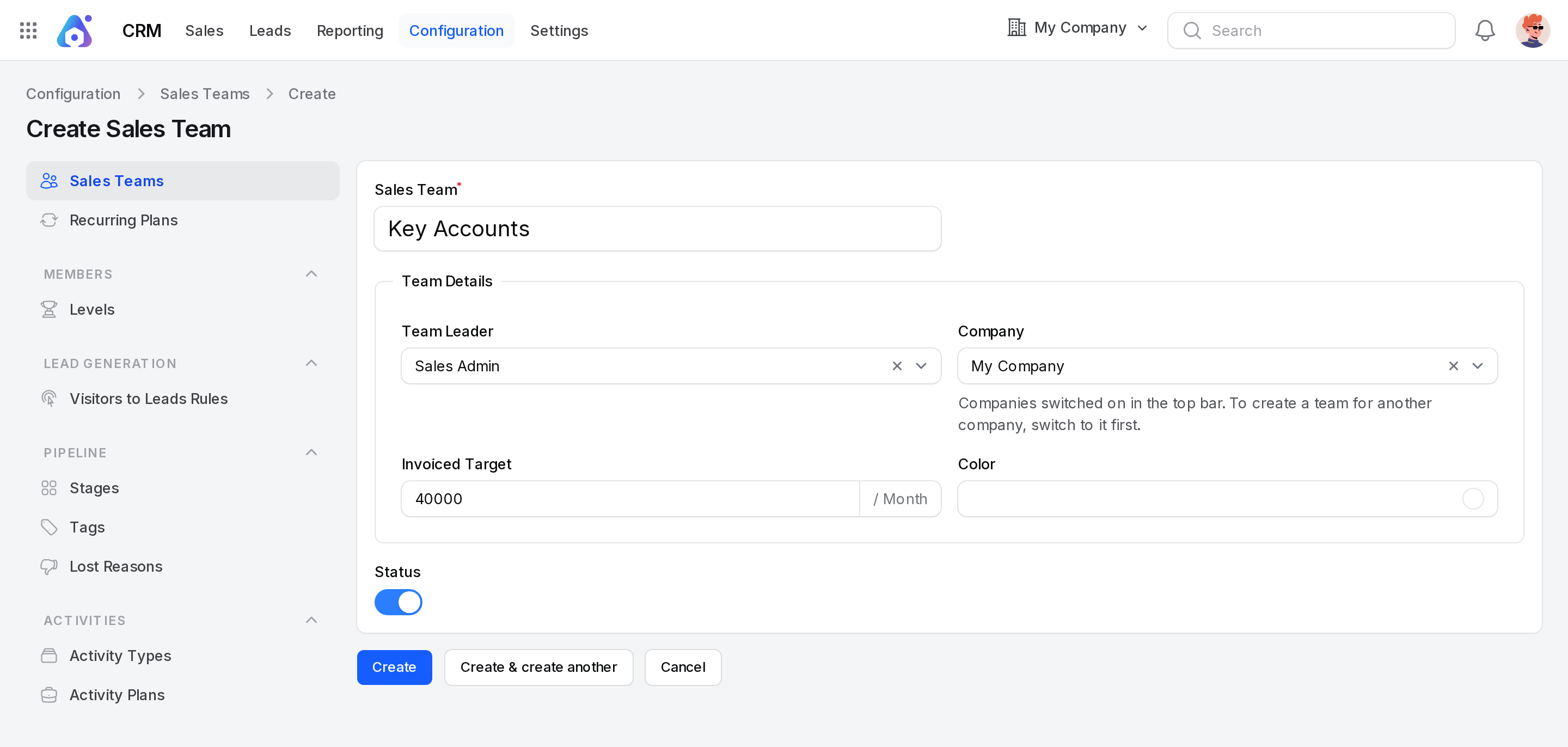
Sales Team
- Sales Team: The team name. Required, up to 255 characters.
Team Details
- Team Leader: The person who leads the team. Search the users.
- Company: The company of the team. The default is the current company. It must be switched on in the top bar. The helper text explains this.
- Invoiced Target: The amount the team aims to invoice each month, shown with the suffix
/ Month. The default is 0. A value above 0 shows the Invoiced This Month line. - Color: A colour that tells teams apart on cards and lists.
Status
- Status: A switch for whether the team is active.
Example: Sales Team Key Accounts, Team Leader Sales Admin, Invoiced Target 40000, Status on.
- Click Create. You can use Create & create another or Cancel.
Members are added on the Members tab after the team exists.
Team tabs
After saving, the team has these tabs. A number badge shows the member or rule count.
- View and Edit show and change the form above.
- Assignment Rules appears when Automatic Lead Assignment is on.
- Members lists the salespeople.
The team header has Assign Leads, Delete and Restore. Assign Leads shows only when automatic assignment is on.
Members
Each member is a card with the name, email, phone and badges. The badges are Inactive, Skips auto assignment and the number of rules. With automatic assignment on, the card also shows Lead limit (30 days), for example 3 / 30.
To add a member:
- Open the team and click the Members tab.
- Click Add member.
- Fill in the form.
- Salesperson: The user to add. Required. Each user can be chosen once per team. Use the plus button to create a New salesperson with name, email, password, confirm password and roles.
- Max leads (30 days): The most leads this person receives in 30 days. Required. The default is 30. Shown when automatic assignment is on.
- Pause assignment: Switch on to stop new automatic leads for this person. Shown when automatic assignment is on.
- Active: Whether the member is active. The default is on.
- Assignment rules: Conditions that decide which leads this person gets. Shown when automatic assignment is on.
- Click Add member. A notification Member added appears.
INFO
If Salespeople in Multiple Teams is off and the user is in another team, a dialog asks to move them. Click Yes, move.
Click a member card to edit the name and the fields above. Use Remove to take a member out of the team.
Assignment rules
Open the Assignment Rules tab. It states which leads the team receives. A line shows the team capacity, such as 5 leads assigned this month on a maximum of 60.
The rules read Match all of the following rules. Click New Rule to add one. Each row has three parts.
- Field: What to test. For example Country, Stage, Tags, Priority, Probability (%), Expected revenue, Campaign, Medium or Source.
- Operator: How to compare. The choices depend on the field.
- Value: What to compare with.
A link under the rules shows how many records match. Click it to list the matching leads and opportunities that are not assigned yet.
Assign Leads
Click Assign Leads in the team header. The dialog lists unassigned leads that match the rules.
- Tick the leads to share out. A line shows the free space of each member.
- Click Assign.
Each lead goes to the member with the most free space. A notification shows how many were assigned and how many were skipped.
Actions and statuses
| Action | Where | What it does |
|---|---|---|
| New Sales Team | Teams page | Opens the team form. |
| Pipeline | List row | Opens the team pipeline. |
| New | Grid card | Creates an opportunity for the team. |
| Add member | Members tab | Adds a salesperson. |
| Assign Leads | Team header | Shares unassigned leads among members. |
| Delete and Restore | Team header | Removes a team or brings it back. |
Behind the scenes
- Open count. Only deals that are not won and not lost are counted.
- Weekly chart. It counts opportunities created in each week, including ones later lost.
- Opportunities. The Sales Team field on an opportunity decides which card it counts toward. See Manage opportunities.
- Stages per team. A stage can be limited to some teams, so a team board shows only its own stages. See Stages.