

Payment terms
A payment term is a rule that says when a customer must pay. For example "pay within 30 days", or "half now and half in 30 days". You pick a term on an invoice and Aureus works out the due date for you, so nobody has to count days by hand.
In simple words: A payment term turns the invoice date into one or more due dates.
Open the list with Invoices → Configurations → Payment Terms or Accounting → Configurations → Invoicing → Payment Terms.
Overview
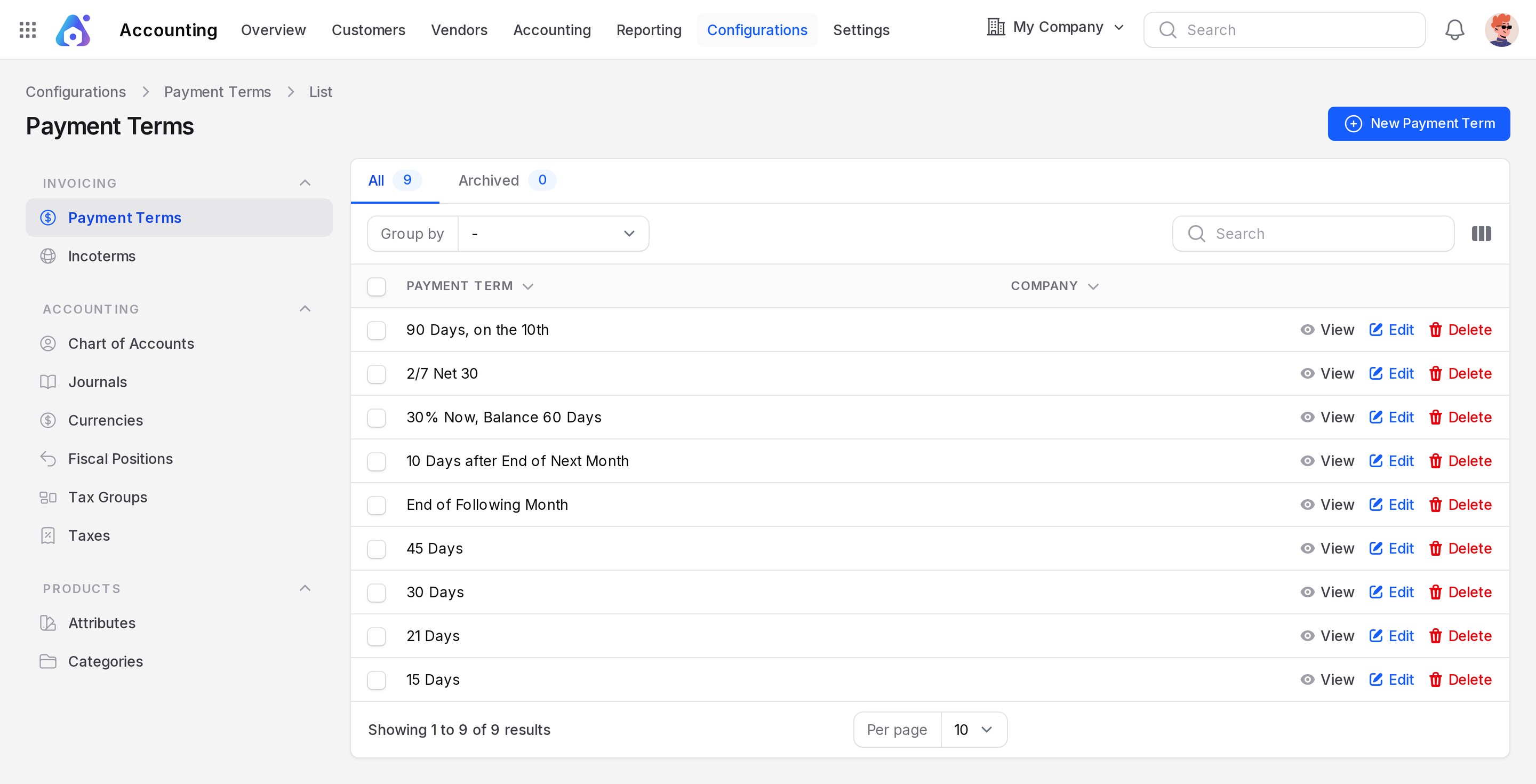
The list shows ready-made terms such as Immediate Payment, 15 Days, 21 Days, 30 Days, 45 Days, End of Following Month, 10 Days after End of Next Month, 2/7 Net 30, 30% Now, Balance 60 Days and 90 Days, on the 10th. Tabs are All and Archived. Use Group by to fold by Company Name or filter by Payment Term.
Create a payment term
- Go to
Invoices → Configurations → Payment TermsorAccounting → Configurations → Invoicing → Payment Terms. - Click New Payment Term.
- Fill in the top section, then add the due terms.
- Click Create.
General
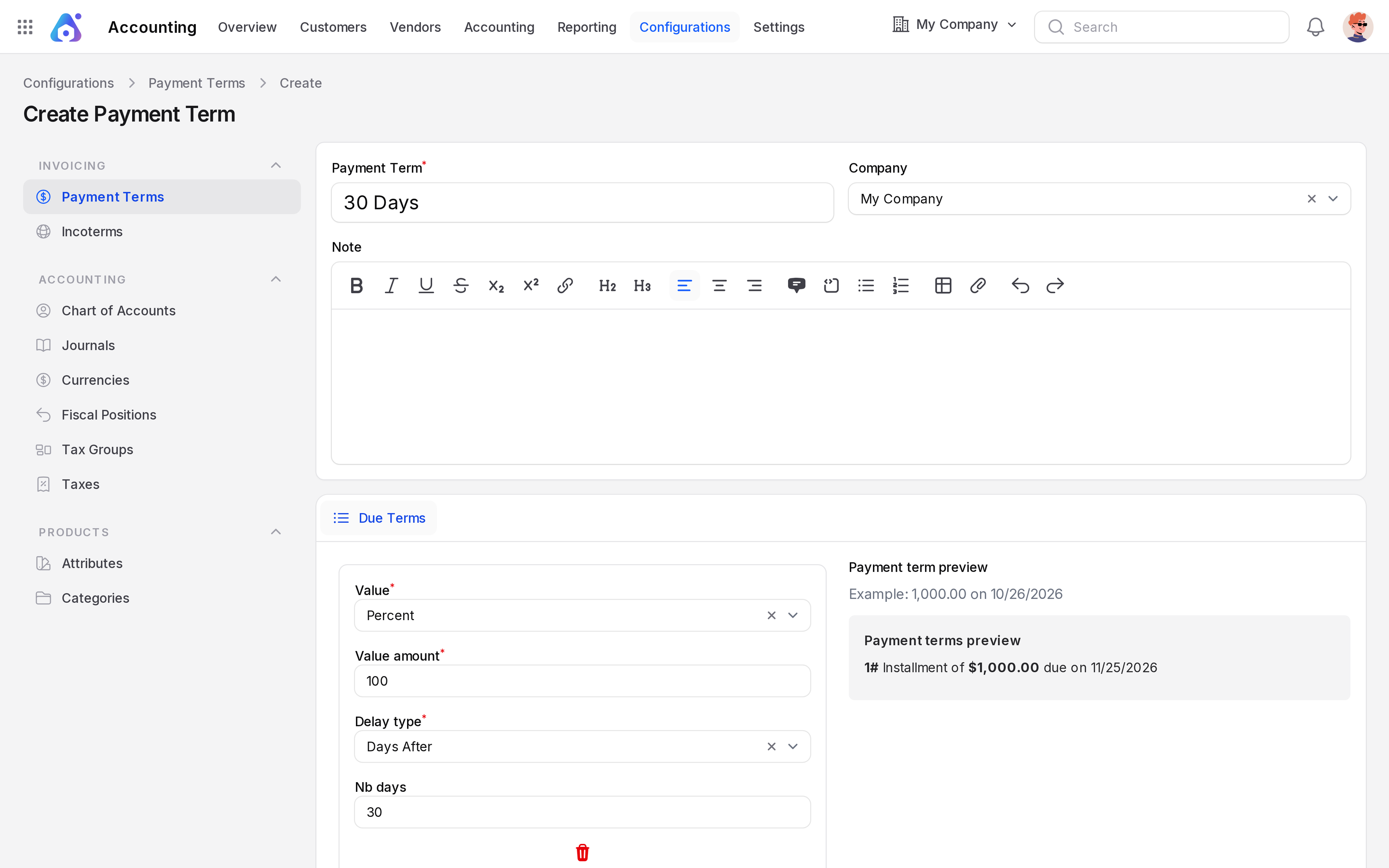
- Payment Term: The name people pick on the invoice. Required. Use a clear name such as "30 Days".
- Company: Limit the term to one company. Leave it on All Companies to share it.
- Note: Text about the term. Use it to explain the rule to your team.
Due Terms
A term has one or more due terms. Each due term says how much is due and when. Click Add Due Term for each part.
- Value: How the amount is counted. Choose Percent for a share of the total, or Fixed for a fixed amount.
- Due: The number. With Percent, enter a value from 0 to 100. With Fixed, enter the amount.
- Delay Type: How the date is counted. Choose one of:
- Days After: Counts the days from the invoice date.
- Days After End of Month: Counts the days from the end of the invoice month.
- Days After End of Next Month: Counts the days from the end of the month after the invoice month.
- Days End of Month No The: Adds the days to the invoice date. Then the due date moves to a fixed day of the next month. Use Days on the next month to give that day. Enter 0 to land on the end of the month. This is the label as the app shows it.
- Days: How many days to add.
- Days on the next month: The day of the next month, such as 10. It is hidden at first. Use the column toggle to show it.
The preview on the right shows an example of 1,000.00 and the due dates it would get. Use it to check your rule before you save.
TIP
Make the percentages of all due terms add up to 100. If they do not, part of the invoice has no due date.
Examples
30 days: One due term. Value Percent, Due 100, Delay Type Days After, Days 30. An invoice dated July 1 is due on July 31.
50 % now, 50 % in 30 days: Two due terms.
- Percent, 50, Days After, Days 0. Half is due on the invoice date.
- Percent, 50, Days After, Days 30. The other half is due 30 days later.
End of the following month: One due term. Percent, 100, Days After End of Next Month, Days 0.
Use a payment term
- On an invoice, pick it in Payment Term. The Due Date field then hides and the term gives the date. See Create an invoice.
- On a customer, set Payment Terms in the Sales and Purchases tab. Every new invoice for that customer starts with it. See Manage customers.
Edit and delete
Use the row menu to View, Edit or Delete. A deleted term moves to Archived and can be restored. A term that is used on journal entries cannot be deleted for good.