

Portal and sign-in
Visitors can create an account on your public site and sign in later. The account is a contact in your contacts list. On the admin side you see who has access, and you can grant, change or remove it.
In simple words: Visitors register and sign in on the site. You watch and control access from the contact.
Open Website → Customers.
Settings
Portal actions need the customer portal, which comes with the Website plugin. The public pages are always part of the site.
What a visitor does
All four pages are on the public site. The site header has Login and Register links.
Register
Address: /register.
- Click Register in the site header.
- Enter Name, Email address, Password and Confirm password. All four are required.
- Click Create account.
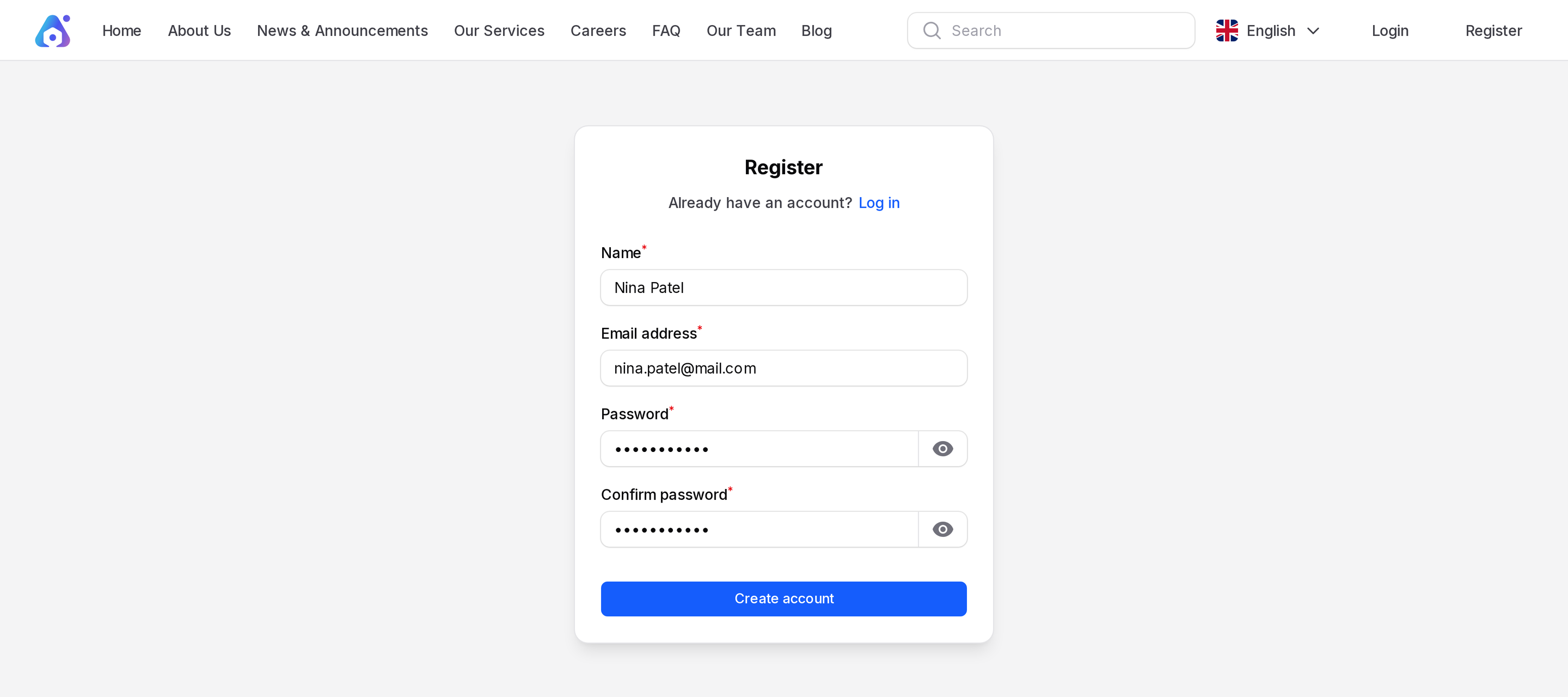
The visitor is now a contact. If a visitor already has an account, the Log in link opens the sign-in page.
Login
Address: /login.
- Click Login in the site header.
- Enter Email address and Password. Both are required.
- Tick Remember me to stay signed in.
- Click Sign in.
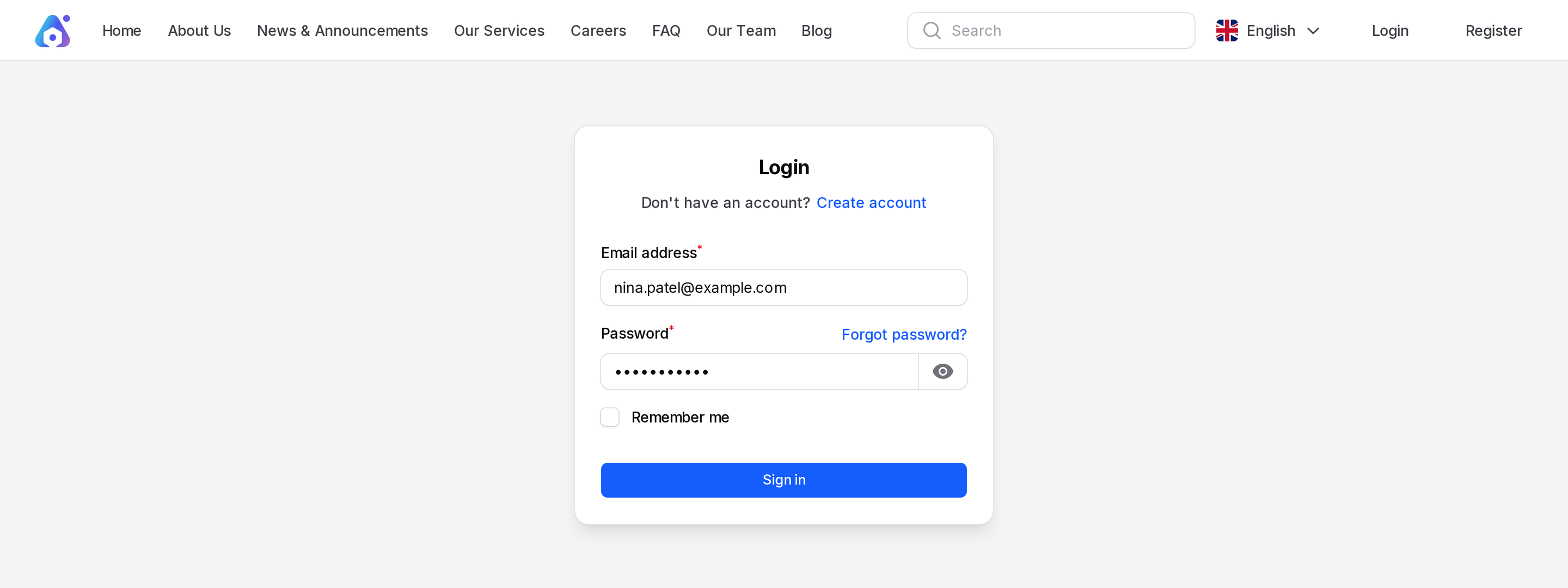
If the details are wrong, the page says "These credentials do not match our records." After too many attempts, it asks the visitor to wait.
Forgot password
- On the login page, click Forgot password?.
- Enter Email address.
- Click Send reset link.
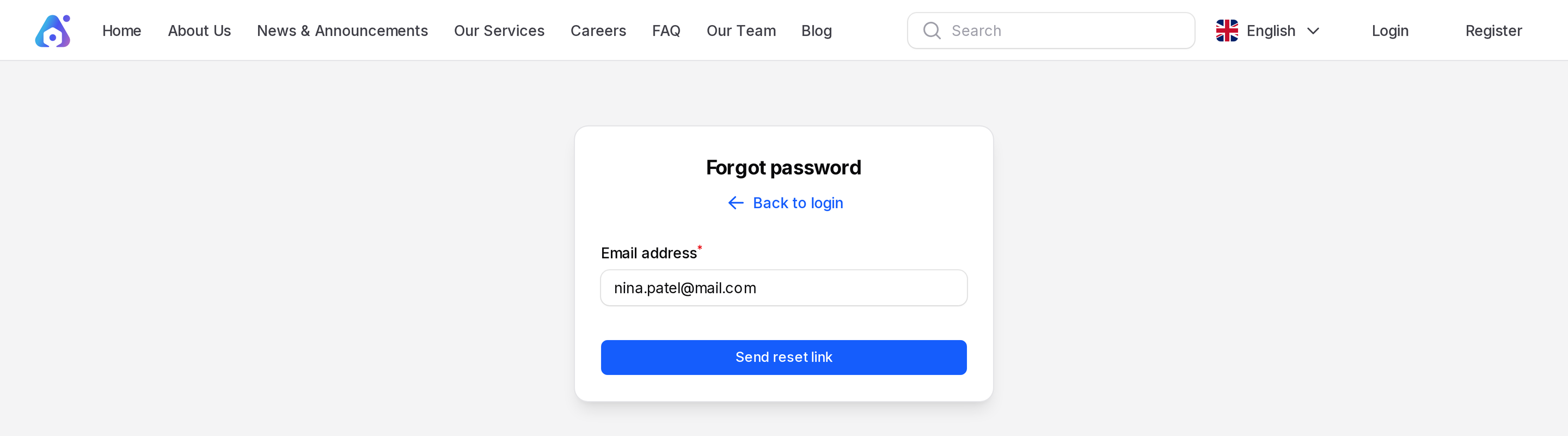
Back to login returns to the sign-in page.
Reset password
The link in the reset email opens the Reset password page.
- Check Email address.
- Enter New password and Confirm new password.
- Click Reset password.
The page shows the Email address and the two password fields.
The link from Grant Portal Access works the same way, so a new customer uses it to choose a first password.
Grant access to a contact
WARNING
Outgoing email must be set up first. Without it the contact never gets the link.
- Open
Website → Customersand open the contact. - Open the Portal Access menu in the header.
- Click Grant Portal Access.
- The page shows Portal Access: Granted. The contact receives an email with a link to choose a password.
What you see as admin
Portal Access badge and filter
On Website → Customers, a Portal Access badge marks contacts that can sign in. Use the Portal Access filter to list only those contacts.
Customer Portal section
Open a customer. The Customer Portal section shows:
- Portal Access: Granted or Not Granted.
- Email Verified At: When the contact set a password, or Never.
- Last Portal Login: The last sign-in, or Never.
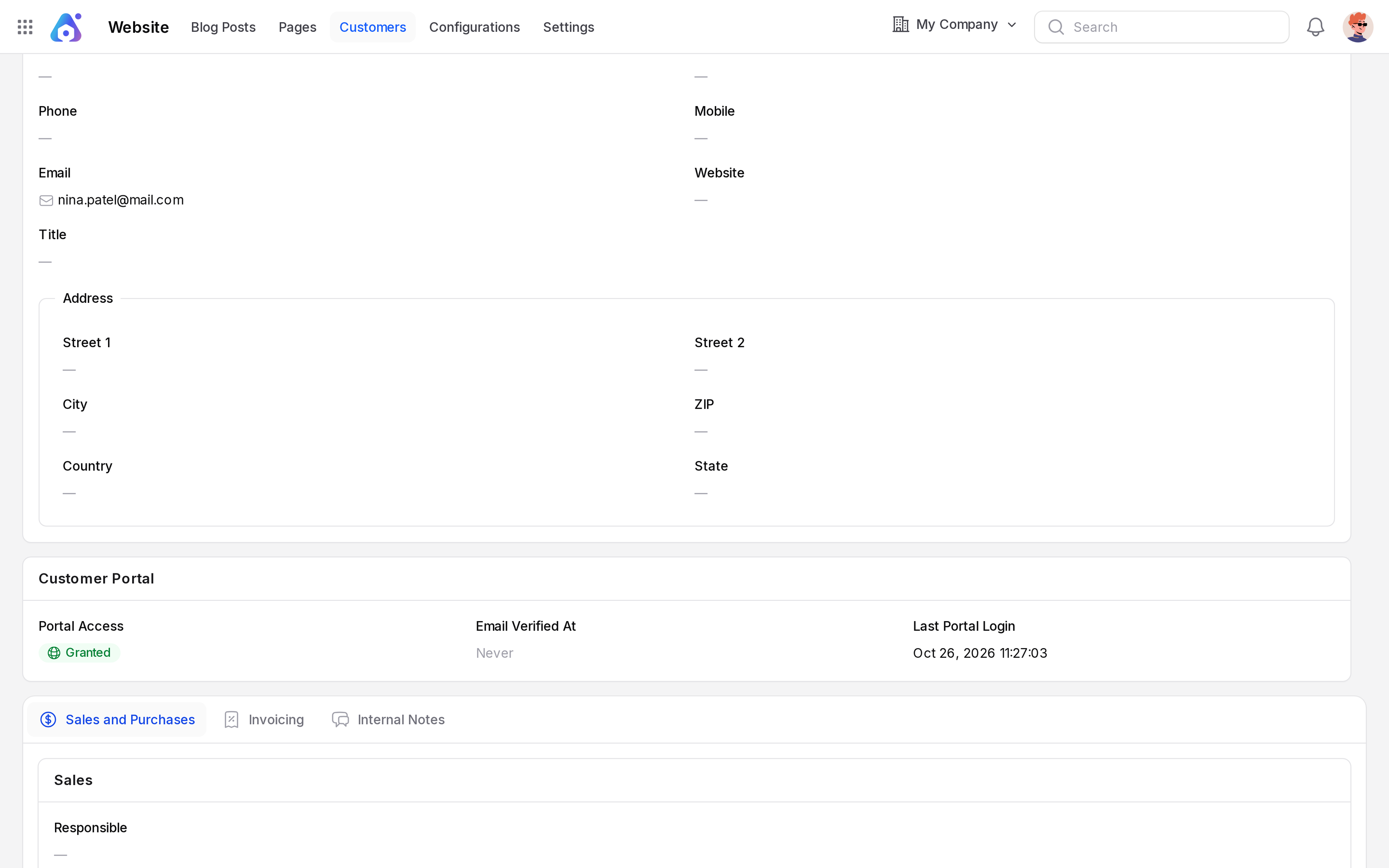
A visitor who registered on the site shows as Granted. A contact you created in the admin panel shows Not Granted until you grant access.
Manage access
Use the Portal Access menu at the top of the contact view or edit page.
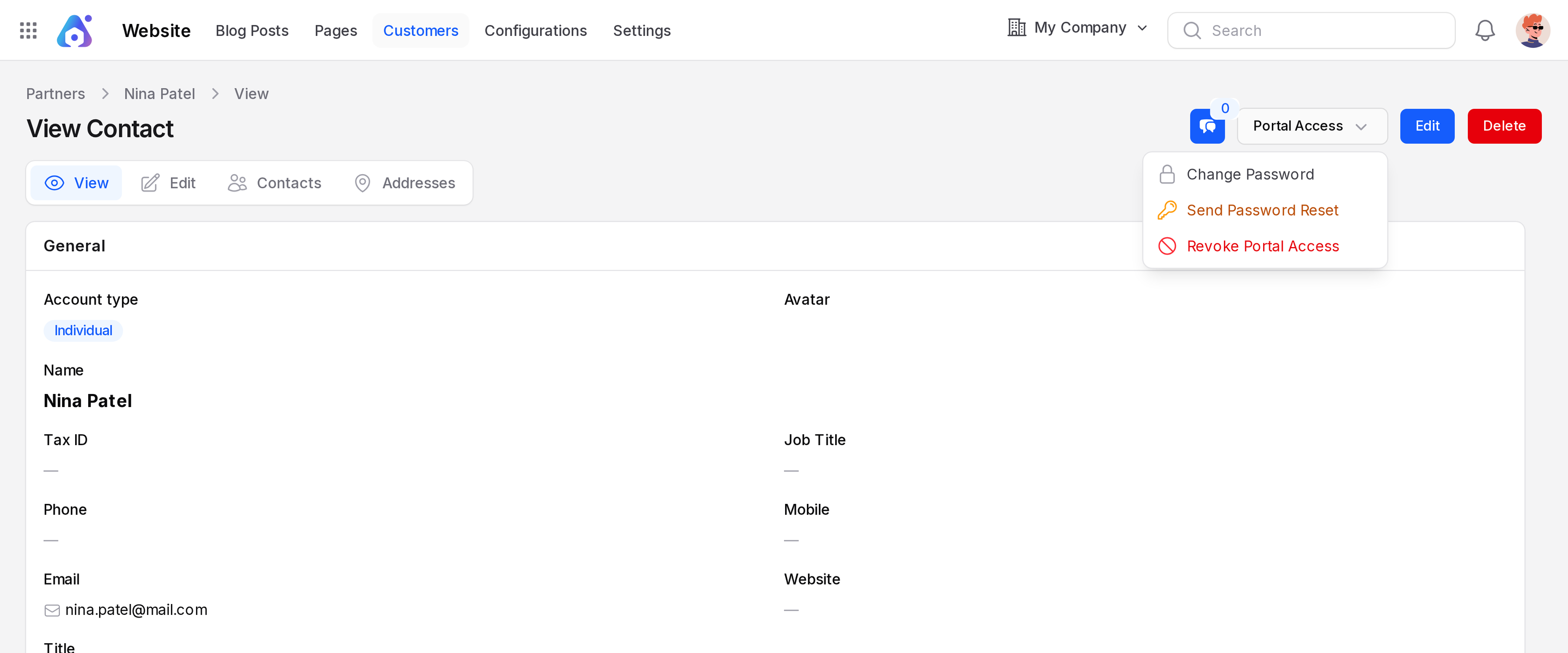
| Action | What it does |
|---|---|
| Grant Portal Access | Shows only when the contact has no access. It sends an email so the contact can set a password. |
| Change Password | Shows once access is granted. You set a new password for the contact. |
| Send Password Reset | Emails a reset link to the contact. |
| Revoke Portal Access | Stops the contact from signing in. |
WARNING
The contact needs an email address, and each address can have portal access only once.
For the steps and messages, see Portal access. Vendors use the same portal. See Vendor portal.
What the visitor sees
After signing in, the visitor browses the same public site. Pages stay at /, /pages/{slug} and /blog.