

Portal access
Portal access lets a customer sign in to your customer portal. You give access to a single contact. The contact gets an email, sets a password, and can then sign in. You can change the password, send a reset link, or remove the access at any time.
In simple words: Portal access is a key to the customer portal that you hand to one contact at a time.
INFO
Portal access needs the Website plugin. If you do not see the Portal Access button on a contact, check that the plugin is installed. See Plugins.
Grant portal access
- Open the contact. See Contacts.
- Make sure the contact has an email address. Portal access cannot be granted without one.
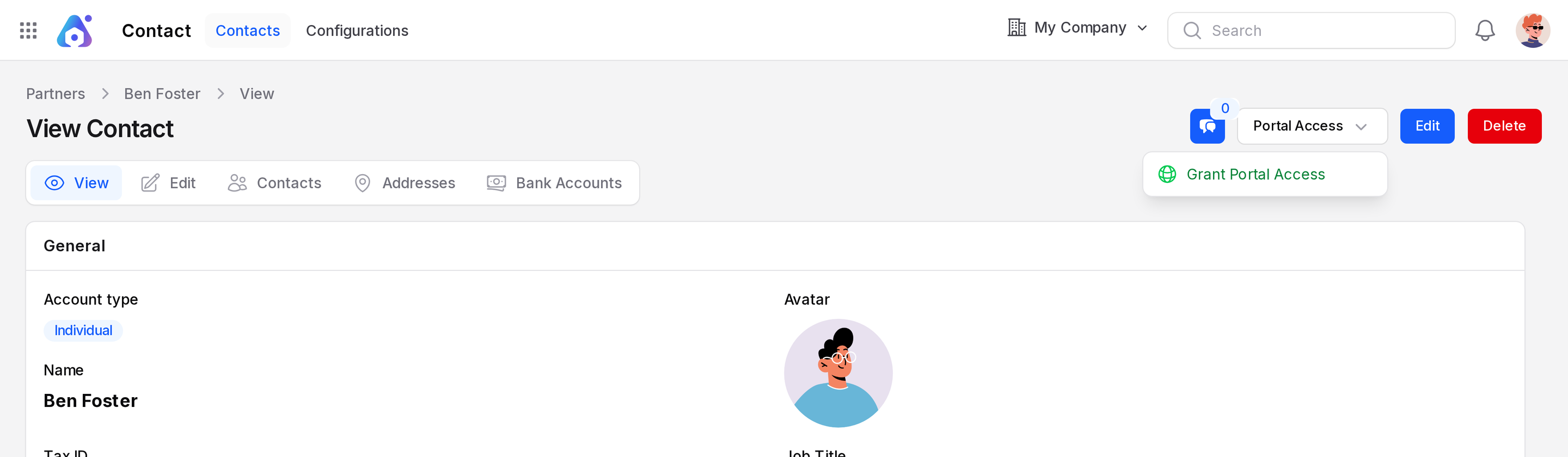
- Click the Portal Access button at the top of the contact, then click Grant Portal Access.
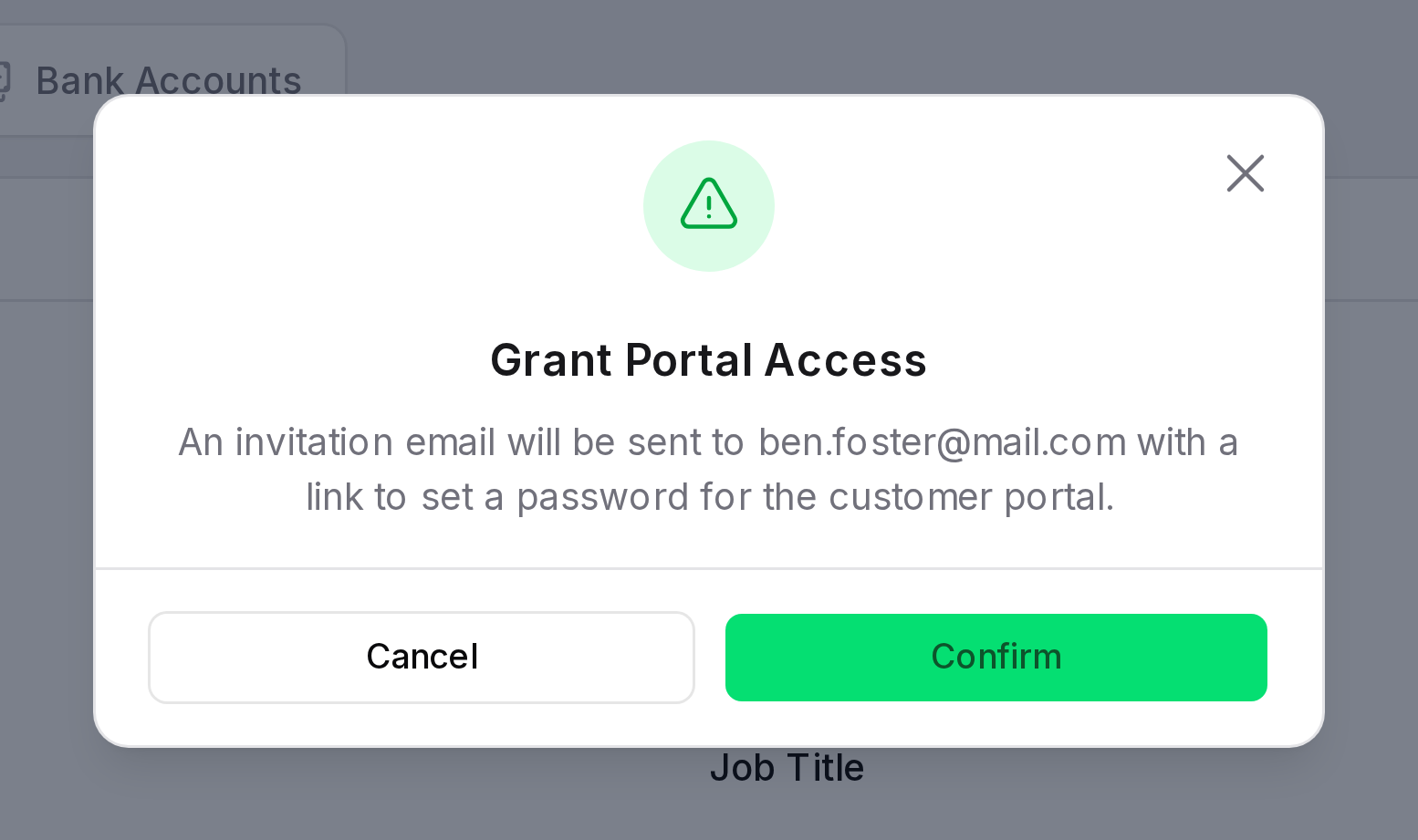
- Read the message in the window. It names the email address that will get the invitation.
- Confirm.
The contact receives an email with a link to set a password for the customer portal.
WARNING
Each email address can have portal access only once. If another contact with portal access already uses the same email address, Aureus shows Email address already in use.
TIP
If the invitation email cannot be sent, Aureus still grants the access and tells you the email failed. Use Send Password Reset to send the link again later.
INFO
A vendor with portal access can sign in and answer the RFQs you send. See Vendor portal.
See who has portal access
- In the contact list, a Portal Access badge shows on contacts that have access. You can also filter the list by Portal Access.
- On the contact page, the Customer Portal section shows:
- Portal Access: Granted or Not Granted.
- Email Verified At: When the contact set a password, or Never.
- Last Portal Login: The last time the contact signed in, or Never.

Manage portal access
Open the Portal Access button on the contact to use these actions:
- Change Password: Set a new portal password for the contact. Enter New Password and Confirm New Password.
- Send Password Reset: Email a password reset link to the contact.
- Revoke Portal Access: Stop the contact from signing in. Any reset link that is still waiting stops working.