

Preparation printers
A preparation printer prints the items of an order at the place where they are made, such as the kitchen or the bar. The waiter sends the order and the cook gets a ticket. You define each printer once and then link it to a register.
In simple words: A preparation printer is the kitchen ticket printer. It prints only the categories you give it.
Overview
Go to Point of Sale → Orders → Preparation Printers.
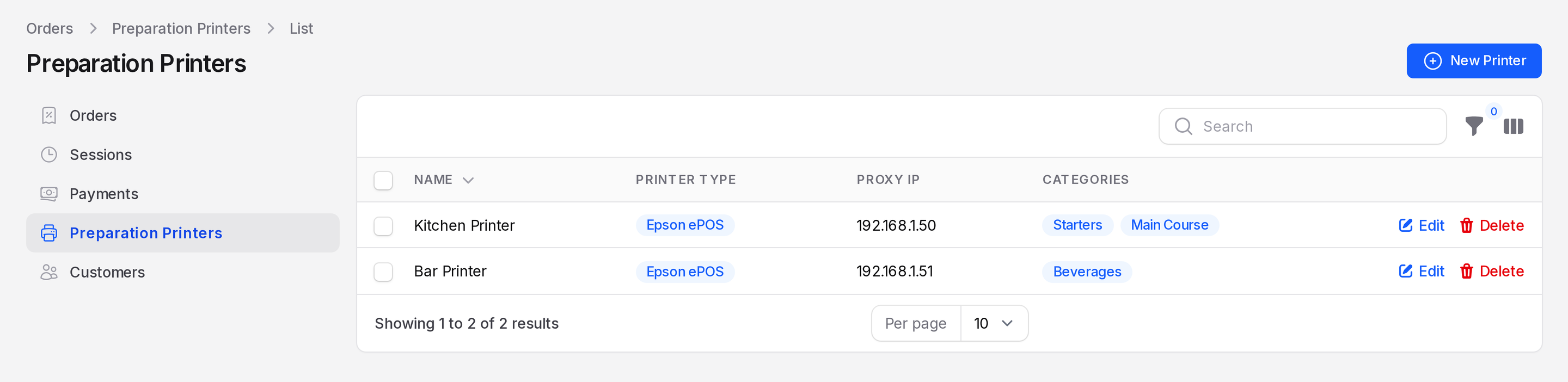
The list shows Name, Printer Type, Proxy IP, Categories and Company. Filter by Printer Type.
Create a printer
Go to
Point of Sale → Orders → Preparation Printers.Click New Printer.
Fill in the General section.
- Name: Required. For example Kitchen Printer.
- Printer Type: Required. Choose IoT Box or Epson ePOS.
- Proxy IP: The IP address of the printer or its box, such as 192.168.1.50.
- Company: Required. The company that owns the printer.
- Printed Categories: Pick the PoS categories to print, for example Starters, Pizza & Pasta and Main Course.
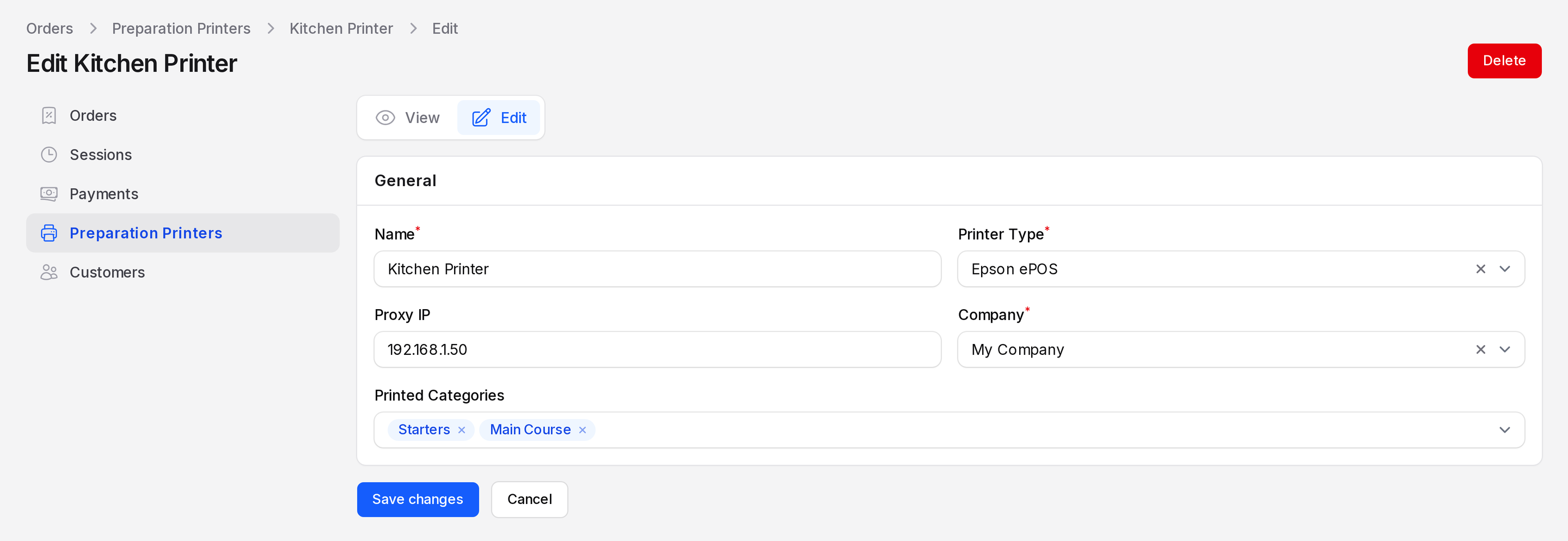
Click Create. Click Create & create another to add the next.
Use View or Edit on a row to open it later.
Use a printer on a register
- Go to
Point of Sale → Configurations → Point of Saleand open Spice Route Kitchen & Bar. - Open the Preparation tab.
- In Preparation Printers, pick the printers. The hint says "Print orders at the kitchen, at the bar, etc."
- Click Save changes.
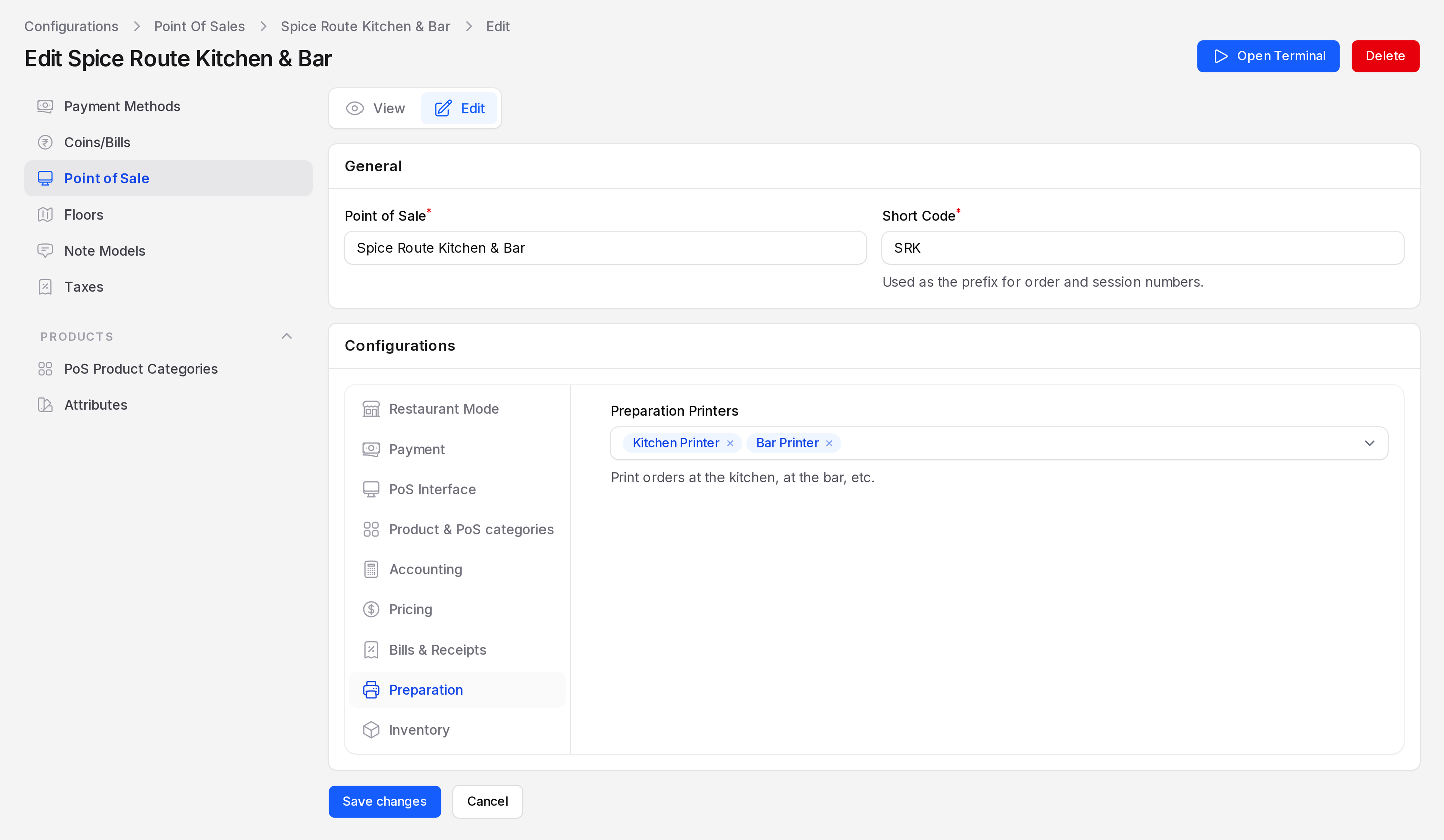
Preparation printers are meant for restaurant registers. Switch on Is a Bar/Restaurant on the Restaurant Mode tab. That mode enables "table management, split bills and preparation tickets".
Example
Spice Route Kitchen & Bar has two printers. Kitchen Printer prints Starters, Pizza & Pasta and Main Course. Bar Printer prints Beverages. A waiter orders one Butter Chicken and a drink. The cook sees only the chicken. The bartender sees only the drink.
TIP
Add notes such as No Dressing to a line. The note goes to the kitchen with the item. See Restaurant floors and notes.