

Register a payment
You register a payment when a customer pays an invoice, or when you pay a vendor bill. You do it from the invoice or bill itself, with the Pay button. Aureus creates the payment, posts its journal entry and links it to the document in one step.
Use this page for full payments, partial payments and payments in another currency.
In simple words: Open the invoice, click Pay, check the amount, click Pay again. The invoice shows what is still due.
Before you start
- The invoice or bill must be Posted. A draft has no Pay button. Click Confirm first.
- The Payment State must be Not paid or Partial. A fully paid document hides Pay.
- Pay works the same for invoices, credit notes, bills and refunds. This page uses invoice INV/2026/1 for Azure Interiors. Its total is $1,207.50.
You find the invoice in either app:
Invoices → Customers → InvoicesAccounting → Customers → Invoices
For bills use Invoices → Vendors → Bills or Accounting → Vendors → Bills.
Pay an invoice
- Open
Customers → Invoicesand click INV/2026/1. - Click Pay in the top bar. The Pay window opens.
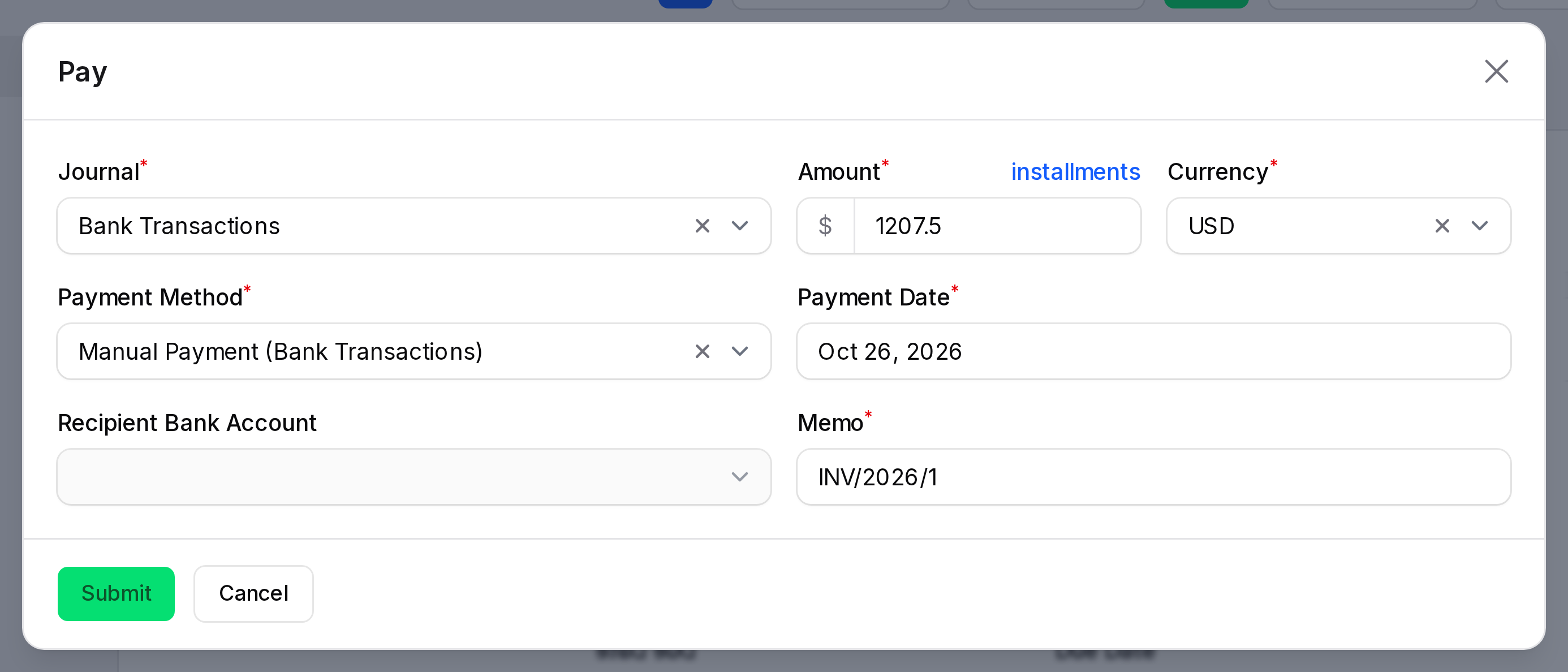
- Check each field (see below).
- Click Pay at the bottom of the window.
Aureus closes the window. The invoice page refreshes with the new Payment State and Amount Due.
The fields
- Journal: The bank or cash journal that receives or sends the money. Pick the journal that matches where the money really goes. The list shows only the journals that fit this document. Aureus picks the first one for you.
- Payment Method: How the money moves, for example Manual Payment. The options depend on the journal. They are set on each journal under incoming and outgoing payments. See Journals.
- Recipient Bank Account: The bank account that gets the money. It shows only on a bill or refund, when the method is Manual Payment and the journal is not a cash journal. Pick one of the vendor bank accounts. See Bank accounts. On a customer invoice the field is locked.
- Amount: How much you pay now. Aureus fills in the amount due. Type a smaller number for a partial payment.
- Currency: The currency of the payment. It starts with the journal currency, or the invoice currency if the journal has none. Only active currencies are listed.
- Payment Date: The day the money moved. It starts as today. Change it when you register an earlier payment.
- Memo: A short note that is saved on the payment. It starts with the invoice number. Add a bank reference here if you have one.
Full payment, step by step
For INV/2026/1, leave the amount at $1,207.50 and click Pay. Then check the result:
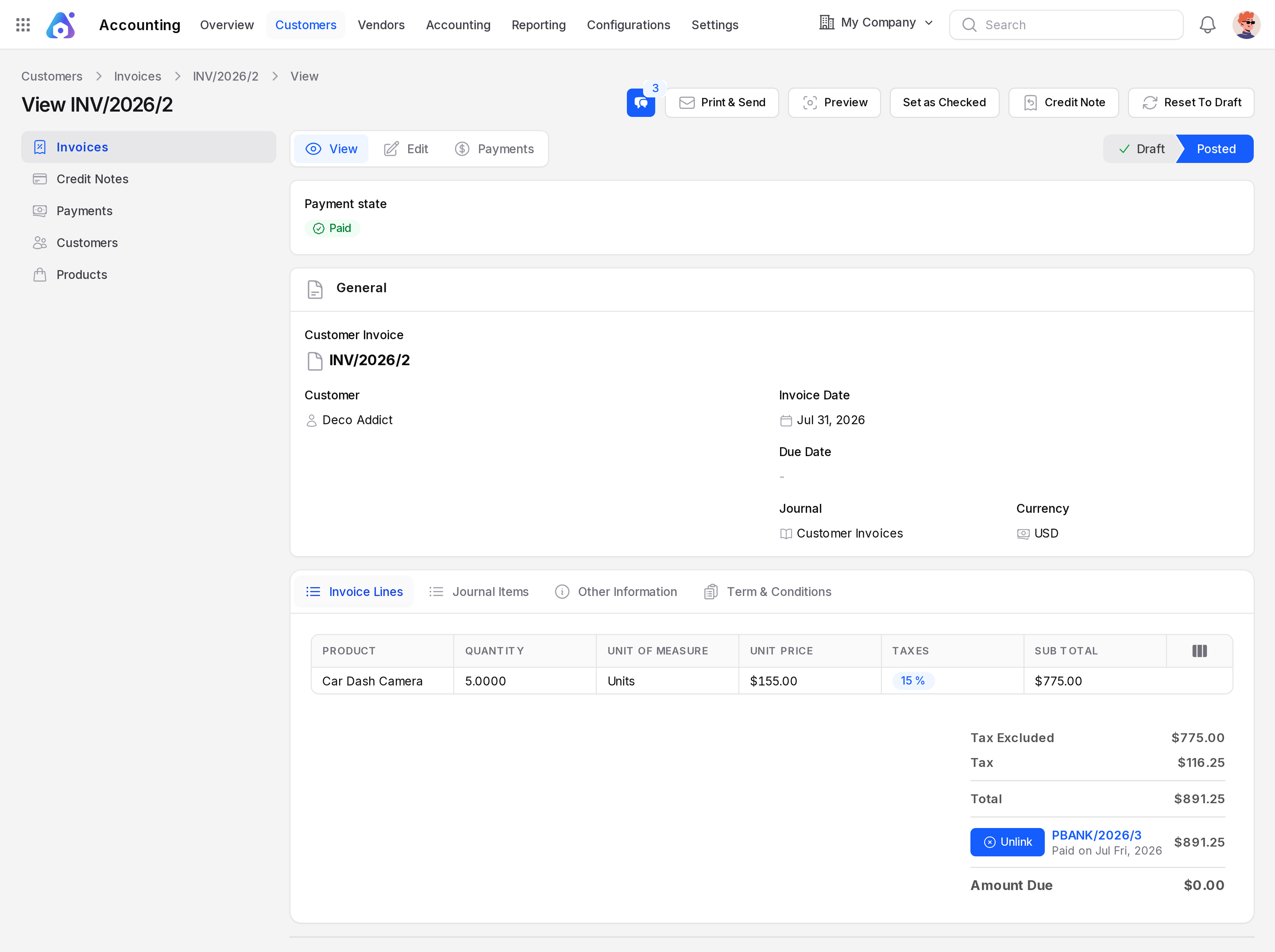
- Payment State changes from Not paid to Paid.
- Amount Due drops to $0.00.
- The Pay button disappears.
- A new payment appears in the Payments tab. Its status is In Process for a bank journal.
If you pay with a cash journal, the payment status goes straight to Paid.
Partial payment
A customer may pay only a part now. Register that part and keep the rest open.
- Open INV/2026/1 and click Pay.
- Change Amount to
500.00. - Click Pay.
The result:
- Payment State is Partial.
- Amount Due is $707.50.
- The Pay button stays. Use it again for the rest.
Click Pay a second time. The window now offers $707.50. Confirm it and the invoice becomes Paid.
Installments and the full amount
Some payment terms split an invoice into several due dates. See Payment terms. In that case the Amount field may start with only the part that is due first.
A small link sits above the Amount field. It reads installments or full amount.
- Click full amount to pay the whole open balance.
- Click installments to go back to the next installment.
Under the field a hint says which one you see, for example "This is the full amount."
TIP
An invoice with a single due date has only one amount. The link and the hint then do not appear.
Pay in another currency
You can pay in a currency that differs from the invoice.
- Open the Pay window.
- Change Currency to the currency the customer used.
- Check the Amount. It stays in the number you type.
- Set the Payment Date. Aureus uses the rate of that date to convert.
The invoice is settled in its own currency. If the rate on the payment date differs from the invoice date, Aureus may book an exchange difference. The gain and loss accounts come from the default accounts. See Default accounts and Multi-currency.
The summary box on the invoice
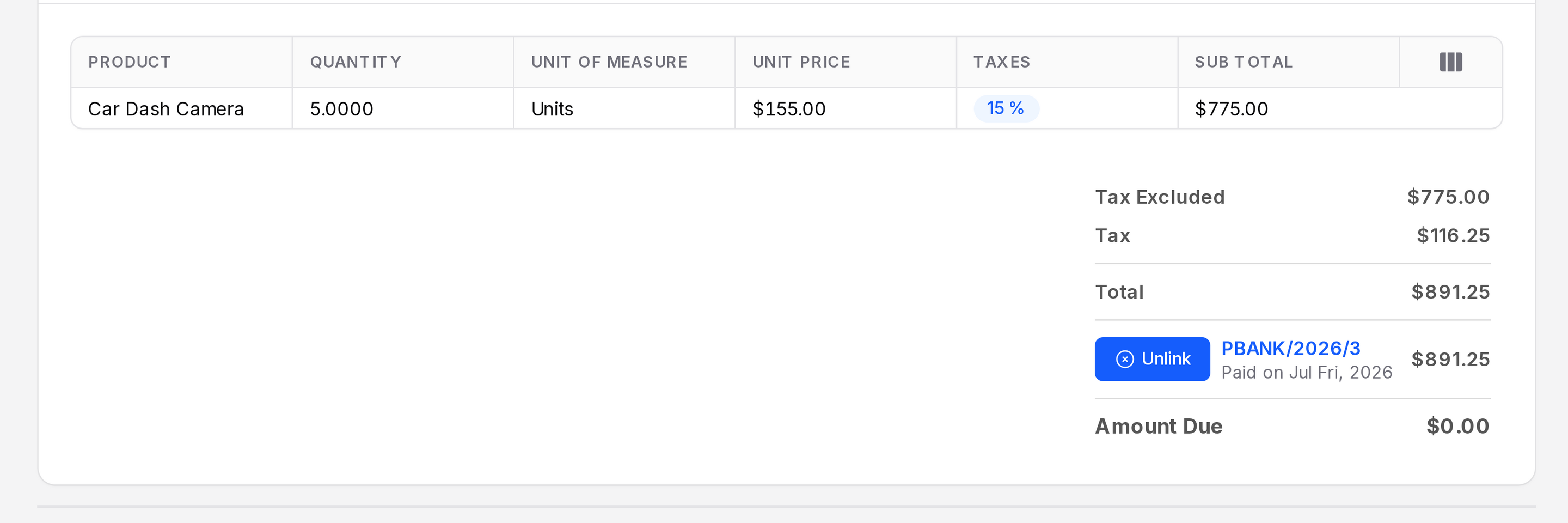
The box at the bottom right of an invoice lists the payments tied to it.
- Paid payments: Each paid line shows the payment, the date and the amount. Click Unlink to break the link. The amount goes back to Amount Due. Aureus asks you to confirm.
- Outstanding credits (or Outstanding debits on a bill): Money from this partner that is posted but not yet matched, for example an advance. Click Add to apply it to this document. Aureus asks you to confirm.
WARNING
Unlink does not delete the payment. It only removes the link. The payment stays in the list.
Pay a vendor bill
The steps are the same. Open Vendors → Bills, open a posted bill and click Pay. The payment has the type Send. The Recipient Bank Account is where your money goes.
What if something fails
If Aureus cannot create the payment, a Payment Failed message appears with the reason. Nothing is saved. Fix the cause and try again.