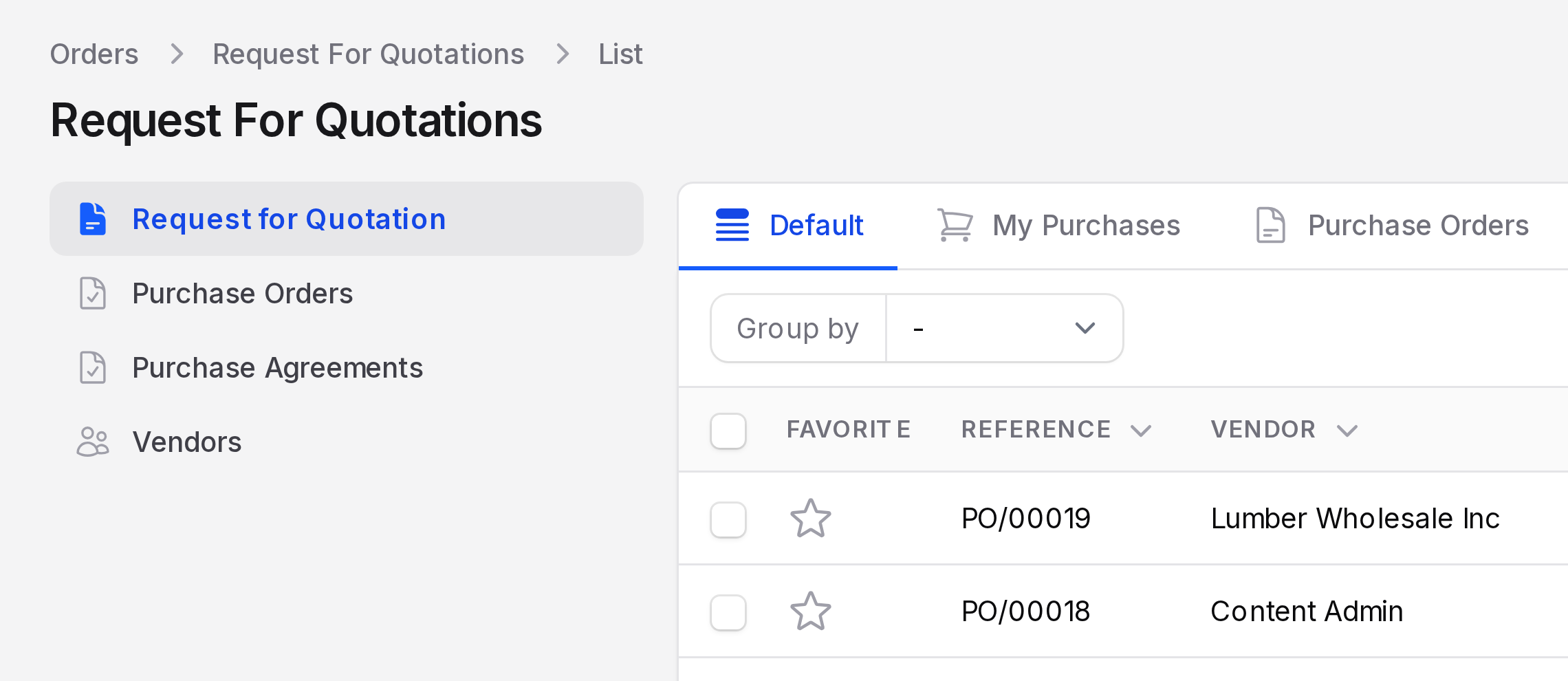
Purchase settings
Purchase settings decide which features your buyers see. Each switch adds a menu, a field or a rule to orders and products. You switch on only what your company needs, so the screens stay simple for everyone else.
In simple words: Switches that add or remove purchase features.
There are two settings pages, Manage Orders and Manage Products. Each page has a Save changes button. Nothing changes until you click it.
Where to find the settings
You can reach the same pages from two places.
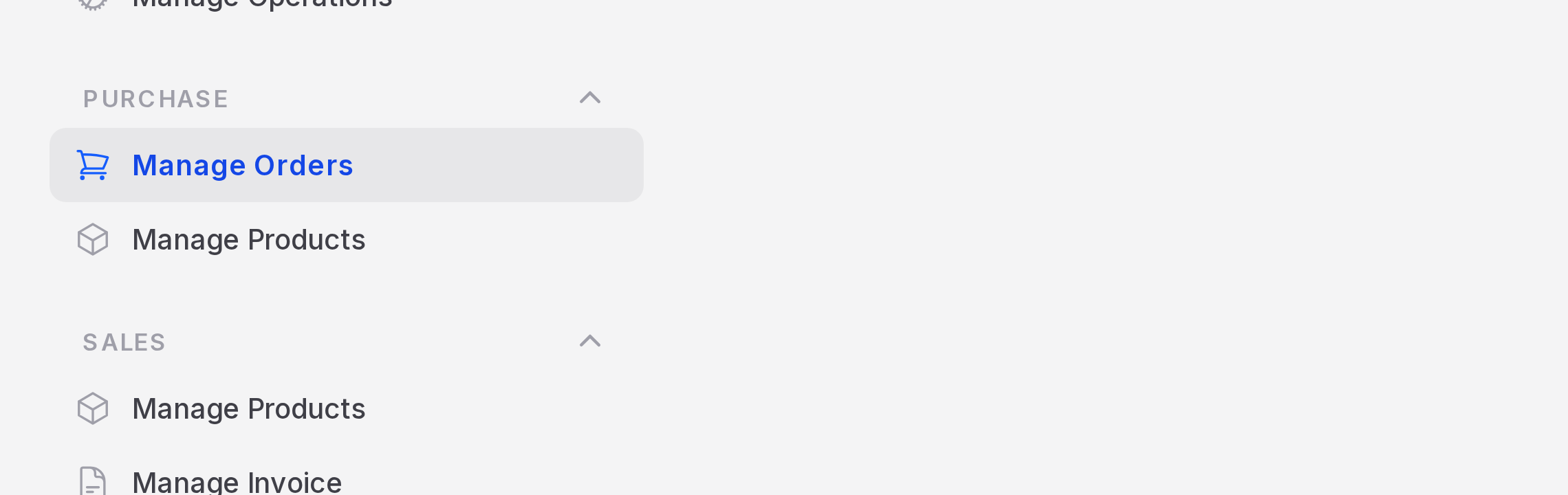
- From the Purchase app:
Purchase → Settings → Manage OrdersorPurchase → Settings → Manage Products. - From the Settings app:
Settings → Settings → Purchase → Manage OrdersorManage Products.
INFO
Both paths open the same options. Changes made in one place show in the other.
Manage Orders
These options control how an order is approved, protected and linked to a deal.
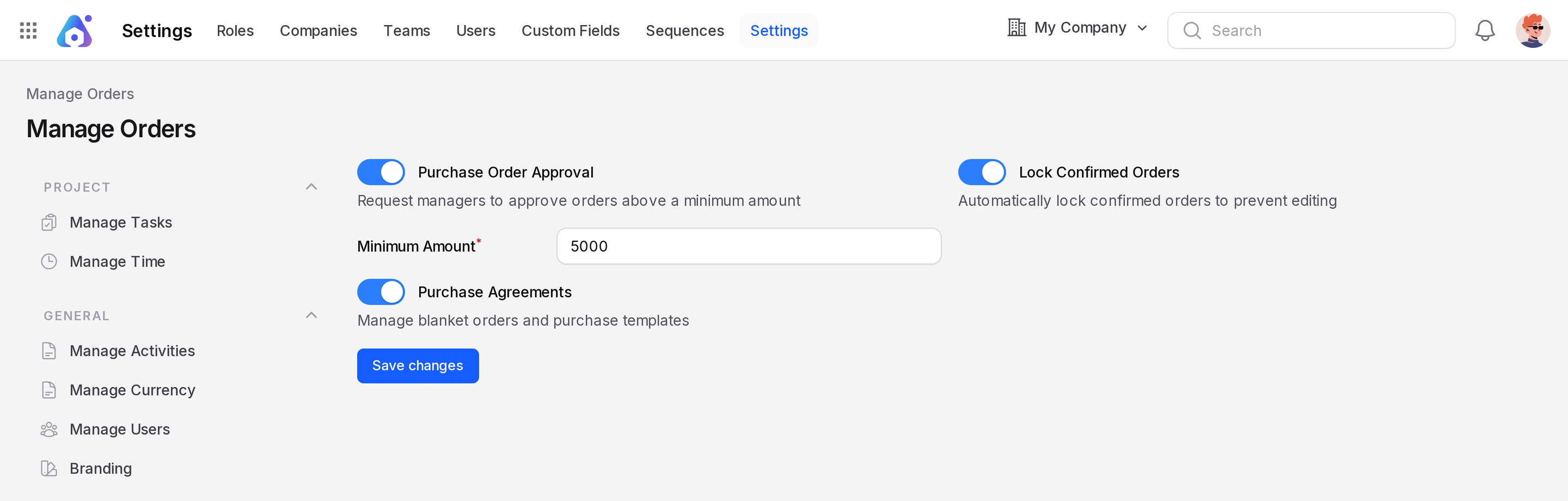
- Purchase Order Approval: Managers must approve orders above a minimum amount. Off by default.
- Minimum Amount: Appears when approval is on. Orders with a total at or above it need approval. The default is 5000.
- Lock Confirmed Orders: Confirmed orders lock automatically, so nobody edits them by mistake. Off by default.
- Purchase Agreements: Turns on blanket orders and purchase templates. Off by default.
What each option changes
| Option | When it is on |
|---|---|
| Purchase Order Approval | A confirmed order above the minimum shows To Approve until an approver accepts it |
| Lock Confirmed Orders | Confirmed orders show Locked. You click Unlock to edit |
| Purchase Agreements | The Purchase Agreements menu and the Agreement field on the order appear |
An approver is a user whose role has the resource permission Global or Group on purchase orders. Other users send the order for approval. See Roles.
Manage Products
These options control how products are described and counted on order lines.
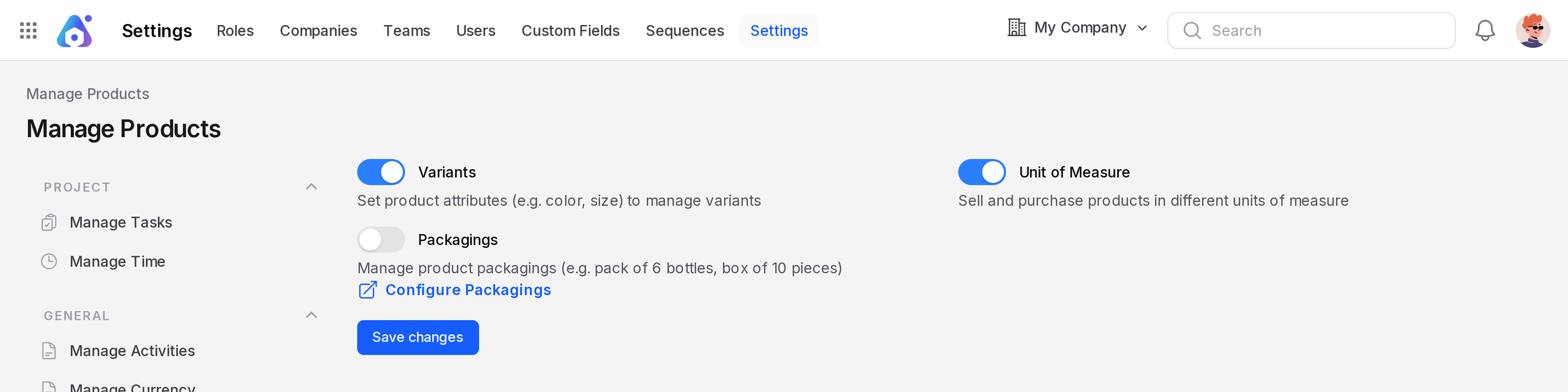
- Variants: Manage products with attributes such as colour or size. On by default.
- Unit of Measure: Buy products in other units, such as boxes or dozens. Off by default.
- Packagings: Manage packagings such as a pack of 6 bottles. Off by default. A Configure Packagings link appears next to it.
What each option changes
| Option | When it is on |
|---|---|
| Variants | The Attributes menu, and the Attributes and Variants pages on a product |
| Unit of Measure | The Unit column on order lines |
| Packagings | The Packagings menu, and Packaging Qty and Packaging on order lines |
Switch a feature on
- Open
Purchase → Settings → Manage Orders. - Turn on Purchase Order Approval. The Minimum Amount field appears.
- Enter a Minimum Amount, for example 5000.
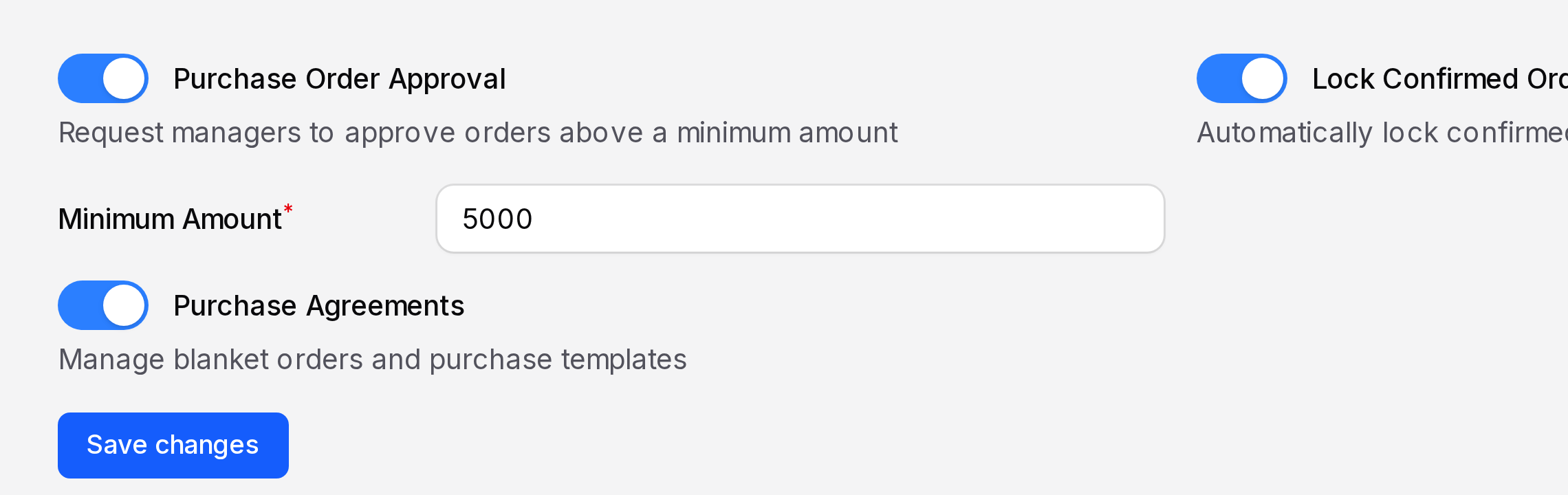
- Click Save changes.
Behind the scenes: The next order you confirm follows the new rule. Orders already confirmed keep their state.
WARNING
Turning Lock Confirmed Orders on does not lock old orders. It applies to orders you confirm or approve after the change.
Check the result
After you save, open the Purchase top bar.
- With Purchase Agreements on, Purchase Agreements appears under Orders.
- With Variants on, Attributes appears under
Configurations → Products. - With Packagings on, Packagings appears under
Configurations → Products.