

Tags and degrees
Tags and degrees add detail to your applicants. A tag is a coloured label, such as Warehouse Management, that helps you group and find people. A degree records the education level of a person. Both come from lists that you maintain once.
In simple words: Tags are coloured labels for applicants. Degrees are education levels you pick from a list.
Open Recruitments → Configuration → Tags or Recruitments → Configuration → Degrees.
Prerequisite
None. Both lists come with sample data.
INFO
These tags are for applicants and candidates. Employee tags are a separate list.
Tags
Overview
The list shows the columns Name and Color. The color appears as a small swatch. Sample tags include Sales, Manager, IT, HR, Warehouse Management and Project Management.
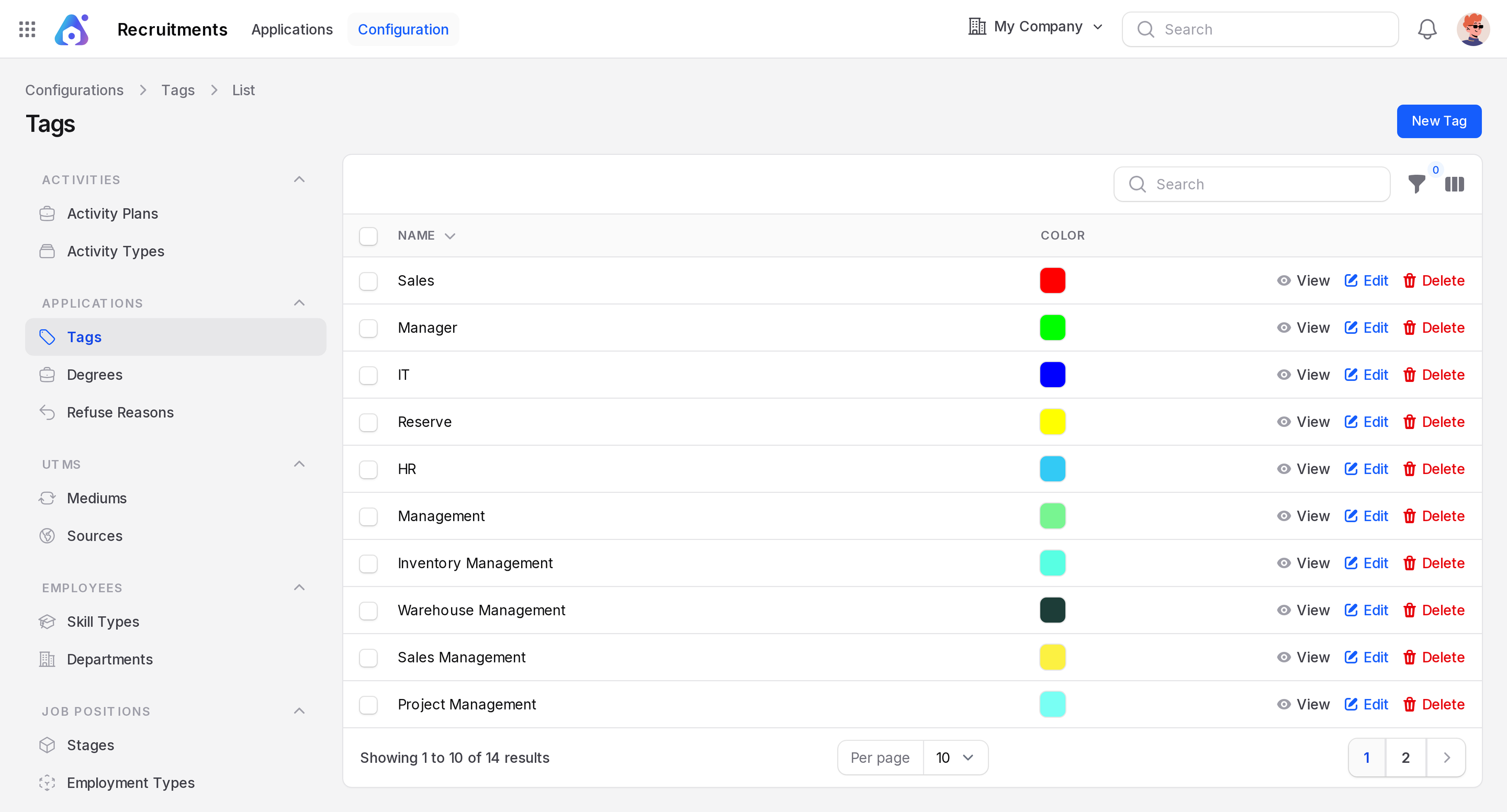
Create a tag
- Open
Recruitments → Configuration → Tags. - Click New Tag. A Create Tags window opens.
- Type Warehouse Supervisor in Name.
- Pick a color in Color.
- Click Create.
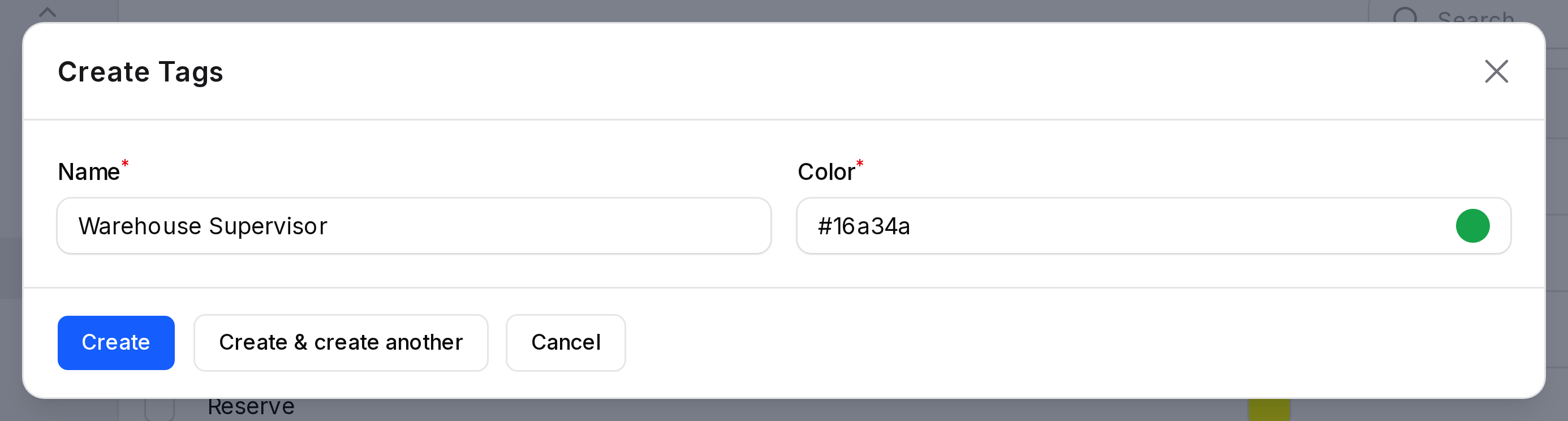
- Name: (required) the label text.
- Color: (required) pick a color with the picker. It has no default.
Where tags are used
You choose tags in the Tags field of the applicant form. A candidate has tags too. When an applicant has none, it shows the tags of its candidate.
Degrees
Overview
The list has one column, Name. The sample data holds 24 degrees, for example Chartered Accountant (CA) and degrees in human resources and finance. Use the page controls to see all of them. Degrees such as Bachelor and Master are on later pages.
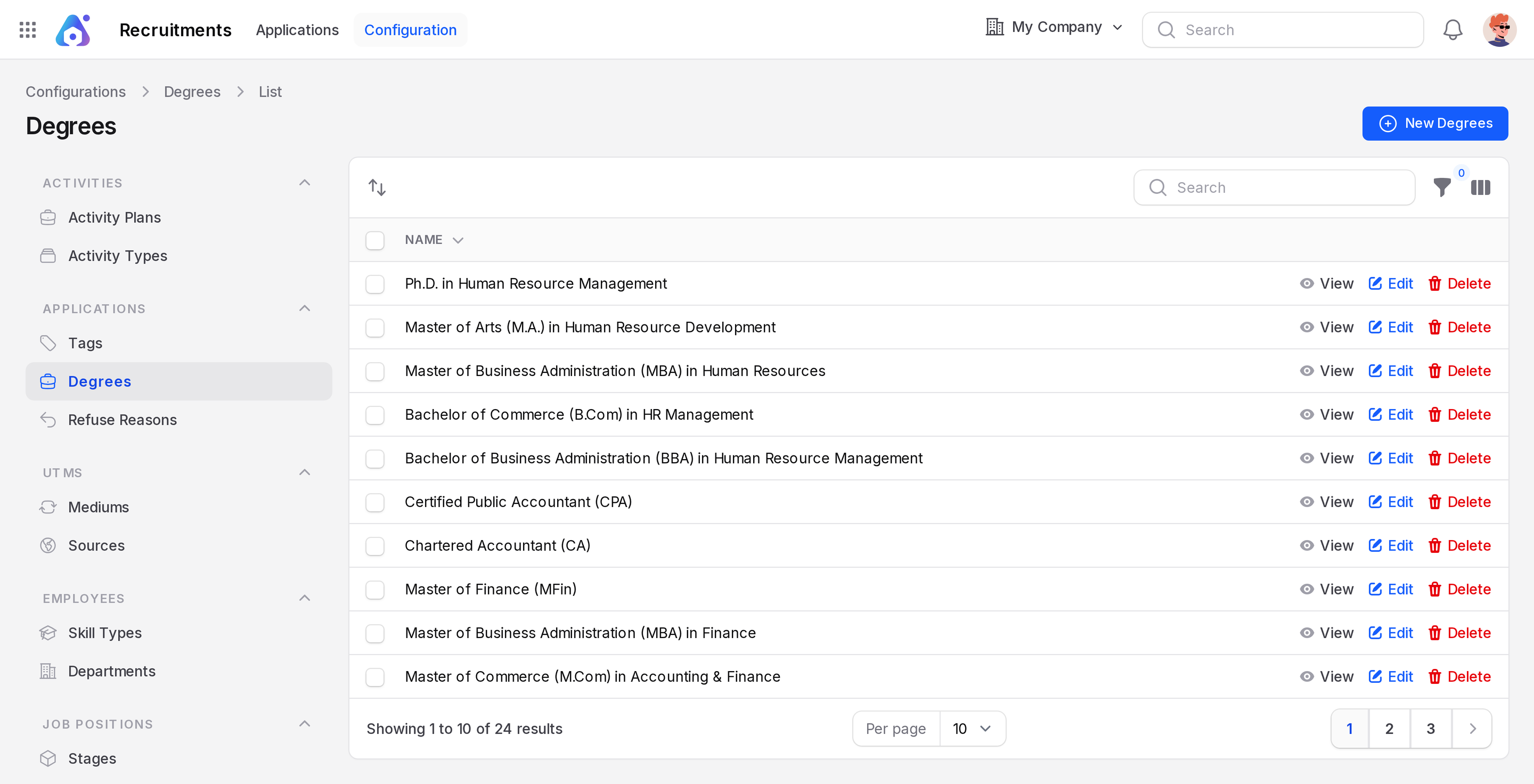
Create a degree
- Open
Recruitments → Configuration → Degrees. - Click New Degrees. A Create Degrees window opens.
- Type a name, for example Diploma in Logistics.
- Click Create.
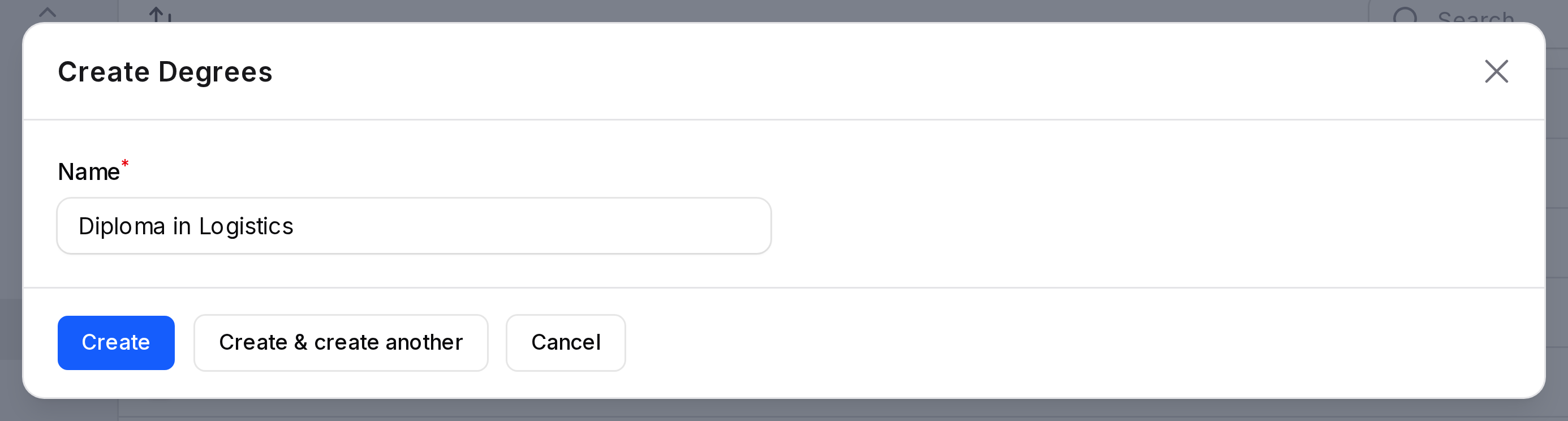
- Name: (required) the degree as people will read it.
Where degrees are used
The Degree field sits in the Education & Availability section of the applicant form. It is saved on the candidate too.