

Create a maintenance request
A maintenance request tells your team that a machine needs work. You pick the equipment, describe the problem, choose a type and say who should do it. Aureus then fills in most of the other fields for you.
In simple words: Choose the equipment, type a short title, and save. Add a date and instructions so the technician knows what to do.
Open Maintenance → Maintenance Requests and click New Maintenance Request.
Before you start
Create these records first:
- A maintenance team.
- The stages. Aureus puts a new request in the first stage.
- The equipment that needs work.
Worked example
The Hydraulic Press 200T leaks oil. You raise a corrective request for it.
- Open
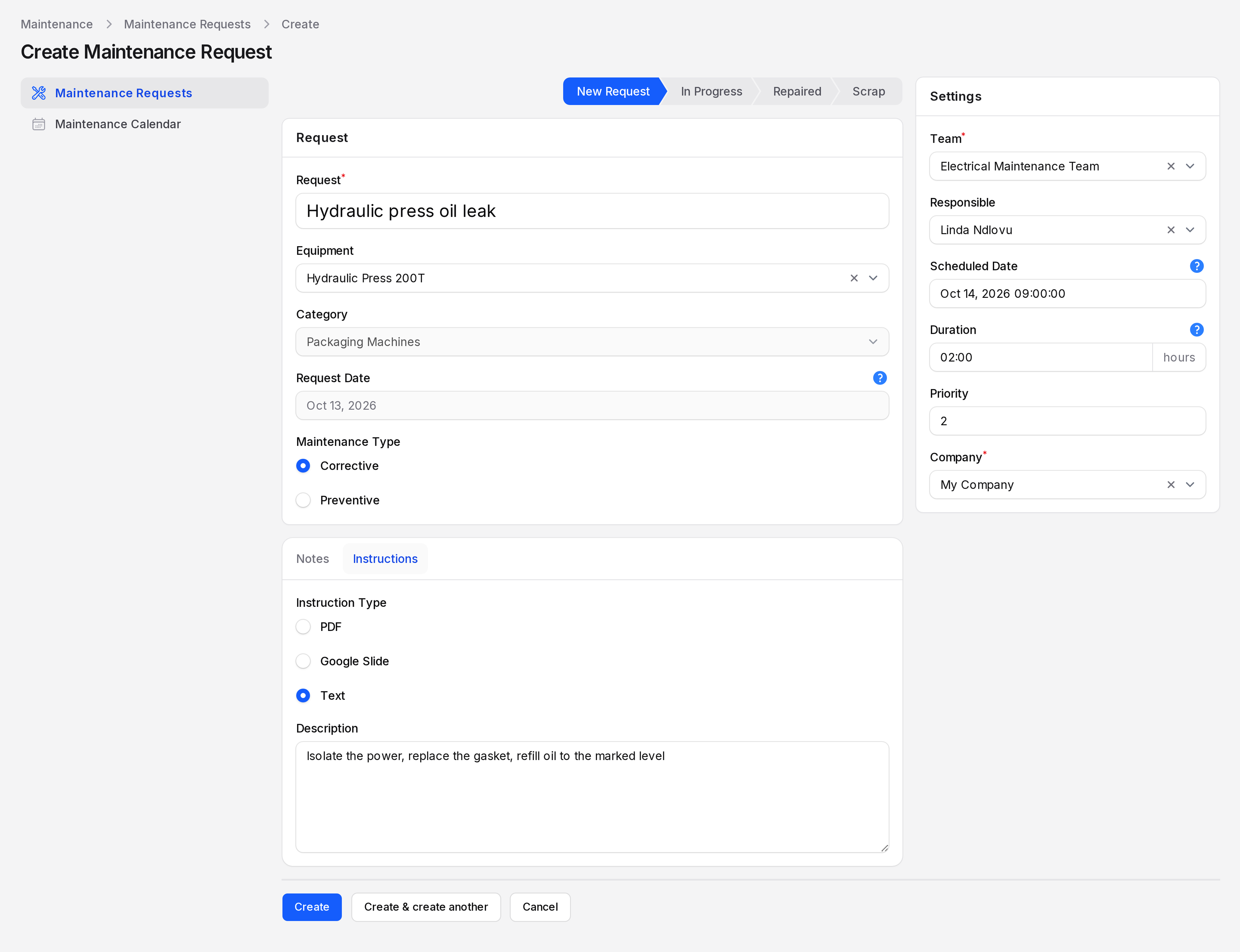
Maintenance → Maintenance Requests. Click New Maintenance Request. The page is titled Create Maintenance Request.
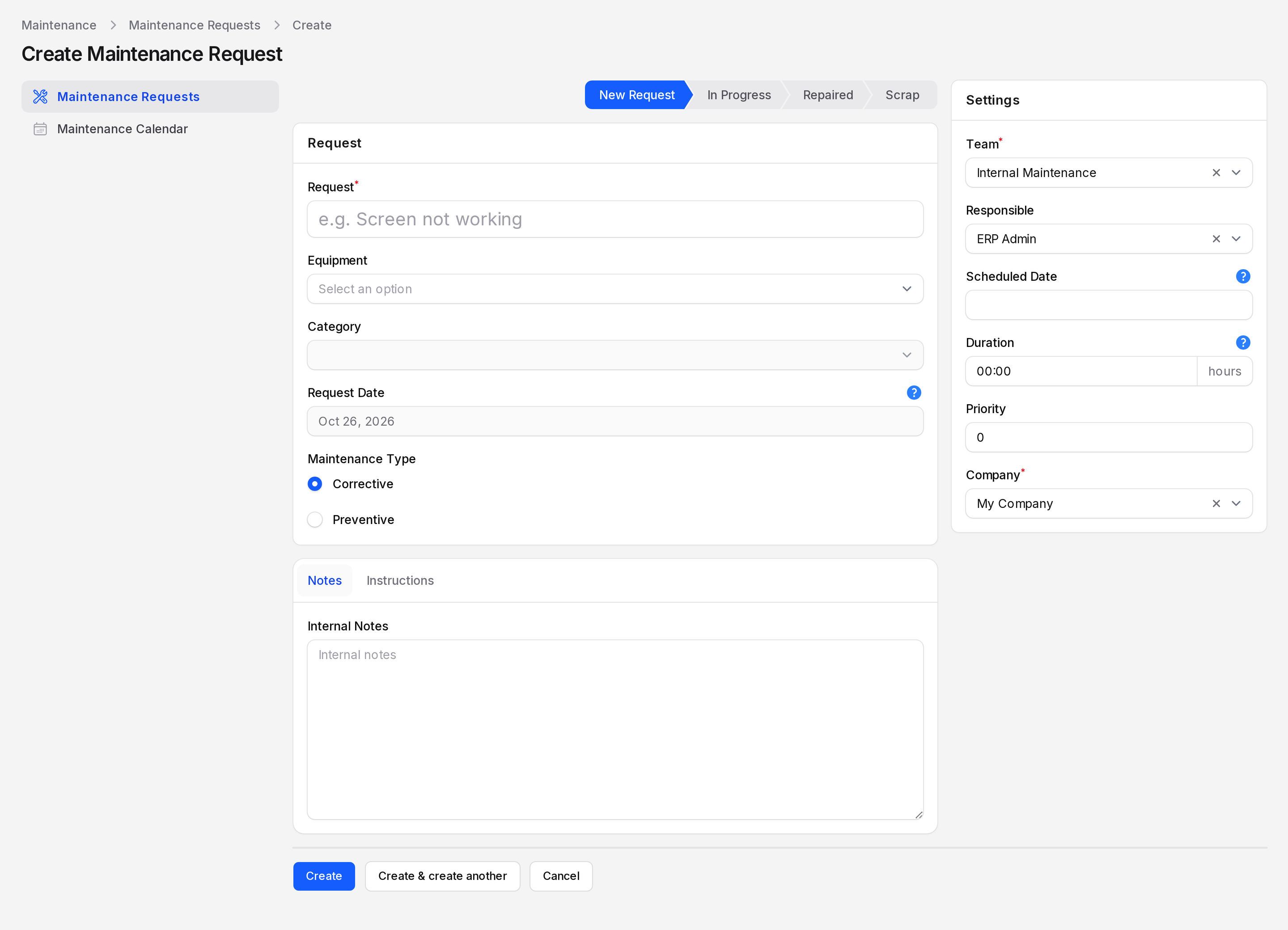
- Look at the stage bar at the top. It shows New Request, In Progress, Repaired and Scrap. A new request starts in New Request.
Request card
- Type the title in Request. Write Hydraulic press oil leak.
- Choose Hydraulic Press 200T in Equipment. Aureus fills several fields at once.
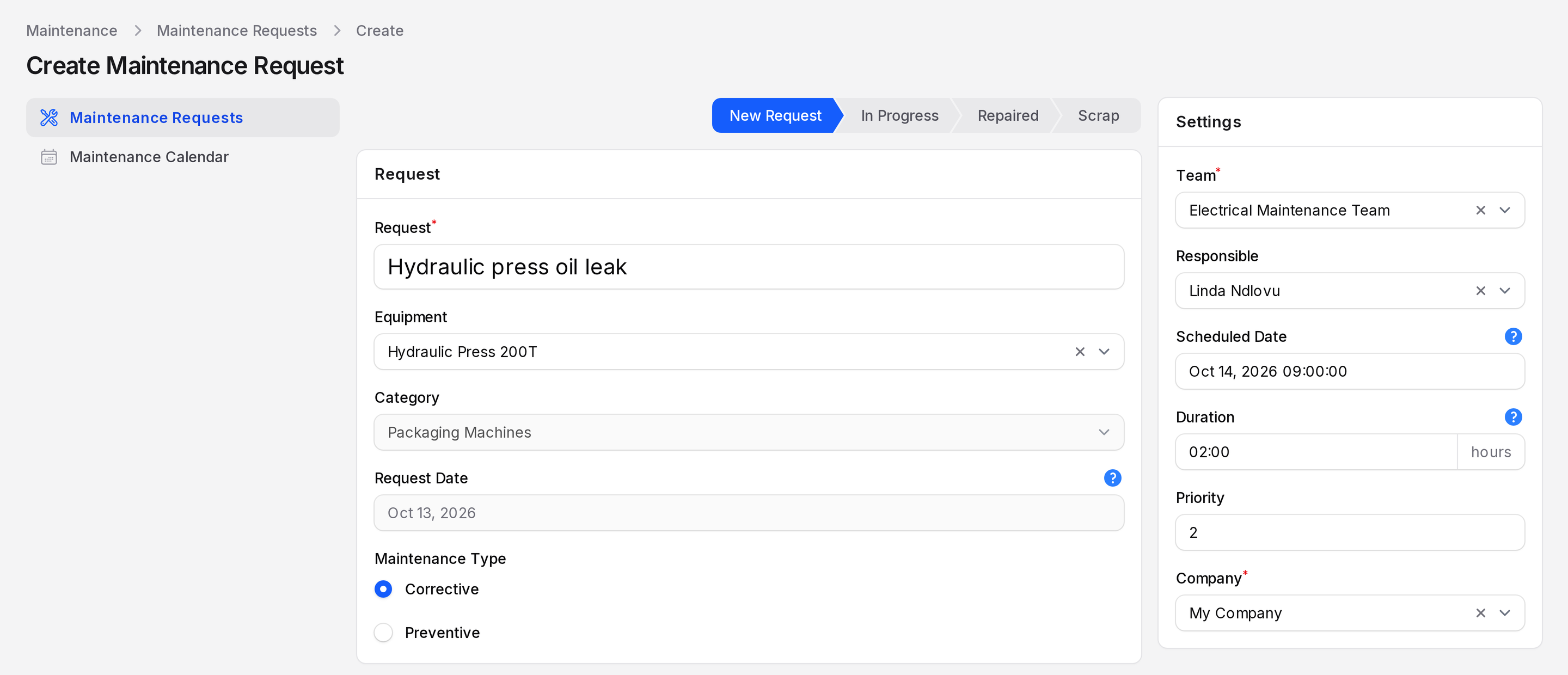
- Leave Maintenance Type on Corrective.
- Request: Required. A short title, up to 255 characters. You cannot change it after you save.
- Equipment: The machine that needs work. Pick it from the list.
- Category: Filled from the equipment. You cannot edit it here. Example: Packaging Machines.
- Request Date: Filled by Aureus. It starts as today and changes to the date of the equipment you pick. You cannot edit it.
- Maintenance Type: Corrective (default) or Preventive. Choose Preventive to see the Recurrent box. See Preventive maintenance.
Settings card
- Check the Settings card on the right. Equipment filled Team and Responsible.
- Set Scheduled Date to a near future date at 09:00, for example Oct 14, 2026 09:00. Set Duration to 02:00. Set Priority to 2.
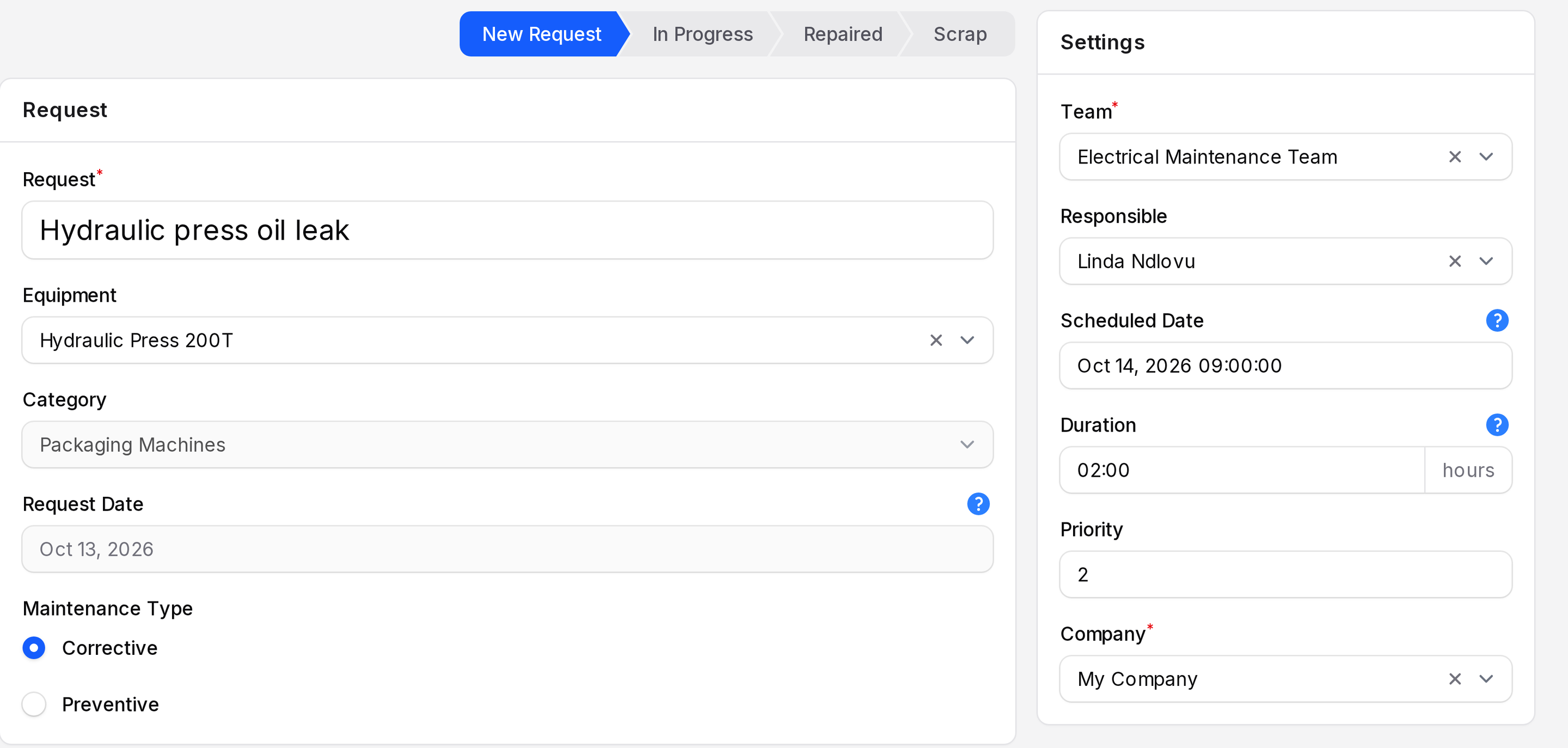
- Team: Required. Filled from the equipment. Example: Electrical Maintenance Team.
- Responsible: The technician. Filled from the equipment. Example: Linda Ndlovu. Without equipment it is you.
- Scheduled Date: When the work should start. Requests with a date show on the calendar.
- Duration: How long the job takes, as hours and minutes (
hh:mm). Example:02:00. - Priority: A number from 0 to 3. The default is 0. Use 0 for normal work and 1 to 3 for work that needs attention first. Any value above 0 appears in the High-priority tab.
- Company: Required. The default is your company.
Notes tab
- The Notes tab is open by default. Type extra details in Internal Notes. Only your team sees them.
Instructions tab
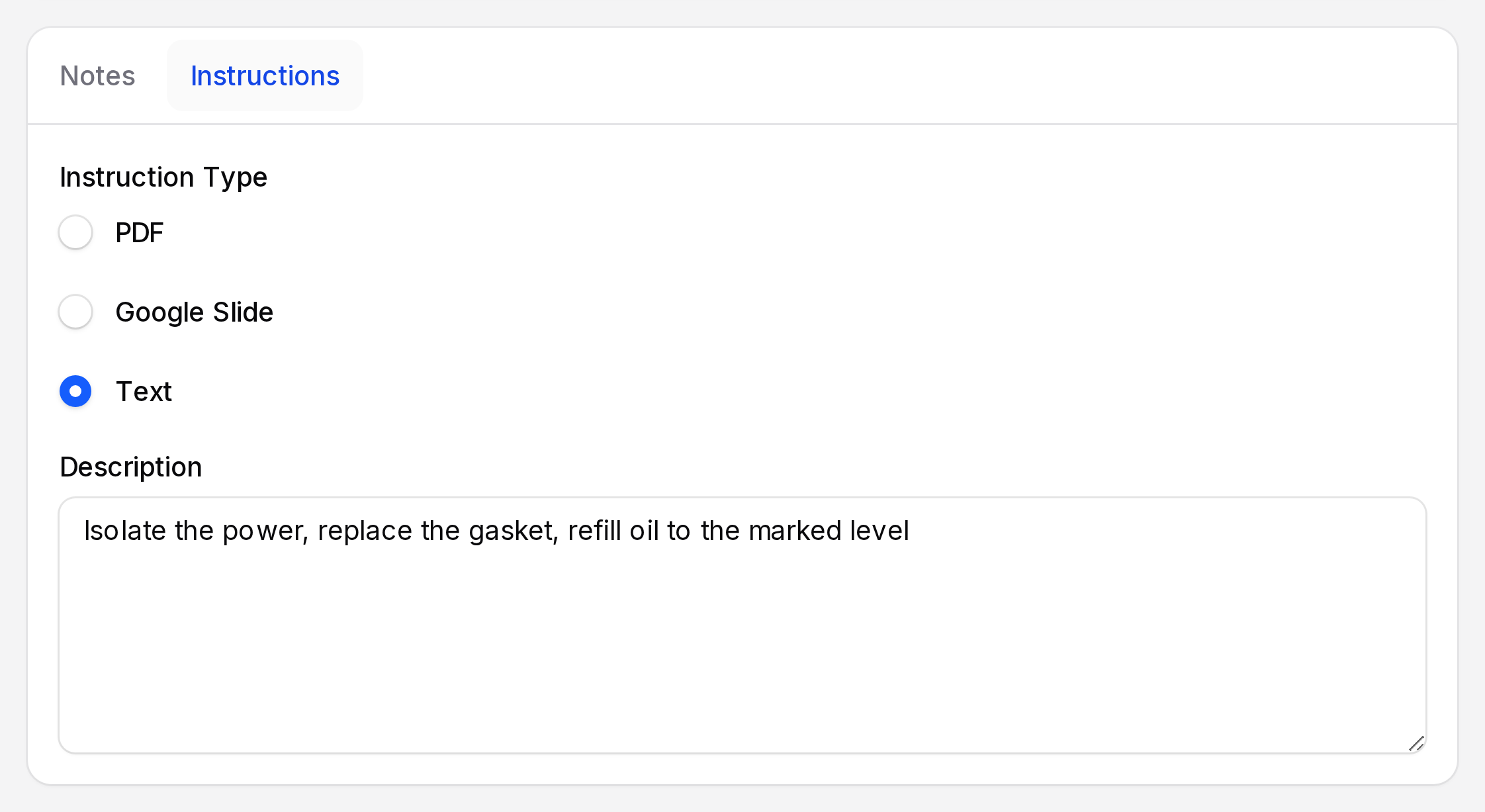
- Open the Instructions tab. Instruction Type is Text by default.
- Text: shows a Description box. Type the steps.
- PDF: shows a PDF upload. Attach a manual or checklist.
- Google Slide: shows a Google Slide field. Paste the link of the presentation.
For the example, keep Text and write: Isolate the power, replace the gasket, refill oil to the marked level.
Save
- Click Create. Click Create & create another to start a new form. Click Cancel to leave.
After Create the notification Maintenance request created appears with the text "The maintenance request has been created successfully." You land on the View page of the new request, not the list. The Chatter badge shows 1, for "A new Maintenance Request was created".
TIP
Pick the equipment first. It fills Category, Team and Responsible, so you type less.
What happens next
The request sits in New Request and is assigned to Linda Ndlovu. Move it forward in Process a request.