

Work locations
A work location tells everyone where a person usually works: at an office, at home, or somewhere else. You set it once per place and pick it on each employee. This helps you see who is on site and who works remotely.
In simple words: A work location is the place an employee works from.
Open Employees → Configurations → Work Locations.
Prerequisite
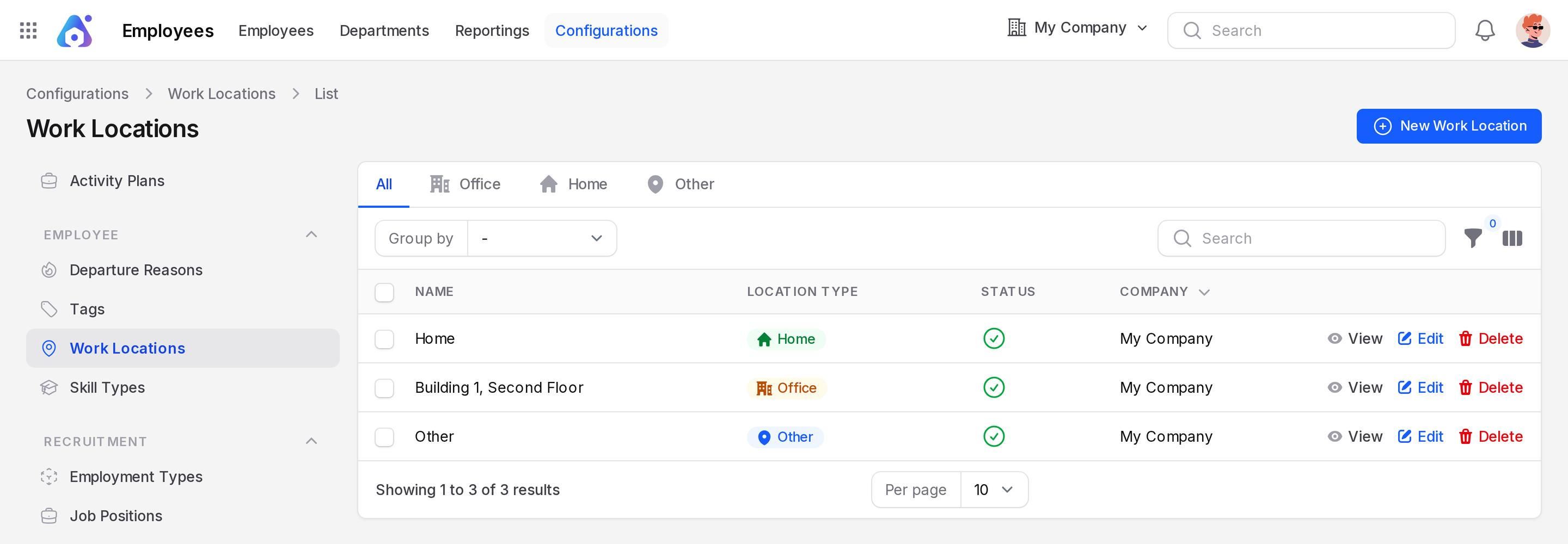
None. The sample data has Home, Building 1, Second Floor and Other.
Overview
Four tabs filter the list by kind: All, Office, Home and Other. Columns are Name, Location Type, Status and Company. You can filter by Status.
Create a work location
This example adds a second office.
- Open
Employees → Configurations → Work Locations. - Click New Work Location. A window opens.
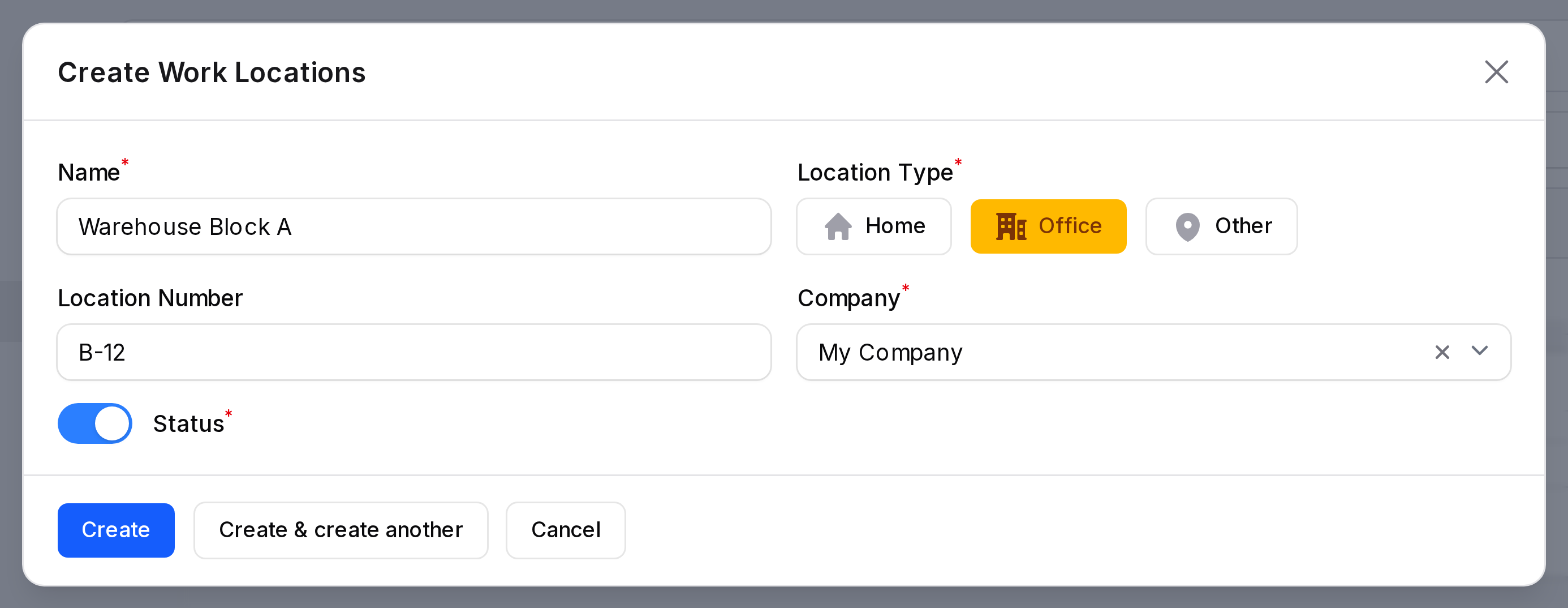
- Fill in the form.
- Name: Required. Type
Warehouse Block A. - Location Type: Required. Click Office. The other choices are Home and Other. Nothing is chosen at first.
- Location Number: Optional. A room or building number, such as
B-12. - Company: Required. Fills with My Company.
- Status: Required toggle. Default is off. Turn it on.
- Click Create.
WARNING
Status is off by default. Turn it on, or the location stays inactive.
Where work locations are used
- On the employee form,
Work Information → Location → Work Locationoffers these records. The plus button next to it creates one on the spot. - Changing the employee's company clears the work location, so you pick again.
- The tab on this list groups places by type, which helps you review office and home setups.
Edit or delete
Click Edit on a row to change it. Click Delete to remove it.