

Payments
A payment is one amount a customer handed over for an order, with the method used. An order can have several payments, for example part cash and part card. The Payments page lists them all, so you can check what each method took in.
In simple words: Payments is the money list. Each row is one amount paid on one order.
Overview
Go to Point of Sale → Orders → Payments.
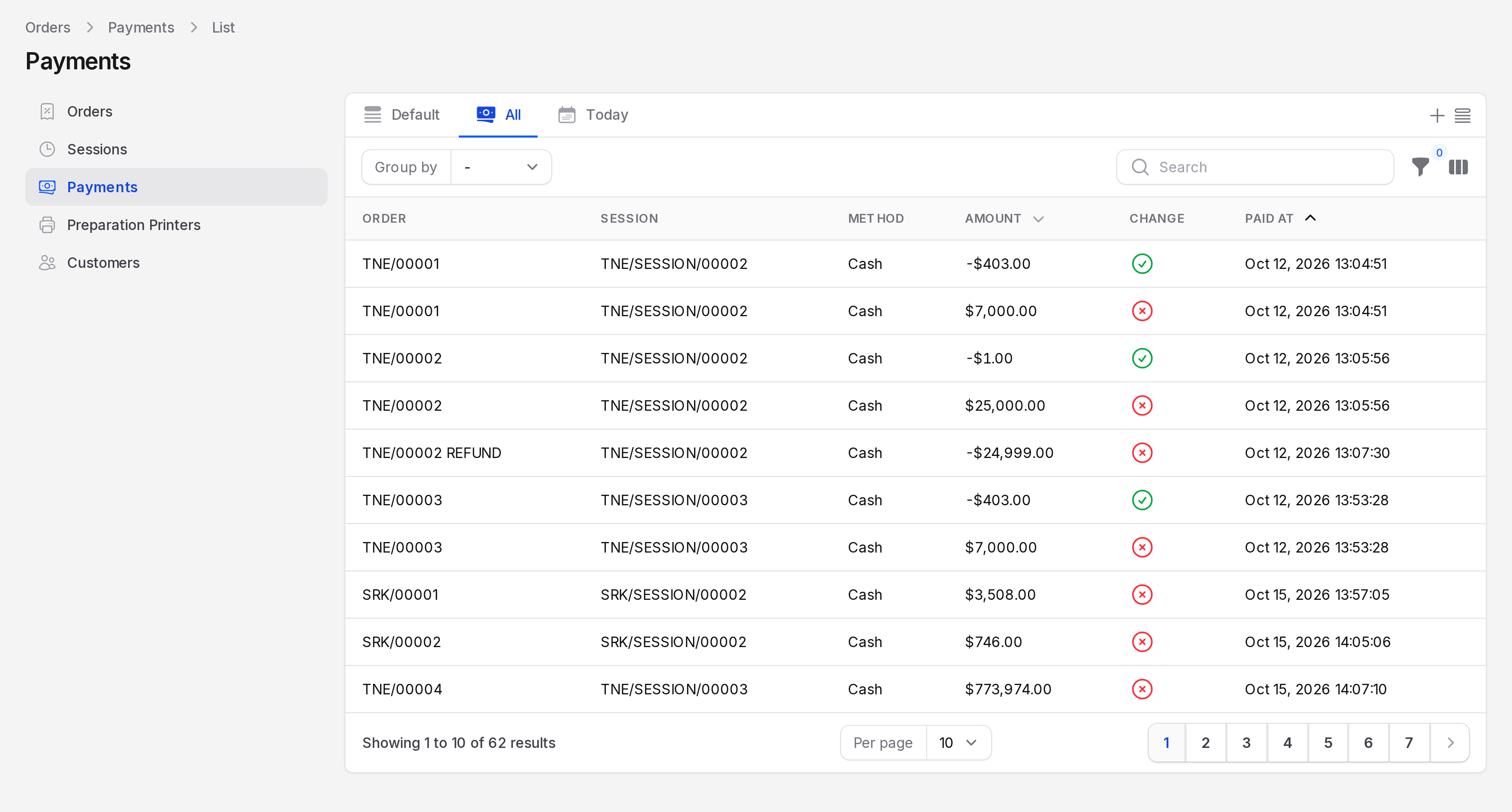
The page has these tabs:
- All: Every payment.
- Today: Payments made today.
The saved views menu also holds Change, which lists only the change lines.
Columns
- Order: The order the payment belongs to, such as TNE/00001.
- Session: The session, such as TNE/SESSION/00002.
- Method: The payment method, such as Cash.
- Amount: The amount. Refunds and change are negative.
- Change: A tick when the line is the change given back to the customer.
- Paid At: The date and time of the payment.
Hidden columns: Customer and Terminal Status.
Group and filter
- Click Group by to group by Method or Session.
- Use the filters for Payment Method and Session.
Read the rows
Look at order TNE/00001. It shows two rows:
- Cash 7,000. This is what Sofia Rossi handed over.
- Cash -403 with Change ticked. This is the change you gave back.
The net cash taken is 6,597, the order total.
A refund shows a negative payment. The refund order TNE/00002 REFUND has a Cash line of -24,999.
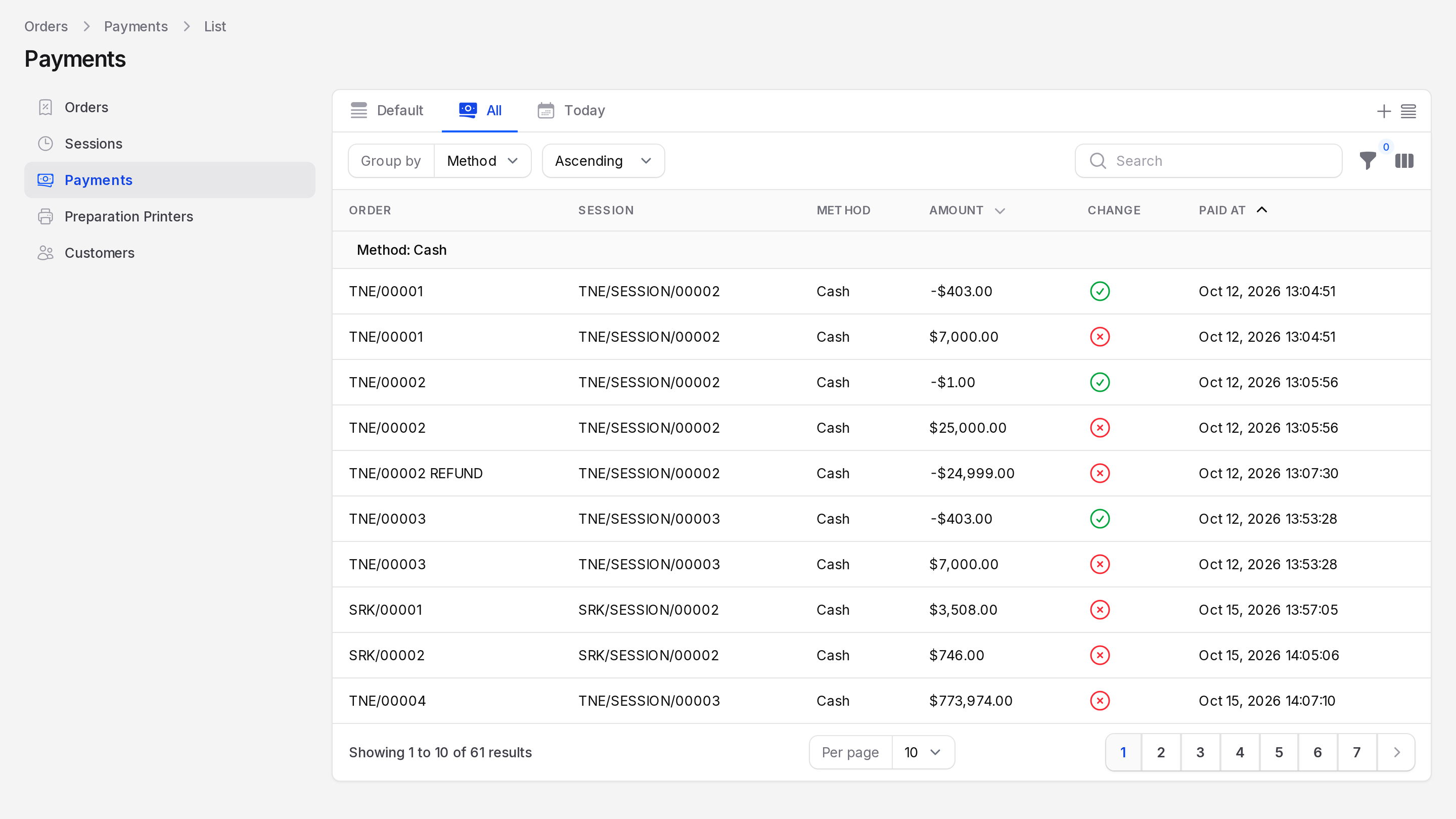
Where payments come from
You do not create payments here. The cashier takes them on the payment screen at the till. You can open the order and use the Payments tab to see its lines. See Pay and receipt.
Terminal status
Payments made through a payment terminal can carry a status. The values are Pending, Authorized, Done, Reversed and Failed. Switch on the Terminal Status column to see it.
TIP
Group by Session before you close a session. Compare each method total with the counted money.