

Teams
A team is a named group of users. Teams matter when a user has the Group resource permission, because that user can then reach the records of colleagues in the same team. You manage teams from the Teams tab of the Settings app.
In simple words: A team is a list of colleagues who can share access to each other's records.
Overview
Open Settings → Teams to see the list of teams.
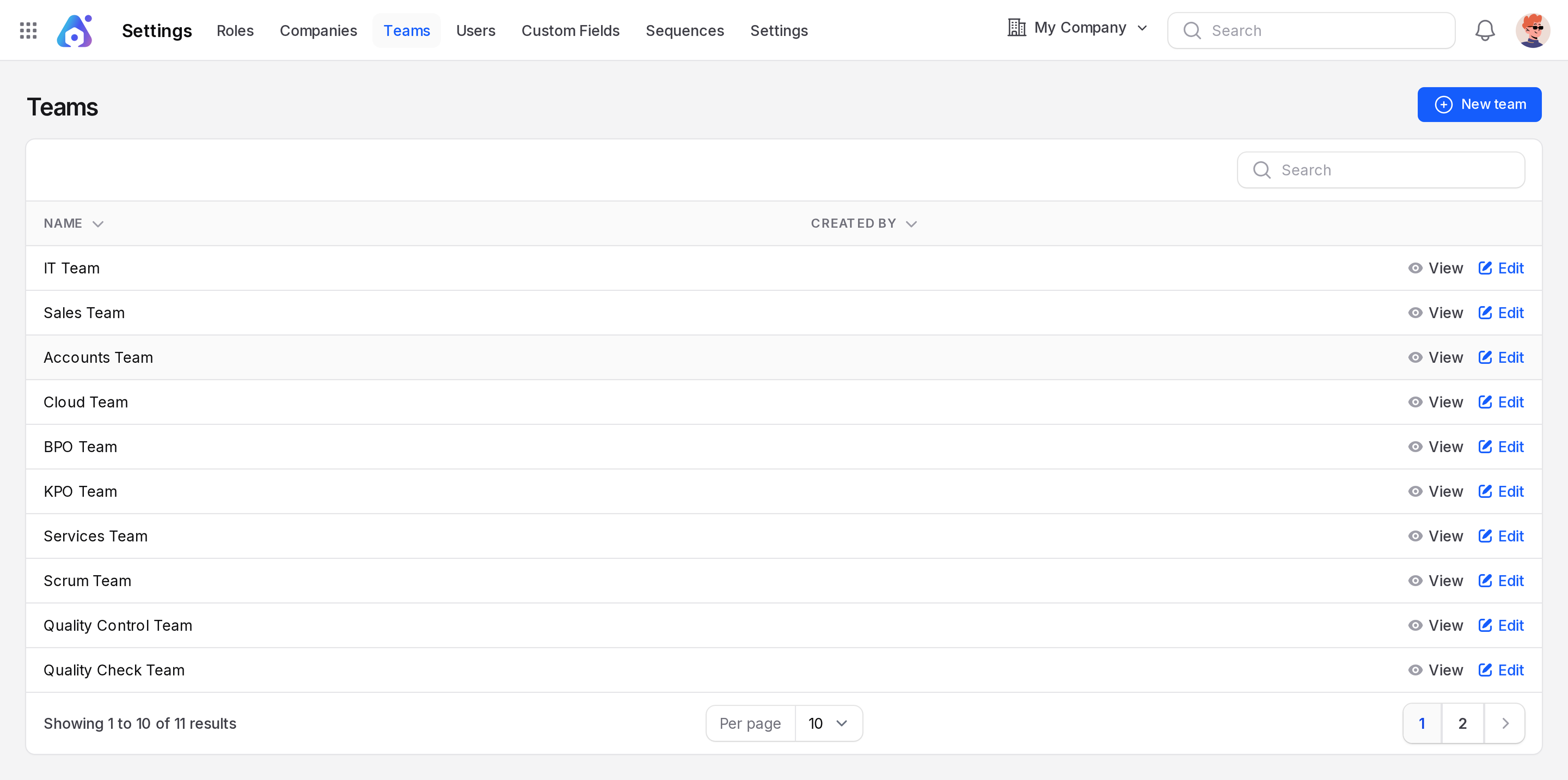
The list has these columns:
- Name: The team name.
- Created By: The user who created the team.
Create a team
Go to
Settings → Teams.Click New team at the top right.
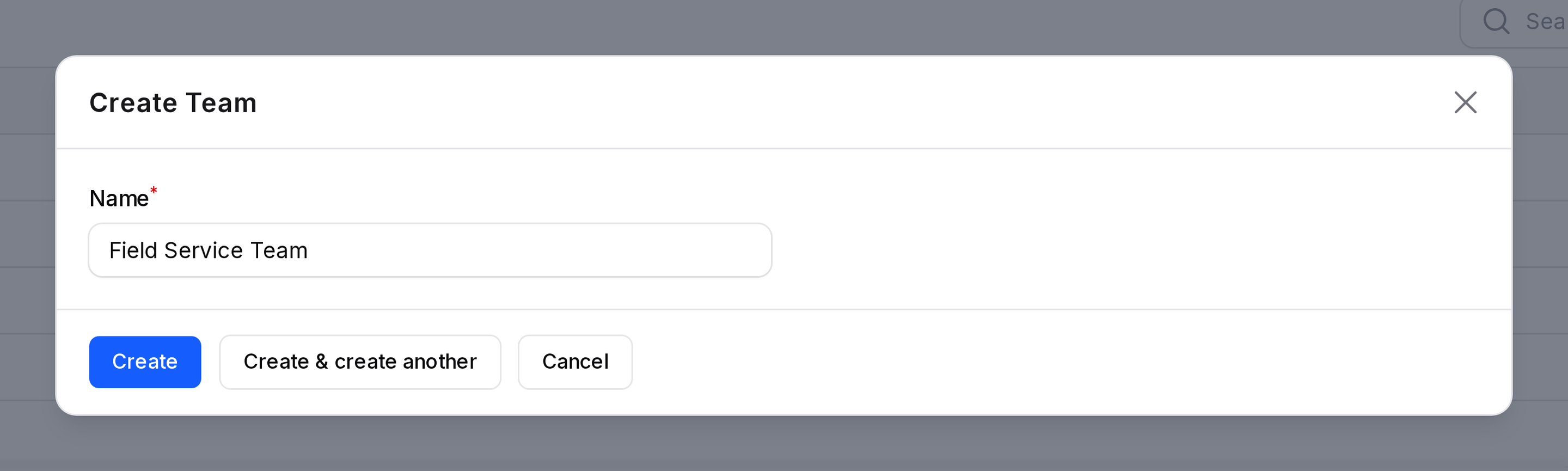
Fill in the form:
- Name: The team name. Required.
Click Create. A Team created message appears.
TIP
You can also create a team from the Teams field on a user form. Use the plus icon next to the field.
Assign users to a team
A team has no member list of its own. You add users from the user form.
- Open
Settings → Users. - Edit the user.
- In Permissions, choose the team in Teams.
- Click Save changes.
See Users for how Resource Permission works with teams.
Actions and statuses
Each row has these actions:
- View: Shows the team details.
- Edit: Changes the Name. A Team updated message appears.
- Delete: Removes the team. A Team deleted message appears.
WARNING
The Delete button is hidden for a team that still has users. Remove the team from those users first.