

Manufacturing settings
The settings page decides which parts of Manufacturing you see. By default you can make products with a bill of materials and a manufacturing order. Two switches add work centers, work orders and the order in which steps run.
In simple words: Switch on Work Orders to split a build into steps. Switch on Work Order Dependencies to make steps wait for each other.
Open the settings
You can reach the same page in two ways:
Manufacturing → Settings → Manage OperationsSettings → Settings → Manufacturing
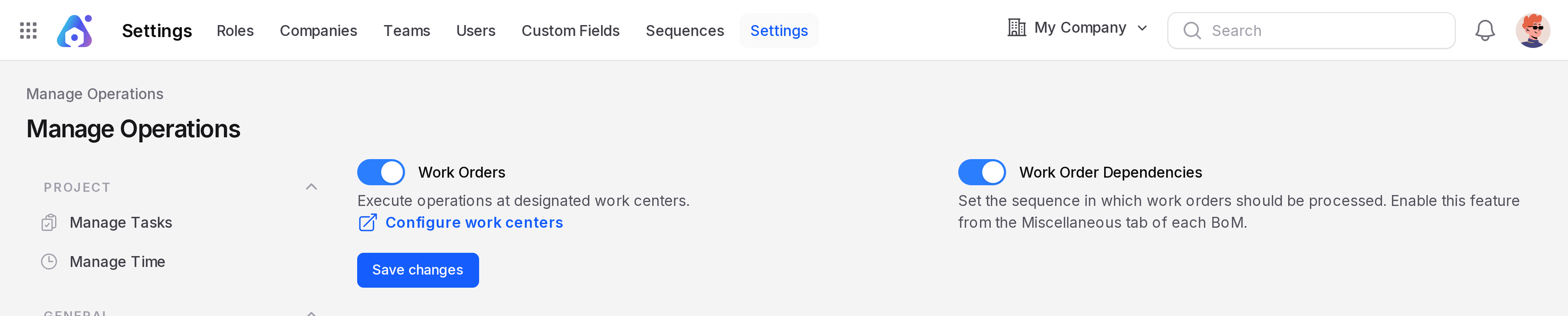
Manage Operations
- Work Orders: Turn on to run operations at work centers. The help text reads "Execute operations at designated work centers." A Configure work centers link appears next to it.
- Work Order Dependencies: Turn on to set the order in which work orders run. The help text reads "Set the sequence in which work orders should be processed." The order follows the sequence of the operations on the bill of materials.
Click Save Changes after you change a toggle.
What each setting turns on
| Setting | Shows after you turn it on |
|---|---|
| Work Orders | Manufacturing → Operations → Work Orders, Manufacturing → Configurations → Work Centers and Operations, the Work Orders tab on a manufacturing order, the Operations tab on a bill of materials |
| Work Order Dependencies | Step ordering of work orders, shown on the Blocked By tab of a work order |
INFO
Turning on Work Order Dependencies also turns on Work Orders. Turning off Work Orders turns off Work Order Dependencies too.
Turning dependencies on, step by step
- Go to
Manufacturing → Settings → Manage Operations. - Turn on Work Orders.
- Turn on Work Order Dependencies.
- Click Save Changes.
Each work order then waits for the one before it. See Work order dependencies.
Warehouse steps
The warehouse Manufacturing choice (one, two or three steps) lives in Inventory, not here. It needs Multi Steps Routes in the Inventory settings. See Two-step manufacturing.
Behind the scenes
The settings only show or hide menus and tabs. Existing manufacturing orders and recipes stay as they are.