

Payment methods
A payment method is a way for a customer to pay at the till, such as cash or a bank card. Each method is linked to an accounting journal, so every payment lands in the right account. You attach the methods to a register to offer them on the payment screen.
In simple words: A payment method is a button on the payment screen. Behind it sits a journal that records the money.
Overview
Go to Point of Sale → Configurations → Payment Methods.
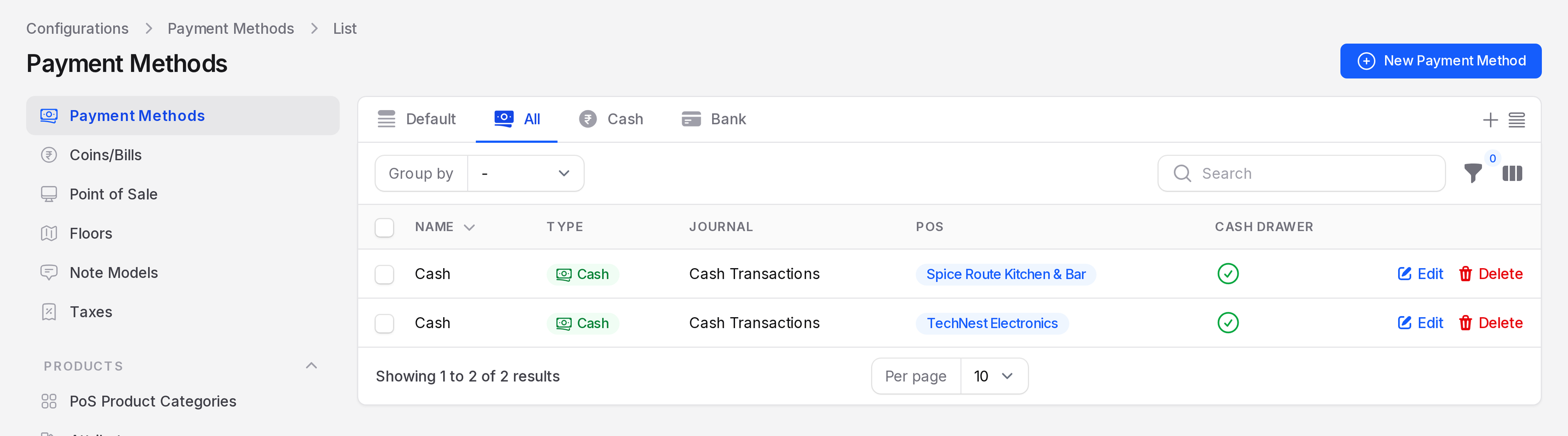
The list has the tabs All, Cash and Bank.
Columns
- Name: The method name, such as Cash.
- Type: Cash, Bank or Customer Account. Aureus sets it from the journal.
- Journal: The journal that records the payments, such as Cash Transactions.
- POS: The registers that use the method.
- Cash Drawer: Yes when the method counts as cash in the drawer.
Use Group by for Type or Company.
How the type is set
You do not pick the type. Aureus reads it from the journal.
- A cash journal makes the method Cash. It is counted in the cash drawer.
- A bank or credit card journal makes it Bank.
- No journal makes it Customer Account. The sale stays on the customer receivable.
Create a payment method
Go to
Point of Sale → Configurations → Payment Methods.Click New Payment Method.
Fill in the General section.
- Name: Required. For example Cash.
- Company: The company the method belongs to.
- Integration: Required. Choose None, Payment Terminal or QR Code. Use None for cash.
- Identify Customer: Switch it on to post one journal item per payment on the customer receivable.
Fill in the Accounting section.
- Journal: Required. Pick the journal, for example Cash Transactions. Leave it empty only when Identify Customer is on.
- Intermediary Account: Leave it empty to use the default account from the company settings.
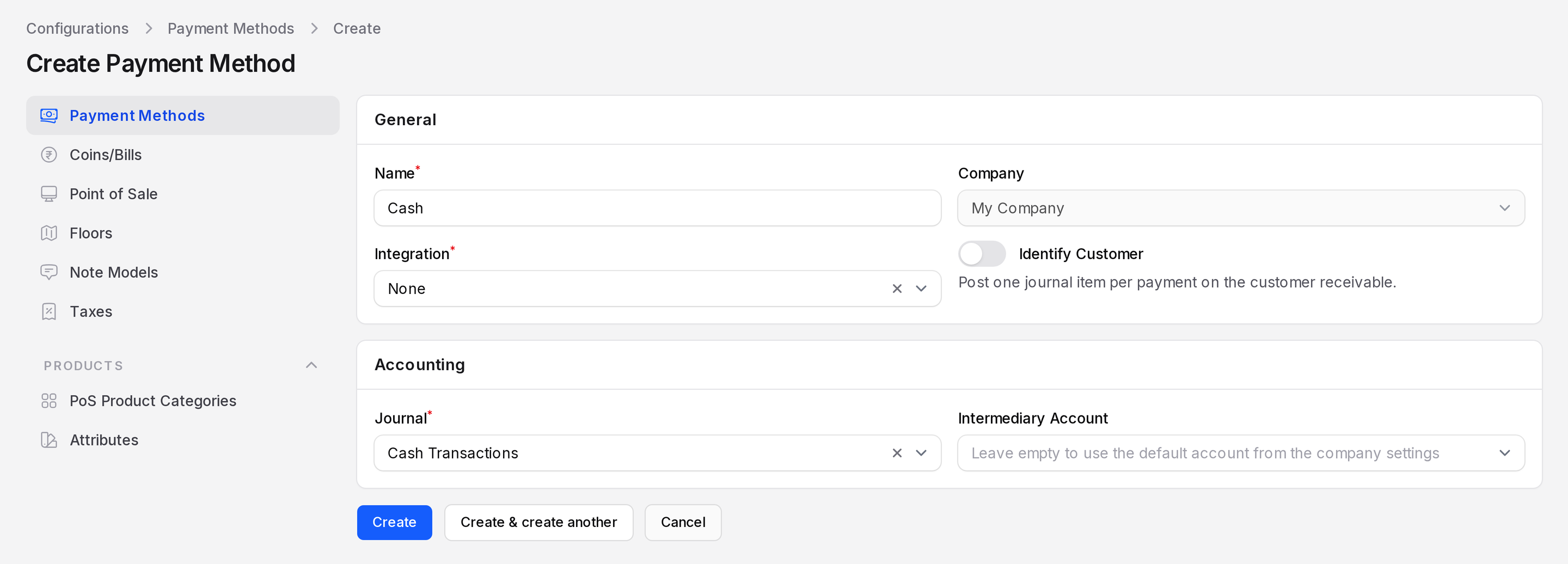
Click Create.
Attach a method to a register
- Go to
Point of Sale → Configurations → Point of Saleand open a register. - Open the Payment tab.
- In Payment Methods, pick the methods. For example, pick Cash for TechNest Electronics.
- Click Save changes.
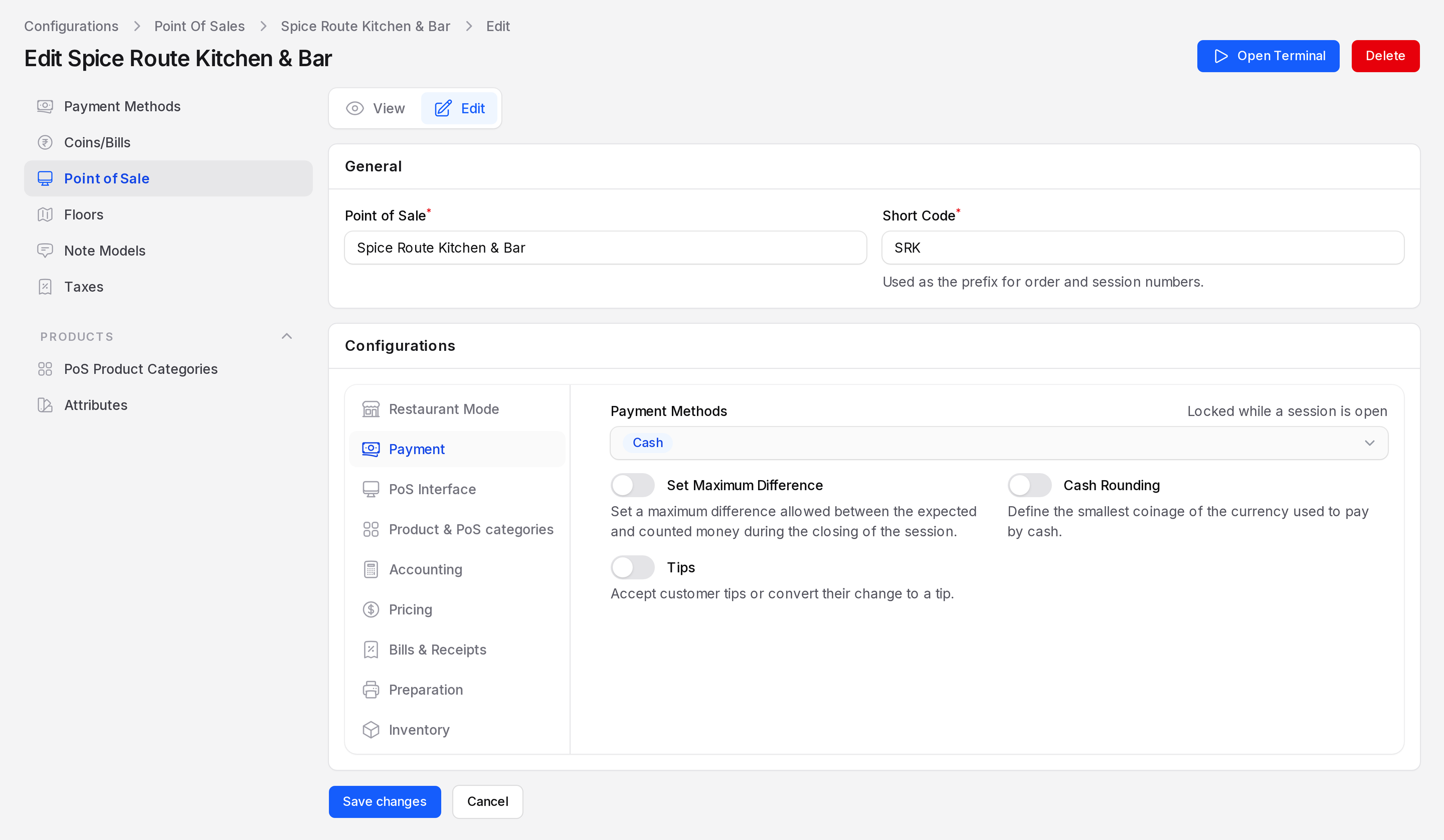
The field locks while a session is open. At the till, the payment screen lists the methods you picked. See Pay and receipt.
Actions
- Edit: Change a method.
- Delete: Archive the method. You can restore it later.
- Delete permanently: Possible only when the method has no payments.
WARNING
You cannot change or archive a method that a register uses while its session is open.
Example
TechNest Electronics takes cash only. The method Cash uses the journal Cash Transactions. When Sofia Rossi pays 7,000 for order TNE/00001, the payment goes to that journal, and the change of 403 is booked as a negative line.