

Task stages and states
Two things describe where a task stands. The stage is its step in your workflow, such as New or Review. The State is a short status of how the work is going, such as In Progress or Done. Do not mix them up.
In simple words: The stage is where the task sits in your process. The State is how it is going.
Three different things
| Concept | What it describes | Where you set it |
|---|---|---|
| Project stage | The step of a whole project, such as To Do or Done | Project → Configurations → Project Stages |
| Task stage | The step of one task inside one project | Project → Configurations → Task Stages |
| Task State | How the work is going | The State field of the task |
Project stages are shared by all projects. See Project stages and milestones. This page covers the other two.
Task stages
A task stage belongs to one project. Each project has its own list. The list starts empty, so you add the stages yourself.
Prerequisite
Add task stages before you create the first task. The stage bar on the task form lists only the stages of the chosen project.
Add a task stage
Open
Project → Configurations → Task Stagesand click New Task Stage.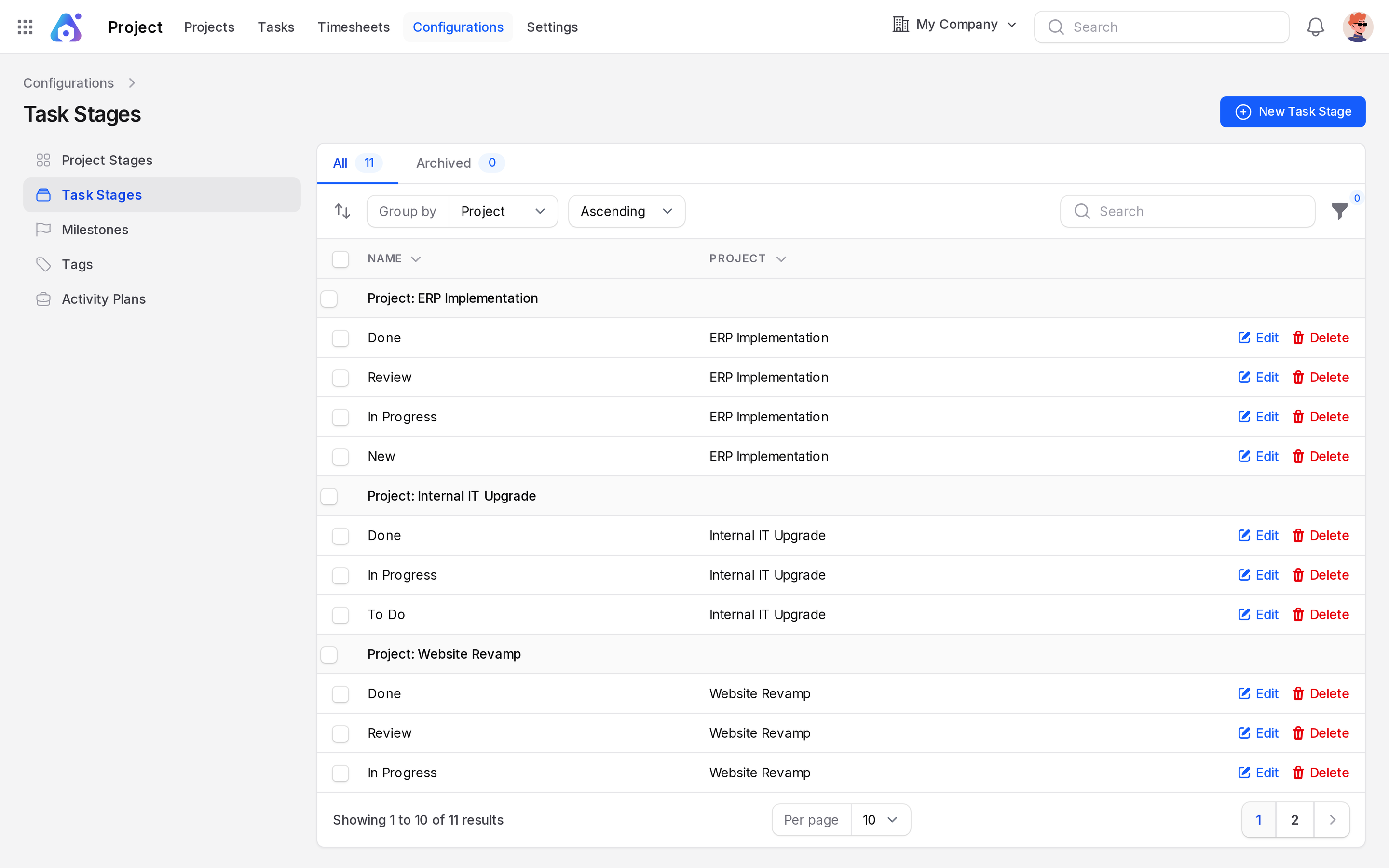
Fill in the modal.
- Name: (required) The stage name, for example Review.
- Project: (required) The project that uses it, for example Website Revamp.
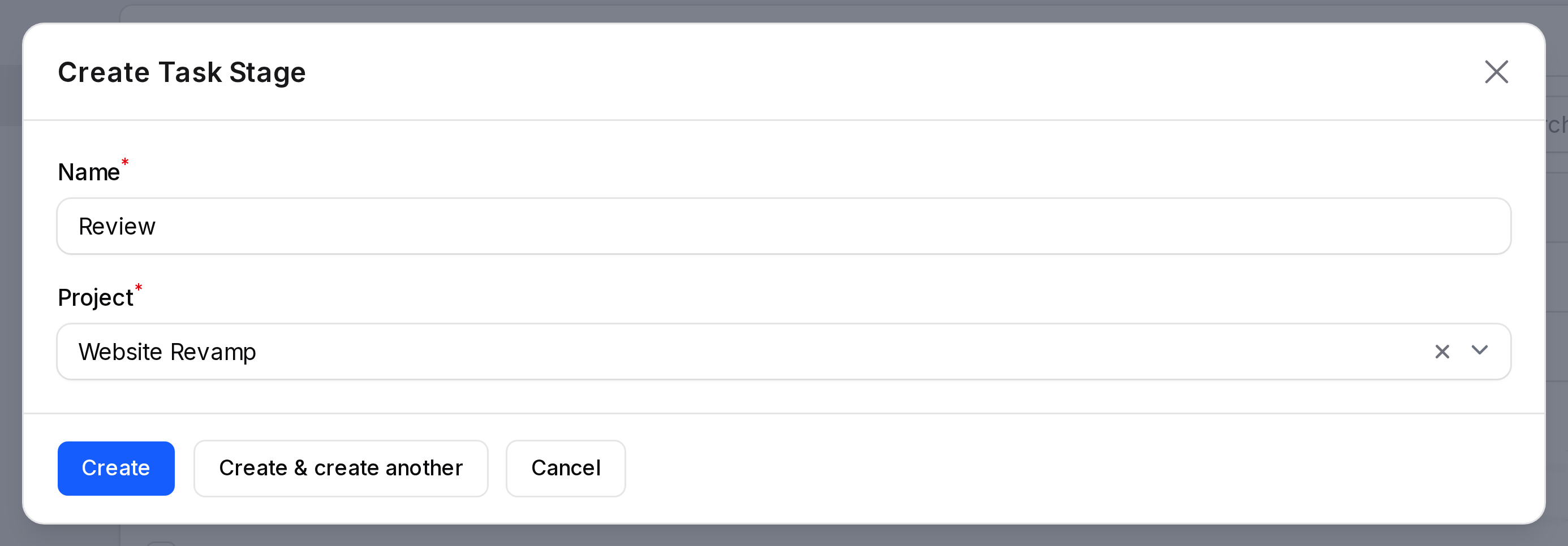
Click Create. Repeat for New, In Progress and Done.
You can also add stages from the Task Stages tab on the project page. The Project field is then hidden.
Drag the rows to change the order. The first stage is the default for new tasks. The row menu has Edit, Delete, Restore and Force delete.
The five States
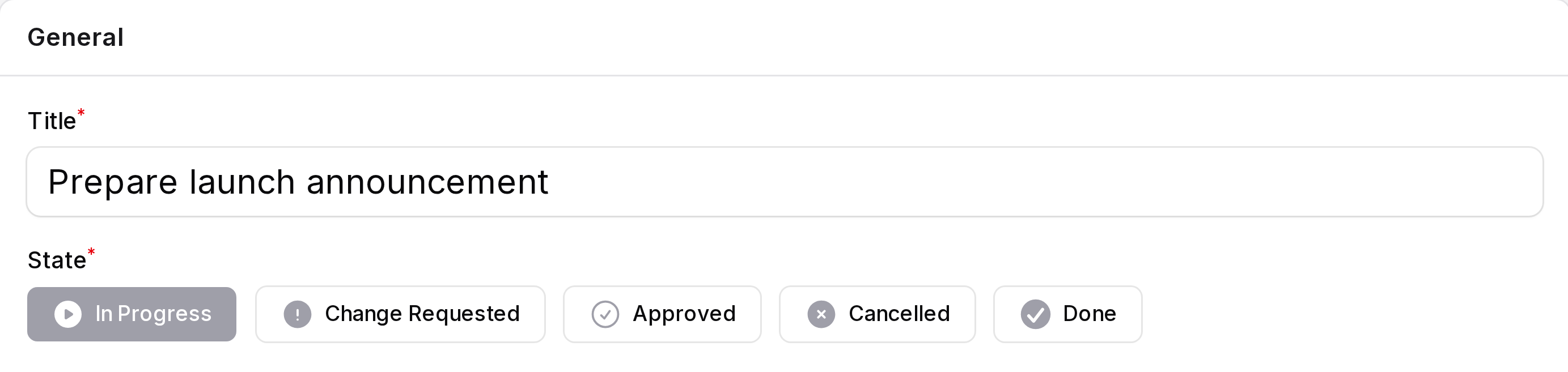
Choose one State on every task. The default is In Progress.
| State | Colour | Use it when |
|---|---|---|
| In Progress | Grey | Work is under way |
| Change Requested | Orange | Someone asked for changes |
| Approved | Blue | The work is accepted |
| Cancelled | Red | The task will not be done |
| Done | Green | The work is finished |
Approved and Done differ only by name. Use Approved when someone has accepted the result. Use Done when the work is finished.
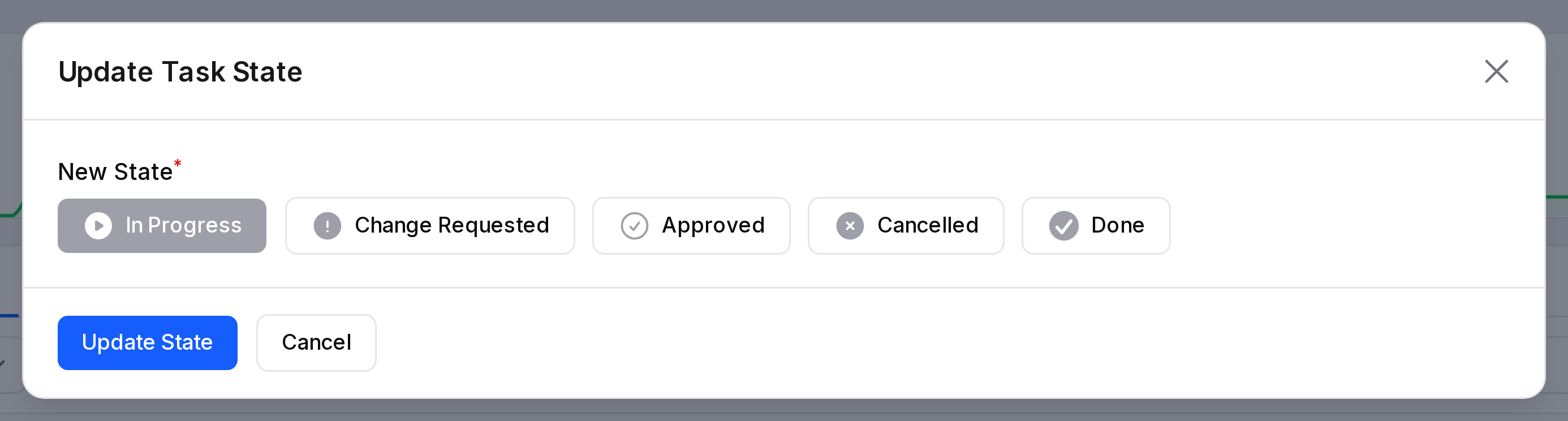
Change the State from the list
In the task list, click the State icon of a row. The Update Task State window opens. Pick the new State under New State and click Update State.
TIP
The Open Tasks tab hides tasks whose State is Cancelled or Done. The Closed Tasks view shows them.
Example
In Website Revamp, Launch checklist and QA has the State Approved and the stage Review. Design new homepage mockups has the State Done and the stage Done.