

Lost reasons
A lost reason is a short answer to the question "why did we lose this deal?". Your team picks one when they mark a lead or opportunity as lost. Over time the reasons show you what to fix, such as price or stock.
In simple words: A lost reason is a ready-made explanation you choose when a deal is lost.
Open CRM → Configuration → Pipeline → Lost Reasons.
The lost reason list
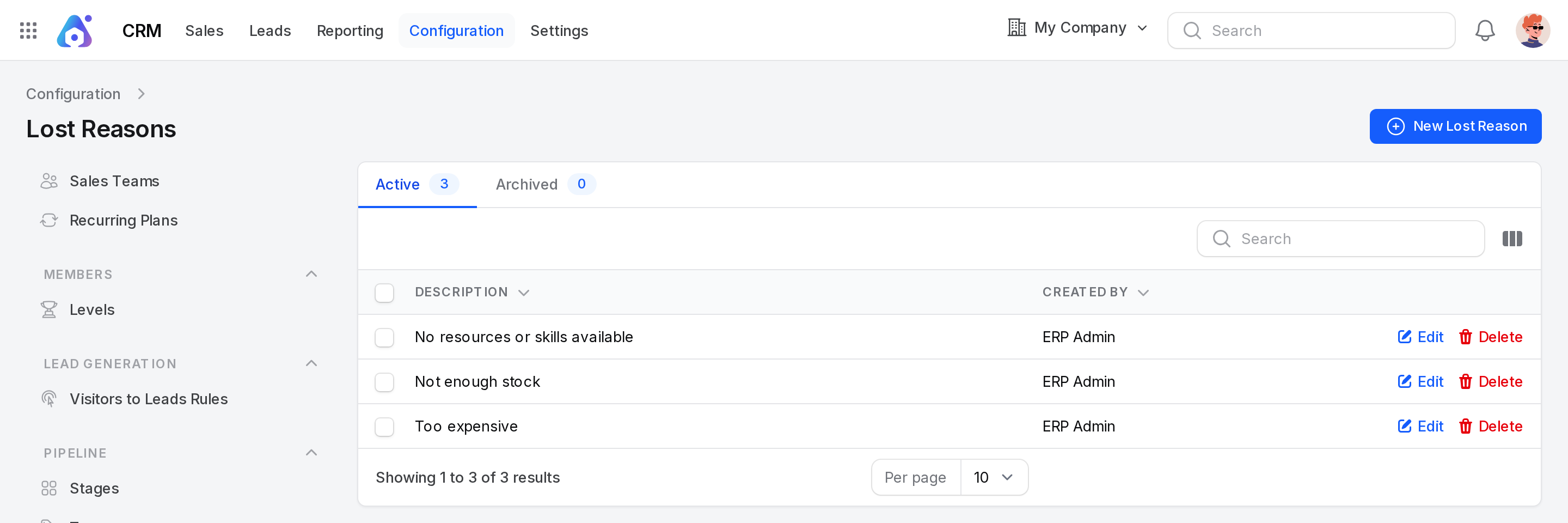
The default reasons are No resources or skills available, Not enough stock and Too expensive.
Views (tabs)
- Active: Reasons you can pick. The badge shows how many there are.
- Archived: Reasons you deleted. The badge shows how many there are.
Example: The dev data has 3 active reasons and 0 archived.
Columns
- Description: The text of the reason. You can sort by it.
- Created By: The user who added it.
- Created At and Updated At: Hidden at first. Show them with the column toggle.
Search, sort and export
- Type in the search box to find a reason.
- Click a heading to sort. The list starts sorted by description.
- Select rows and use the bulk actions to export, delete, restore or delete for good.
Create a lost reason
- Go to
CRM → Configuration → Pipeline → Lost Reasons. - Click New Lost Reason.
- Fill in the form.
- Click Create.
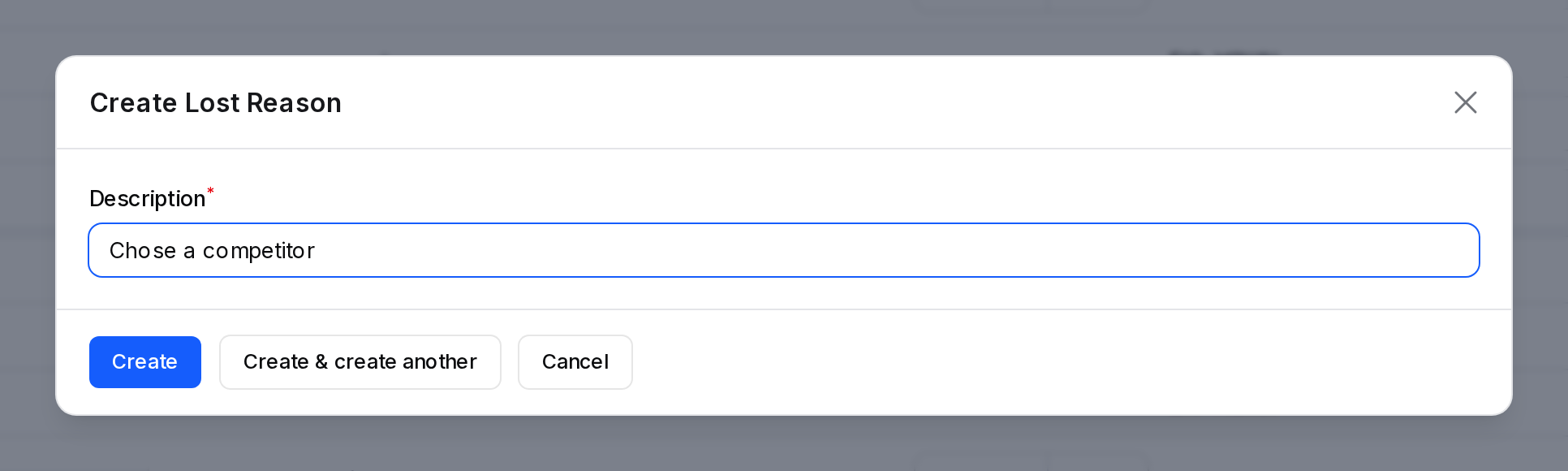
- Description: The reason text. Required. Up to 255 characters.
Example: Enter Chose a competitor. A notice says the lost reason was created.
Actions and statuses
| Action | Where | What it does |
|---|---|---|
| Edit | Active tab | Changes the text. A notice says Lost reason updated. |
| Delete | Active tab | Moves the reason to Archived. |
| Restore | Archived tab | Brings the reason back to Active. |
| Delete (permanent) | Archived tab | Removes the reason for good. A notice says it has been permanently deleted. |
An archived reason cannot be picked on a new lost deal.
Use a lost reason
- Open a lead or an opportunity.
- Click Lost.
- In the Mark as lost dialog, choose a Lost Reason and write a Closing Note.
- Click Mark as Lost.
See Mark won or lost. You can also mark several records as lost at once from a list or a report.
Behind the scenes
- The reason is saved on the lost record. Reports can group by Lost Reason.
- Archiving a reason does not change records that already use it.
- Check the reasons in Lead analysis: open the Lost tab and group by Lost Reason.
TIP
Keep reasons specific. "Too expensive" helps you decide on a discount. "Other" does not.