

Departments
A department is a part of your company, such as Sales or Operations. You give each employee a department so you can see who works where. A department can sit inside another one, for example Quality Check Department inside Research & Development. It can also have a manager.
In simple words: A department is a team box that holds employees, with an optional boss and an optional parent box.
Open Employees → Departments.
Prerequisite
The Manager is an existing employee, so create that person first. See Add an employee. The company must also exist. See Companies.
Overview
The page shows departments as cards, not as a table. Each card shows the manager's picture and name (if one is set), the department name and the company.
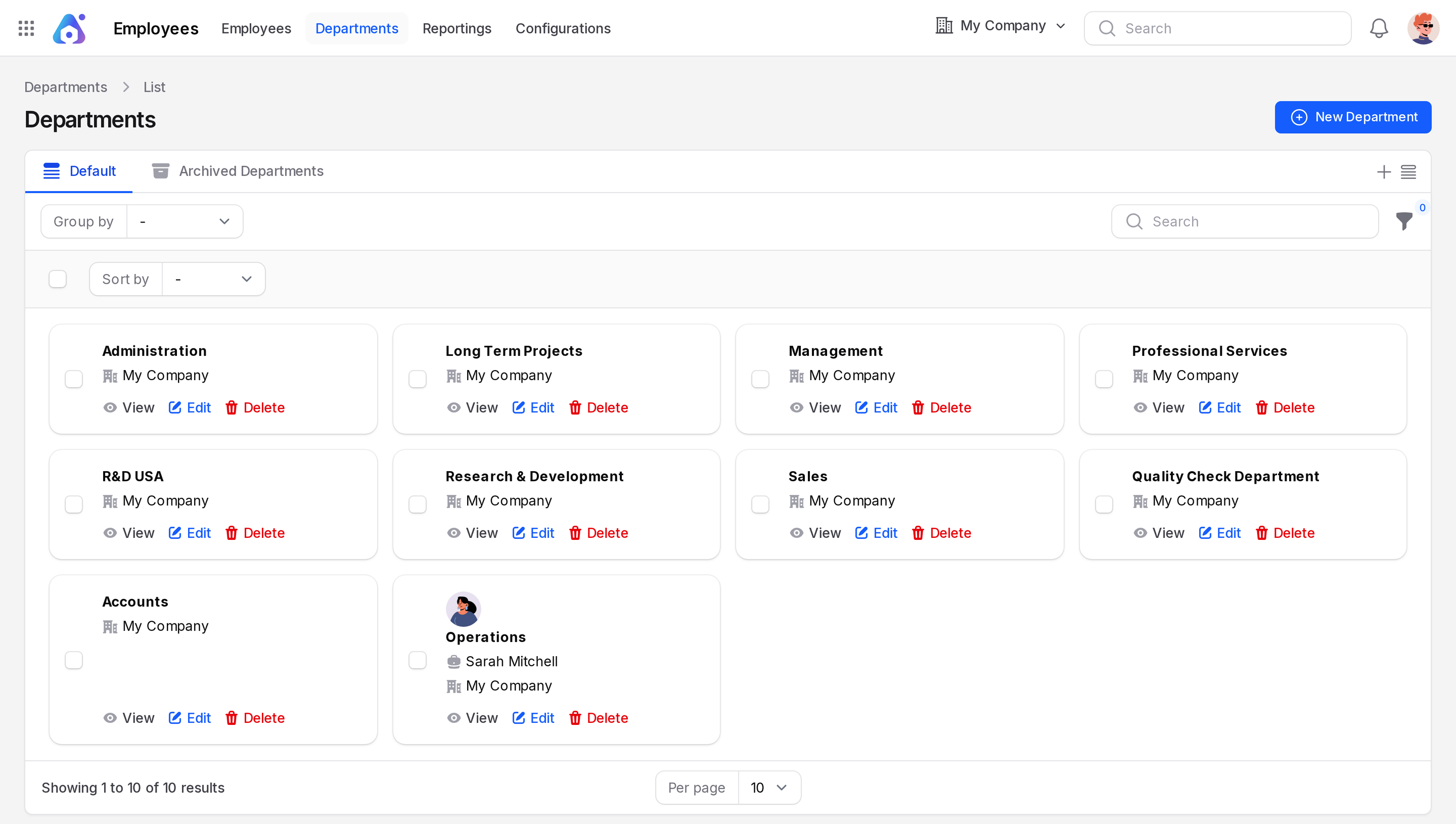
- Default: departments in use.
- Archived Departments: departments you deleted. You can restore them from here. The tab is empty (No departments) until you archive one.
- Search: type a name to narrow the cards.
- Sort by: order the cards by Name or Manager.
- Group by: group cards by Name, Company, Manager, Created At or Updated At.
- Filter: build rules on Name, Manager, Company, Created At or Updated At.
Each card has a checkbox and View, Edit and Delete links.
Create a department
This example creates the Operations department, managed by Sarah Mitchell. Skip this step if Operations already exists.
- Open
Employees → Departments. - Click New Department. A full page opens.
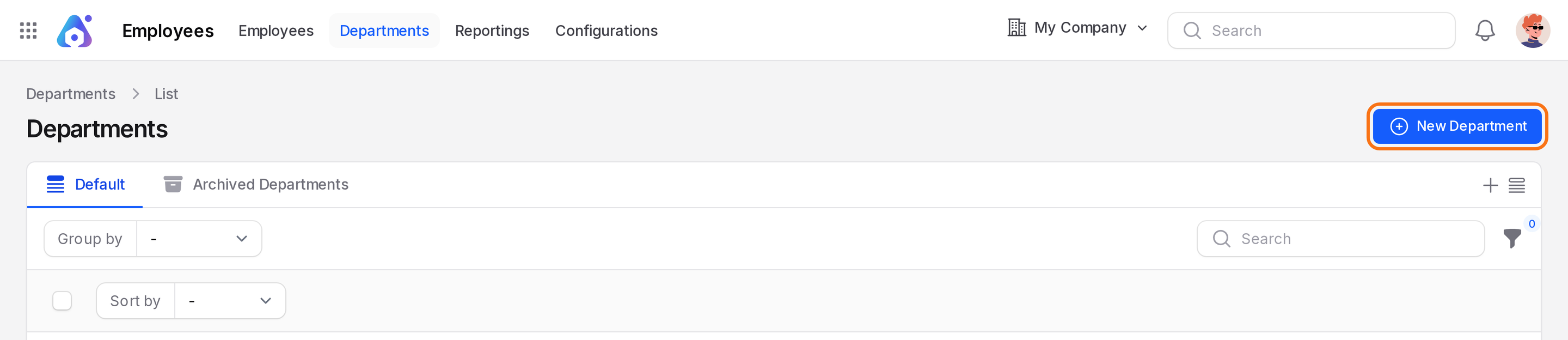
- Fill in the General Information section.
- Name: Required. Type
Operations. - Parent Department: Optional. Pick the department that contains this one. Leave it empty for a top level department.
- Manager: Optional. Pick Sarah Mitchell.
- Company: Fills with your company. Change it only if you run several companies.
- Color: Optional. Pick a colour from the circle picker, or type a hex code such as
#f97316for orange. It is blank by default. A colour marks the department in the organization tree. The card does not show it, but the View tab shows the swatch.
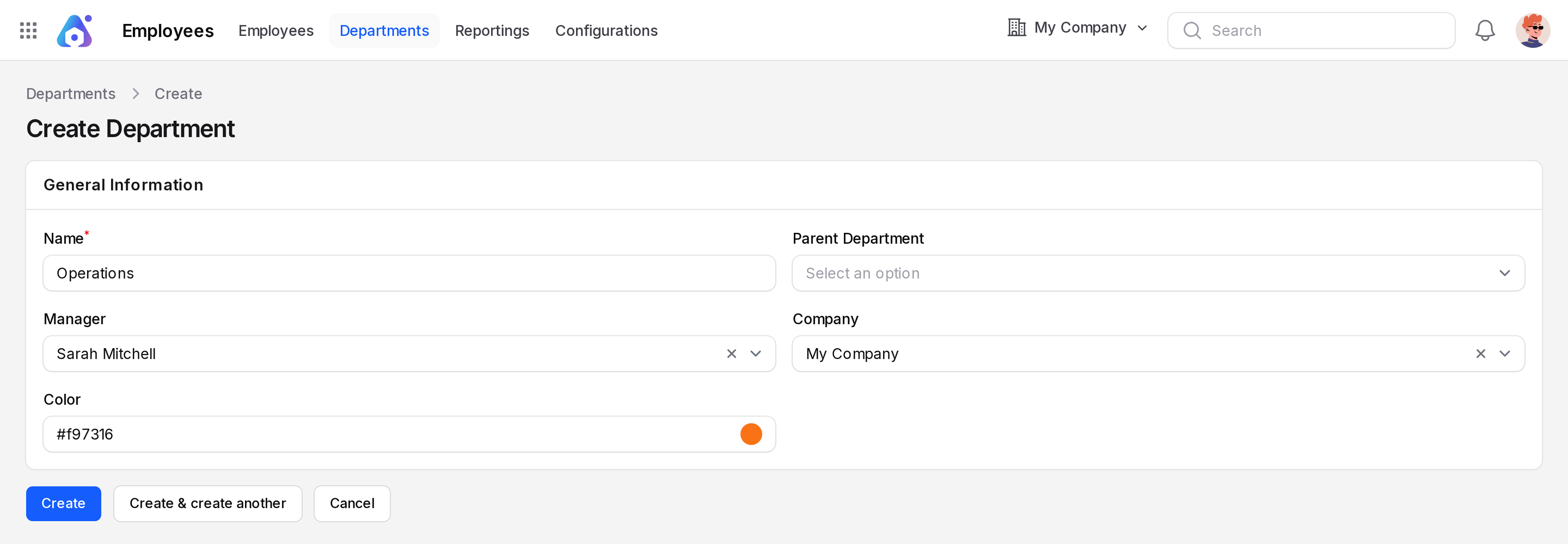
- Click Create. The other buttons are Create & create another and Cancel. A Department created notification says The department has been created successfully. Aureus opens the new department.
TIP
Click Create & create another to add several departments in a row.
WARNING
If you change Company, Aureus clears Parent Department and Manager when they belong to another company. Pick them again. The lists only show records of the chosen company.
The department page
Click View on a card. Three tabs sit at the top: View, Edit and Manage Employees.
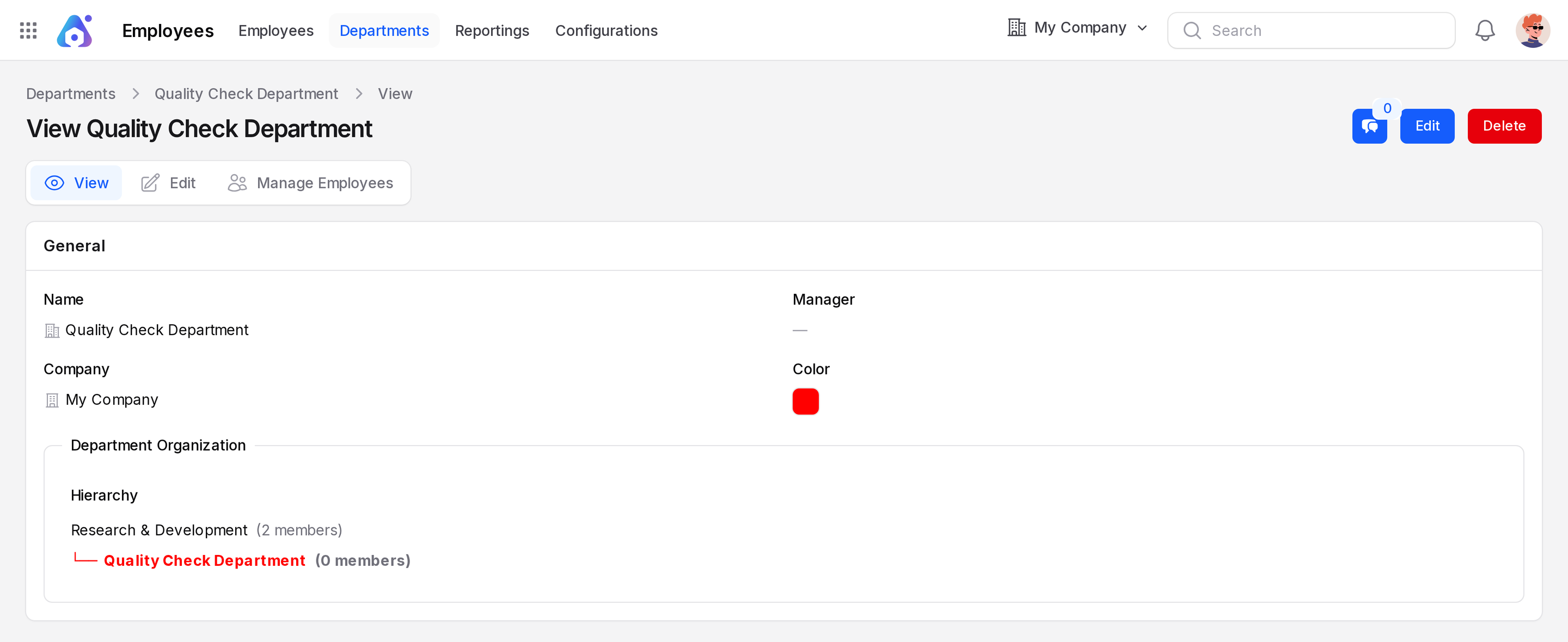
The View tab shows a General section with Name, Manager, Company and Color. An empty manager shows a dash. The header has a Delete button and a chat-comments button.
Department Organization
This tree is headed Department Organization with the sub-heading Hierarchy. It appears only when the department has a parent. It lists the departments from the top one down. Each line shows the name and a member count. The manager follows the name when one is set. The current department is bold, and red when its colour is red.
For example, Quality Check Department sits under Research & Development. Its page shows Research & Development (2 members) first, then Quality Check Department (0 members) indented below it. Quality Check Department has a red colour.
INFO
The member count is a quick hint. Open the Manage Employees tab for the exact list. A top level department such as Operations shows no tree.
Manage the employees of a department
Open the Manage Employees tab. It lists the people in this department as cards. Each card shows the name, job title, work email, work phone and badges.
- Open the Operations department.
- Click Manage Employees.
- Click New Employee to add someone straight into this department.
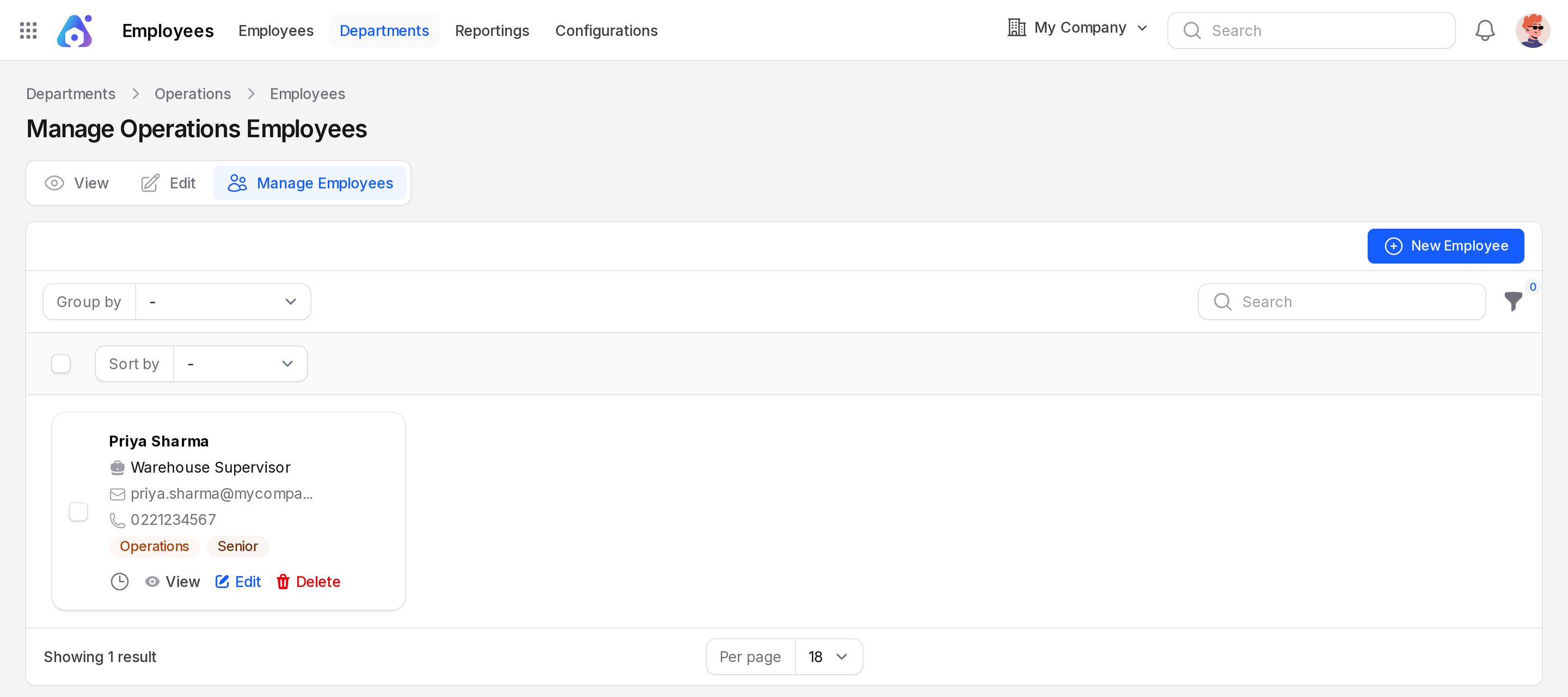
Use Group by, Sort by and search here as you do on the main employee list. See Employee list.
Edit, archive and restore
Click Edit on a card, or open the Edit tab. The form is the same as for creating. Click Save changes to keep your edits.
Click Delete to archive a department. It moves to Archived Departments. There, use Restore to bring it back.
Chatter
The department page has a Chatter button. Use it to send messages and log notes about the department. See Chatter.