

Job positions
A job position is a role you hire for, such as Warehouse Supervisor. In Recruitment, each position appears as a card that shows how many applicants wait in the first stage and how many people you want to hire. The same positions are shared with the Employees app, so one record serves both.
In simple words: A job position is an open role. Its card is your shortcut to the applicants for that role.
Open Recruitments → Applications → Job Positions to see the cards. Open Recruitments → Configuration → Job Positions to create or edit them. In the left menu, this page sits under the group Job Positions.
Prerequisite
Create the department first, for example Operations. See Departments. The Employees guide also covers positions: Job positions in Employees.
Overview: the cards page
The page shows two cards per row. Each card has the position name in bold. A manager line and a company line appear when the position has them. For example, Warehouse Supervisor shows Sarah Mitchell and My Company.
- The blue button N New Applications counts applicants in the New stage. Click it to open the applicants of that job in that stage.
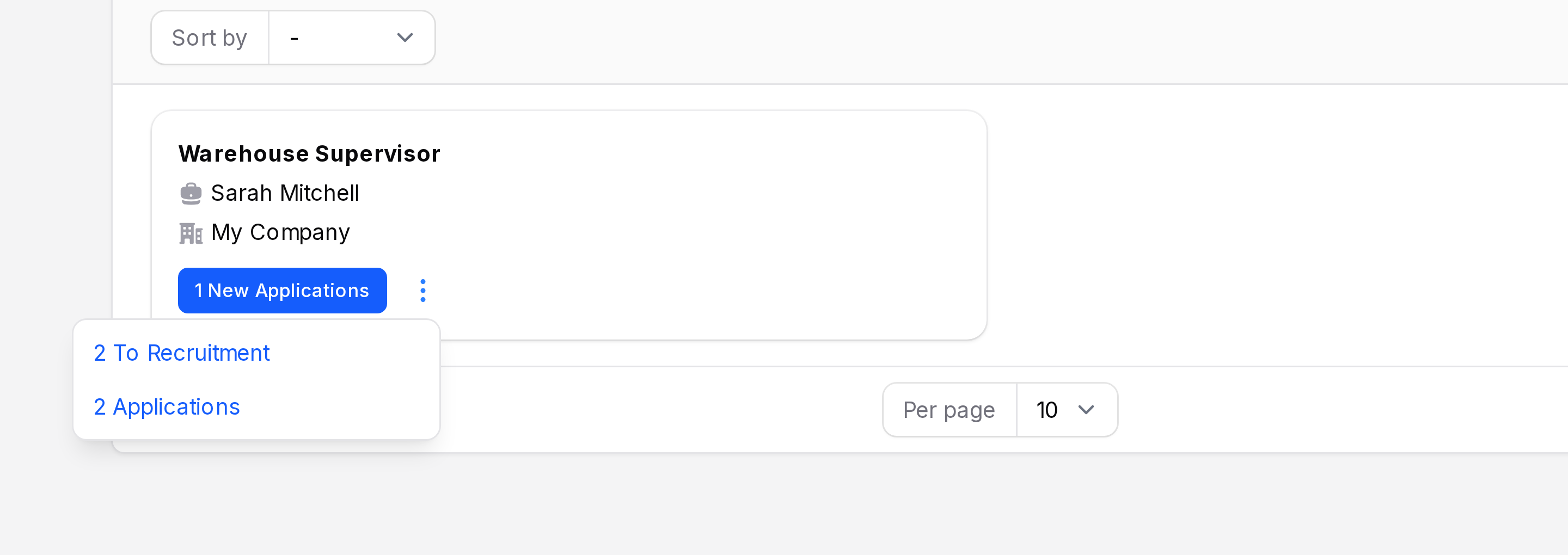
- The three dots menu holds N To Recruitment and N Applications. To Recruitment is the recruitment target and opens the edit page. Applications is the total of applicants and opens the applicant list for that job.
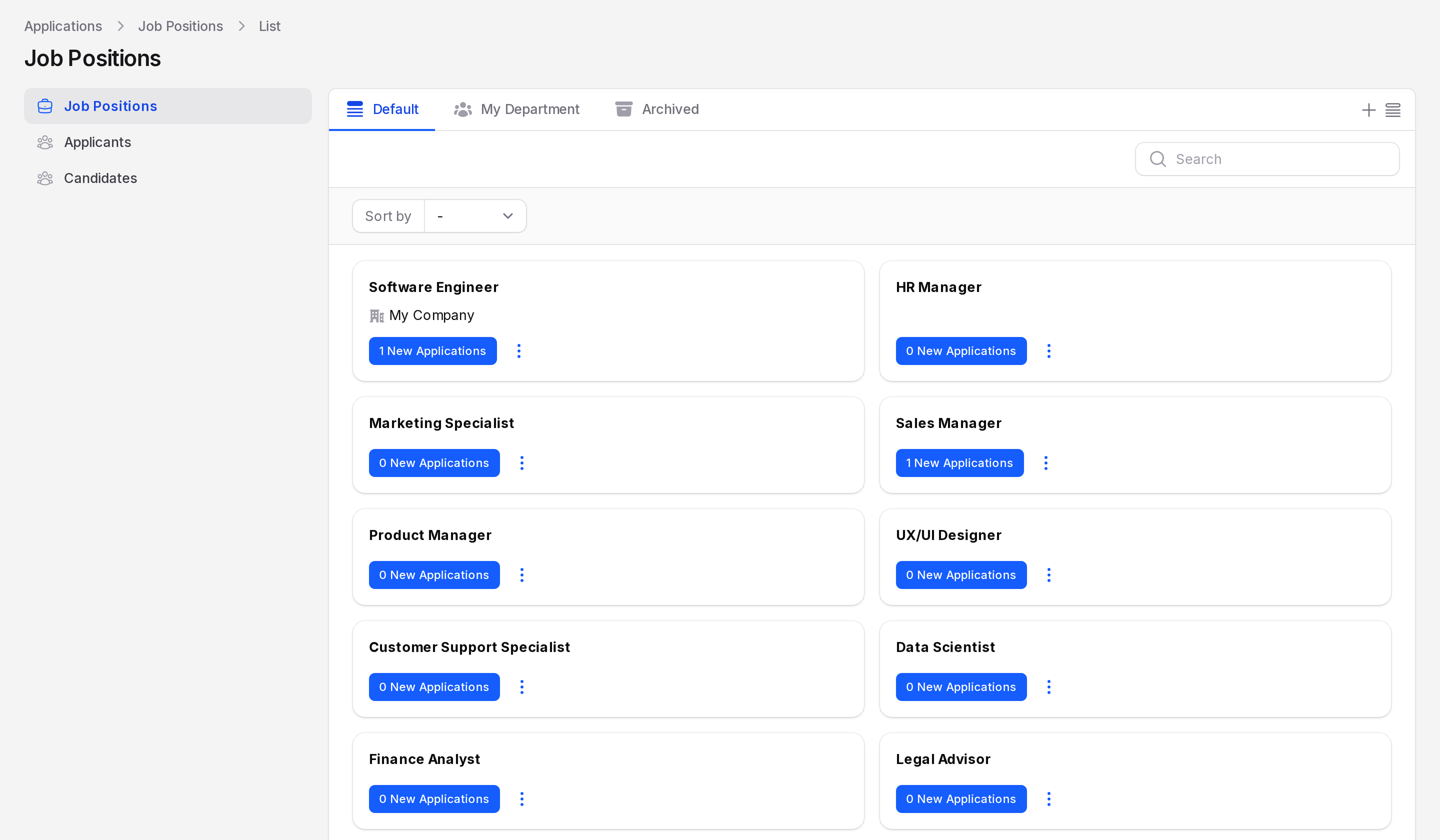
Preset tabs, search and sort
- Default: all positions.
- My Department: positions in your own department.
- Archived: archived positions.
A three dots menu sits next to the tabs.
Type in the search box to find a card. Use Sort by to order cards by Name or Manager. Choose how many cards show per page at the bottom. Each page shows 10 cards.
Card actions
Follow these steps for the example position Warehouse Supervisor.
- Find the card. Type its name in the search box.
- Click New Applications to see applicants waiting in New.
- Open the three dots menu.
- Click Applications to see all its applicants, or To Recruitment to edit the target.
Create a job position
The cards page has no create button. Use the setup page.
- Open
Recruitments → Configuration → Job Positions. - Click Job Position in the page header. A full page titled Create Job Position opens.
- Fill in the form, using the glossary below.
- Click Create. You can also click Create & create another or Cancel.
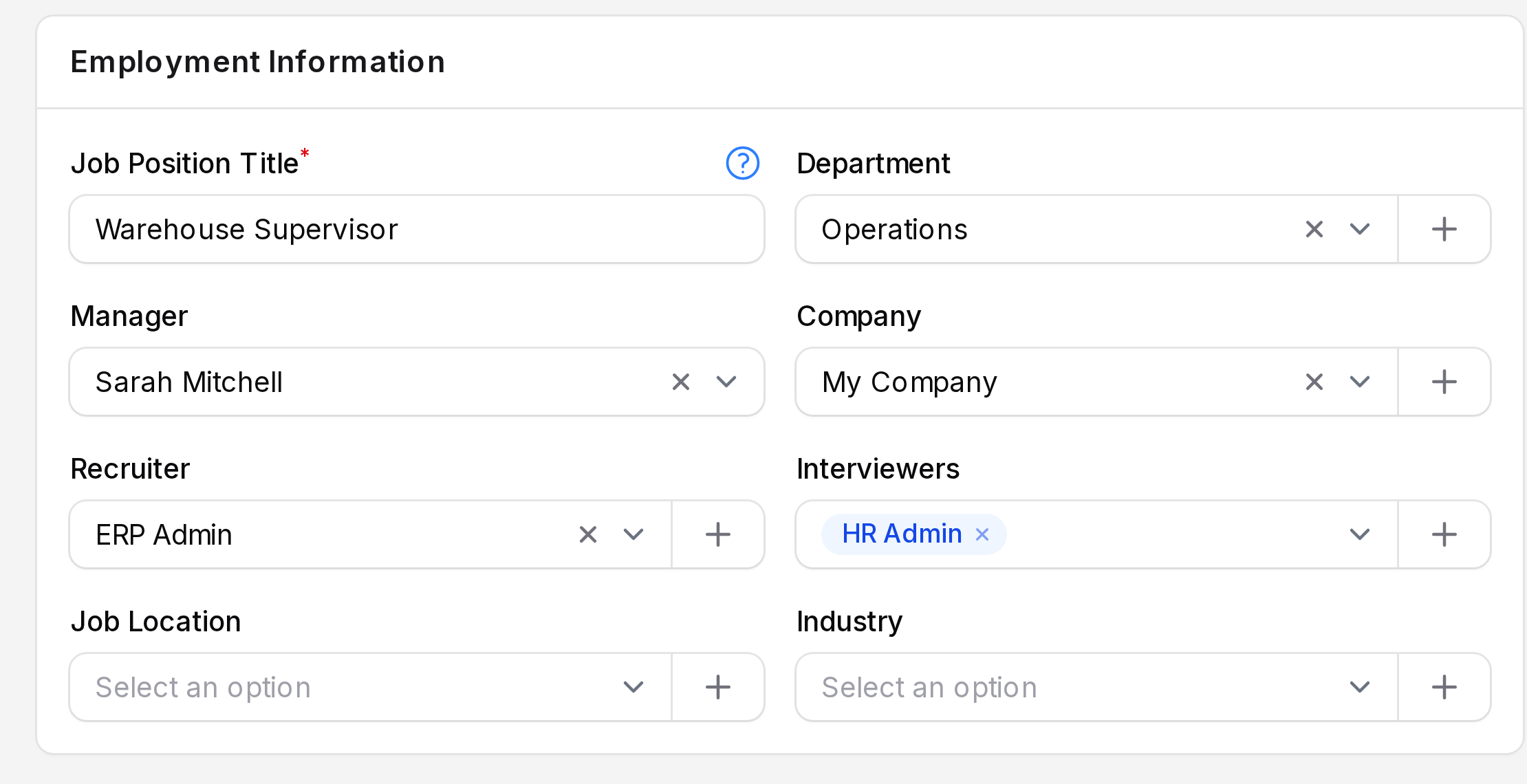
This example creates Warehouse Supervisor in Operations. If a position with this name already exists, open it and click Edit instead of creating a copy. Employees uses the same records.
Employment Information
- Job Position Title: (required) the official name, for example Warehouse Supervisor. Click the question mark icon for a hint.
- Department: pick Operations. You can create a department from the field. This fills Manager and Company when they are empty.
- Manager: the department manager. Picking Operations fills it with Sarah Mitchell.
- Company: starts as your current company. Changing it clears a department or manager from another company.
- Recruiter: the user in charge of hiring, for example ERP Admin. You can create a user from the field.
- Interviewers: one or more users who interview applicants, for example HR Admin.
- Job Location: an address, for example My Company. You can create one from the field.
- Industry: the industry of the role. The list starts empty. Click the plus button to create one.
A second card holds Job Description and Job Requirements: two text editors. Describe the role and what a person needs to do it.
Side column
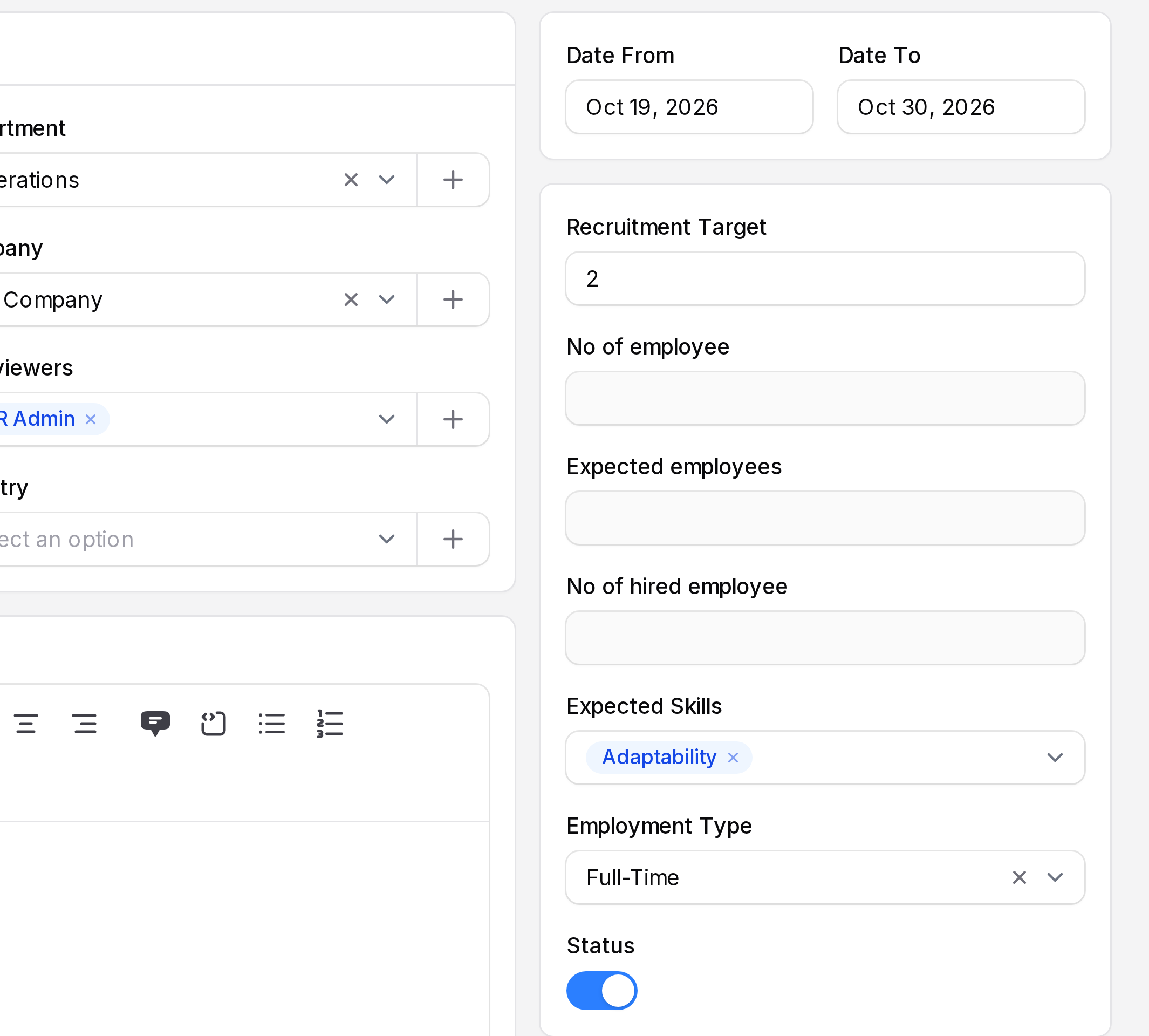
The first card holds Date From and Date To: the period the position is open.
The second card holds these fields.
- Recruitment Target: how many people you want to hire. It starts at 0. This number is the To Recruitment value on the card.
- No of employee, Expected employees and No of hired employee: greyed out. Aureus calculates them.
- Expected Skills: pick the skills the role needs, for example Adaptability.
- Employment Type: for example Full-Time. See Employment types.
- Status: a toggle. It starts off when you create a position. Turn it on for an open role.
WARNING
Turn Status on before you save. A new position starts with Status off.
View a position
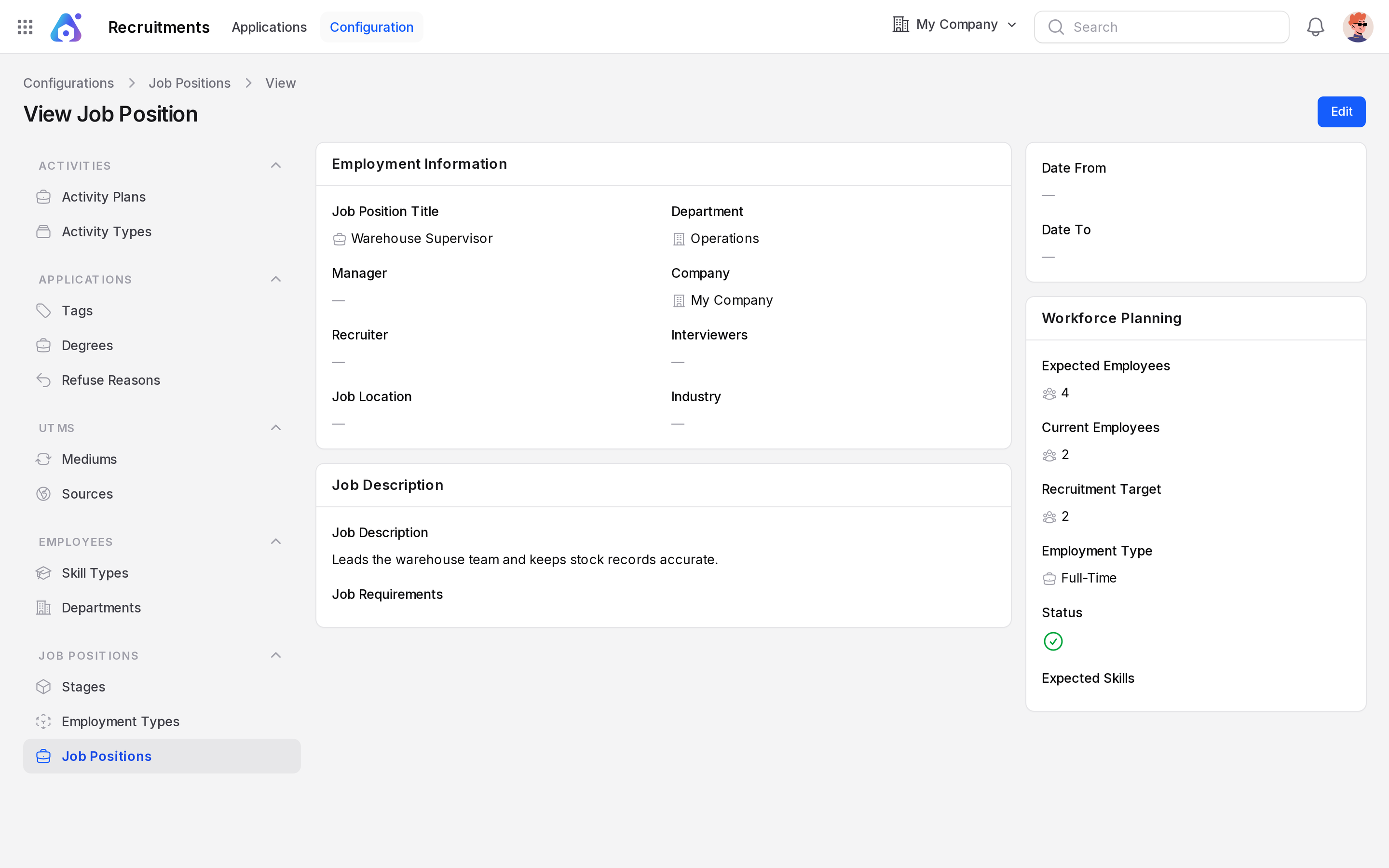
Click View on a position in the list. The page is titled View Job Position. It shows the same details. The Workforce Planning card holds Expected Employees, Current Employees, Recruitment Target, Employment Type, Status and Expected Skills. Date From and Date To sit in a card above it. The descriptions sit in a card titled Job Description. Click Edit to change them.
On the cards page, the manager shown on a card comes from the department when the position has no manager of its own.
Behind the scenes
The list at Recruitments → Configuration → Job Positions has the columns Job Position, Department, Company and Status. It can be grouped by company, department or employment type. Edits you make here show in the Employees app too.