

Timesheet settings
Do this page first. Nothing can be logged until the settings are on.
Timesheets work through three layers of switches and numbers. A global switch turns the feature on, a project switch lets that project take time, and Allocated Hours sets the plan. After this, Aureus shows spent time, remaining time and progress on every task.
In simple words: Switch it on once, allow it per project, set the planned hours, and the task totals follow.
Settings
Enable Timesheets
- Open
Project → Settings → Manage Time. - Turn on Enable Timesheets. Its note reads "Track time spent on projects and tasks".
- Click Save changes.

This adds the time fields to projects and tasks and the time columns to the task list. See Project settings.
Allow Timesheets on a project
- Open
Project → Projectsand open the project, then click Edit. - In the Settings section, find the Time Management group.
- Turn on Allow Timesheets. Its note reads "Log time on tasks and track progress".
- Save the project.
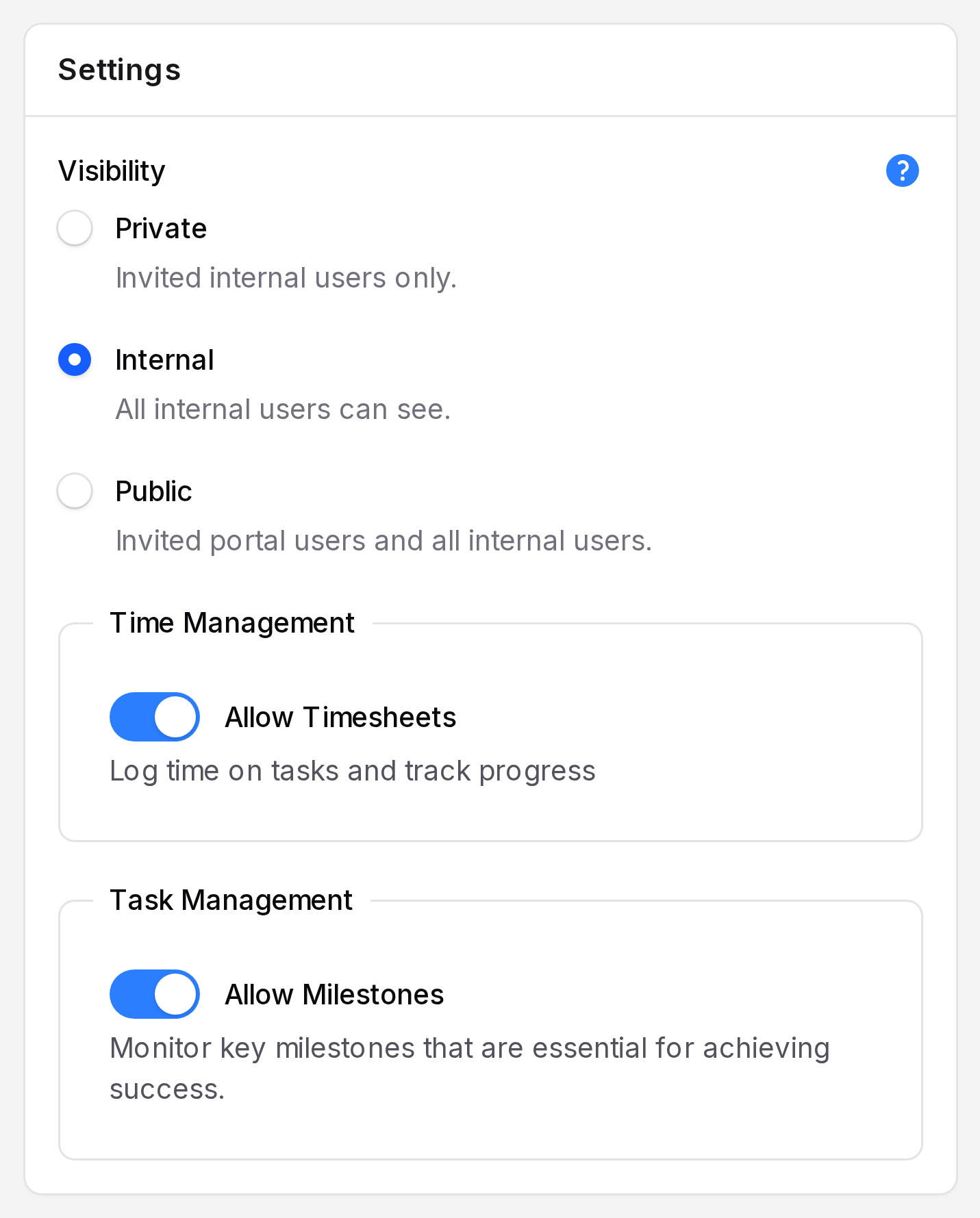
This group shows only when Enable Timesheets is on. Without Allow Timesheets, the project's tasks hide the Timesheets tab.
Allocated Hours
Allocated Hours is the time you plan. Type it in decimal hours. For example, 1.5 means 1 hour 30 minutes.
- On a project: Set the total plan. Website Revamp has 120 hours. See Create a project.
- On a task: Set the plan for that task. Migrate CMS content has 20 hours. See Create a task.
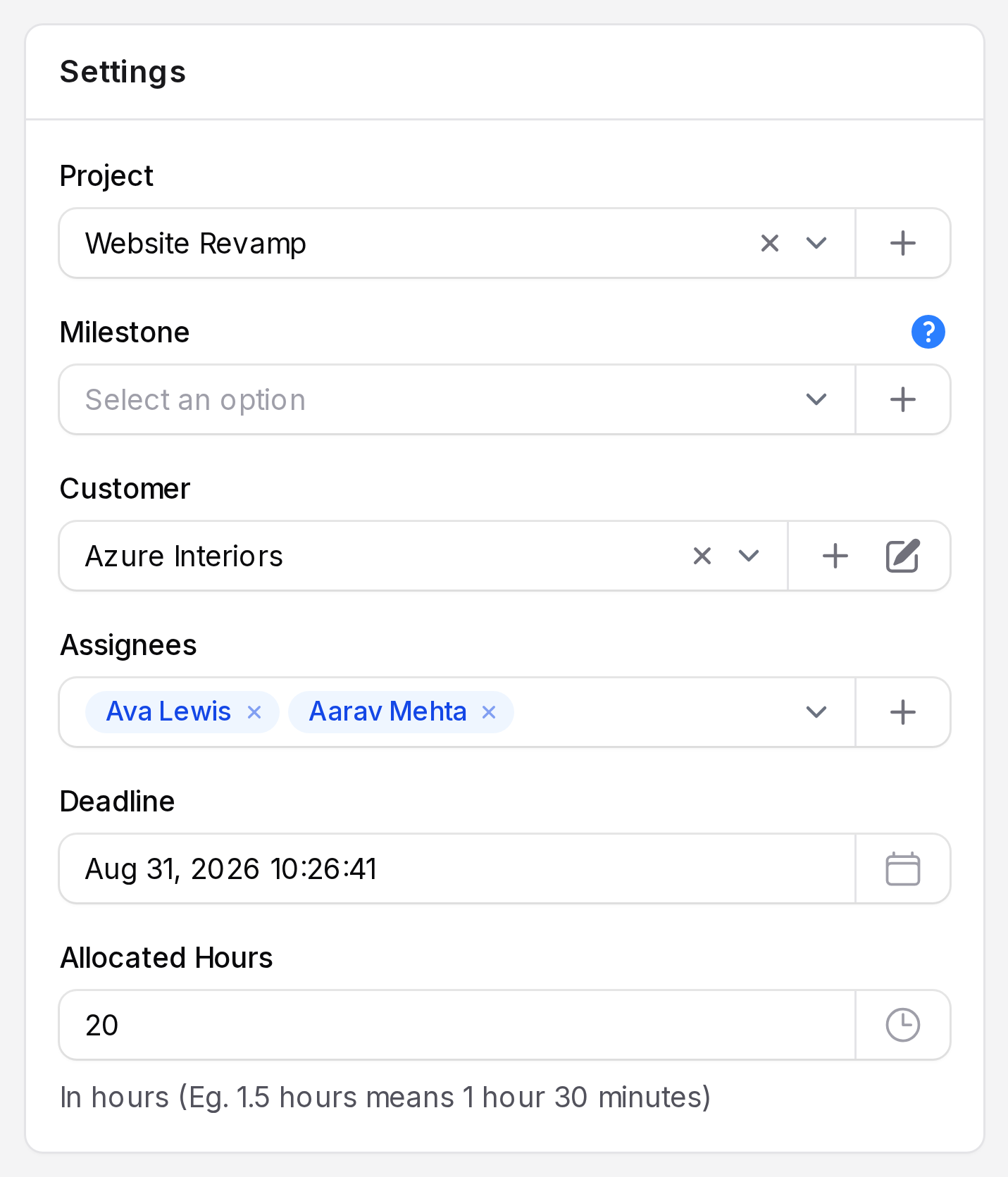
The field appears only when Enable Timesheets is on.
Summary rows on a task
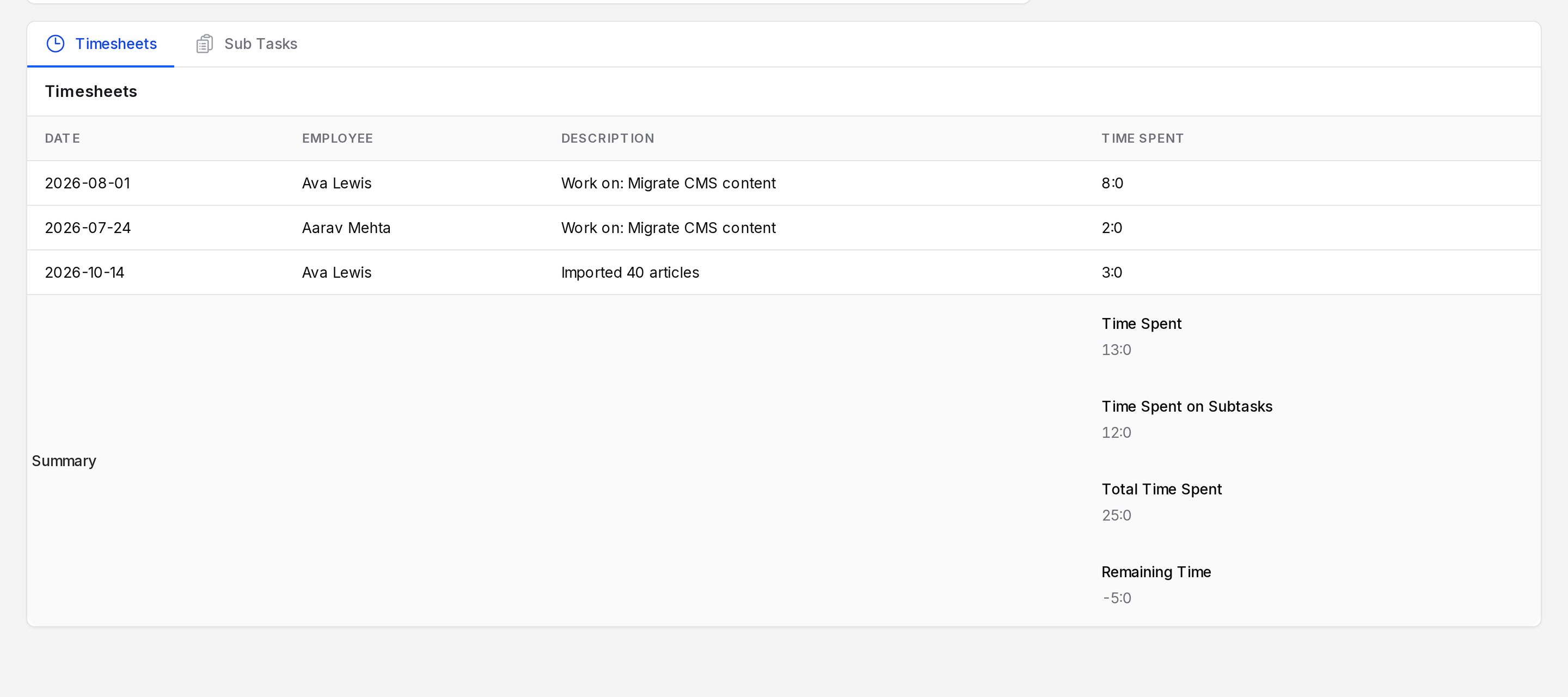
Open a task, scroll down the View page and click the Timesheets tab. The Summary rows under the Time Spent column show:
- Time Spent: Hours logged on this task.
- Time Spent on Subtasks: Hours logged on its sub tasks.
- Total Time Spent: Both added together.
- Remaining Time: Allocated Hours minus Total Time Spent. It shows only when the task has Allocated Hours.
Progress and its colours
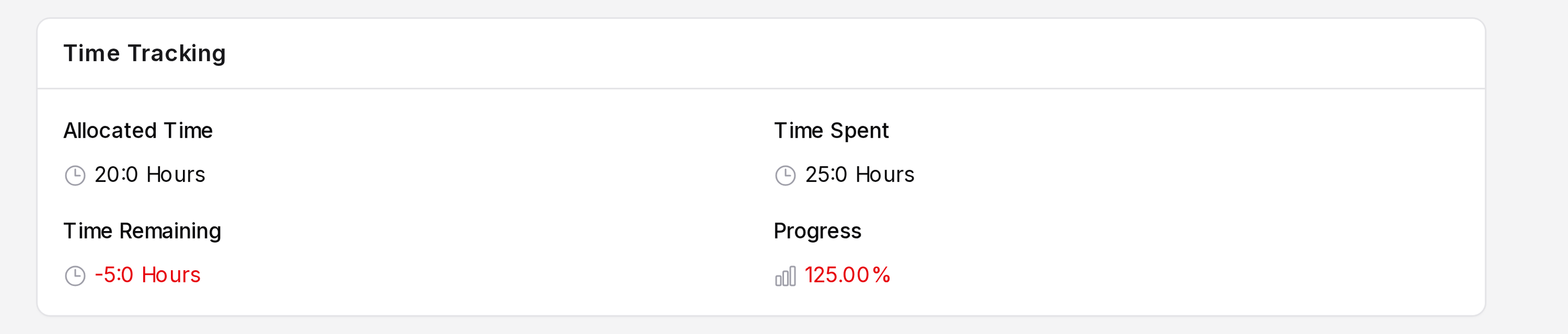
The task view has a Time Tracking section with Allocated Time, Time Spent, Time Remaining and Progress. The task list also shows a Progress bar.
| Progress | Colour | Meaning |
|---|---|---|
| Under 100% | Orange | Work is within the plan. |
| Exactly 100% | Green | The plan is used in full. |
| Over 100% | Red | The task is over its plan. |
Progress can pass 100%. Remaining time then shows a negative number, as in the example below.
What happens after each save or delete
Aureus recalculates the task after every entry you add, edit or delete.
- It adds the task's own entries to get Time Spent.
- It adds the sub task entries to get Time Spent on Subtasks.
- It subtracts the total from Allocated Hours to get Remaining Time.
- It divides the total by Allocated Hours to get Progress.
- If the task is a sub task, it does the same for the parent.
The parent updates one level up.
TIP
Set Allocated Hours before people log time. A task with no planned hours has no Remaining Time and 0 Progress.