

Create a quotation from an opportunity
A quotation is an offer with products and prices. You can start one straight from an opportunity, so the offer stays linked to the deal. The quotation itself is a Sales document, with its own form and steps.
In simple words: Click New Quotation on the opportunity to send the customer an offer. The quotation remembers which deal it came from.
Create a quotation
Example: you offer Sharma Textiles the annual licence.
- Open Annual ERP licence - Sharma Textiles from
CRM → Sales → My Pipeline. - Click New Quotation.

- If the opportunity already has a customer, the quotation form opens at once. Skip to step 6.
- If it has no customer, the dialog New quotation opens. It says the opportunity has no customer yet.
- Fill in the dialog.
- Customer: Required. Choose one option.
- Create a new customer: makes a customer from the contact details on the opportunity.
- Link to an existing customer: attaches a customer you already have.
- Do not link to a customer: continues without one.
- Existing customer: Search for the customer. Shown and required only for Link to an existing customer.
Click Continue.
- The quotation form opens. The subheading reads From opportunity with the deal name.
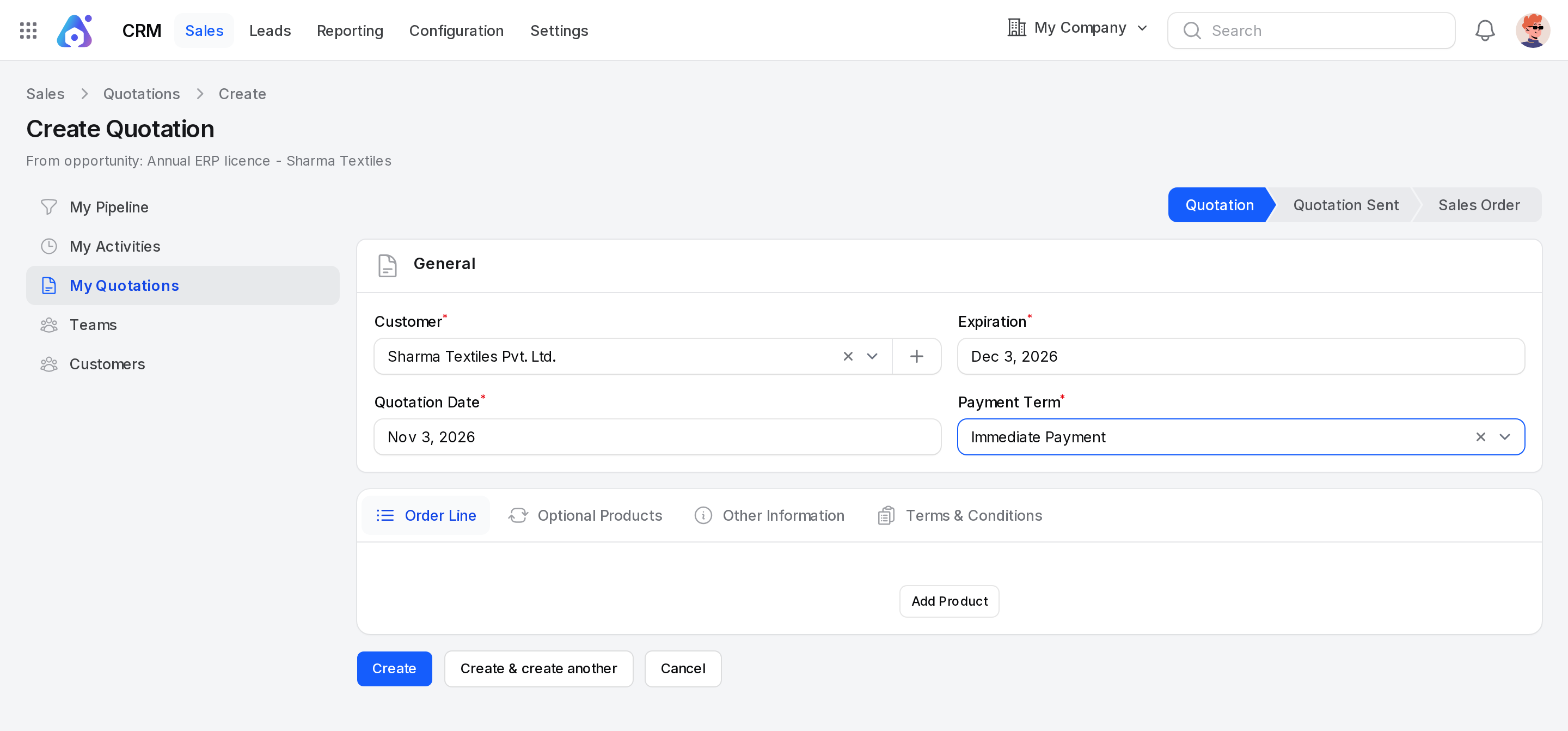
- Add products, prices and terms, then save.
INFO
If you cannot edit the opportunity, the dialog offers only Do not link to a customer.
What is filled in for you
The quotation takes these values from the opportunity.
- Customer: The opportunity customer, if it has one.
- Salesperson: The opportunity salesperson.
- Company: The opportunity company.
- Origin: The opportunity name, so you can trace the offer back.
- Campaign, Medium and Source: The marketing details of the opportunity, when they are set.
- Sales Team: The opportunity team, when the quotation has no team of its own.
Example: The quotation for Sharma Textiles opens with Customer Sharma Textiles, Salesperson ERP Admin and Origin Annual ERP licence - Sharma Textiles.
The Payment Term is required on the Sales form. Pick one, for example Immediate Payment. You fill the rest on the Sales form. For every field, see Create a quotation.
Find quotations
On the opportunity
Click the Quotations tab. A number badge shows how many quotations are not cancelled.
| Column | Meaning |
|---|---|
| Number | The quotation reference. |
| Date | The order date. |
| Customer | Who the offer is for. |
| Salesperson | The person who owns it. |
| Total | The total amount. |
| Status | The state of the quotation. |
Click a row to open the quotation. The header also has New Quotation. With no quotations, the tab says No quotations yet.
The tab appears on opportunities only, not on leads.
For all deals
Go to CRM → Sales → My Quotations. The page has List, Kanban and Graph layouts. The header has Export and New Quotation.
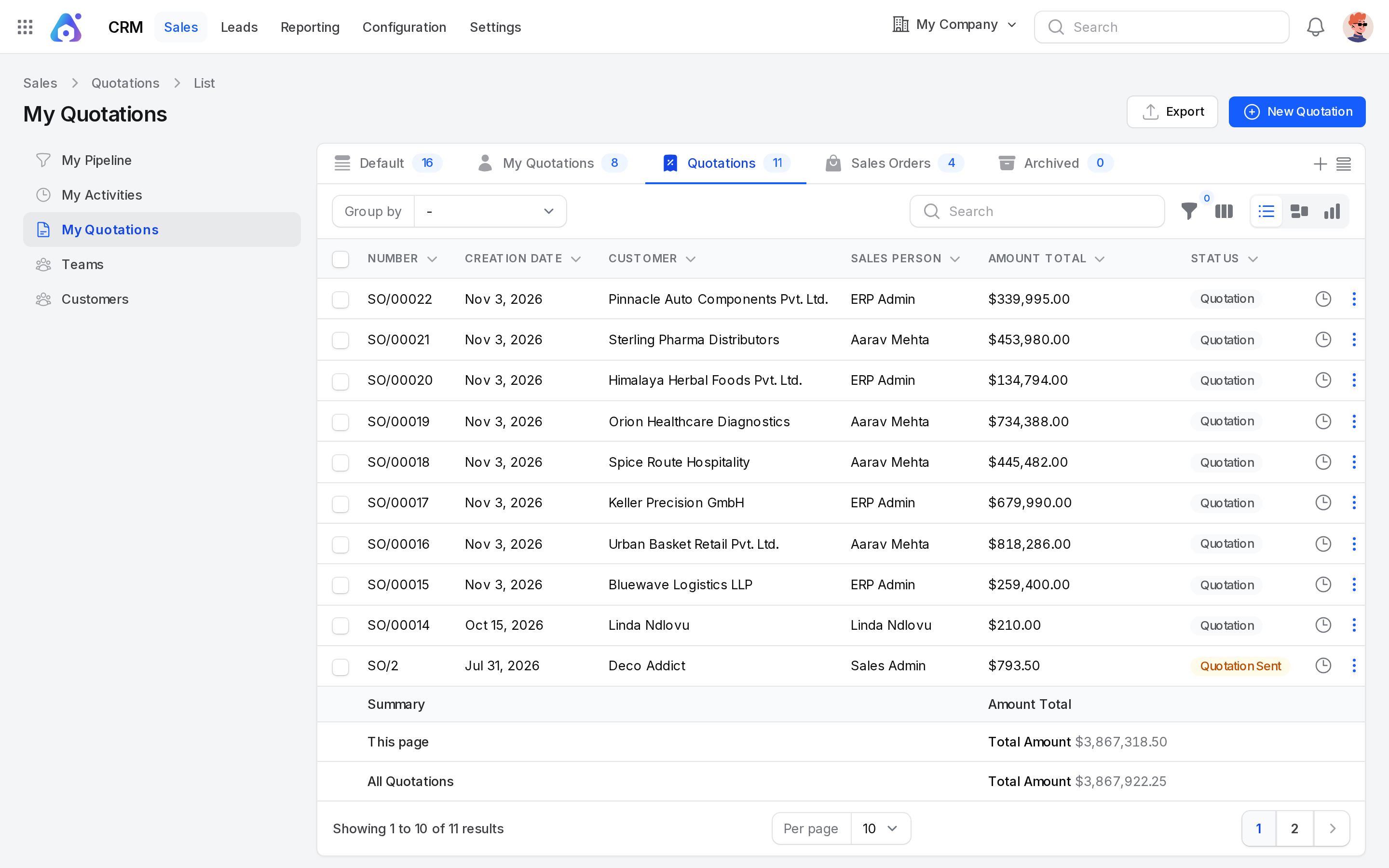
- Tabs. Default, My Quotations, Quotations, Sales Orders and Archived.
- Columns. Number, Creation date, Customer, Sales person, Amount total and Status.
- Group by. Medium, Source, Team, Sales Person, Currency, Company, Customer, Quotation Date, Commitment Date and Status.
- Kanban. Cards sit in columns by status. Each card shows the customer, total, date and salesperson.
- Bulk actions. Send email, Mark Quotation as Sent, Confirm, Export, Restore, Delete and Force delete.
On the quotation, an Opportunity tab opens the linked deal. You can win or lose it from there.
After the quotation
Send the offer and confirm it when the customer agrees. See Send and confirm a quotation. Then mark the deal won. See Mark an opportunity won or lost.
Behind the scenes
- Link. The quotation stores the opportunity it came from. This link drives the Quotations tab.
- Customer choice. The choice in the dialog is kept with the quotation. A new or linked customer is saved on the opportunity too.
- Team cards. Draft and sent quotations count toward Quotations on the team card. See Manage sales teams.