

Deliveries
A delivery records goods that leave for a customer. When you validate it, the quantities leave your stock. Most deliveries are created when you confirm a sales order, so your job is to reserve the goods, pack them and click Validate.
In simple words: A delivery says "we shipped this to the customer". Validate it and the products leave your stock.
Open Inventory → Operations → Transfers → Deliveries.
Worked scenario: ship SO/3
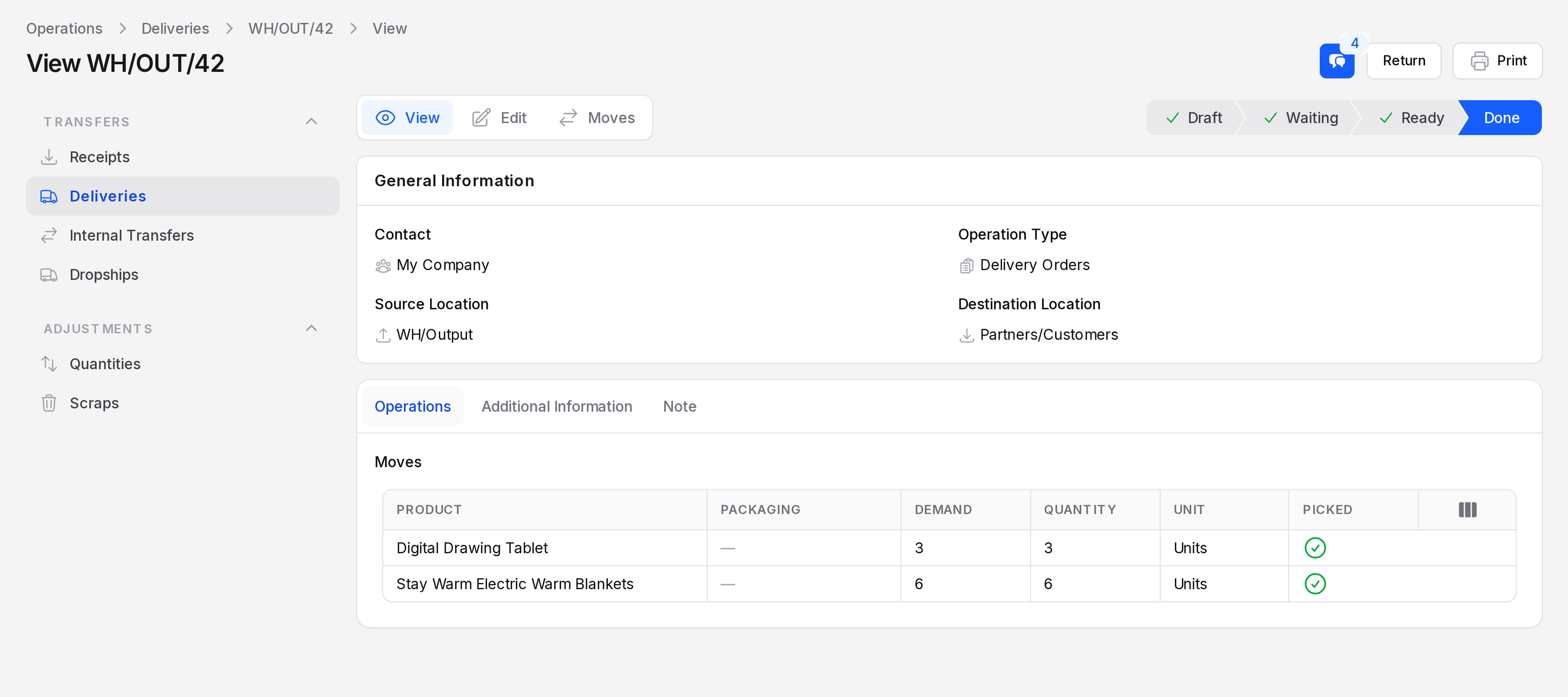
Sales order SO/3 sells 3 Digital Drawing Tablet and 6 Stay Warm Electric Warm Blankets.
- Confirm the sales order. See Manage orders.
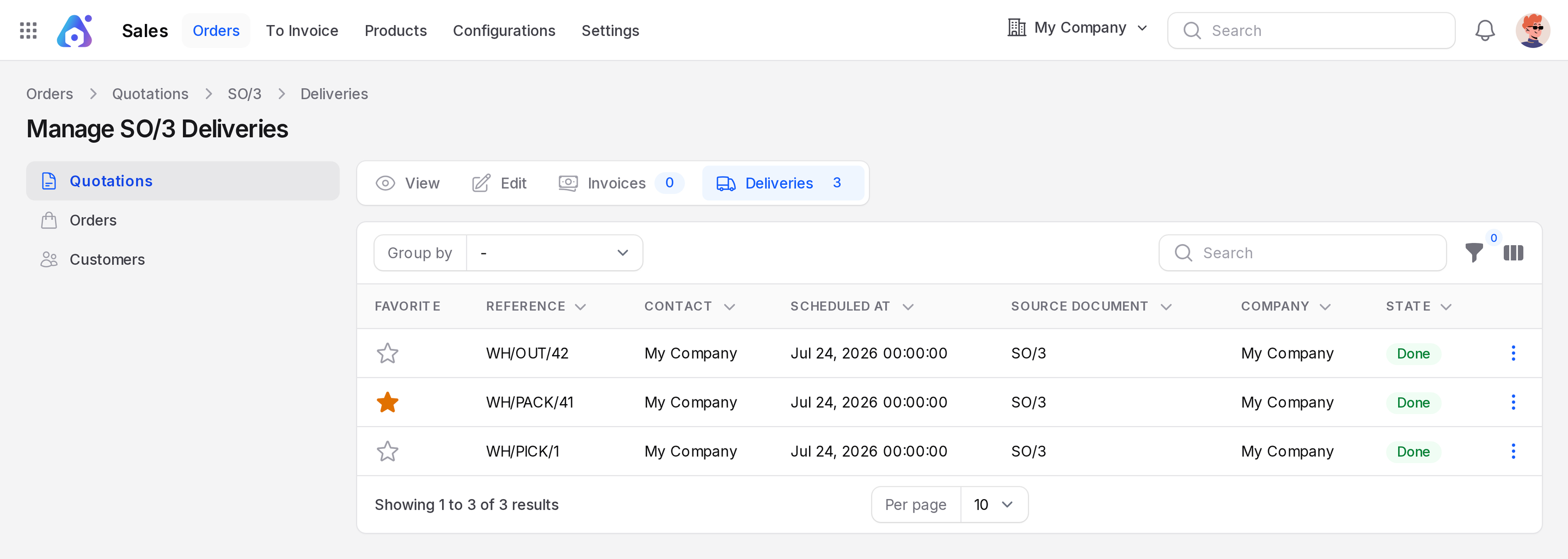
- Open the order. Click Deliveries in the switcher at the top to open the sub page Manage SO/3 Deliveries. It lists the delivery documents with Source Document SO/3.
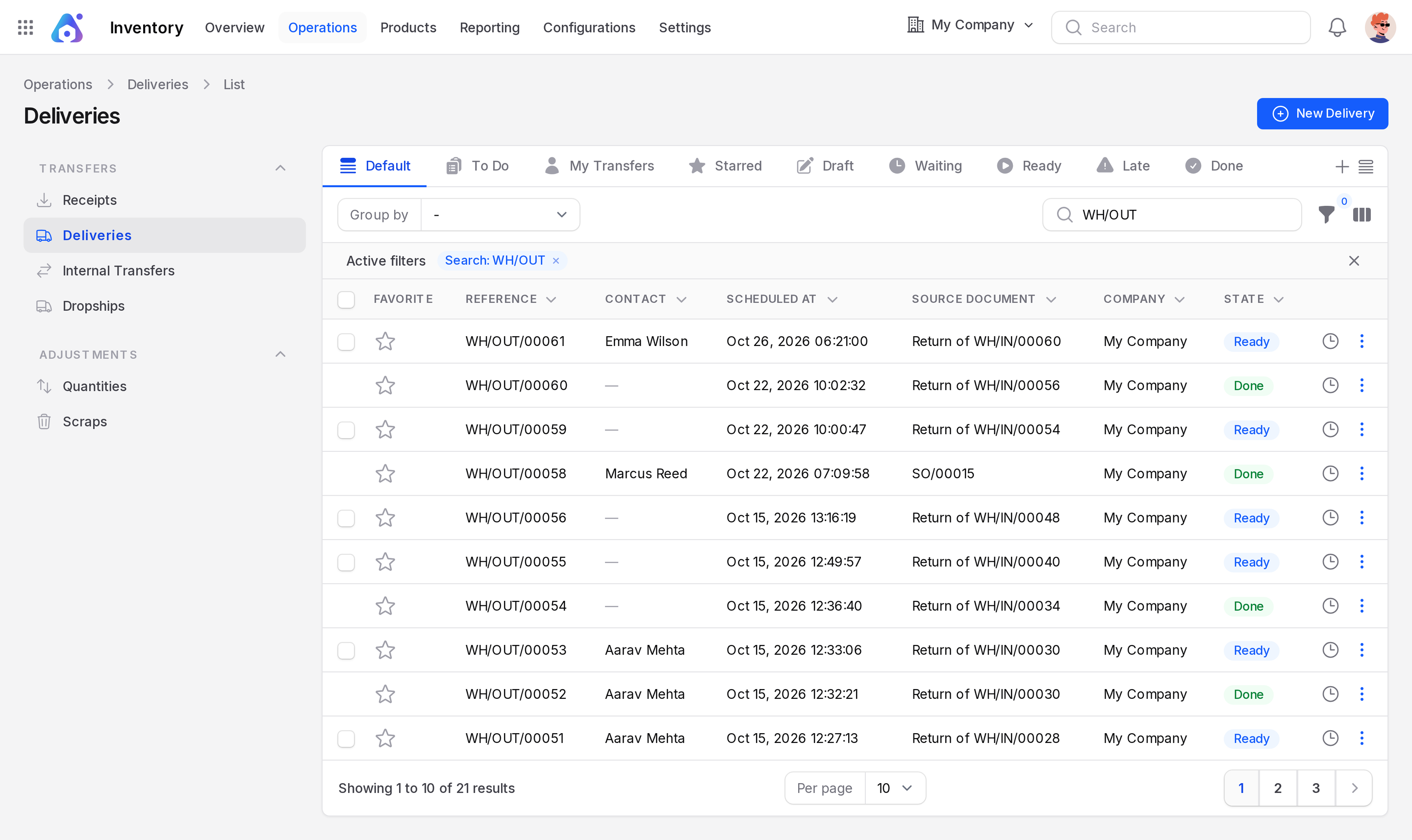
- Open the delivery from
Inventory → Operations → Transfers → Deliveries.
- If the state is Draft, click Mark as Todo. With no stock in the source location (for example WH/Output), the state becomes Waiting and the buttons are Check Availability, Validate, Cancel, Print and Delete. Click Check Availability to reserve stock. With stock available (for example in WH/Stock), the state goes straight to Ready.
- Check the Operations table. Demand is what the customer ordered. A Ready delivery has no Check Availability button.
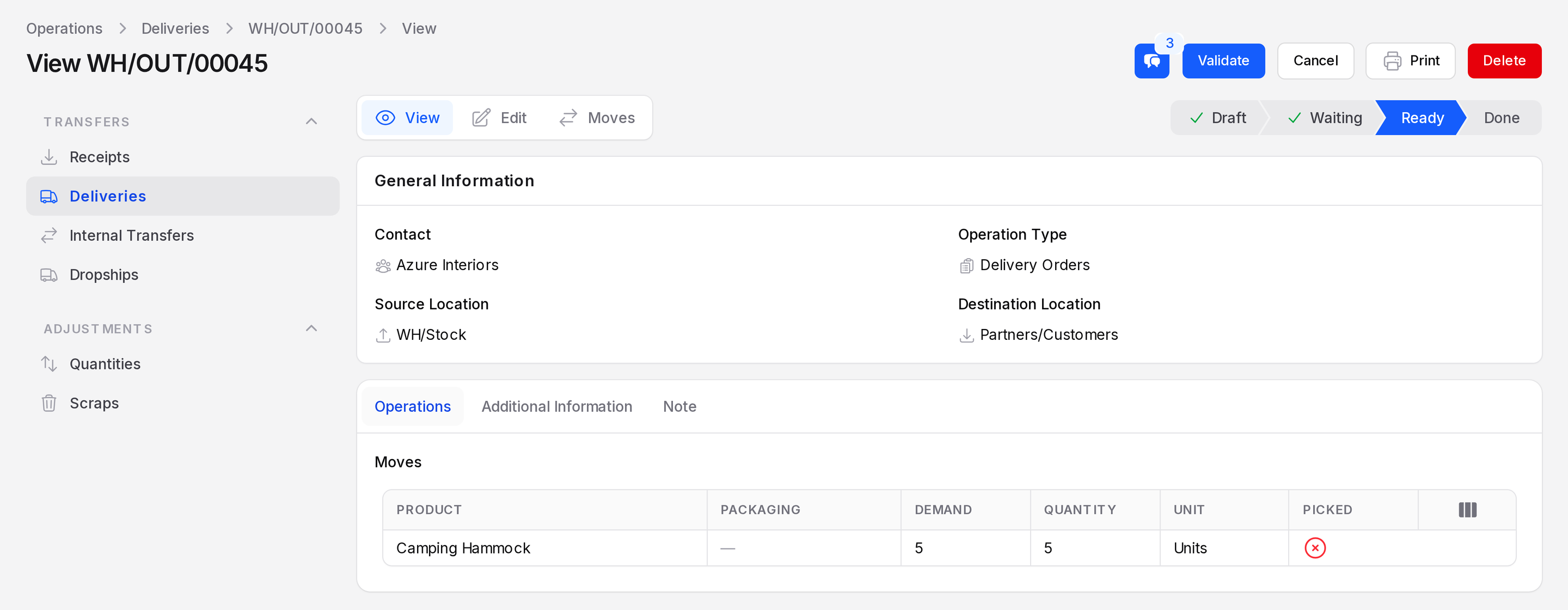
- Turn on Picked or fill Quantity for what you hand to the carrier. Click Save changes if you edited the lines.
- Click Validate. The state becomes Done. Only Return and Print remain.
- Open the sales order. The Delivered column now shows the quantities.
Fields
- Delivery Address: The customer. The order fills it in.
- Operation Type: Required. Usually My Company: Delivery Orders.
- Source Location: Required. With one step, goods leave WH/Stock. With three steps, the delivery takes them from WH/Output after Pick and Pack.
- Responsible, Scheduled At and Source Document work as on a receipt.
To start by hand, click New Delivery, fill the customer and the lines, then click Create. You can also click Create & create another or Cancel.
INFO
After Create you stay on the Edit page of the new delivery.
Cancel a delivery
Click Cancel. Aureus asks "Are you sure you would like to do this?". Click Confirm to cancel, or Cancel to go back. The state bar then highlights Canceled and only Print and Delete remain.
Check Availability
Stock is reserved when you confirm the order if the operation type's reservation method is At Confirm. If it is Manual, or stock arrived later, click Check Availability. The button shows on Waiting documents. It does not show on Ready ones.
If you validate with nothing reserved, Aureus shows No quantities are reserved.
Behind the scenes
Validation moves stock from your outgoing location to Partners/Customers. The prefix is OUT, such as WH/OUT/42. In the example warehouse the chain is WH/PICK from WH/Stock to WH/Packing Zone, WH/PACK to WH/Output, and WH/OUT to the customer. For SO/3 these are WH/PICK/1, WH/PACK/41 and WH/OUT/42. See Three-step flow.
Actions and statuses
- Mark as Todo: confirms a Draft delivery.
- Check Availability: reserves stock on a Waiting delivery.
- Validate: ships the goods and sets Done.
- Cancel: stops the delivery after you confirm.
- Print: always shown. Delete: shown while the delivery is not Done.
- Return: brings goods back after Done. See Backorders and returns.