

By Employees report
The By Employees report lists time off requests grouped by employee. Use it to read each person's requests in one place. See the dates, the length and which requests still wait for a decision.
In simple words: One list of requests, with each employee's requests gathered under their name.
Open Time Off → Reporting → By Employees.
Before you start
The report shows time off requests. Create some requests first.
Overview
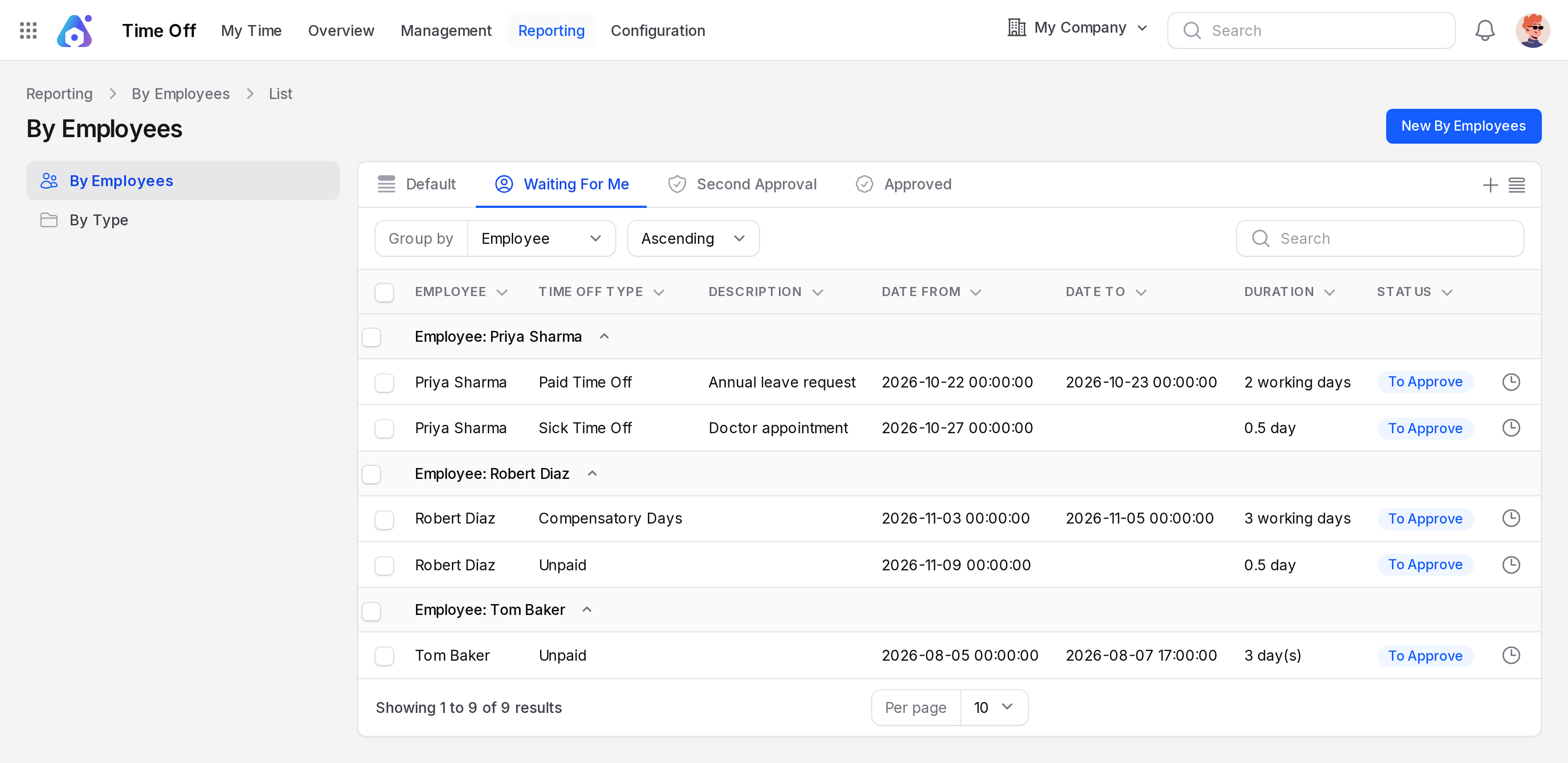
The page is titled By Employees. It groups rows by Employee by default. Each group title looks like Employee: Nina Patel. Click a group to open or close it.
- Employee: The person who asked for leave.
- Time Off Type: The kind of leave.
- Description: The note typed on the request.
- Date From: The first day of leave.
- Date To: The last day of leave.
- Duration: The length, for example
2 working daysor0.5 day. - Status: To Approve, Approved or Refused.
Tabs, grouping and search
- Click a tab to filter the list. The tabs are Default, Waiting For Me, Second Approval and Approved. The report opens on Waiting For Me.
- Click Default to see all requests. The report opens on Waiting For Me, so it hides approved and refused requests until you click Default.
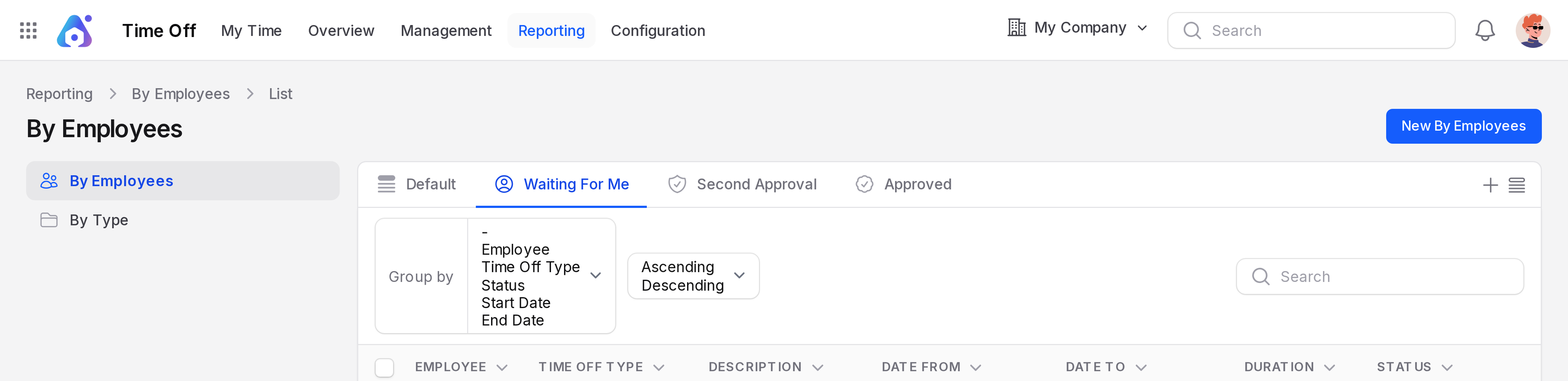
- Open Group by to change the grouping. Choose Employee, Time Off Type, Status, Start Date or End Date. Use the Group direction list to switch between Ascending and Descending.
- Type in the search box to find an employee or a request.
Use a row to View or Edit the request. Approve and refuse requests in Manage requests.
TIP
Group by Time Off Type to see which leave types your team uses. To check a balance, open the cards on My Time.