Chatter
Chatter is the conversation panel of a record. Use it to send a message, write an internal note, attach files, and see who follows the record. It also keeps a history of what happened to the record, such as when it was created. Chatter is the same on every page that has it, so you learn it once.
In simple words: Chatter is the notebook that stays attached to a record. Everything said and done about the record is kept there.
Open the Chatter panel
- Open a record, for example a quotation.
- Click the Chatter button at the top right of the record. A small number on it shows how many entries the record has.
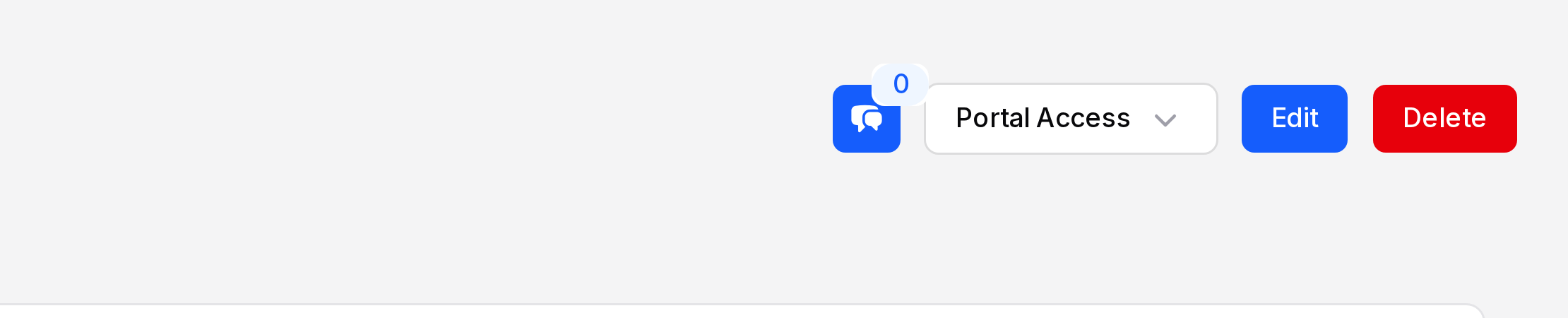
The panel opens at the side of the page. It has three buttons at the top:
- Send Message: Write a message about the record.
- Log Note: Write an internal note.
- Schedule Activity: Plan a follow-up. See Activities.
Below them are three icons: a paper clip for files, a person for followers, and a funnel for filters. The numbers show how many files and followers the record has. The history of the record is listed under the icons, newest entries first.
Send a message
Use a message to write to the people involved in the record.
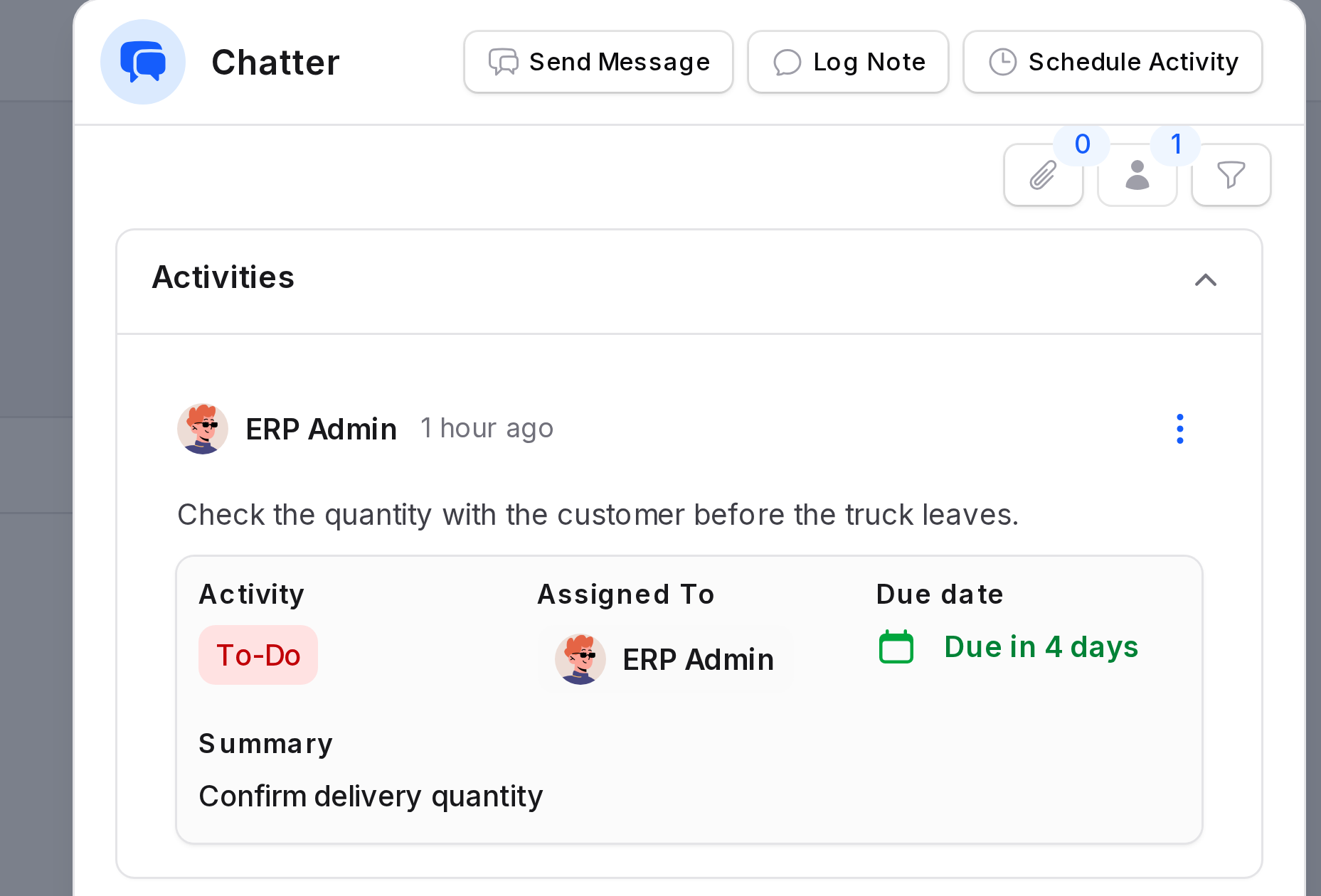
- In the Chatter panel, click Send Message.
- Add a Subject, if you want one. Click Hide Subject to remove the field, or Add Subject to bring it back.
- Write your message in the text box. Use the toolbar for bold, lists, links and tables.
- To attach files, drag them into the box or click Browse.
- Click Send, or Cancel to close the window.
INFO
Each file can be up to 10 MB. You can attach images, PDF, Word, Excel and text files.
Log a note
Use a note for information that is for your team only, such as a reminder or a decision.
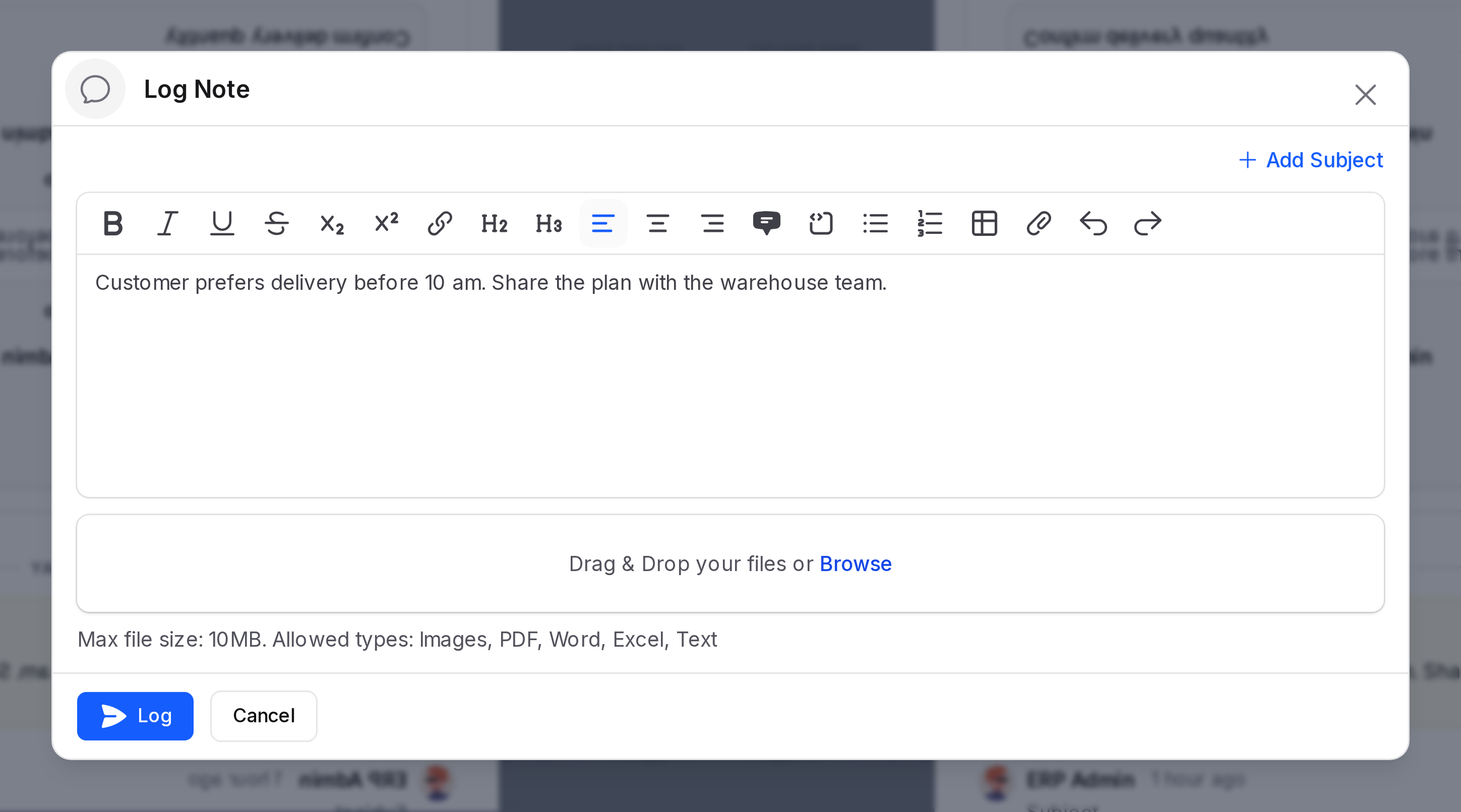
- In the Chatter panel, click Log Note.
- Add a Subject, if you want one.
- Write the note. Attach files in the same way as in a message.
- Click Log, or Cancel to close the window.
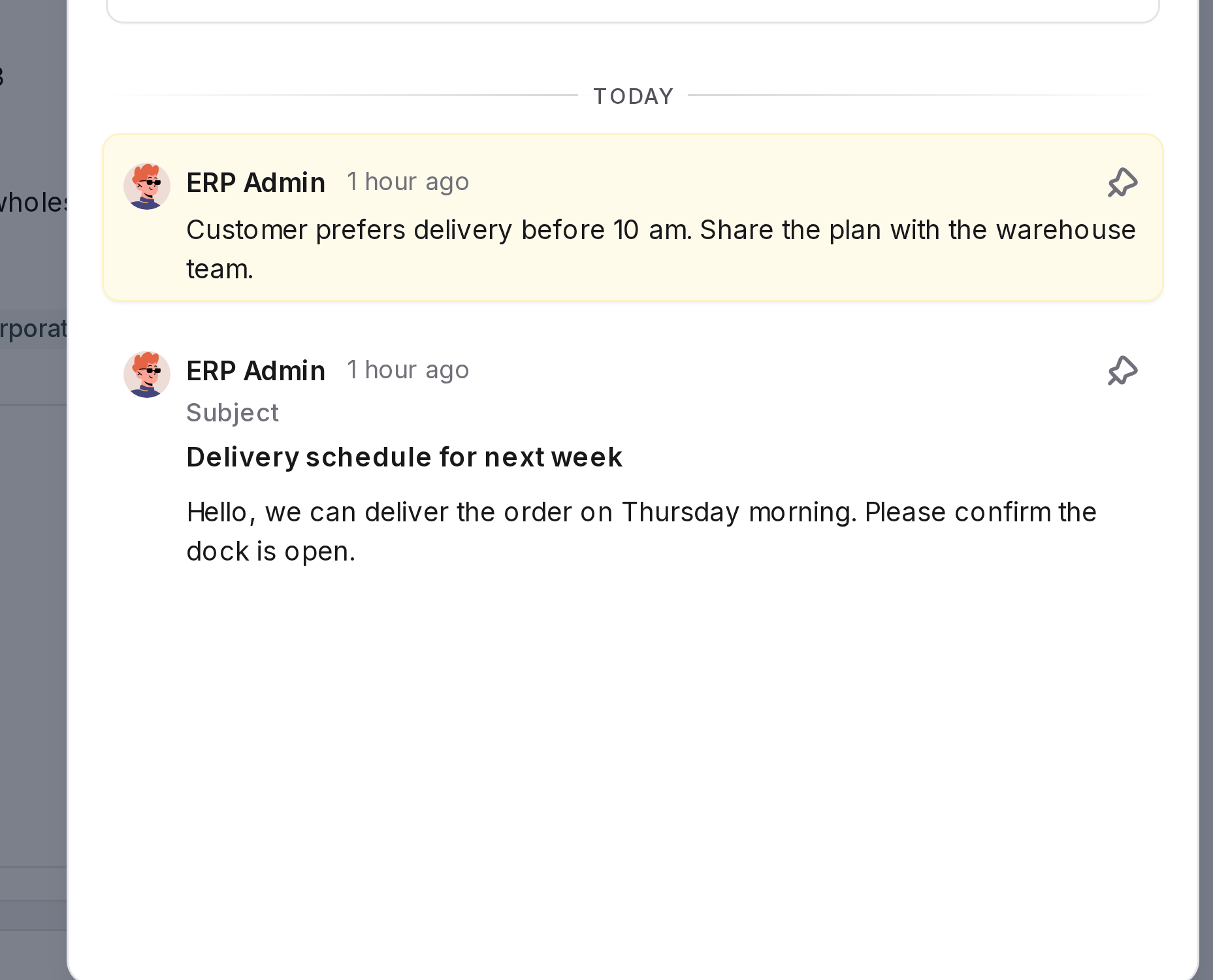
Messages and notes appear in the Chatter panel under the date they were written. Notes have a yellow background, so you can tell them from messages.
Pin an entry
Click the pin icon at the right of a message or note to pin it. Click it again to unpin. Pinned entries are easy to find with the Pinned only filter.
Attach files
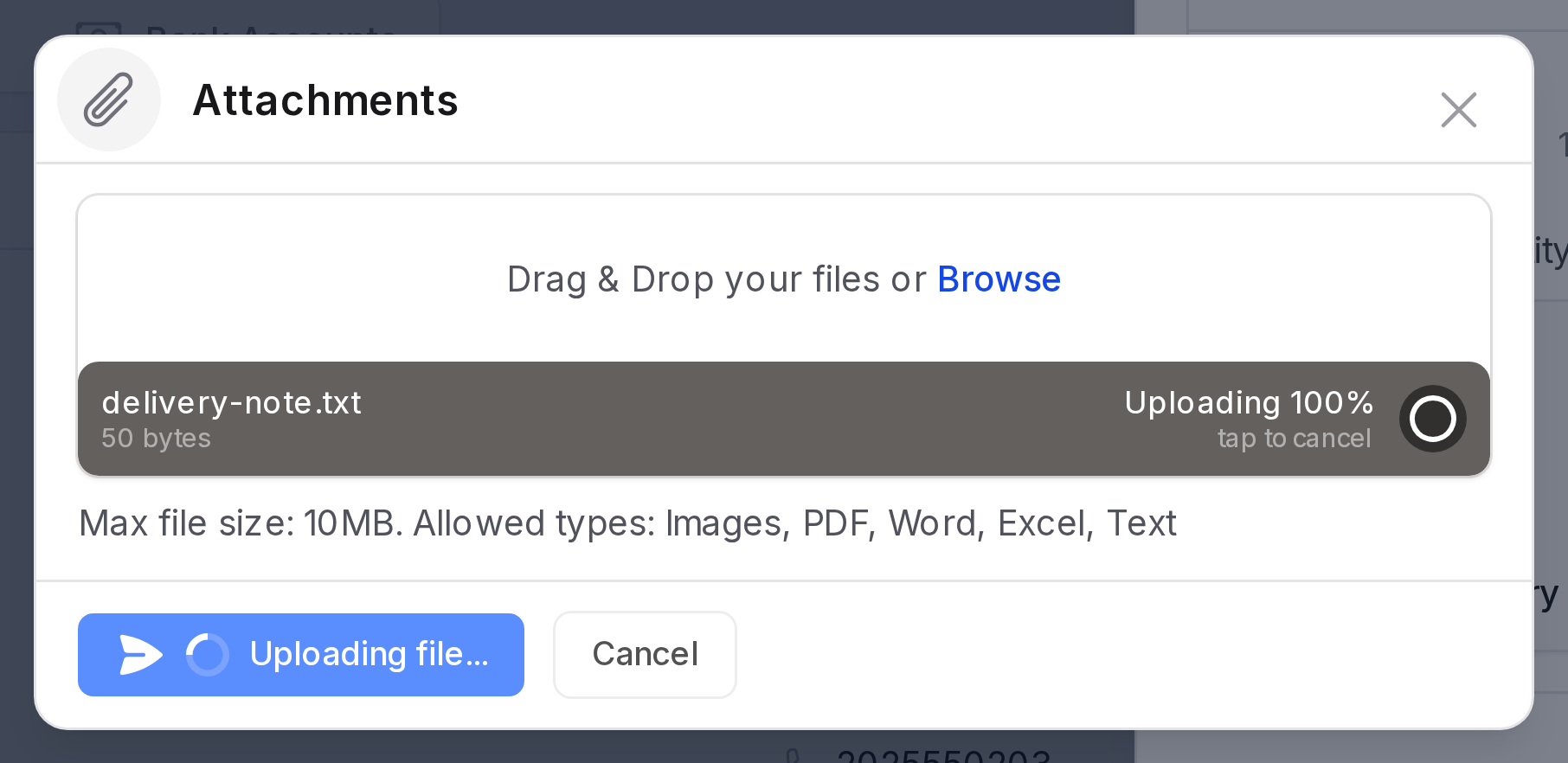
Click the paper clip icon to add files to the record without writing a message.
- Click the paper clip icon.
- Add your files. Each file can be up to 10 MB.
- Click Upload.
The number on the icon shows how many files the record has. Files already on the record are not uploaded again.
Followers
Followers are the people who stay informed about the record.
- Click the person icon. The Followers window opens.
- In Recipients, choose one or more people. This field is required.
- Turn on Notify User if they should be told that they now follow the record.
- Add a note in the text box, if needed.
- Click Add Follower, or Cancel to close the window.
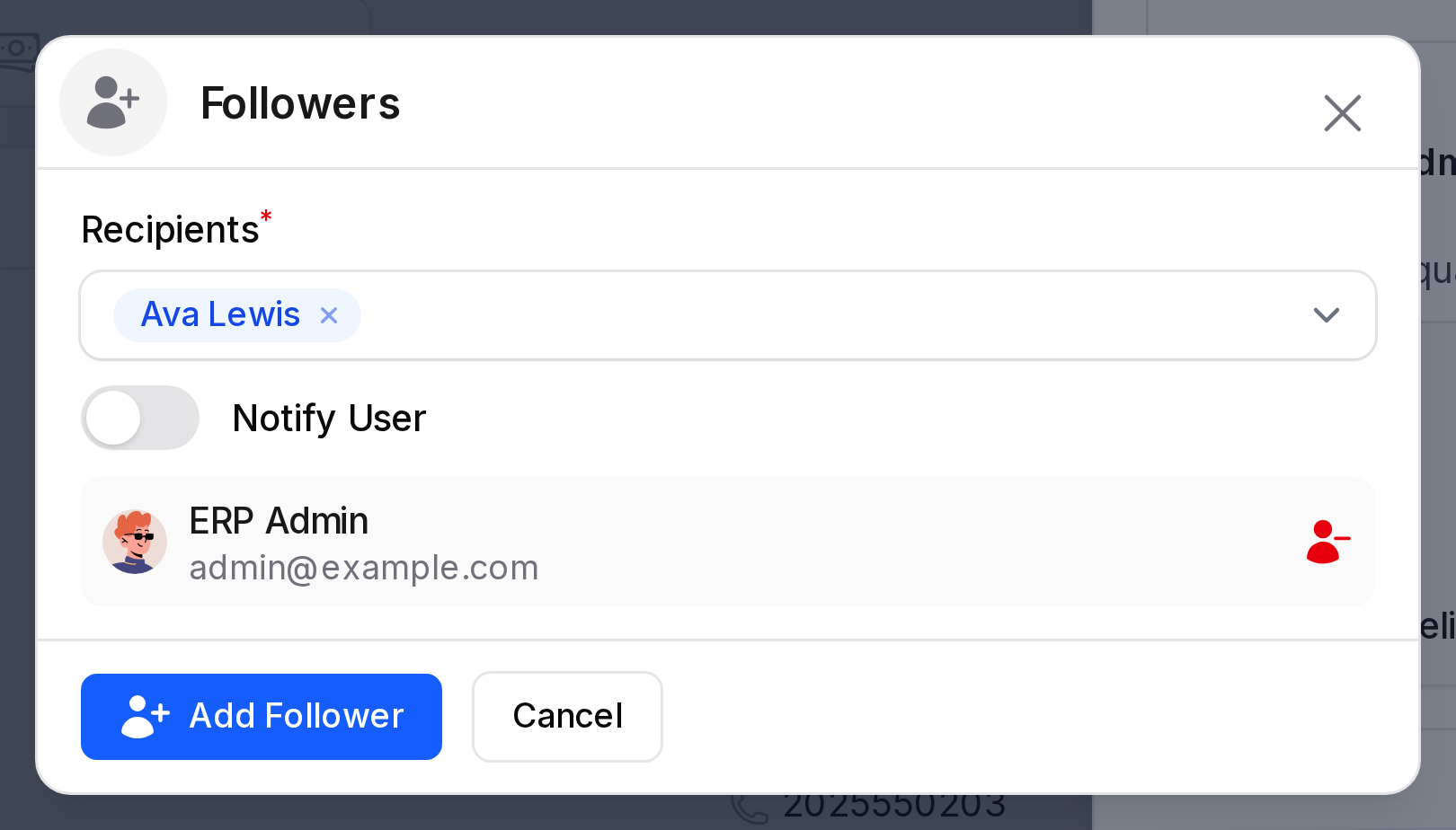
The window also lists the people who already follow the record, with their email address. To stop someone from following the record, click the red remove icon at the right of their name.
TIP
If a follower has no email address, they cannot be notified. Aureus tells you which followers it could not reach.
Filter the history
When a record has a long history, use the funnel icon to find an entry.
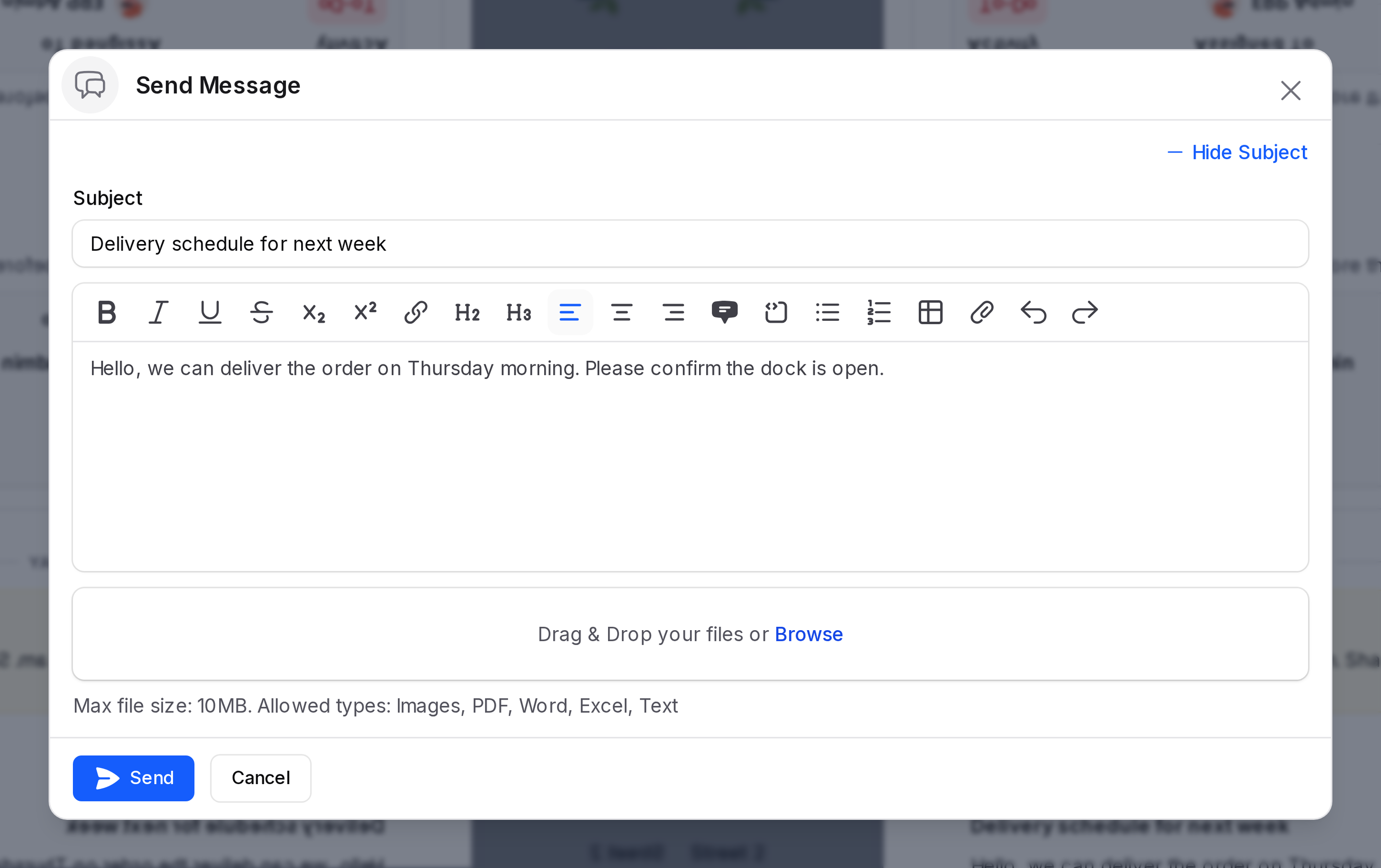
Click the funnel icon. The Filters window opens.
Use the filters:
- Search: Type a word to find in messages.
- Type: Choose All types, Notes, Comments, Notifications or Activities.
- Date: Choose Any time, Today, Yesterday, Last 7 days, Last 30 days, Last 3 months or Last year.
- Sort by: Choose Newest first, Oldest first, Recently updated or Priority.
- Pinned only: Turn on to show pinned entries only.
Click Apply filters, or Cancel to close the window.