

First steps with Inventory
This tutorial walks one product through the whole cycle. You check the warehouse, make a storable product, receive stock from a purchase order, see it in the stock report and then deliver it from a sales order. Each step links to a deeper page, so treat this as a map.
In simple words: Buy it, receive it, see it on the shelf, sell it, ship it.
Warehouse → Product → Receive (PO) → Stock report → Deliver (SO) → Stock dropsBefore you start
This tutorial uses a purchase order and a sales order. Install the Purchase and Sales apps, and create a vendor and a customer. The example warehouse My Company (short name WH) uses three steps for incoming and outgoing shipments. A new install starts with one step, so you will see fewer documents. Turn on Locations and Multi Steps Routes in Inventory → Settings → Manage Warehouses to match. See Inventory settings.
Step 1: Check the warehouse and locations
- Go to
Inventory → Configurations → Warehouses. - Open your warehouse. The sample company has My Company with short name WH.
- Check the Settings block. Incoming and Outgoing Shipments show how many steps your flow has.
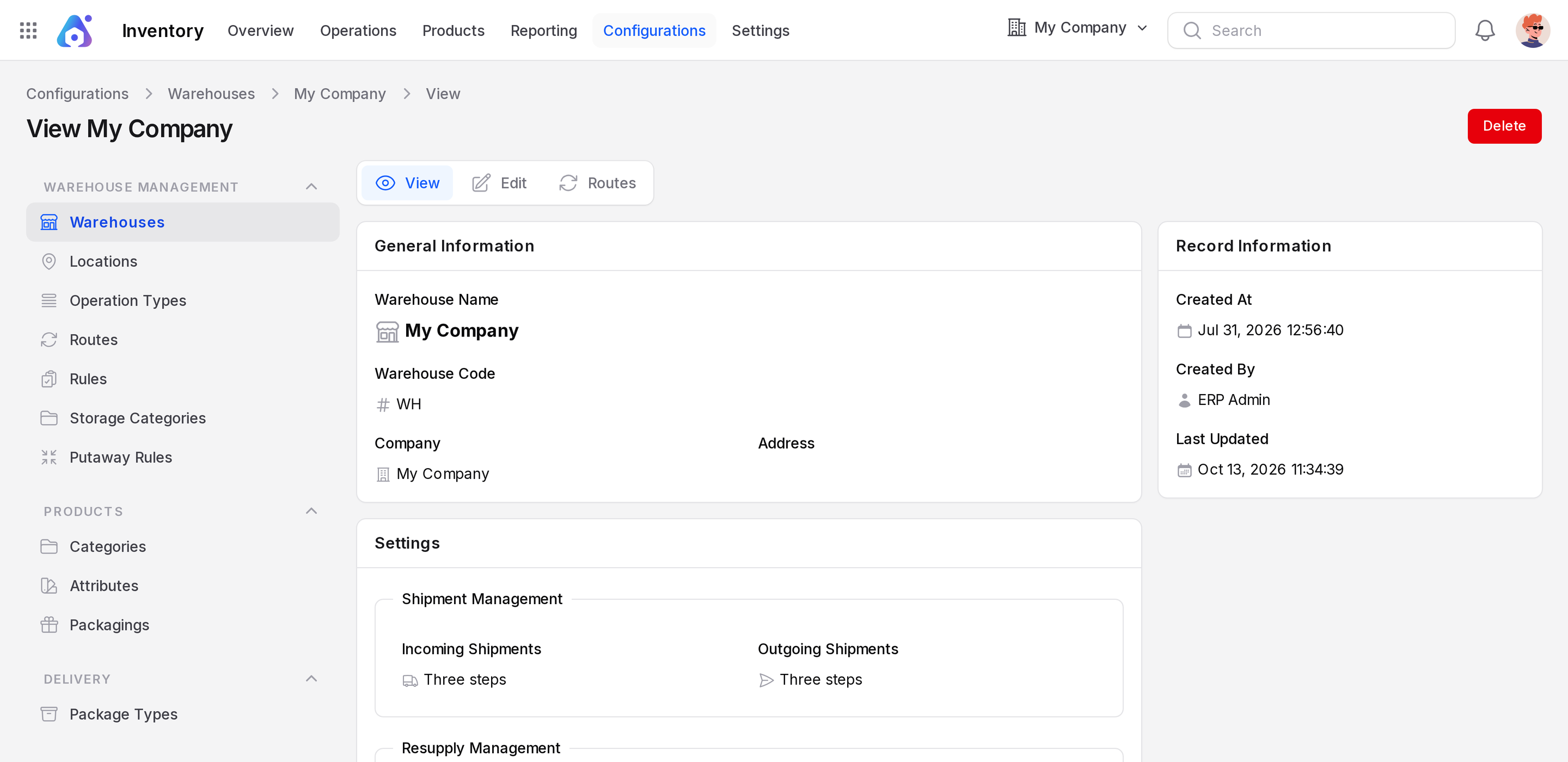
- Go to
Inventory → Configurations → Locationsand find WH/Stock. The menu shows only when Locations is on.
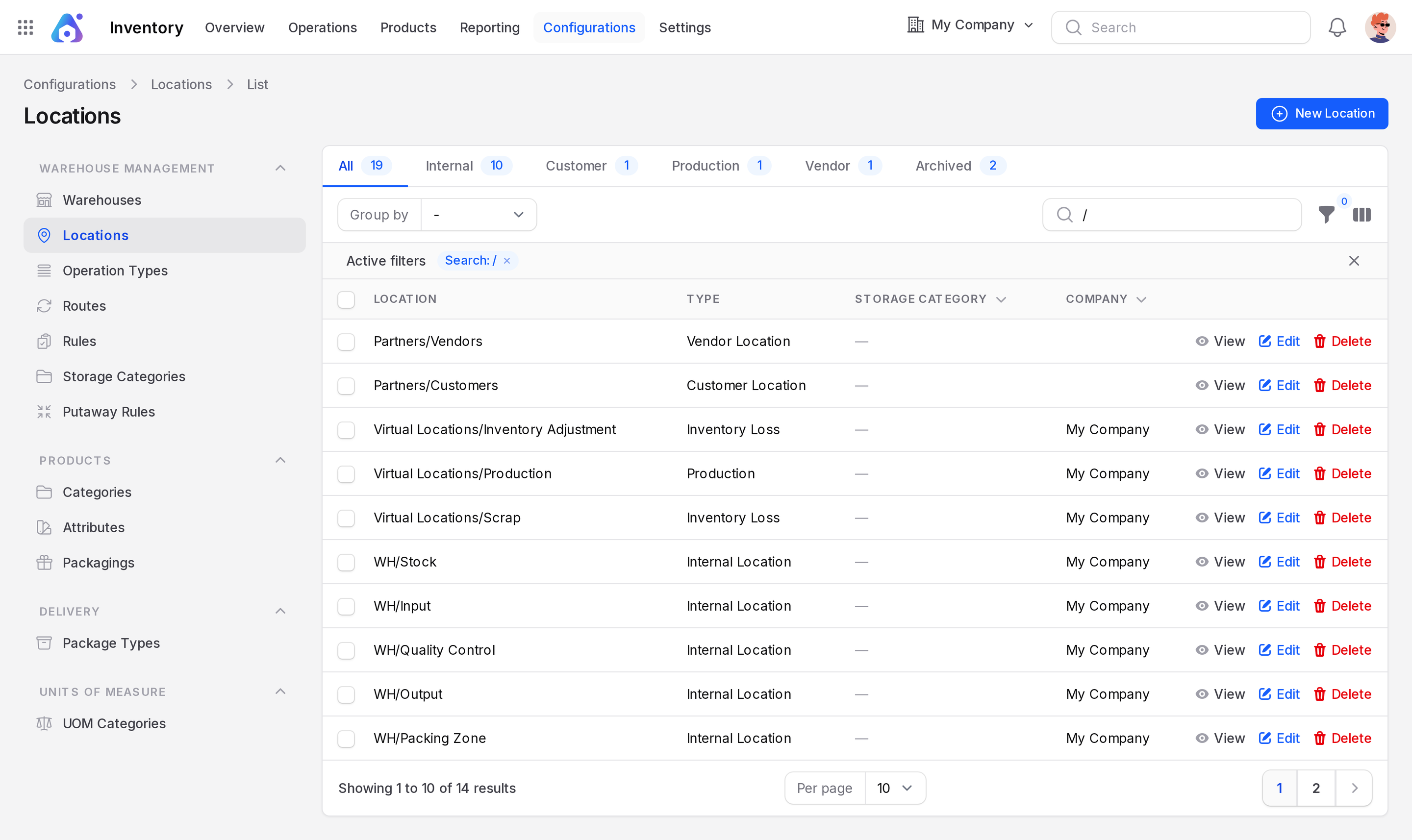
Behind the scenes: The short name WH starts every location name. WH/Stock is where your sellable goods rest. See Warehouses and Locations.
Step 2: Make a storable product
This tutorial uses one product, Desk Lamp, from start to finish.
- Go to
Inventory → Products → Productsand click New Product. - Enter Name Desk Lamp. Set Type to Goods.
- In the Inventory section, check that Track Inventory is on.
- Keep the Category All. Enter Price 800 and Cost 500.
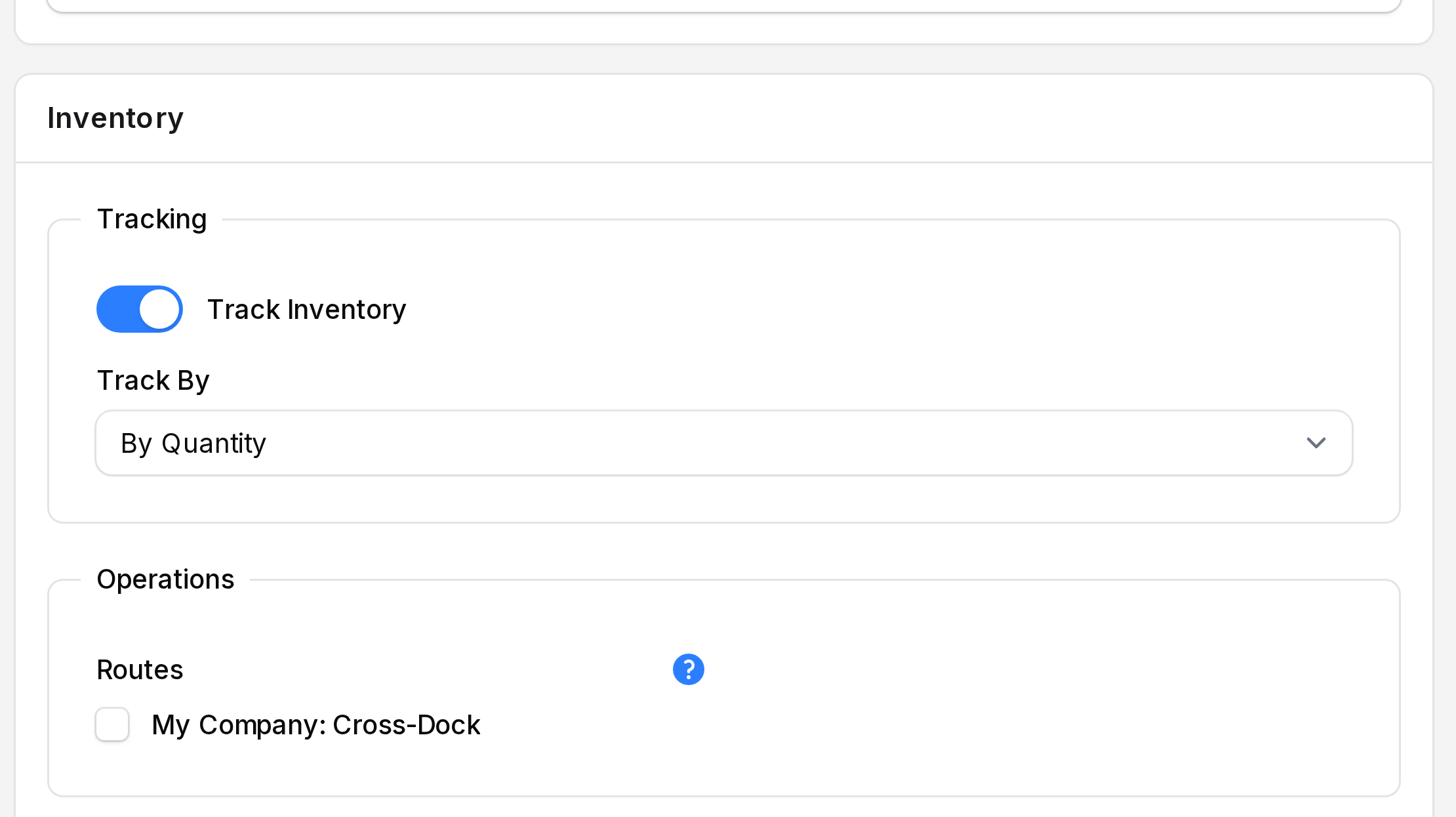
- Click Create.
Behind the scenes: A product without Track Inventory never gets a stock quantity. See Configure a product.
Step 3: Receive stock from a purchase order
You buy 20 Desk Lamps from a vendor.
- Create a purchase order for Consolidated Components with 20 Desk Lamp at a unit price of 500, then click Confirm Order. Here the order is PO/00011. See Purchase orders.
- Open the order and click Receipts in the switcher at the top (View, Edit, Vendor Bills, Receipts). The sub page Manage PO/00011 Receipts lists the receipt WH/IN/00020 with the source document PO/00011.
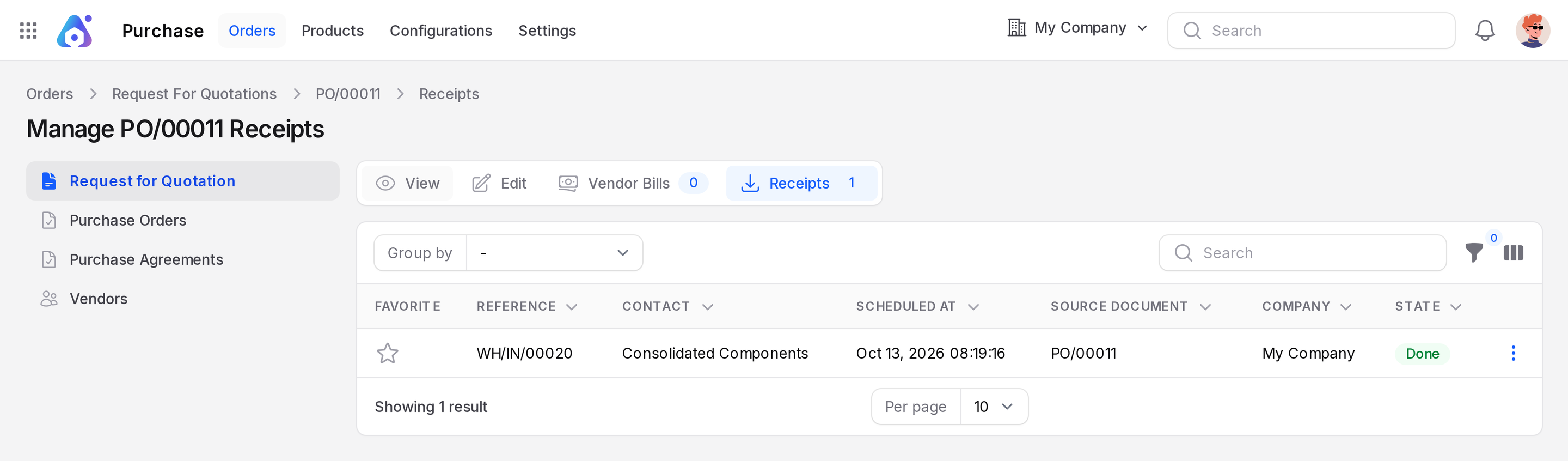
- Open WH/IN/00020. The status is Ready. The moves show Desk Lamp with a demand of 20 Units.
- Click Validate.
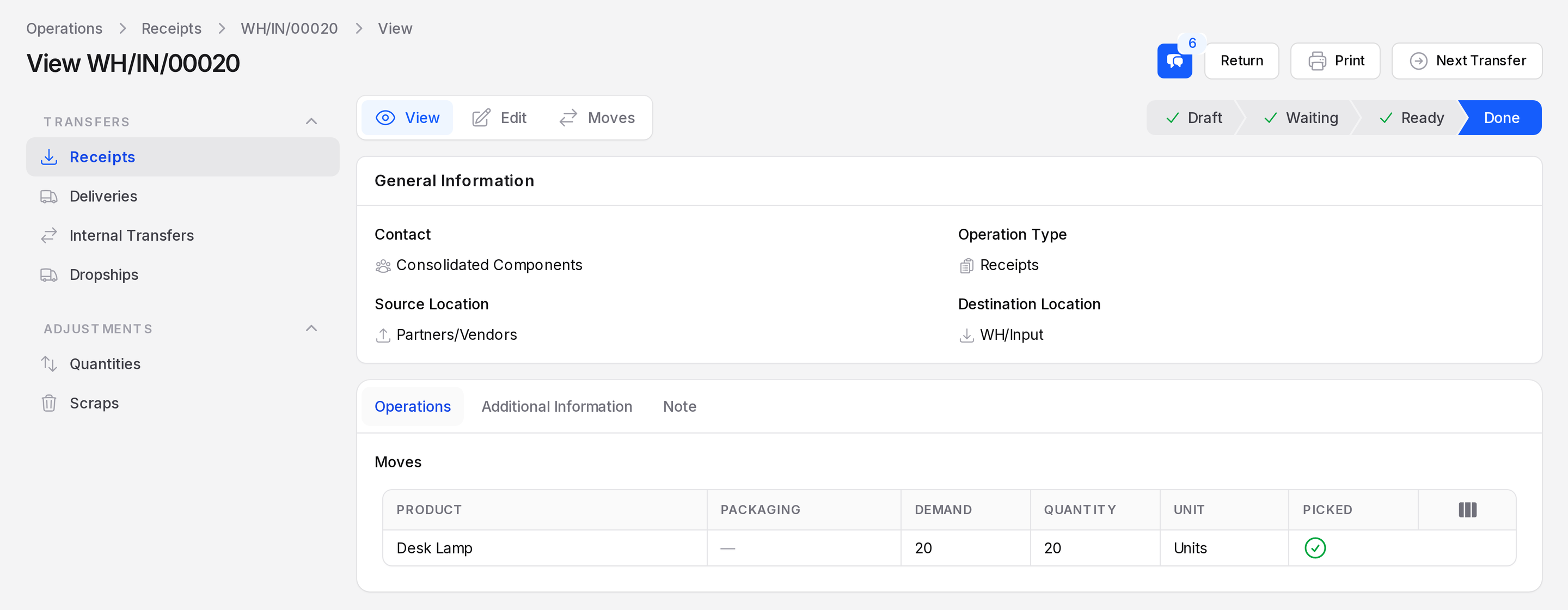
- This warehouse uses three steps, so the goods are not in WH/Stock yet. Validate the next two documents of the same order in turn. Open
Inventory → Operations → Internal Transfers, then validate the quality control document WH/QC/00017 and the storage document WH/STOR/00040. With a one-step warehouse, the goods land in WH/Stock directly after the receipt.
Behind the scenes: The 20 Units move from Partners/Vendors to WH/Input. The quality control document moves them to WH/Quality Control. The storage document moves them to WH/Stock. Each document changes to Done when you validate it. See Receipts.
Step 4: See the stock
- Go to
Inventory → Reporting → Locations. - Search Desk Lamp.
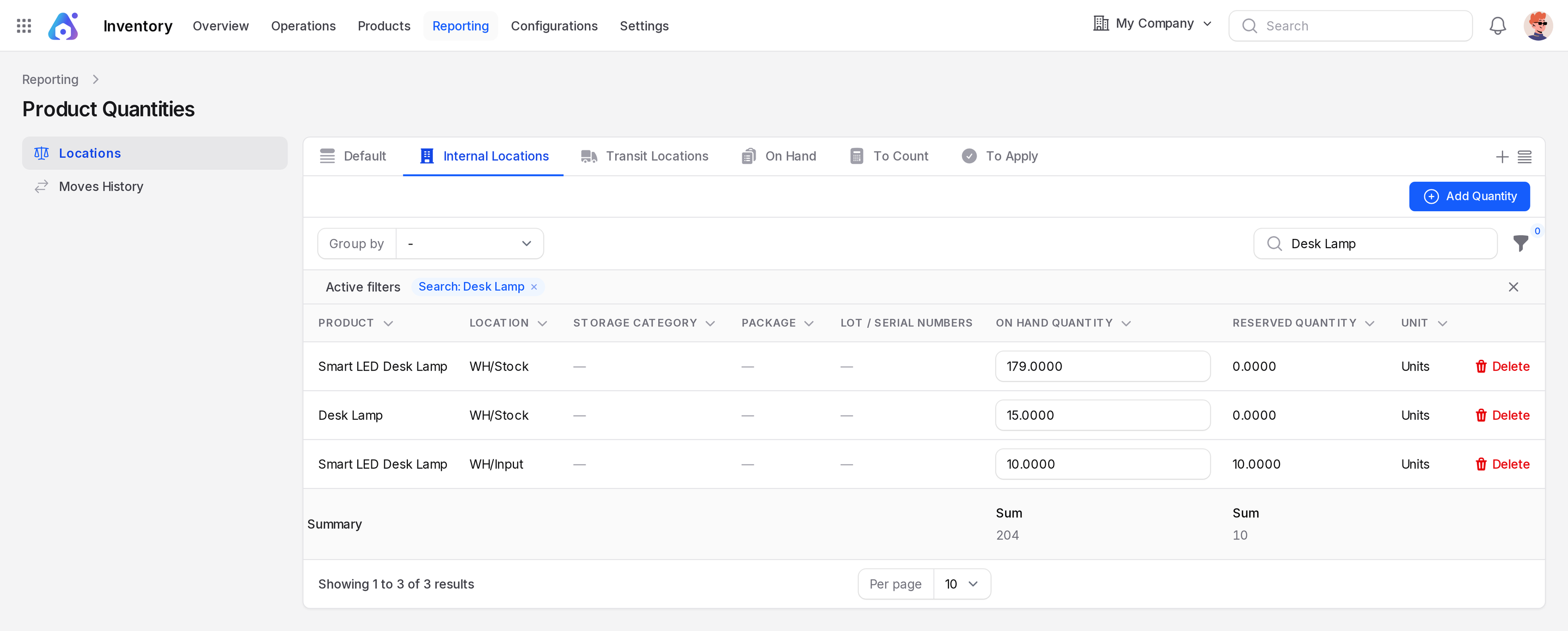
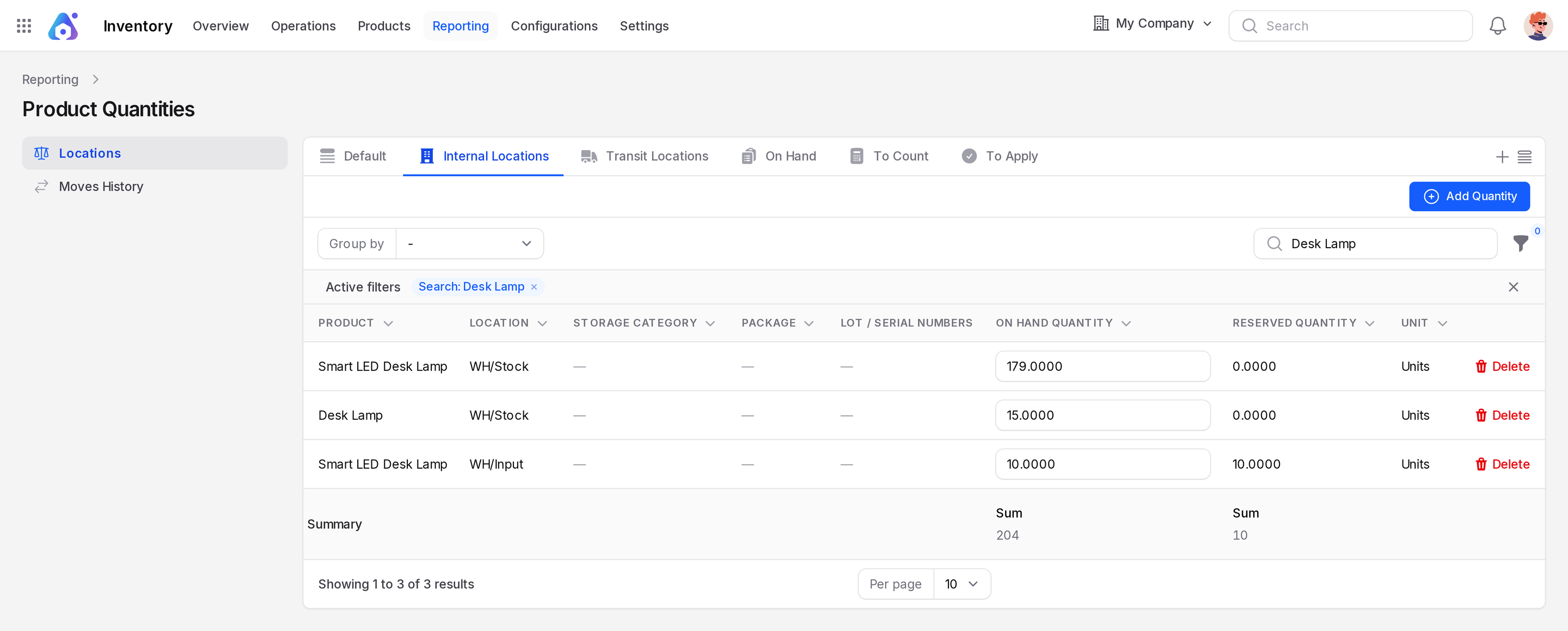
- Read the On Hand Quantity column. Each row is one product in one location. The page title is Product Quantities. Desk Lamp shows 20 in WH/Stock. The screenshot was taken after the delivery in step 5, so it shows 15.
TIP
The search also lists other products with Desk Lamp in the name. Read the row named exactly Desk Lamp.
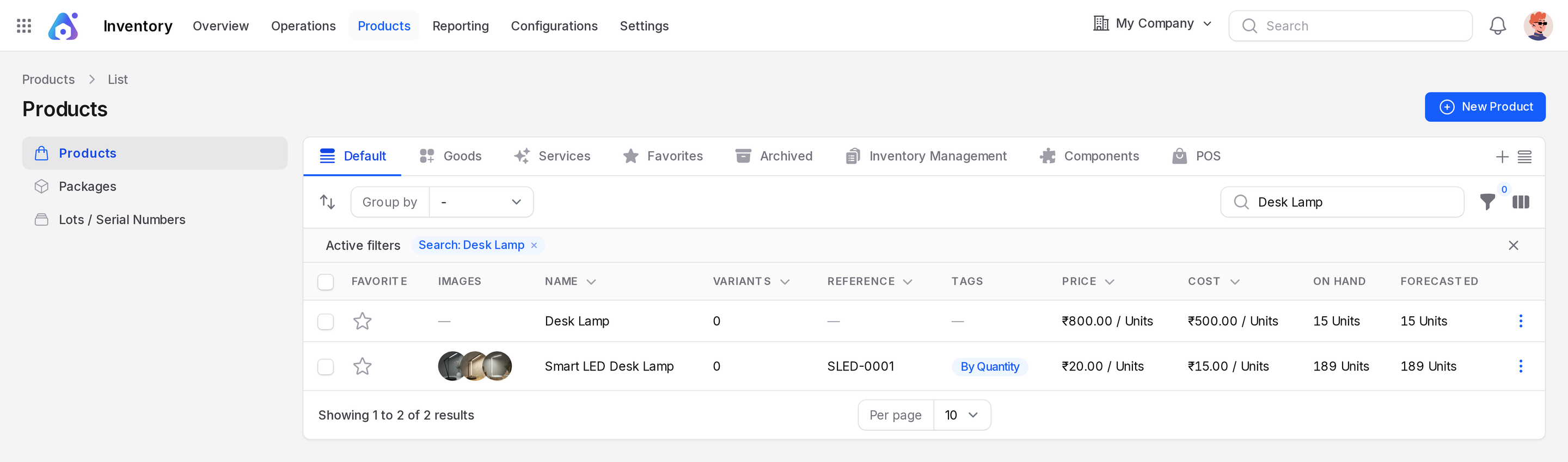
You can also open the product list. The On Hand and Forecasted columns show the same quantity. See Stock report.
Step 5: Deliver from a sales order
You sell 5 Desk Lamps to a customer.
- Create a sales order for Azure Interiors with 5 Desk Lamp at a unit price of 800, then confirm it. Here the order is SO/00013. See Send and confirm a quotation.
- Open the order and click Deliveries in the switcher at the top. The sub page Manage SO/00013 Deliveries lists WH/PICK/00012, WH/PACK/00043 and WH/OUT/00047. At first only the pick document exists. The next document appears when you validate the one before it.
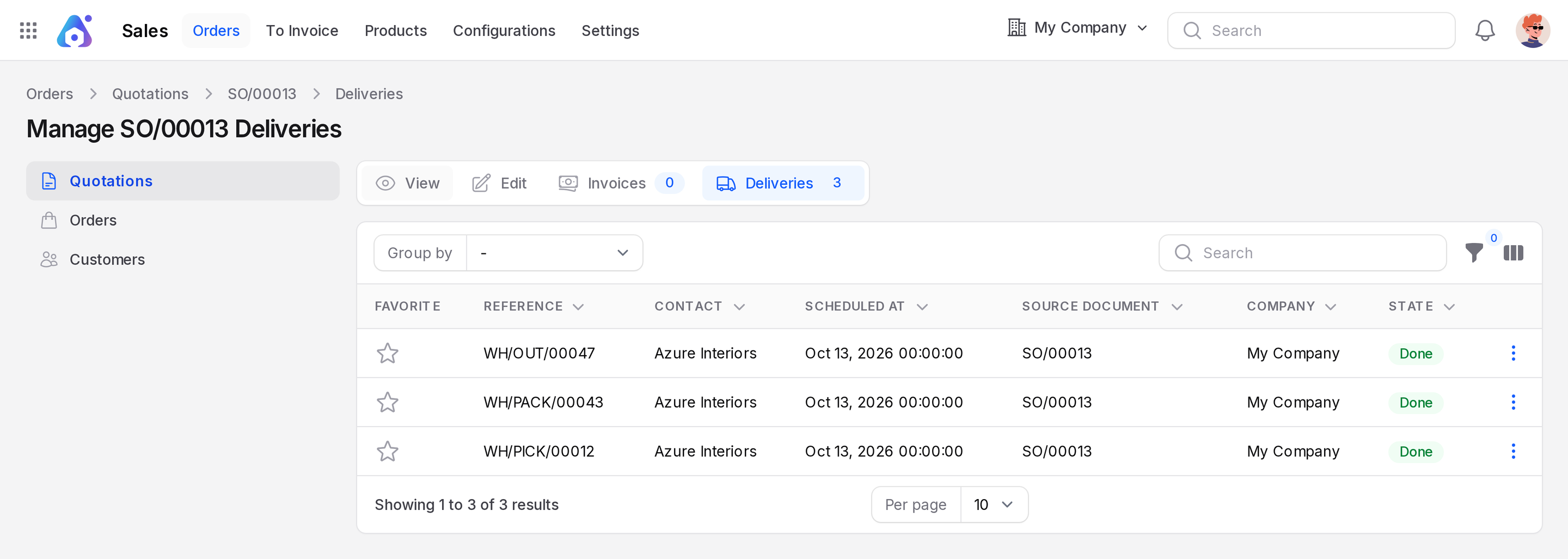
- Validate each document in turn: WH/PICK/00012, then WH/PACK/00043, then WH/OUT/00047. The last one is the delivery to the customer. Its status becomes Done and the buttons Return and Print appear.
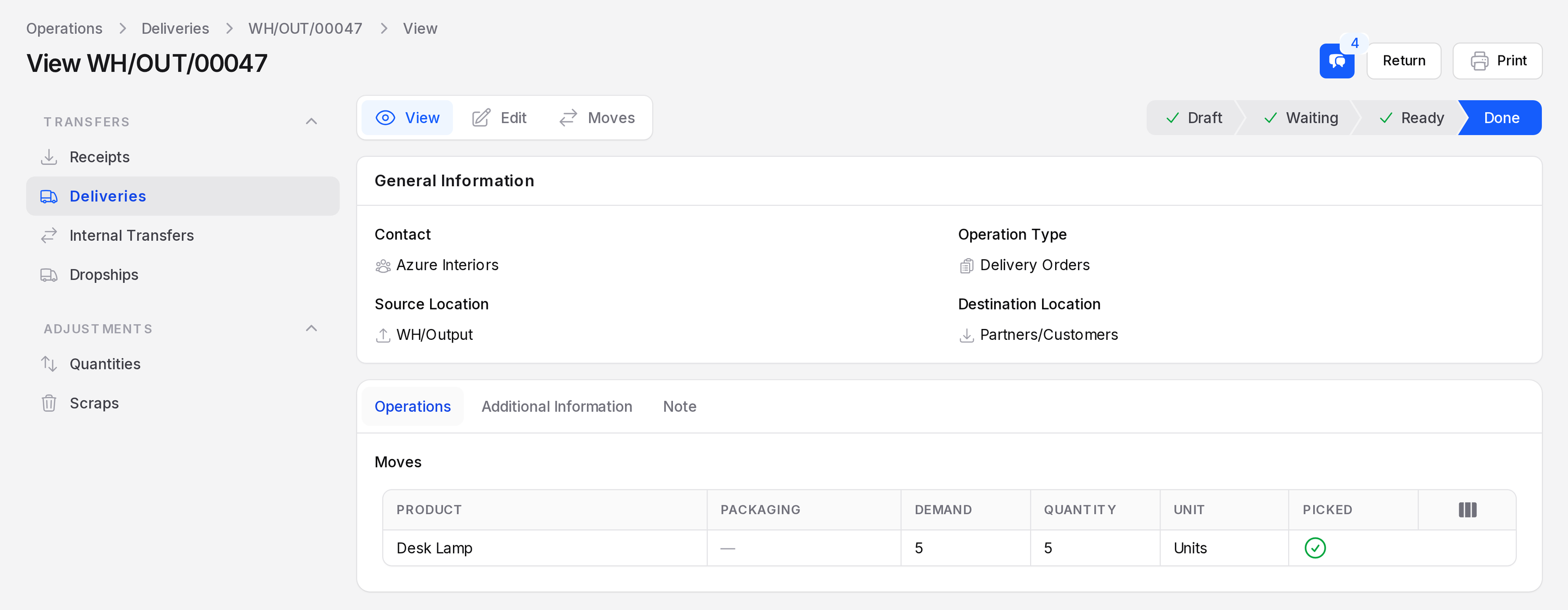
Behind the scenes: Pick moves goods from WH/Stock to WH/Packing Zone. Pack moves them to WH/Output. Delivery sends them to Partners/Customers. See Deliveries.
Step 6: Check the drop
- Go back to
Inventory → Reporting → Locationsand search Desk Lamp. - The On Hand Quantity in WH/Stock is now 15. You received 20 and delivered 5, so 20 minus 5 equals 15.
- Open the product list. The On Hand column for Desk Lamp shows 15 Units.
- Open
Inventory → Reporting → Moves History(the page title is Move Lines). Search Desk Lamp to see every move it made.
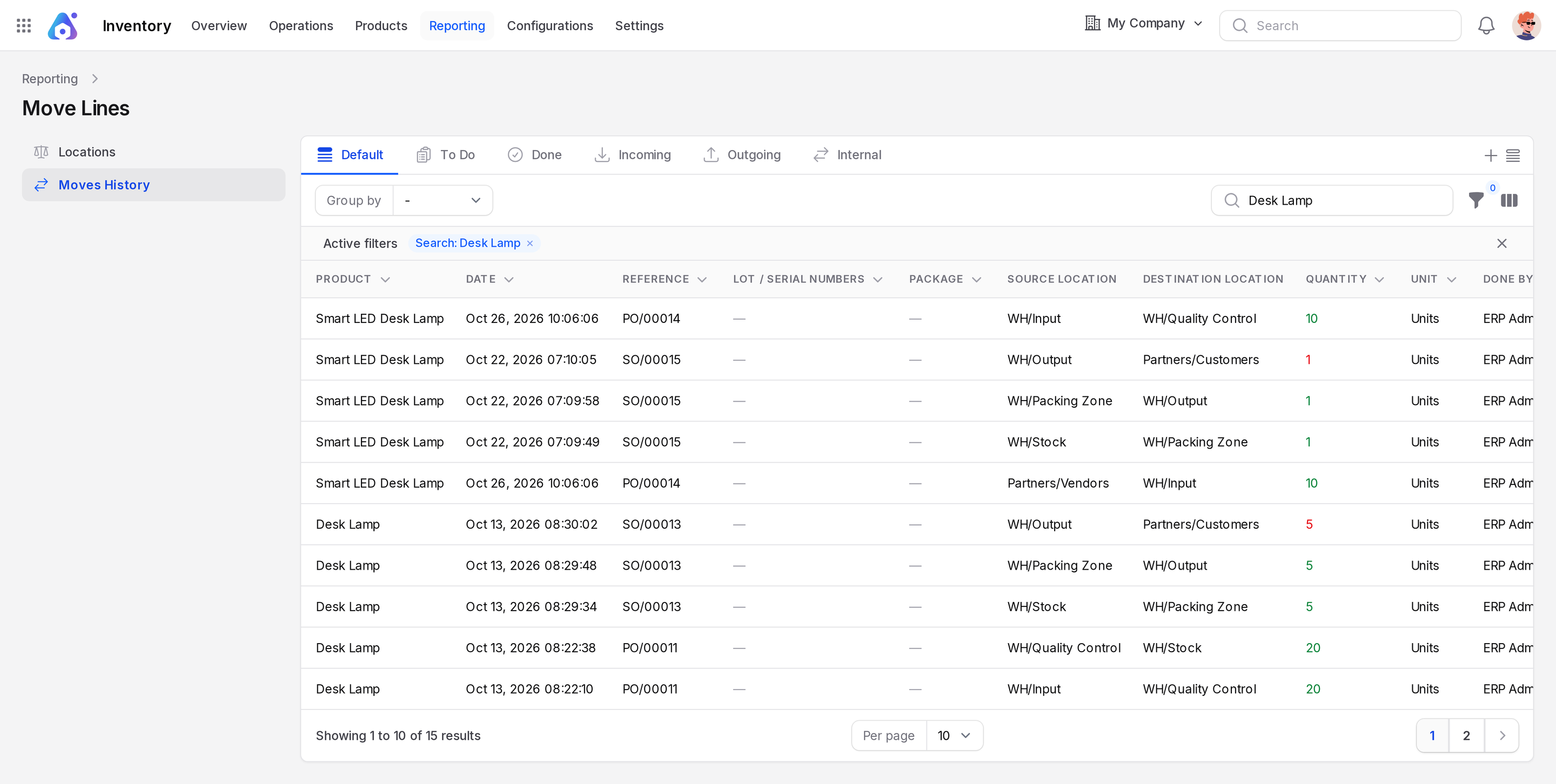
The three moves of 20 Units came in from the purchase order. The three moves of 5 Units went out with the sales order.
Where to go next
| You want to | Read |
|---|---|
| Trace batches or single items | Lots and serial numbers |
| Fix a wrong count | Inventory adjustments |
| Change the number of steps | Routes |
| Work with a scanner | Barcode |