

Customers
A POS customer is a contact you attach to an order. With a customer on the order you can send an invoice and see who bought what. The Customers page is a shortcut to the same contact records that the rest of Aureus uses.
In simple words: Customers here are your normal contacts. Add one here or at the till and use it on any order.
Overview
Go to Point of Sale → Orders → Customers.
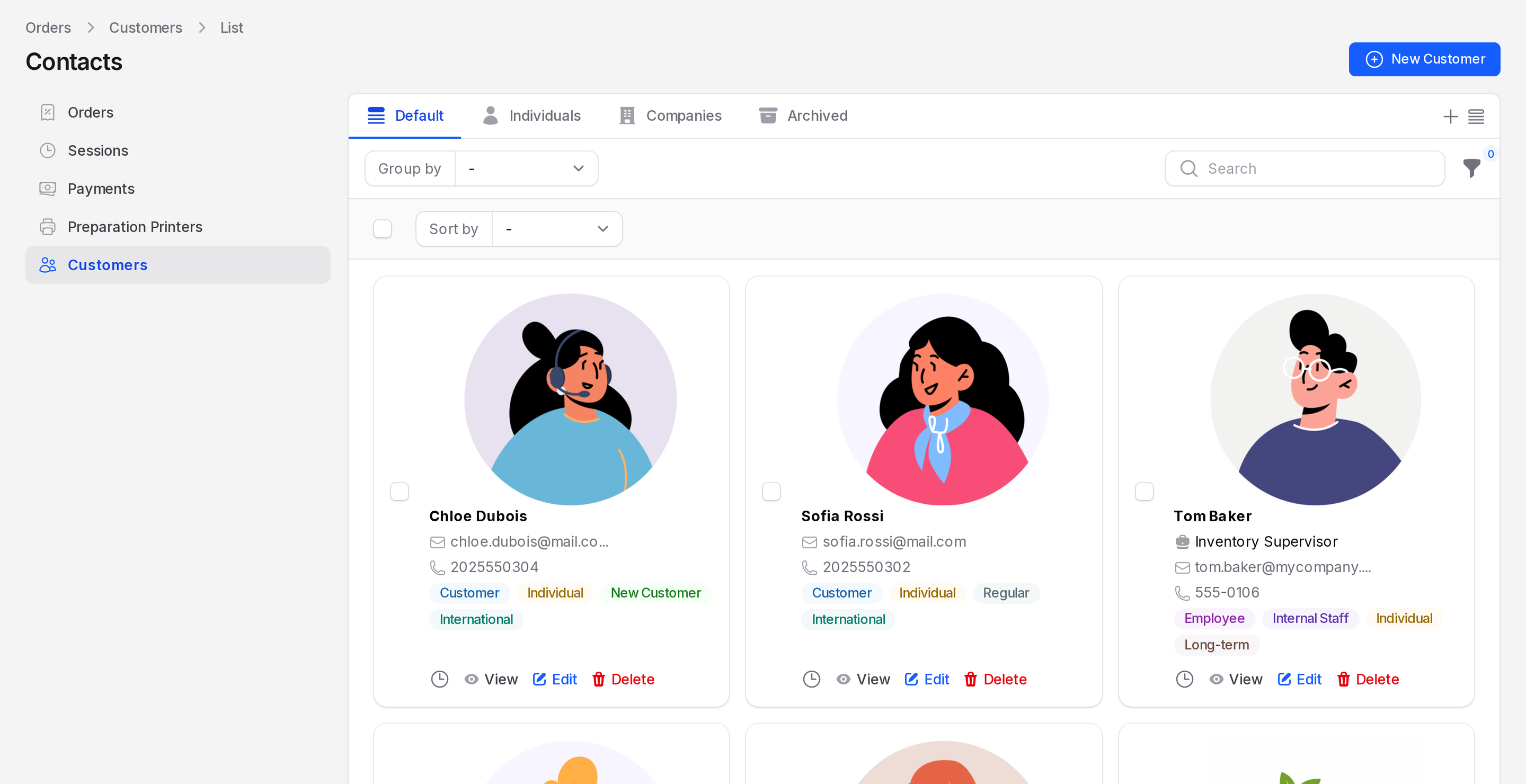
The page has these tabs: Default, Individuals, Companies and Archived.
Each row shows the Name, Parent, Job Title, Work Email and Work Phone, with tags such as Customer and Individual. Use Group by for Account Type, Parent, Title, Job Title or Industry.
The row actions are View, Edit and Delete.
Create a customer
Go to
Point of Sale → Orders → Customers.Click New Customer.
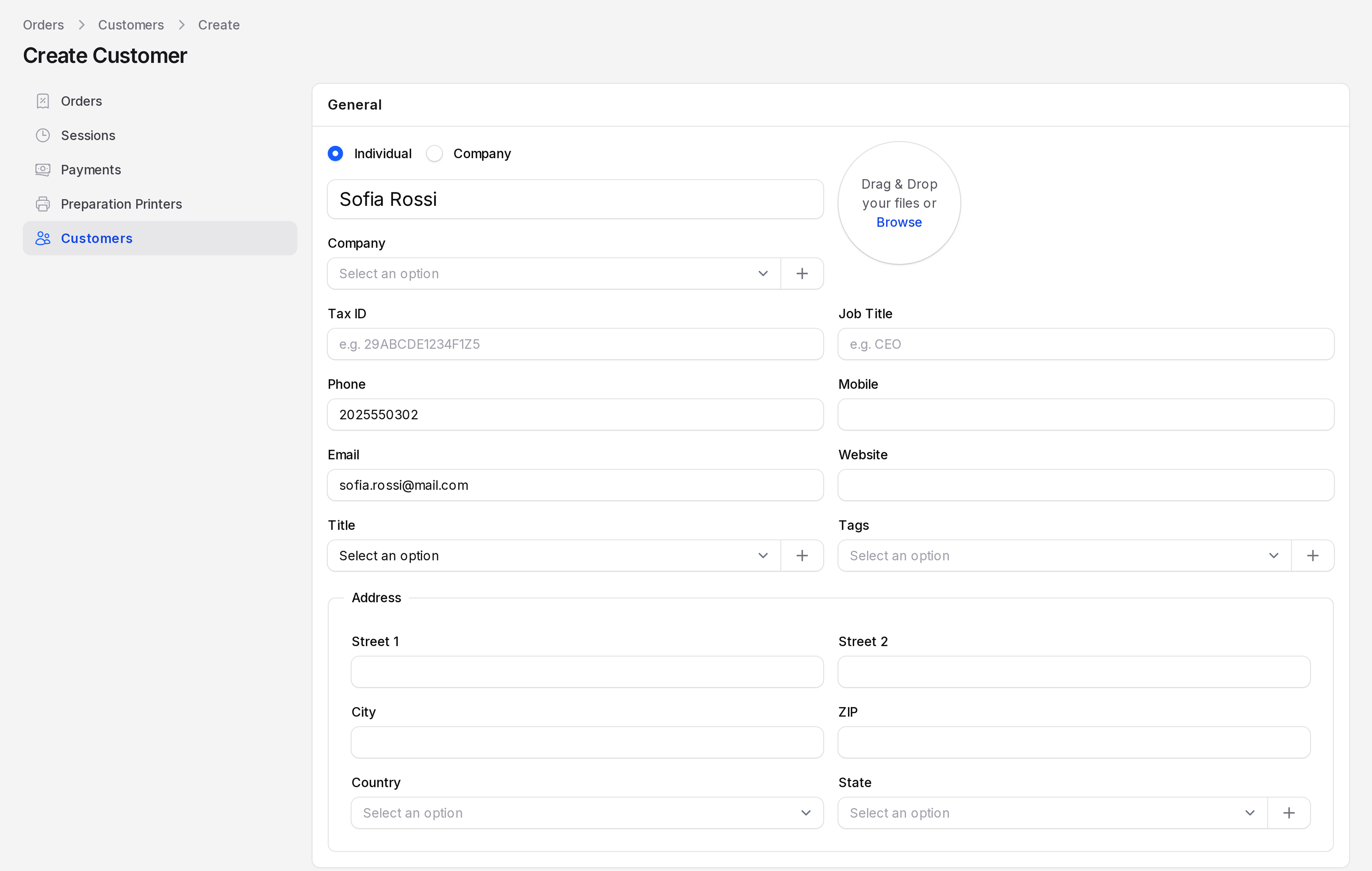
Fill in the General section.
- Account type: Choose Individual or Company.
- Name: Required. Enter the name, for example Sofia Rossi.
- Company: For an individual, pick the company they work for.
- Tax ID, Job Title, Phone, Mobile, Email, Website: Fill in what you know.
- Title: Choose Mr or Mrs.
- Tags: Add tags to group customers.
- Address: Street 1, Street 2, City, ZIP, Country and State.
Open the tab Sales and Purchases for the Responsible salesperson, Payment Terms, Payment Method and Fiscal Position.
Open Invoicing and Internal Notes if you need them.
Click Create. Click Create & create another to add more.
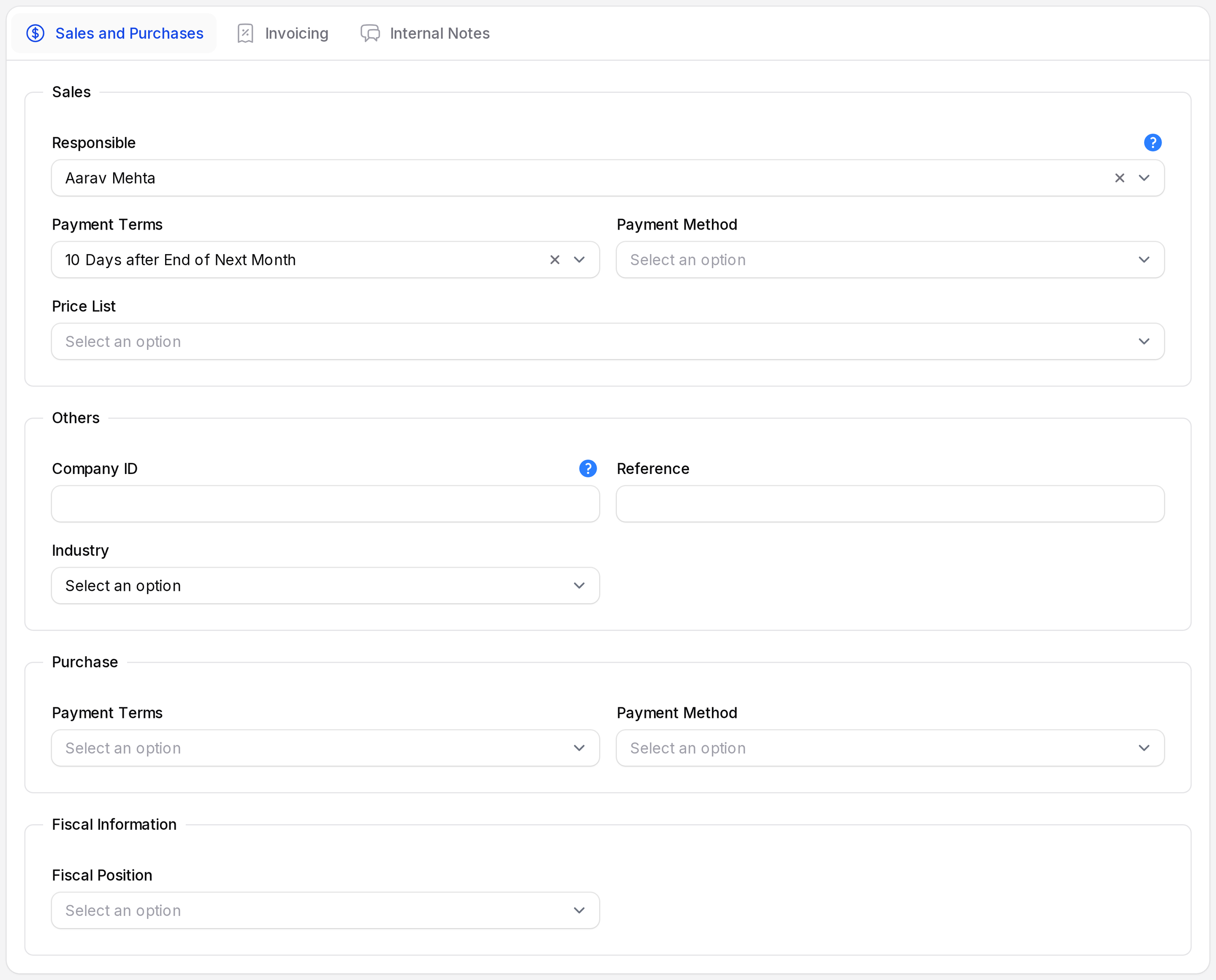
The full list of contact fields is on the Contacts page.
Use a customer on an order
At the till, click Customer on the order screen and pick the contact. You can make Customer Required a rule in the register setup. See Order notes and customers.
View a customer
Click View to open a customer. The page also gives you sub pages for Contacts, Addresses and Bank Accounts of that customer.
TIP
Search before you create. A duplicate contact splits a customer's history across two records.