

Manage users
The Manage Users page sets the rules for how people join and sign in. You choose whether users can invite others and reset passwords. You also choose the role and company that new users receive.
In simple words: This page controls how new users are invited and what they get by default.
Open the page
- Go to
Settings → Settings. - In the left menu, under General, click Manage Users.
Set the options
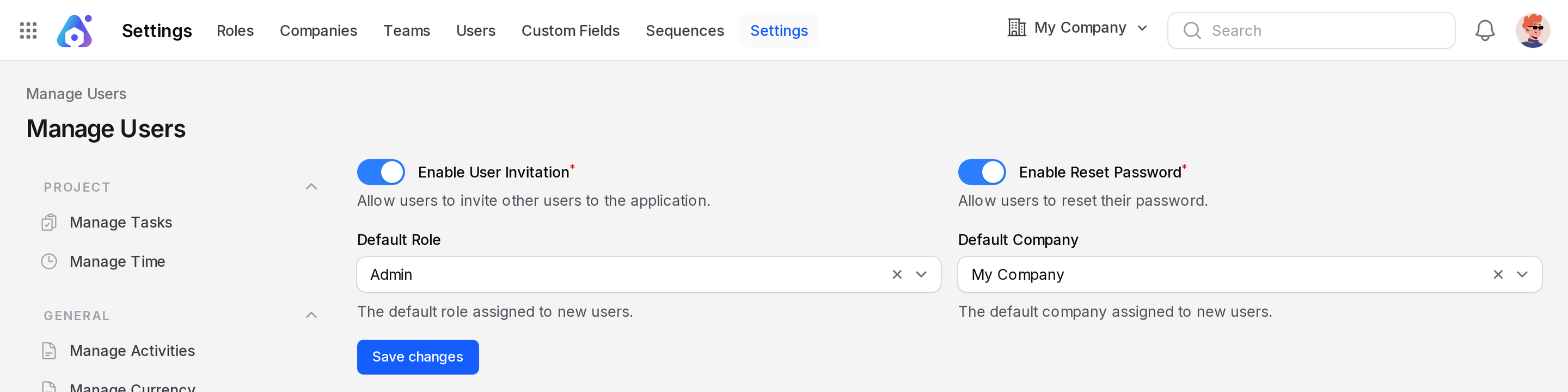
The page has four options.
- Enable User Invitation: Turn on to let users invite other users. The Invite User button then shows on the Users list. When it is off, create users yourself with New User. See Users.
- Enable Reset Password: Turn on to let users reset their password.
- It shows the Change Password action on a user record.
- It shows the reset link on the sign-in page.
- Default Role: Choose the role given to a new user who accepts an invitation. Type to search the list.
- Default Company: Choose the company given to a new user who accepts an invitation. Type to search the list.
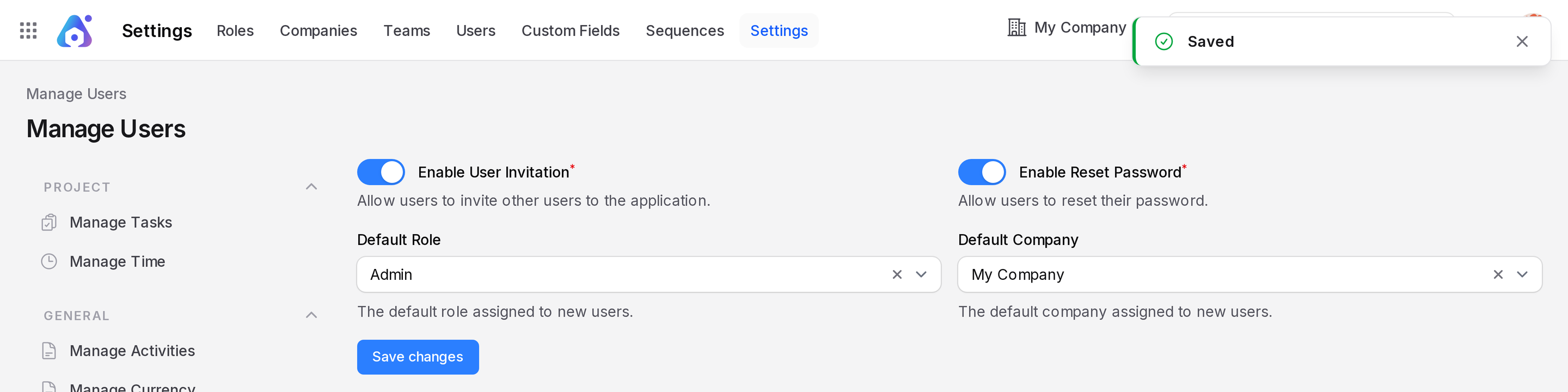
Click Save changes to apply your choices.
WARNING
Set Default Company before you invite anyone. Without it, Invite User shows the message Default Company Not Set and sends nothing.
TIP
Pick a role with limited access as Default Role. You can change a user's role later on their record.
What happens next
When you click Invite User on the Users list, you enter an email address. The person receives a message with a link. After they accept, the account uses your default role and company.