

Restaurant floors and notes
Restaurant registers show a floor plan at the till. A floor is a room, and each room holds tables. Note models are the quick notes a waiter taps to tell the kitchen what to do.
In simple words: Floors are the rooms and tables of your restaurant. Note models are one tap messages to the kitchen.
Floors
Overview
Go to Point of Sale → Configurations → Floors.
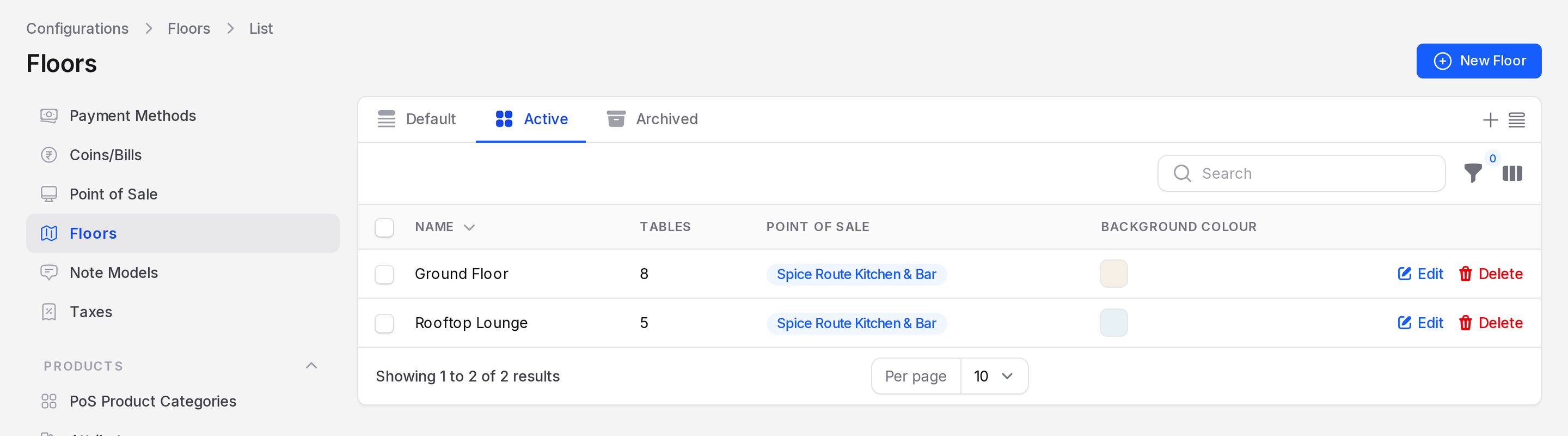
The tabs are Default, Active and Archived. Columns are Name, Tables, Point of Sale and Background Colour.
Create a floor
Go to
Point of Sale → Configurations → Floors.Click New Floor.
Fill in the General section.
- Name: Required. For example Rooftop Lounge.
- Point of Sale: The restaurant registers that use this floor.
- Background Colour: The colour of the floor plan.
- Background Image: An optional picture, such as a floor drawing.
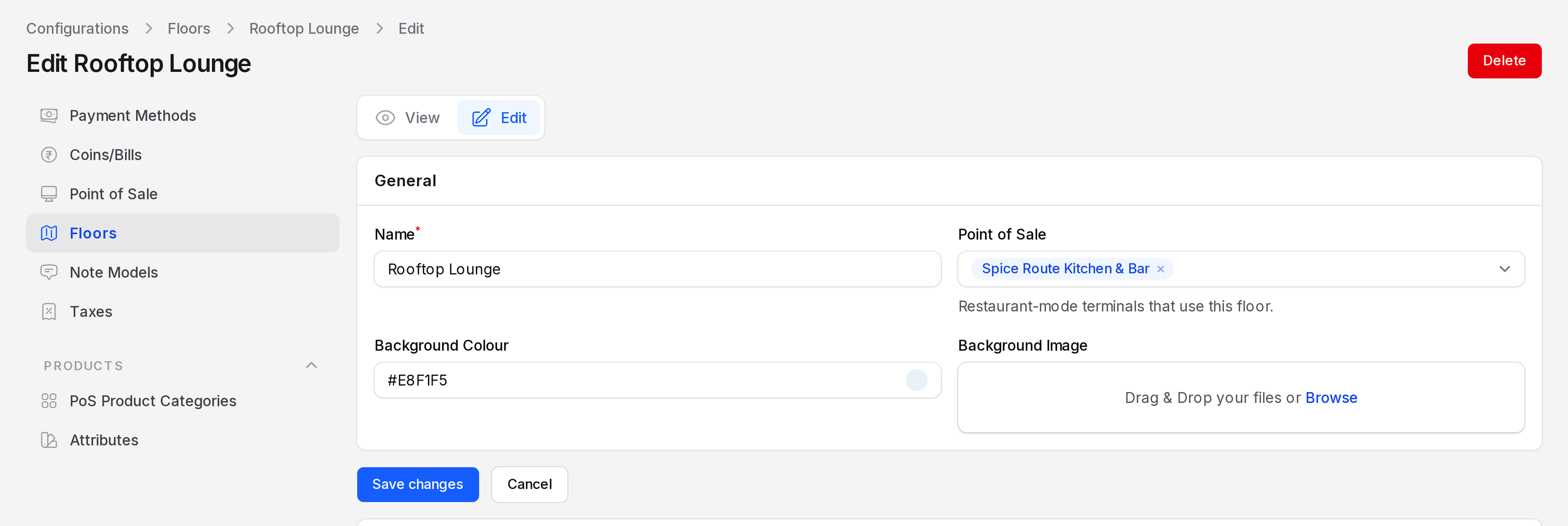
Click Create.
Add tables
Open a floor with Edit. Below the form you see a Tables list. Ground Floor holds eight tables, T1 to T8.
Click New table.
Fill in the window.
- Table Number: Required. For example T4.
- Shape: Required. Square or Round.
- Seats: Required. How many guests sit there.
- Horizontal Position and Vertical Position: The distance in pixels from the left and top edge of the plan.
- Width and Height: The size on the plan.
- Colour: The table colour.
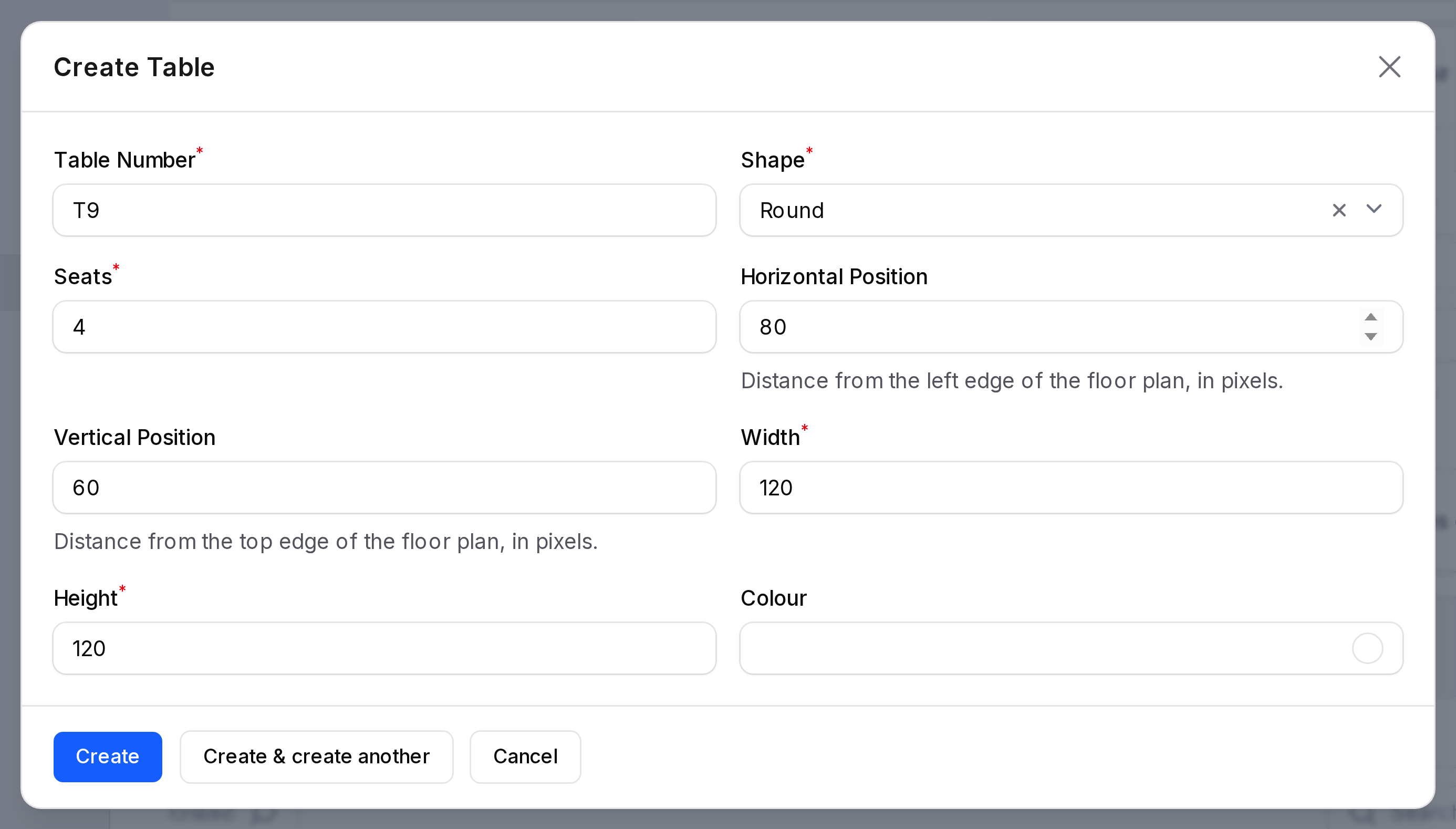
Click Create.
The tables list shows Table Number, Shape, Seats, Width, Height and Colour. Use Edit or Delete on a row.
Use floors at the till
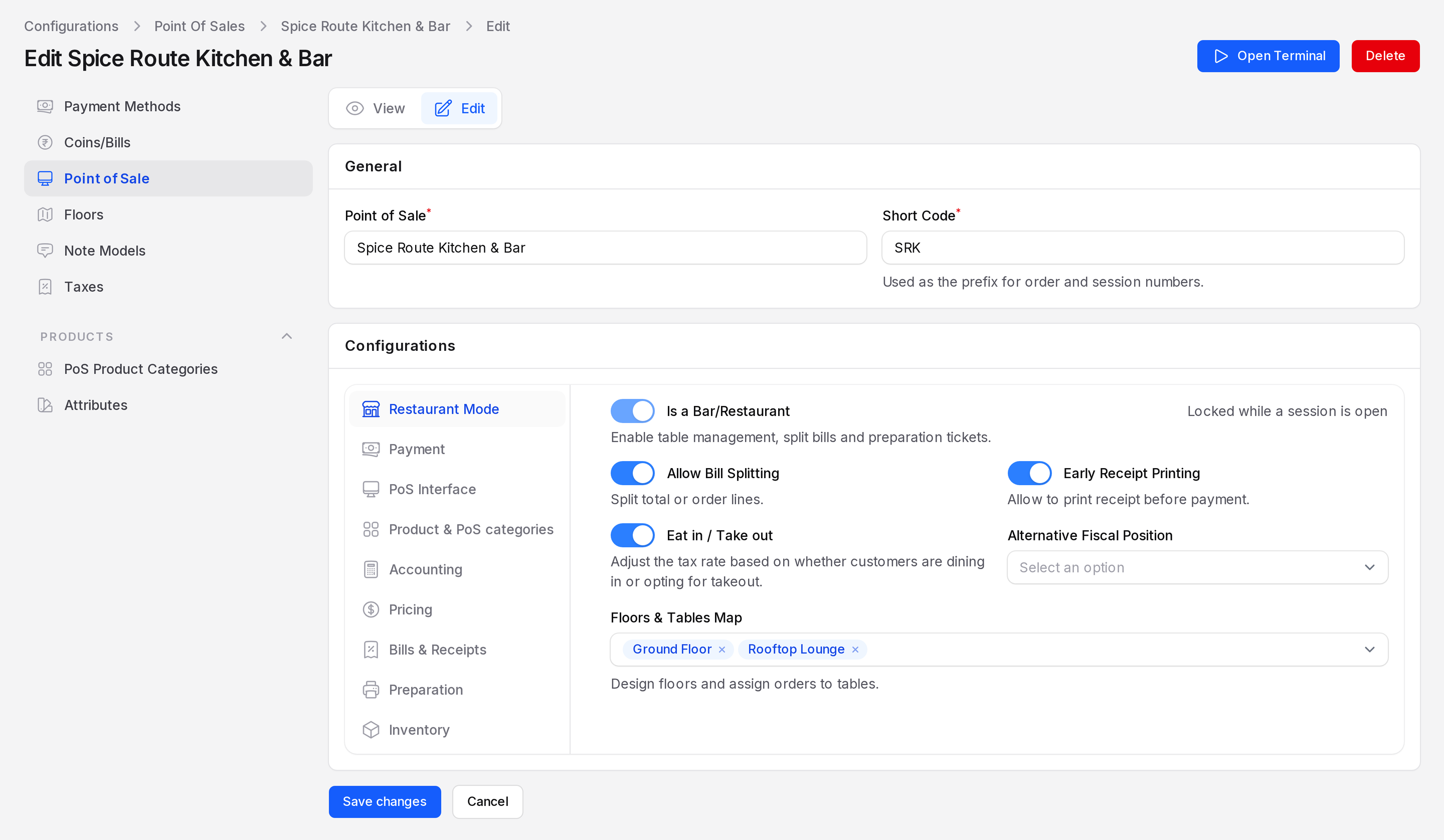
On the register, open the Restaurant Mode tab. Switch on Is a Bar/Restaurant. In Floors & Tables Map, pick the floors. The hint says "Design floors and assign orders to tables."
At the till, the Home screen shows one tab for each floor, with a zoom control, Grid view, Edit plan and + New order. The waiter taps a table to start its order. See Restaurant tables.
INFO
Is a Bar/Restaurant locks while a session is open.
Note models
Note models are the quick notes on the order screen. The waiter selects a line, taps Note and picks one.
Overview
Go to Point of Sale → Configurations → Note Models.
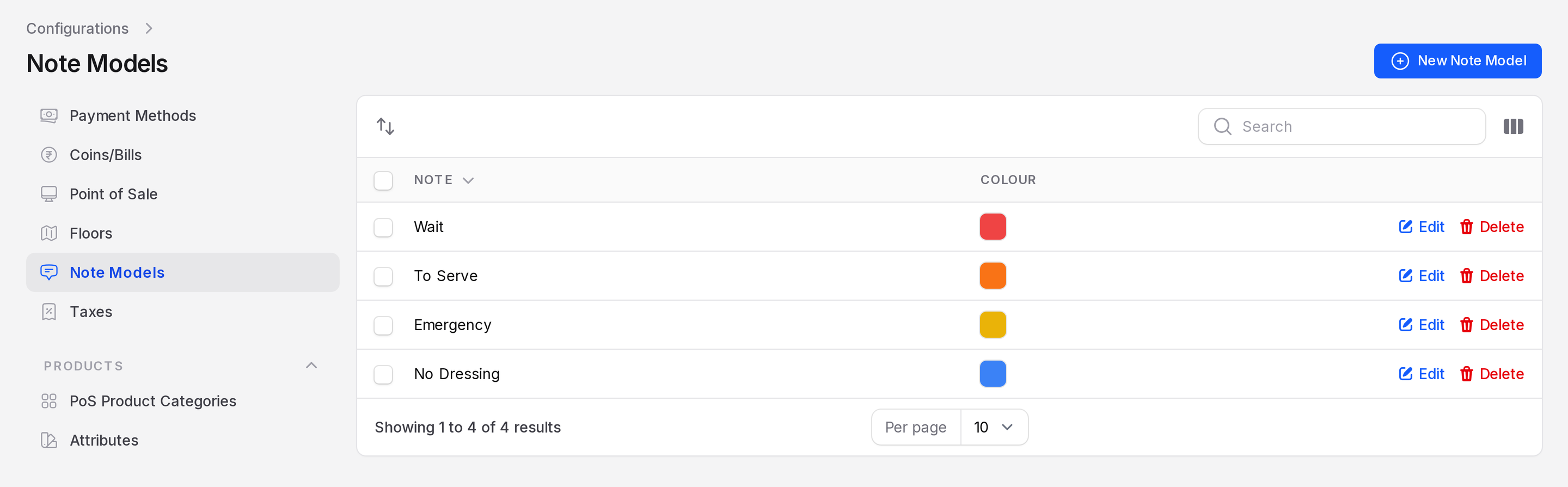
The list shows Note and Colour. Four notes exist: Wait, To Serve, Emergency and No Dressing.
Create a note model
Go to
Point of Sale → Configurations → Note Models.Click New Note Model. A window opens.
Fill in the form.
- Note: Required. The text, such as Less Spicy.
- Colour: The colour of the chip.
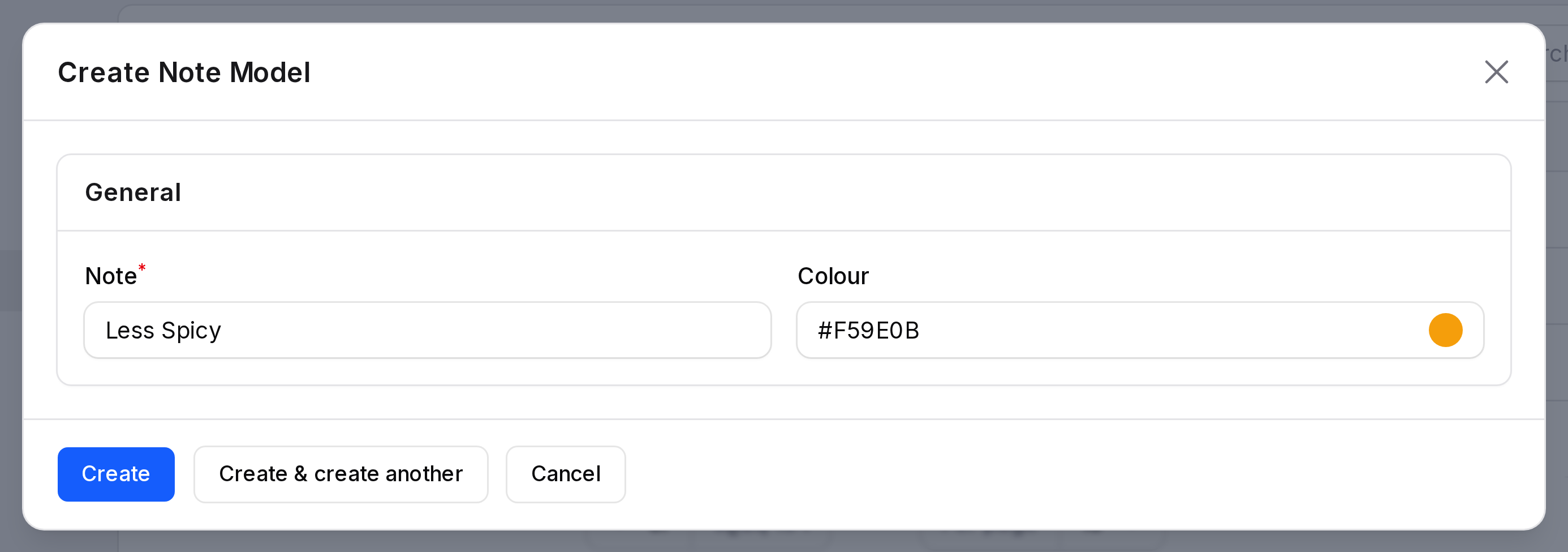
Click Create.
At the till, the note window offers Internal note and Kitchen note, with these chips. See Order notes and customers.
TIP
Keep notes short. A cook reads them at a glance.