

Pricing and taxes
The price a customer pays at the till depends on the product price, the taxes, any price list and any discount. You control each of these. This page shows where, and how they add up on an order.
In simple words: Pick whether shelf prices include tax, choose the taxes, then decide who may give a discount.
Taxes
Go to Point of Sale → Configurations → Taxes.
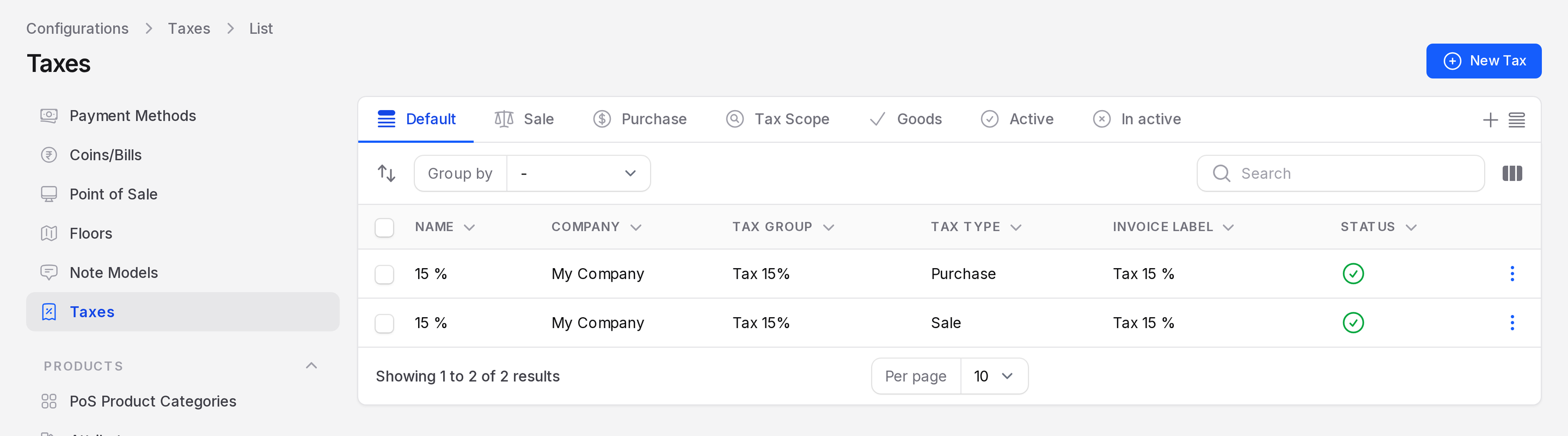
The list shows Name, Company, Tax Group, Tax Type, Invoice Label and Status. Use the tabs for Sale and Purchase. The filters cover Tax Scope, Goods and Active or inactive taxes.
Click New Tax to add one. The form asks for:
- Name: Required. For example 15 %.
- Tax Type: Required. Sale or Purchase.
- Tax Computation: Required. How the amount is worked out.
- Tax Scope: Goods or services.
- Amount: Required. The rate in percent.
- Advanced Options: Invoice label, Tax Group*, Country and Included in Price.
The Finance module owns taxes. Read Taxes for every field and the repartition lines.
Attach taxes to a product
Open the product and choose Product taxes. Every sale of that product at the till uses them. See Products.
Tax excluded or tax included
Each register decides how it shows prices.
- Go to
Point of Sale → Configurations → Point of Saleand open a register. - Open the Pricing tab.
- Set Product Prices* to Tax Excluded or Tax Included.
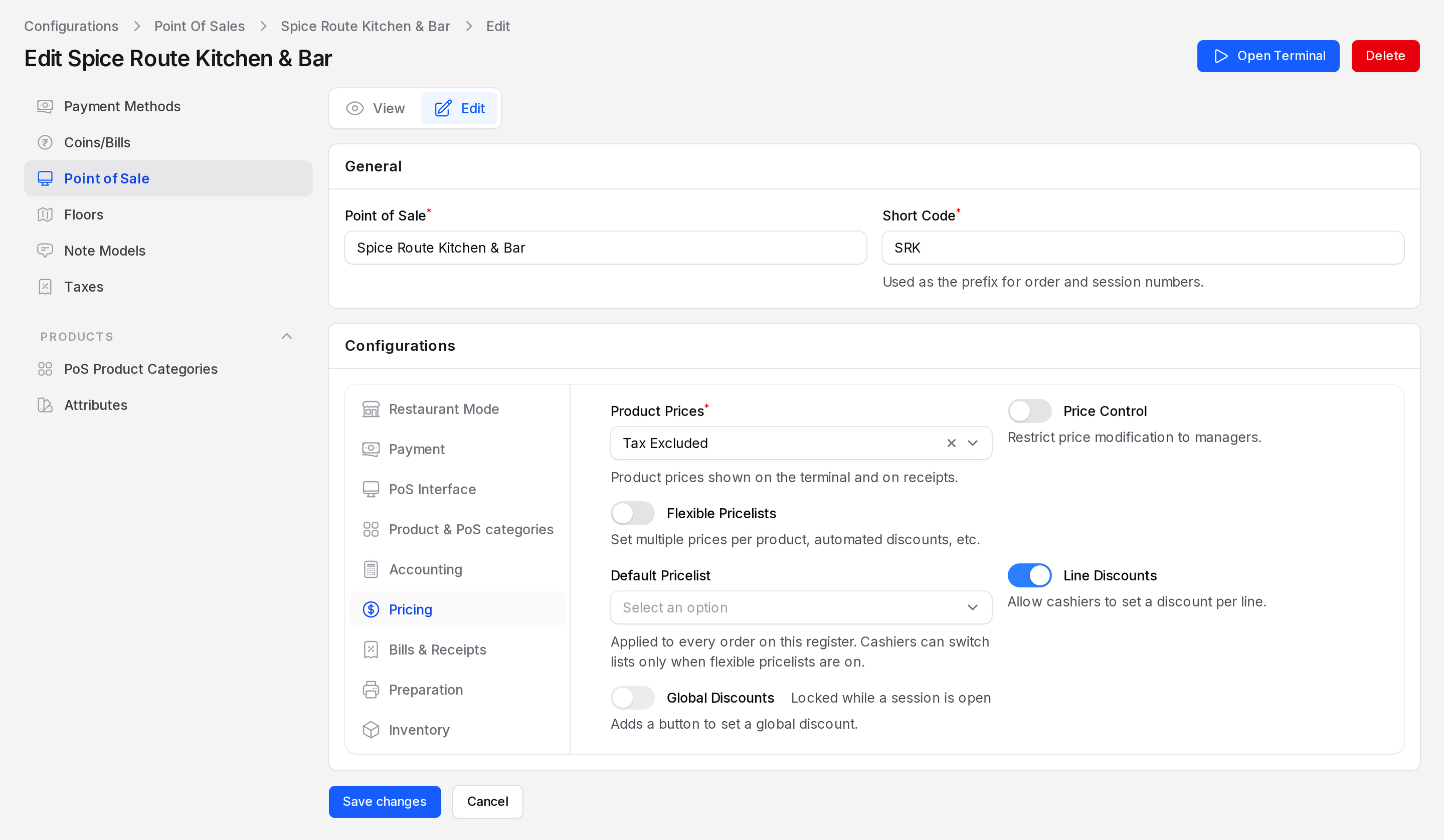
- Tax Excluded: The grid shows the price before tax. The tax is added at the total.
- Tax Included: The grid shows the price the customer pays.
Example
A product has a price of 1,000 and a 15 % tax. With Tax Excluded, the line shows 1,000, the tax is 150 and the total is 1,150. With Tax Included, the line shows 1,150.
Price lists
A price list gives a product a different price for a group of customers or a time. It is optional.
- Go to
Point of Sale → Settings → Products. - Switch on Price Lists ("Allow products to be sold at prices set by a price list").
- Click Save changes.
Now Point of Sale → Products → Price Lists appears. Each price list has a Price List Name, Currency, Company, an Active switch and price rules. The first matching rule decides the price, and more specific rules win.
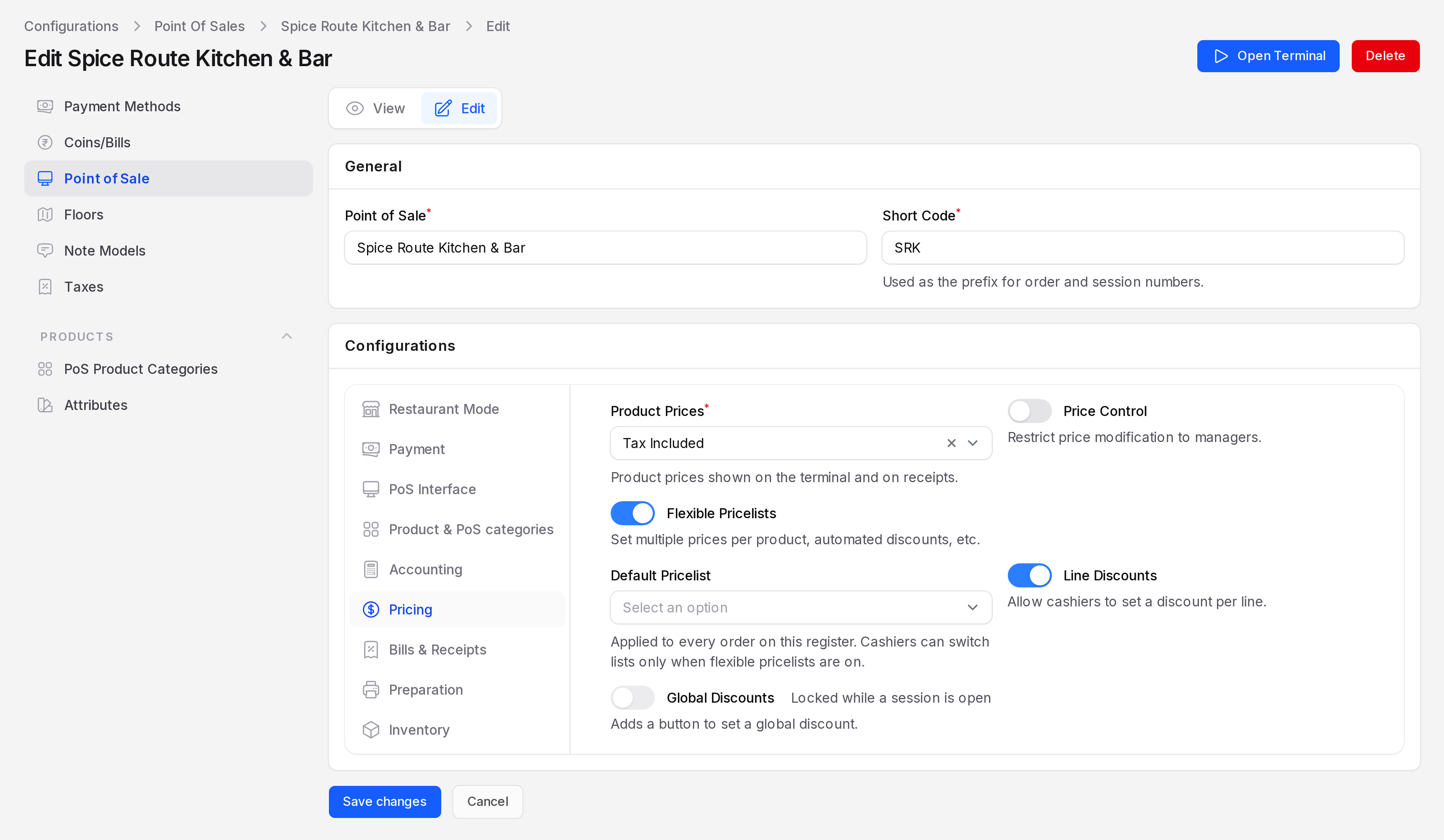
Then open the register, tab Pricing:
- Flexible Pricelists: Lets cashiers switch price lists at the till.
- Default Pricelist: The list applied to every order on this register.
- Available Pricelists: The lists cashiers may choose. It shows when flexible pricelists are on.
Price rules work as in Sales. See Price lists.
Discounts
Two switches on the register Pricing tab control discounts.
- Line Discounts: Cashiers can set a discount on one line. Use the % mode on the numpad.
- Global Discounts: A button gives a discount on the whole order. After you switch it on, set the Discount Product and Discount %, the default percent the button offers.
- Price Control: Only managers may change a price.
The discount shows on the order in the Discount (%) column. See Discounts and margins.
WARNING
Global Discounts is locked while a session is open. Close the session first, then change it.