

Orders
An order is the record of one sale made at the till. It holds the products, the customer, the payments and the state. You use the Orders page to search past sales, open an order, create its invoice or return products.
In simple words: One sale at the till is one order. This page is the list of all of them.
Overview
Go to Point of Sale → Orders → Orders.
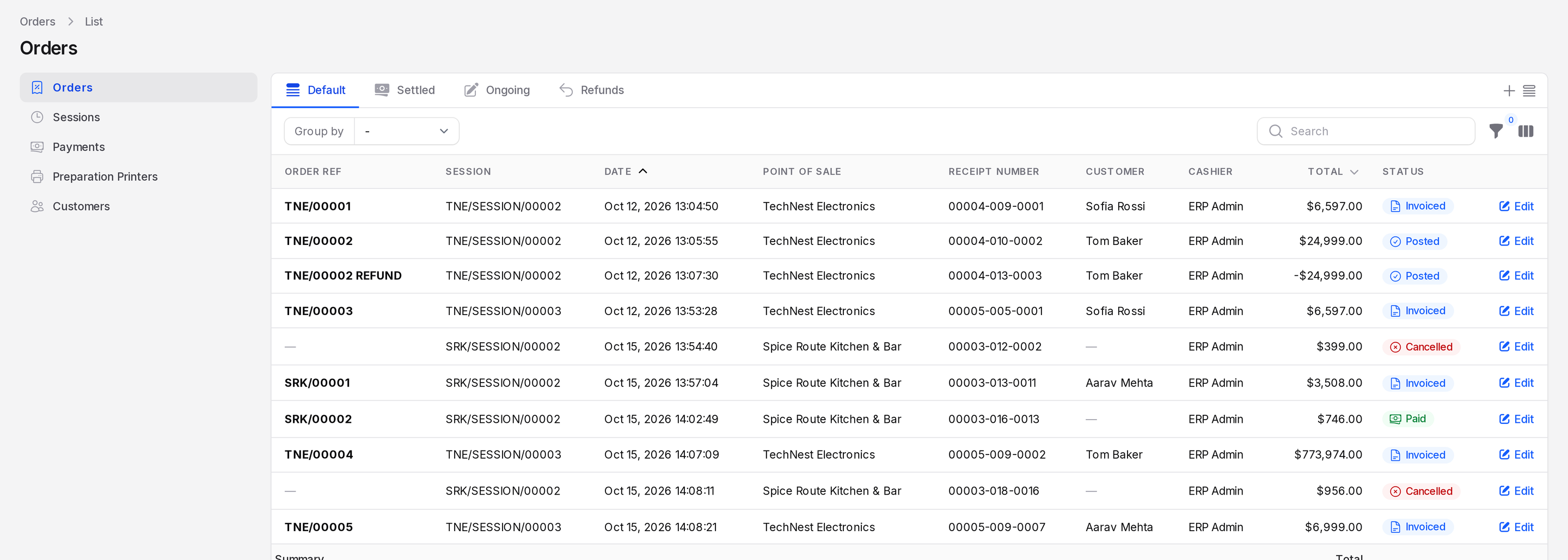
The page has these tabs:
- Default: All orders.
- Settled: Orders that are Paid, Posted or Invoiced.
- Ongoing: Orders still in the New state, not yet paid.
- Refunds: Orders that return products from an earlier order.
You can also pick Failed Operations from the saved views menu. It lists orders whose stock move needs attention.
Columns
- Order Ref: The order number, such as TNE/00001. A refund order ends with REFUND.
- Session: The session the order belongs to, such as TNE/SESSION/00002.
- Date: When the order was made.
- Point of Sale: The register, such as TechNest Electronics.
- Receipt Number: The number printed on the receipt, such as 00004-009-0001.
- Customer: The customer on the order.
- Cashier: The user who sold it.
- Total: The order total. Refunds show a negative amount. The footer adds up the column.
- Status: The order state as a badge.
Hidden columns you can switch on: Tracking Number, Edited, Paid, Failed Operation and Invoiced.
Group and filter
- Click Group by to group by Session, Point of Sale, Status or Ordered At.
- Use the filters for Status, Session and Point of Sale.
Order states
- New: The cashier has started the order. Nothing is paid yet.
- Paid: The customer paid in full.
- Posted: The session was closed and the order was posted to accounting.
- Invoiced: A customer invoice exists for the order.
- Cancelled: The order was cancelled.
Open an order
Click a row to open it. The top of the page shows the state as steps. The General section shows the order, customer, session, order date and register.
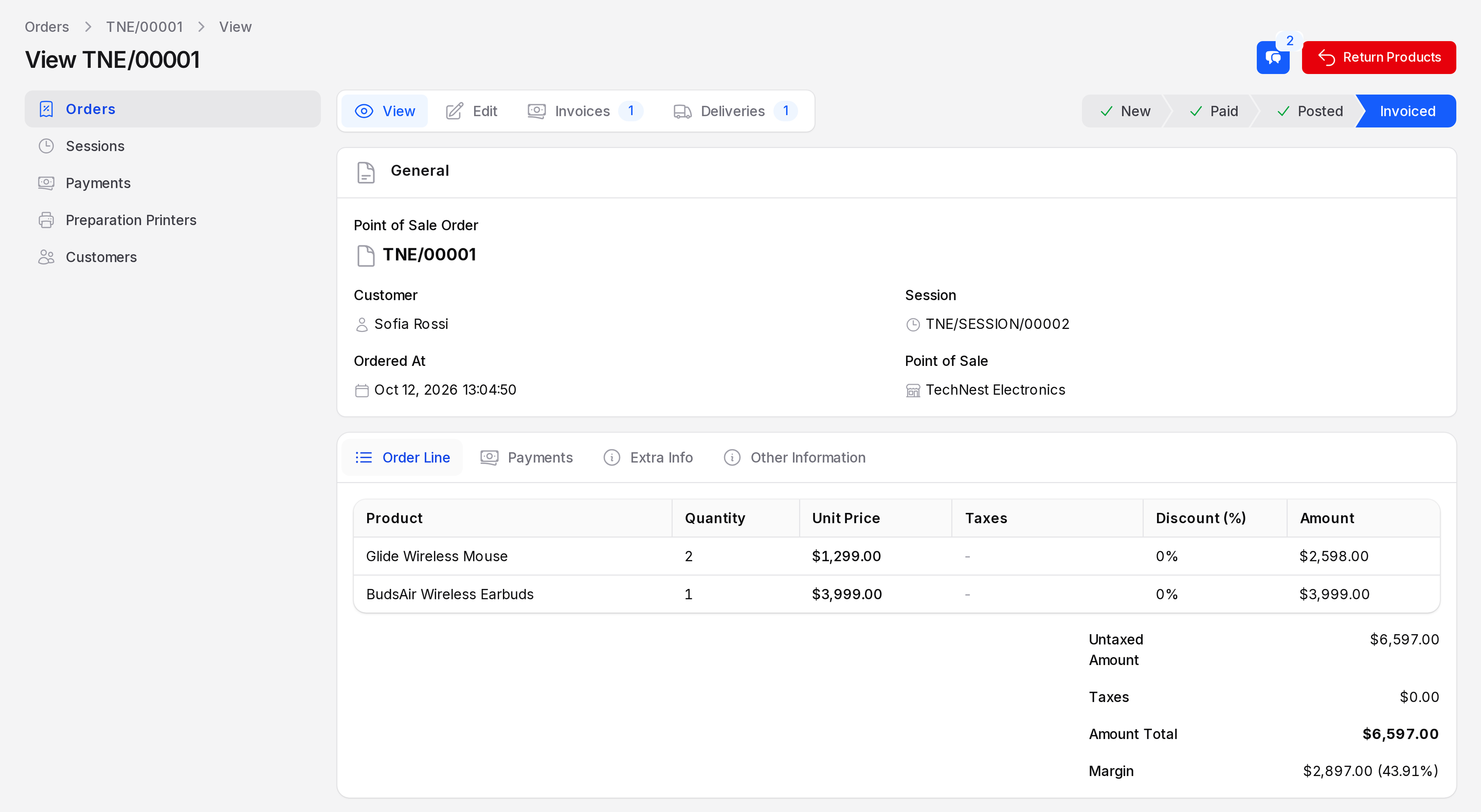
The tabs below hold the details.
- Order Line: Product, Quantity, Unit Price, Taxes, Discount (%) and Amount. The totals show Untaxed Amount, Taxes, Amount Total and Margin.
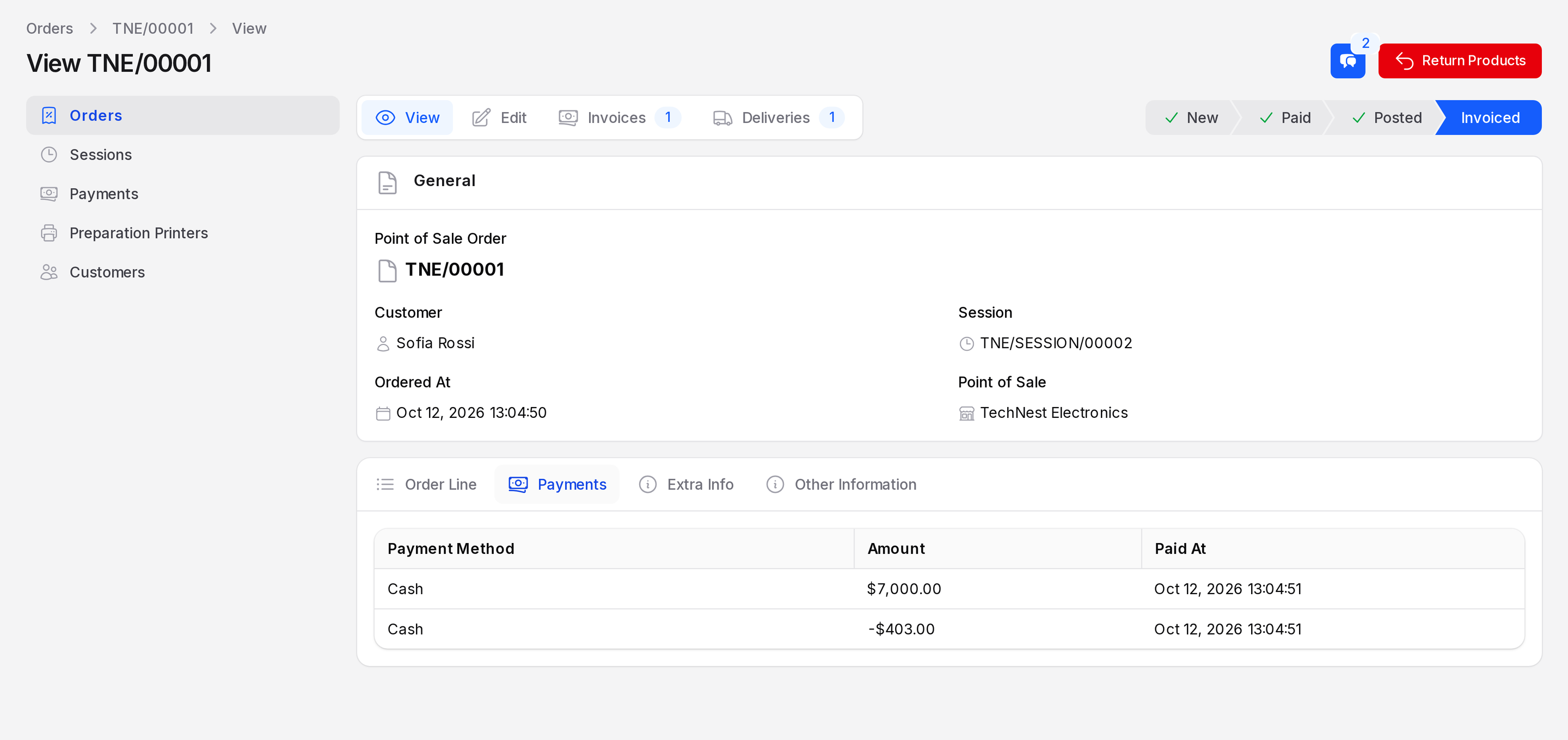
- Payments: Each payment with its method, amount and time. Change given back shows as a negative line.
- Extra Info: Receipt Number, Tracking Number, Email and Mobile.
- Other Information: Reference, stock Operation, Cashier, Paid and Change.
Use the links above the page to move between View, Edit, Invoices and Deliveries. The last two show the invoice and the stock transfer made for the order.
Example
Order TNE/00001 was sold to Sofia Rossi. It has 2 Glide Wireless Mouse at 1,299 and 1 BudsAir Wireless Earbuds at 3,999. The total is 6,597. She paid 7,000 in cash, so Change is 403.
Edit an order
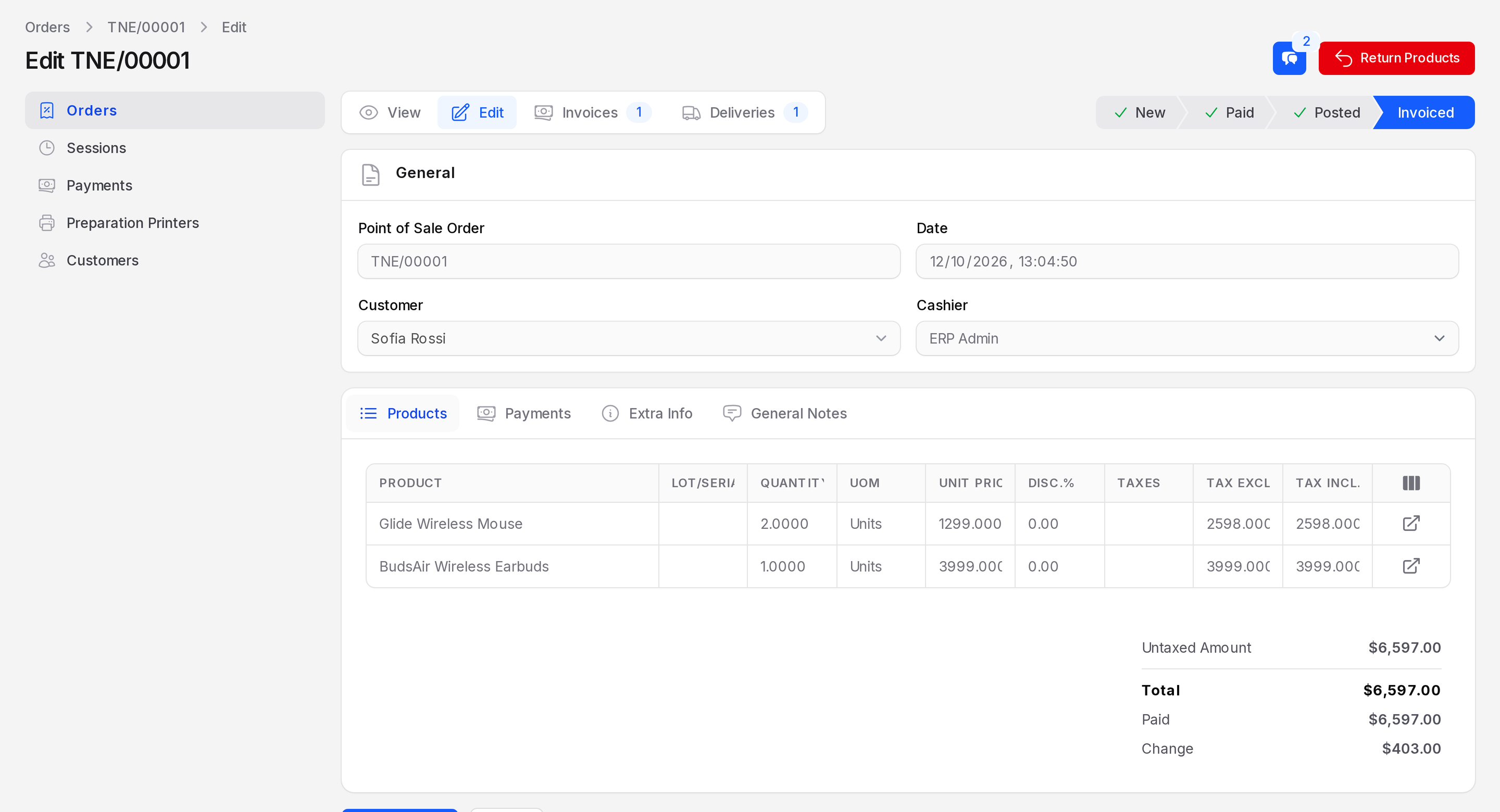
- Open the order and click Edit.
- Change the Customer if needed. You cannot change it once the order is Invoiced.
- Review the Products, Payments and Extra Info tabs. Product lines are read only.
- Click Save changes.
Actions and statuses
The buttons at the top of the order page depend on its state.
- Invoice: Creates the customer invoice for a settled order. Confirm the window. A message says the invoice was posted and paid, and the state becomes Invoiced. See Invoice a POS order.
- Return Products: Opens a window to refund. Pick the Refund Payment Method, tick the lines, set the Quantity and confirm. Aureus creates a refund order such as TNE/00002 REFUND. The button reads Refunded when nothing is left to return. See Refunds.
- Retry Operation: Appears when the stock move failed. Use it to try the stock move again.
- Chatter: Opens messages and notes on the order.
TIP
Return Products only shows on settled orders. It does not show on a refund order.
WARNING
After a session is closed, the Invoice button no longer shows for orders of that session. Invoice the order before you close the session.