

Maintenance calendar
The calendar shows every maintenance request that has a scheduled date. Maintenance comes in two kinds. Corrective maintenance fixes something that broke, such as an oil leak. Preventive maintenance is planned in advance, such as a monthly lubrication. The calendar lets you see both on one grid, so you can spread the work and avoid busy days.
In simple words: The calendar is a wall planner. Each block is a request on its scheduled day.
Path: Maintenance → Maintenance Calendar
Before you start
Only requests with a Scheduled Date show up. Stages and teams are set up in Stages and Maintenance teams.
Open the calendar
- Click Maintenance in the top bar.
- Click Maintenance Calendar in the Maintenance menu.
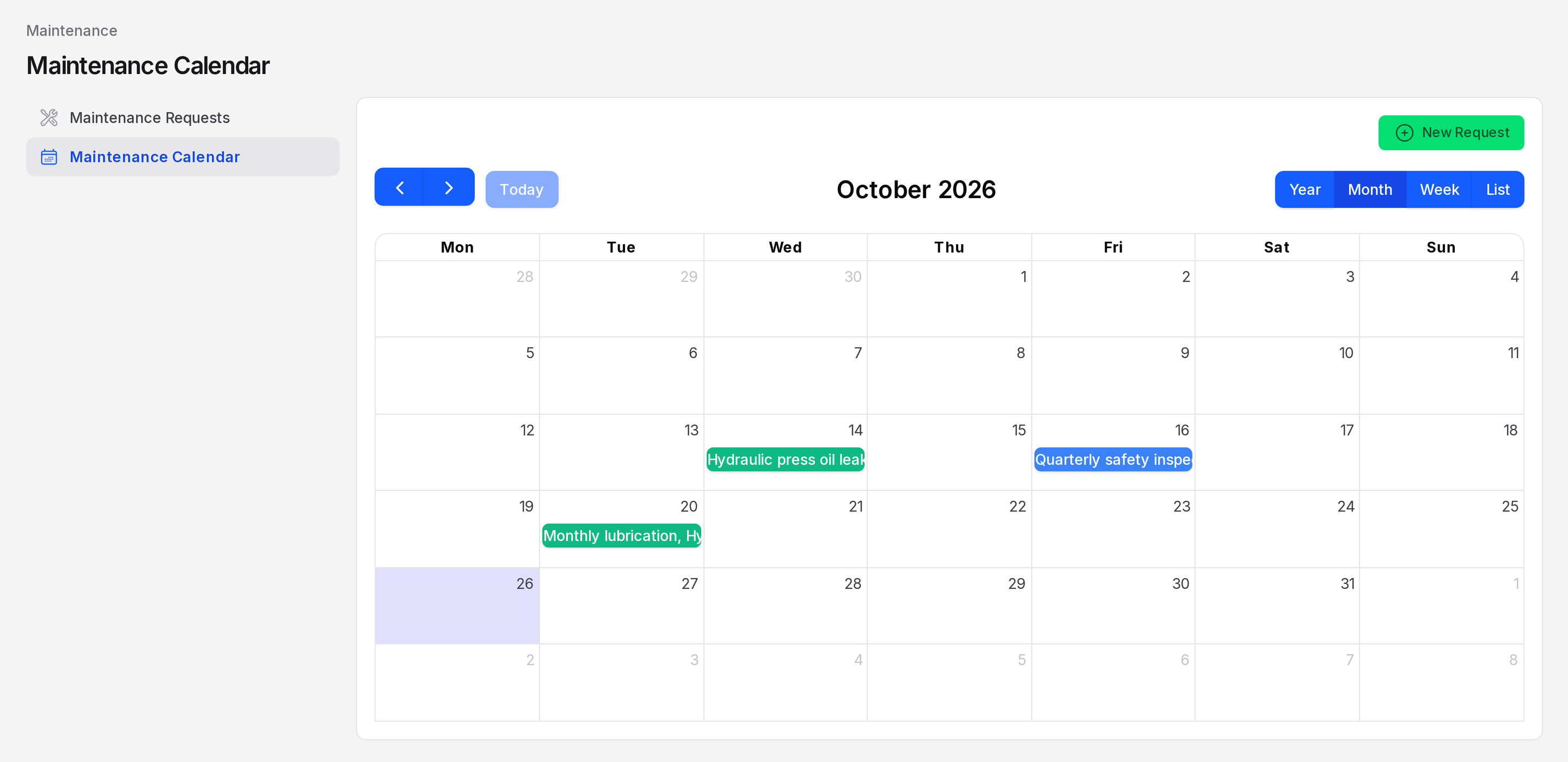
The calendar opens in the Month view. Weeks start on Monday.
Views and controls
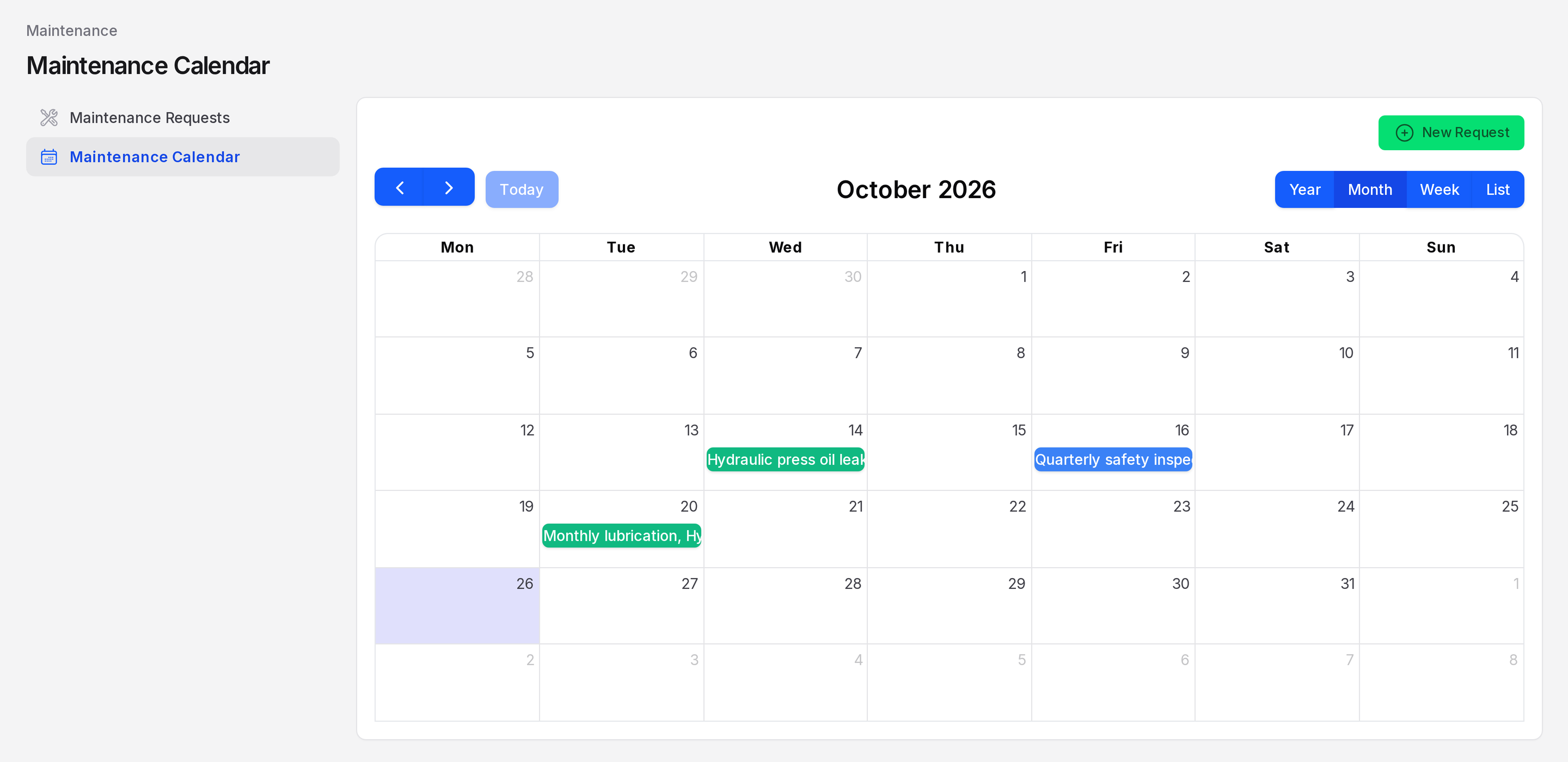
The toolbar has the previous and next arrows, Today, the current period title, and the view buttons. The green New Request button sits above it at the top right. Use the arrows to move in time. Click Today to jump back. It stays greyed out while the current period is already shown.
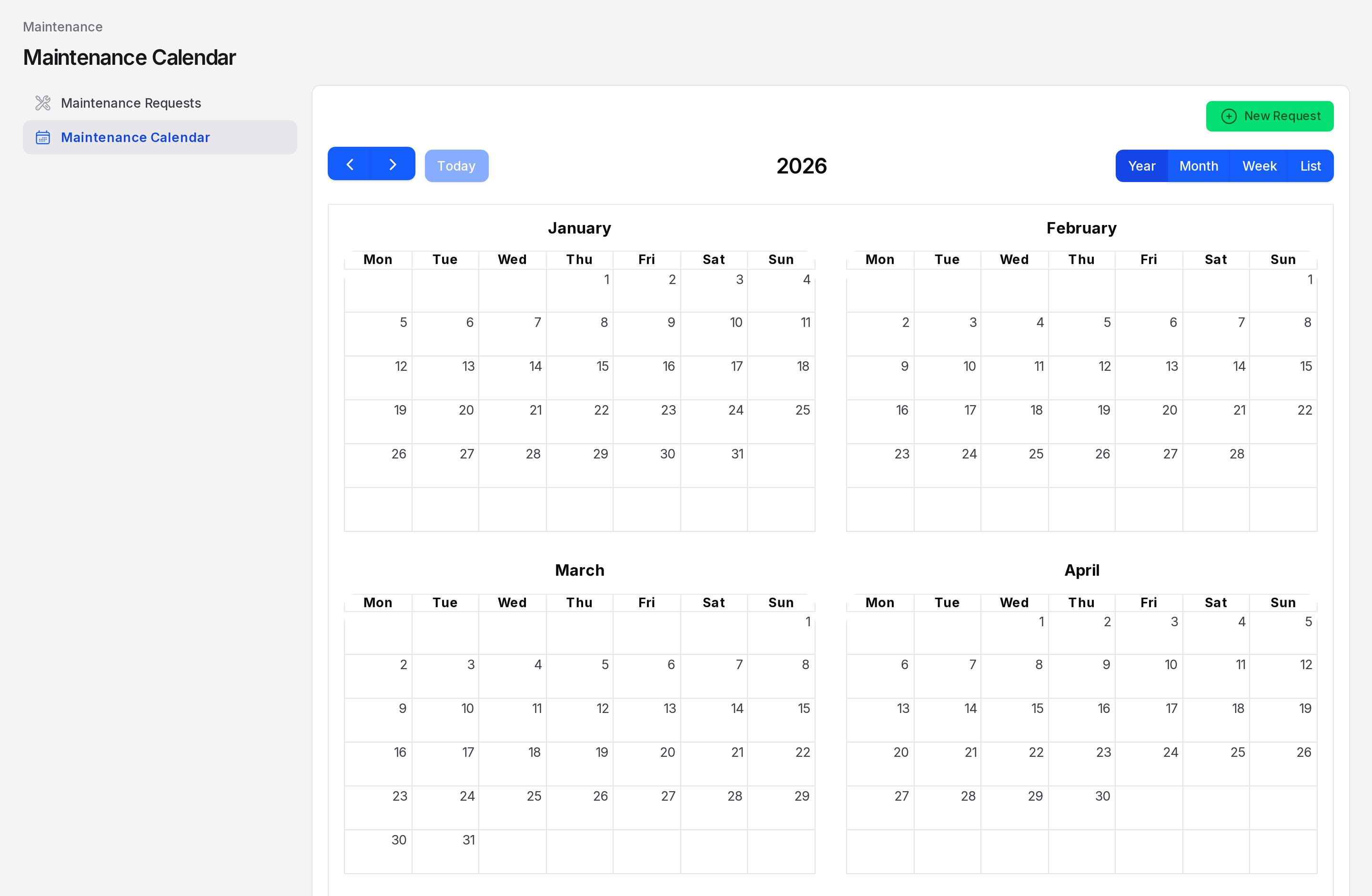
- Year: Shows 12 small month grids. It does not show events.
- Month: Shows one month as a grid. This is the default view.
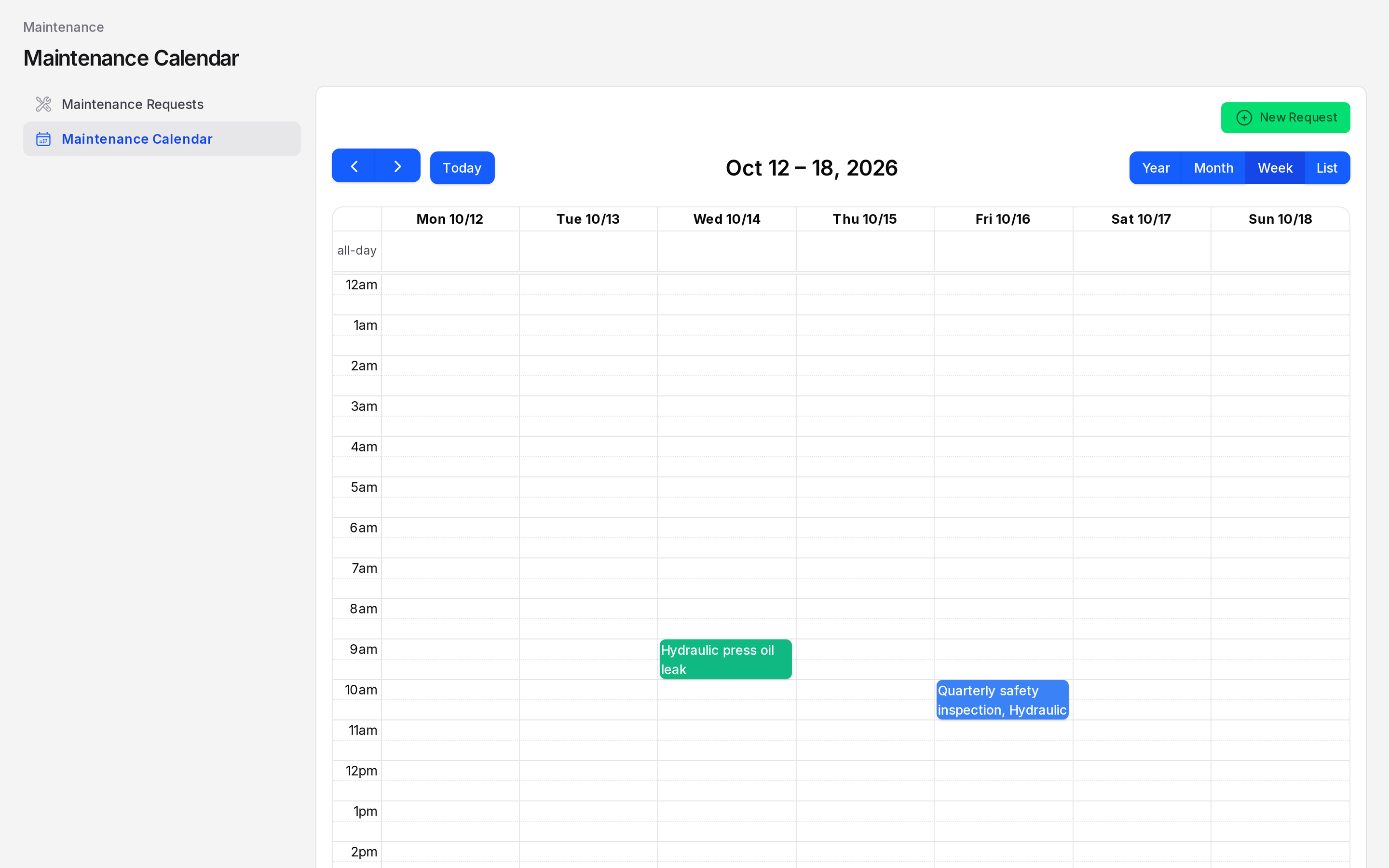
- Week: Shows seven days on an hourly grid from 12am to 11pm. Each block is one hour tall from its start time.
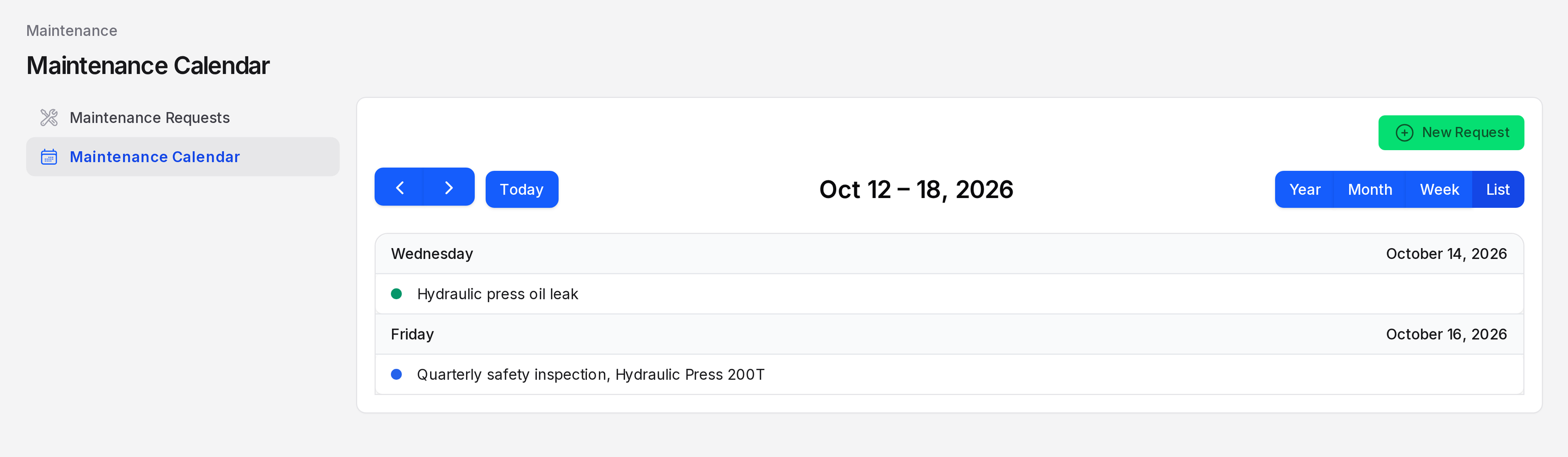
- List: Shows the week as a list of requests, each with a coloured dot. It reads "No events to display" when the week is empty.
Event colours
The colour shows the stage of the request:
- Blue: The request is in a stage that is not marked Done, for example New Request or In Progress.
- Green: The request is in a stage marked Done, for example Repaired.
Titles are cut short in month cells. The week, list and pop-up show the full title.
When a request moves to a Done stage, its block turns green. See Stages.
Open a request from the calendar
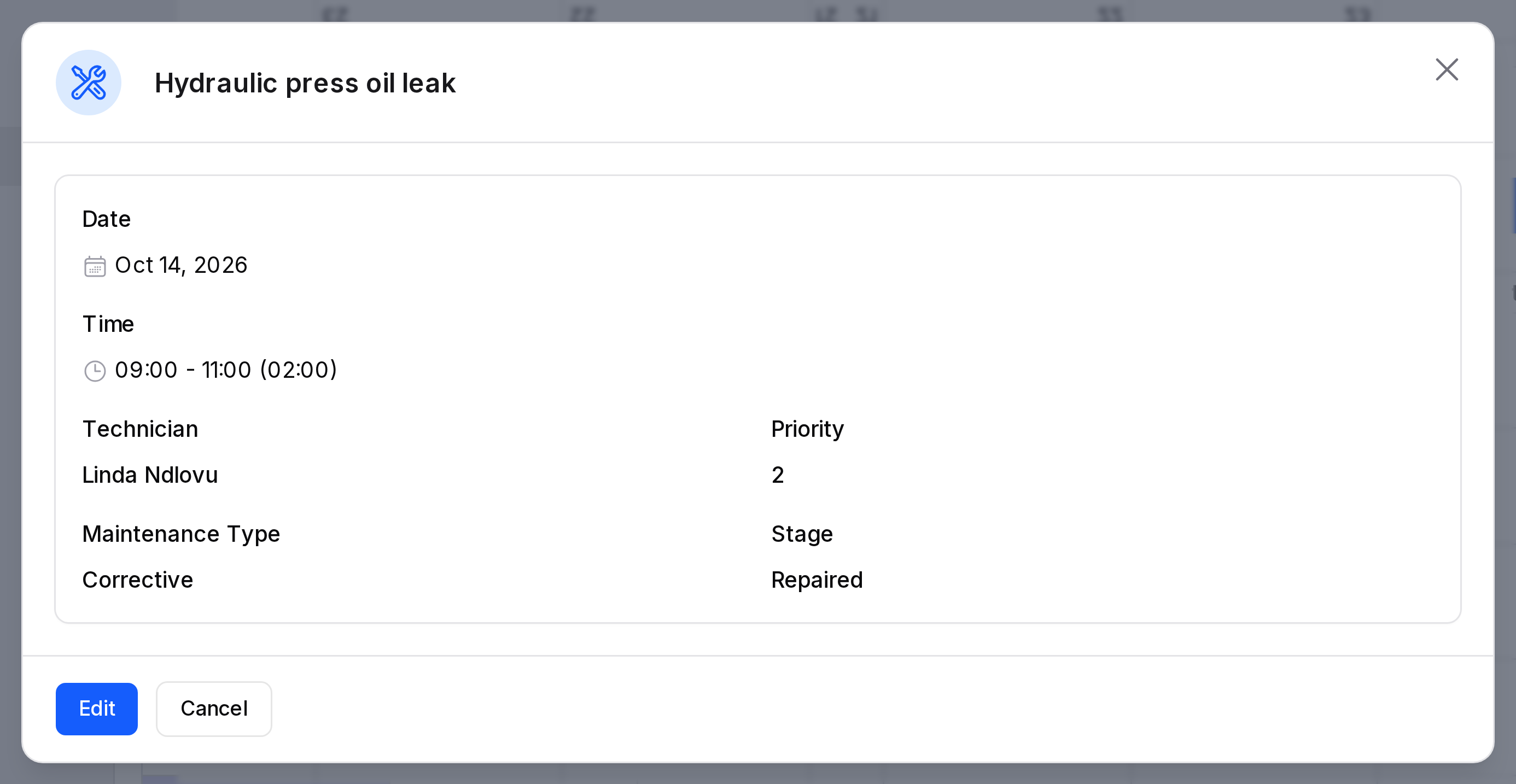
- Click an event, for example Hydraulic press oil leak.
- A window with the request subject as its heading opens. It shows Date, Time (for example 09:00 - 11:00 (02:00)), Technician, Priority, Maintenance Type and Stage.
- Click Edit to open the full request form. Click Cancel, the close button or press Escape to close the window.
Create a request from the calendar
Use this for a quick request. You add the details later on the full form.
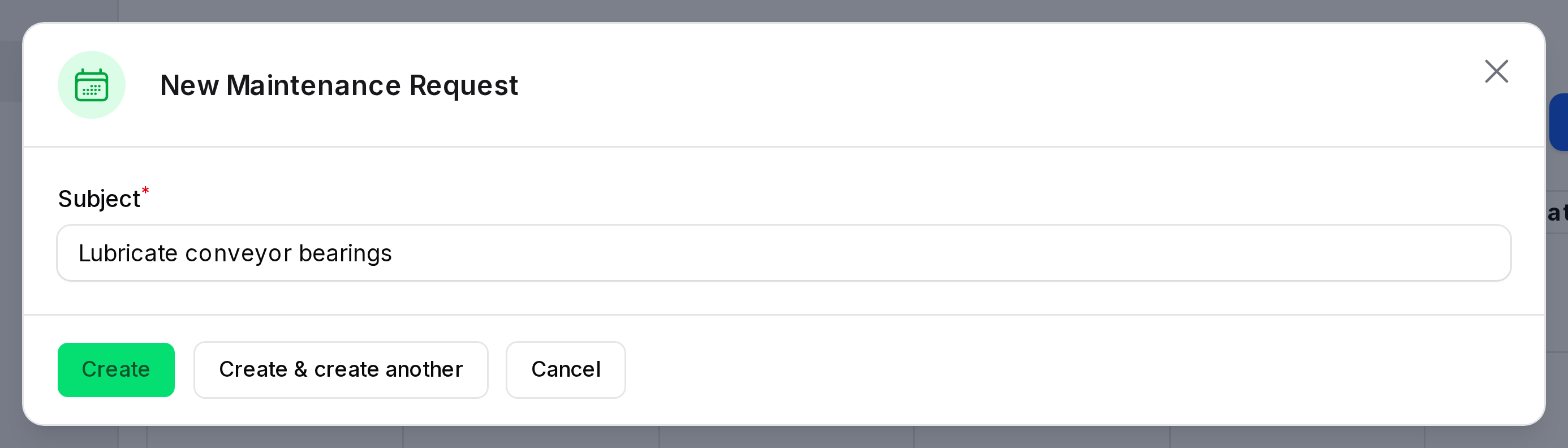
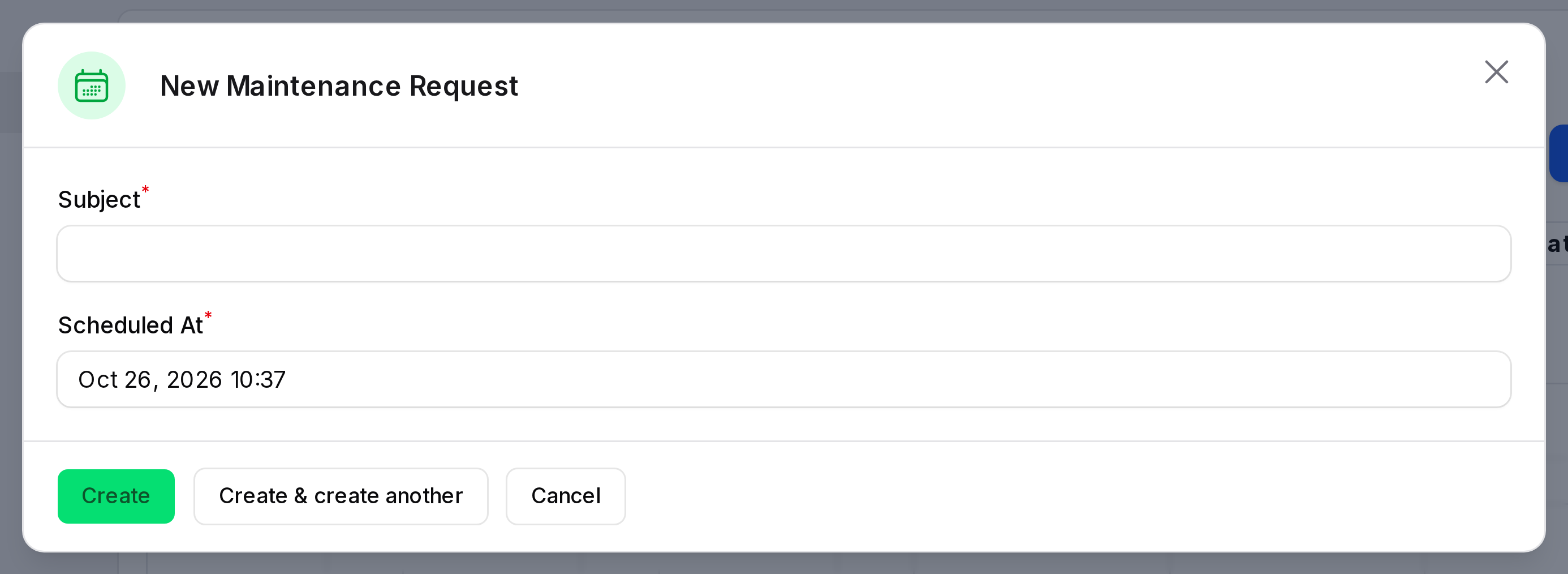
- Click an empty date, or click New Request at the top right. A window titled New Maintenance Request opens.
- Type the Subject. Required. Use
Hydraulic press oil leak. - If you used New Request, check Scheduled At. Required. It is filled with the current date and time, for example "Oct 13, 2026 11:04". Set it to tomorrow 09:00. If you clicked a date, the window has only Subject, and that date is used.
- Click Create, or Create & create another to add more.
The new request gets these values automatically:
- Maintenance Type: Corrective.
- Stage: The first stage, for example New Request.
- Responsible: You.
- Team: The first team of your company.
TIP
Open the new request afterwards and pick the equipment. The category, team and technician then update from the equipment. See Create a maintenance request.
Plan with the calendar
- Open the Month view and look for days with many blocks.
- Switch to Week to compare durations on a busy day.
- Click a block, then Edit, and change the scheduled date to move a request to a quieter day.
- Plan recurring work with Preventive maintenance. Each repeat shows up on its date.