

Timesheet list and filters
The Timesheets page lists every entry in one table. Use it to check who logged what, add up hours for a period and remove wrong entries. Grouping and filters help you answer questions such as how many hours a project took this month.
In simple words: One table of all entries, with a total at the bottom and tools to slice it.
Open Project → Timesheets.
Overview
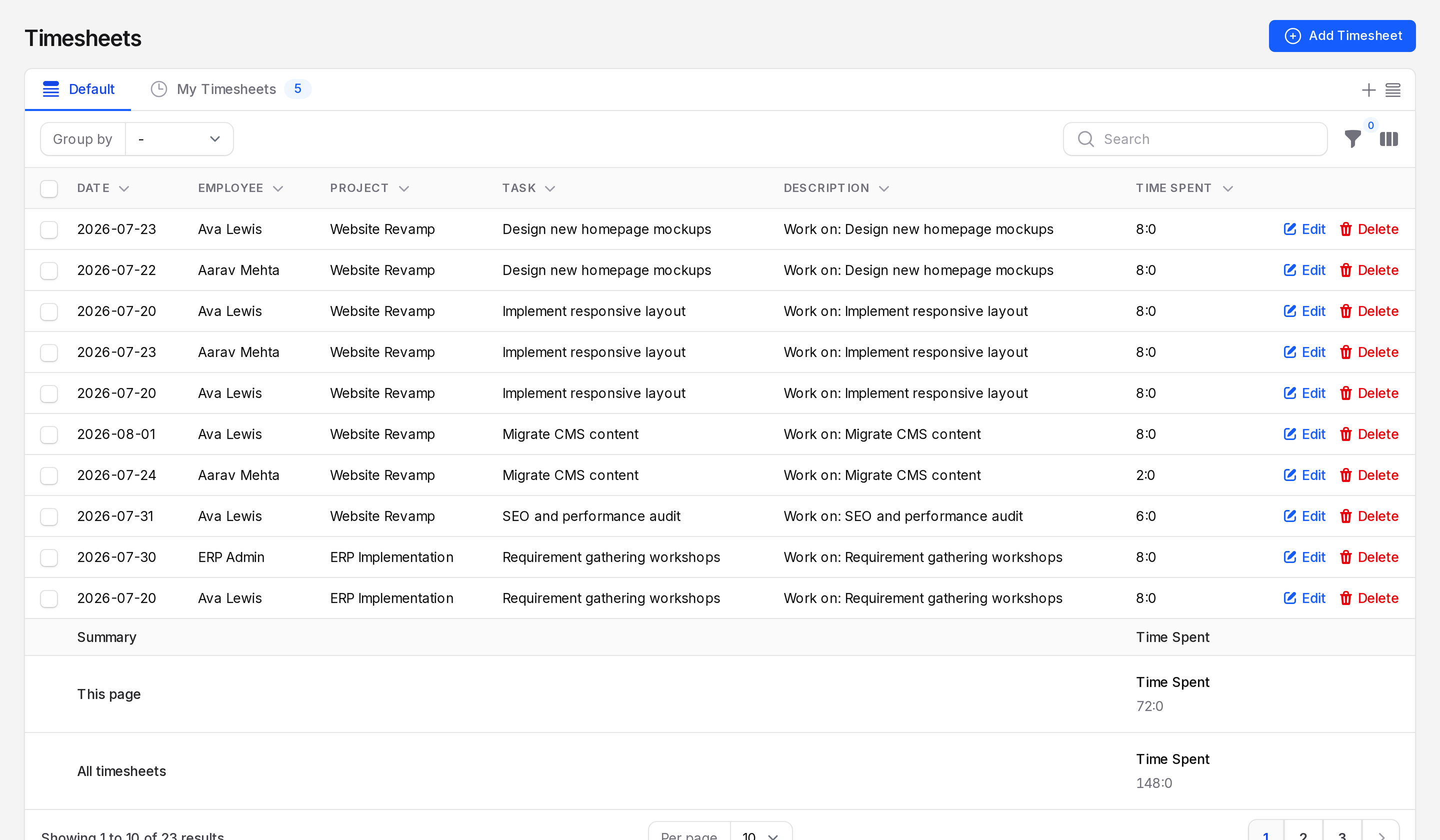
Columns
- Date: The day of the work. You can sort by it.
- Employee: The user who did the work.
- Project: The project of the entry.
- Task: The task of the entry.
- Description: The note typed on the entry.
- Time Spent: The hours of the entry.
- Created At: When the entry was saved. Hidden at first.
- Updated At: When the entry last changed. Hidden at first.
Click the column toggle in the table toolbar to show Created At and Updated At. Click a column title to sort. You can search the Employee, Project, Task and Description columns.
Time Spent shows hours and minutes
You type decimal hours, but the list shows hours and minutes. The format is hours:minutes, so 3:0 is 3 hours and 0 minutes.
| Typed | Shown |
|---|---|
| 3 | 3:0 |
| 1.5 | 1:30 |
| 1.25 | 1:15 |
| 0.5 | 0:30 |
Summary rows
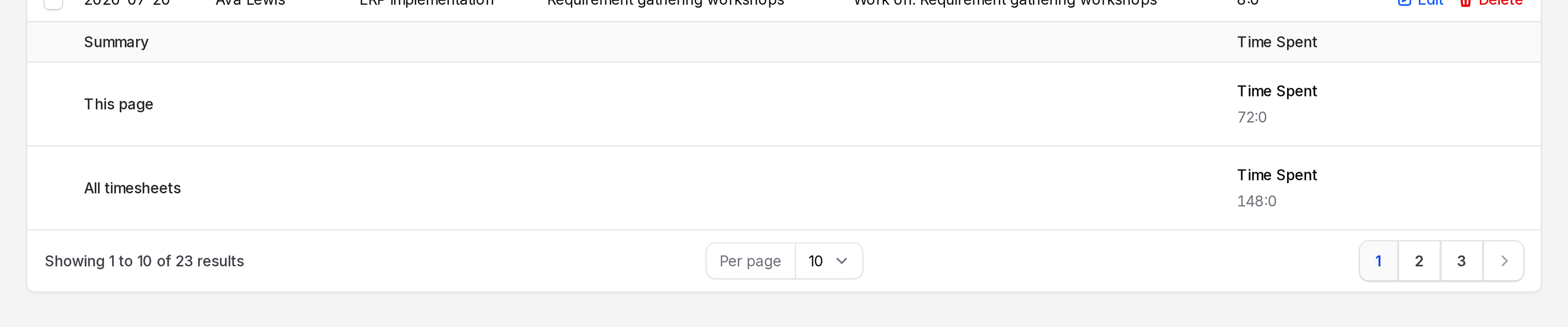
The bottom of the table has a Summary block under Time Spent. This page adds the entries you see. All timesheets adds every entry that matches your filters. Filters and groups change what it adds.
Group entries
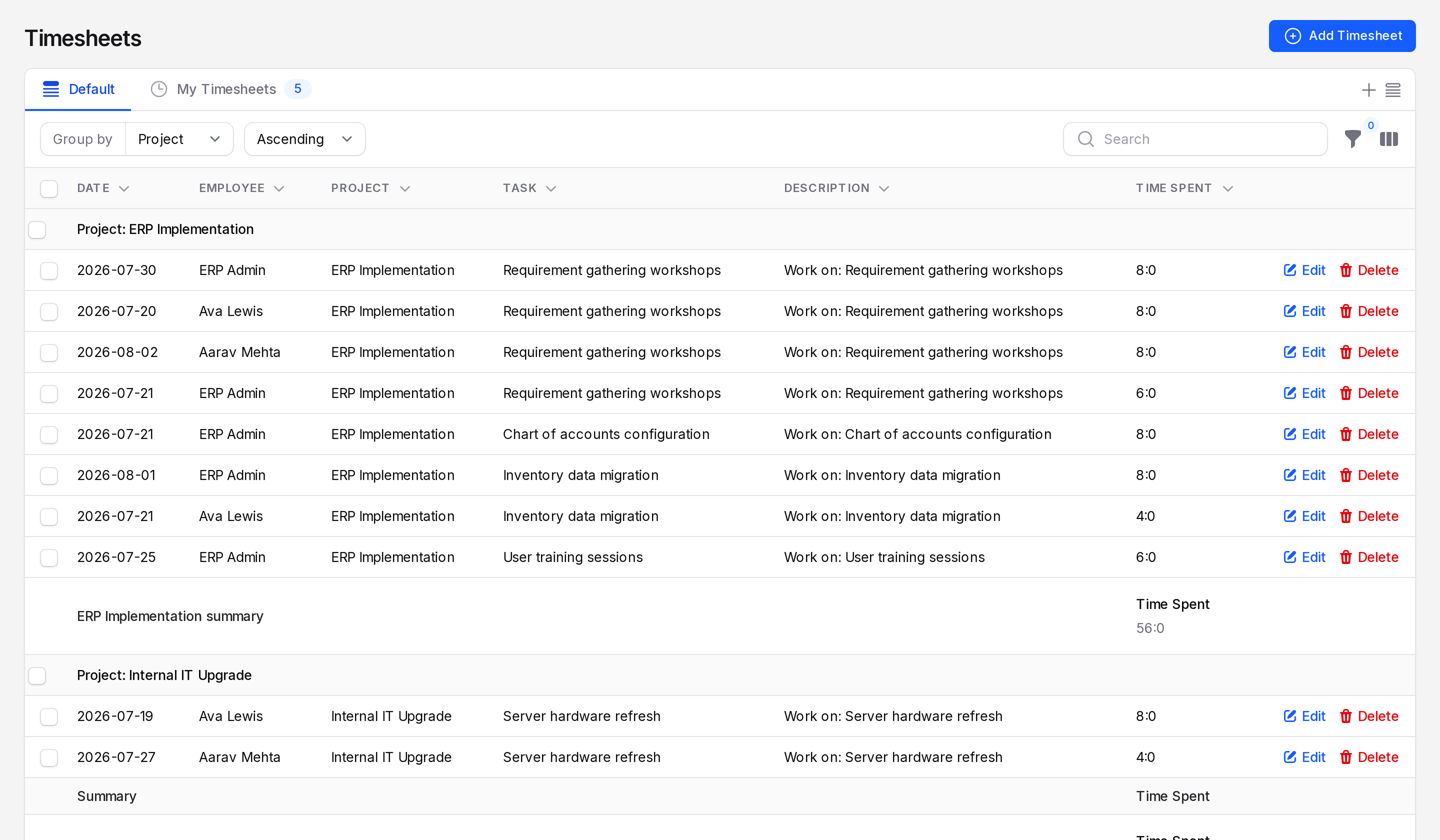
- Open the Group by list in the toolbar.
- Choose one option.
| Group by | Use it to |
|---|---|
| Date | See each day's hours. |
| Employee | See hours per person. |
| Project | See hours per project. |
| Task | See hours per task. |
| Creator | See who typed the entries. |
Each group shows its own total.
Filter entries
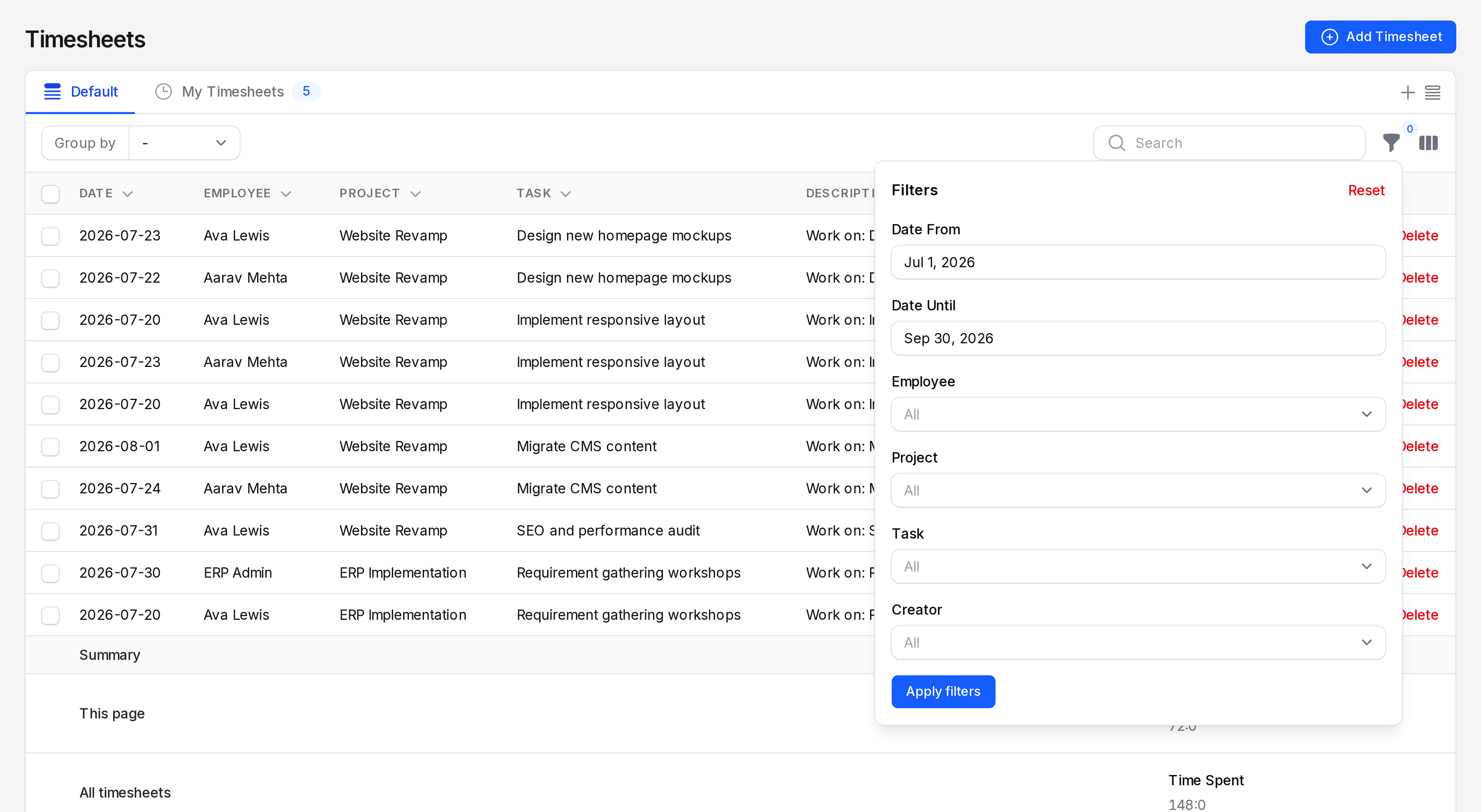
- Click the filter icon in the toolbar. The Filters panel opens.
- Set one or more filters.
- Click Apply filters. The table updates. Click Reset to clear them.
- Date From: Show entries on or after this day.
- Date Until: Show entries up to this day.
- Employee: Pick one or more people.
- Project: Pick one or more projects.
- Task: Pick one or more tasks.
- Creator: Pick who created the entries.
Example
To see Ava Lewis's hours on Website Revamp in October 2026:
- Set Date From to 01 Oct 2026 and Date Until to 31 Oct 2026.
- Set Employee to Ava Lewis.
- Set Project to Website Revamp.
- Read the Time Spent total.
For more on these tools, see Search, filter and group records.
Actions and statuses
Edit or delete a row
Use Edit or Delete at the end of a row. See Log time.
Delete several entries
- Tick the boxes at the start of the rows.
- Click the bulk Delete action.
- Confirm. A message confirms Timesheets deleted.
WARNING
Deleting entries lowers the hours on their tasks. Task Progress and Remaining Time change straight away.