

Storage categories
A storage category describes how much a kind of shelf can hold. You attach it to locations, and the system then knows the weight limit and the capacity for packages or products. Use it when your racks, bins or pallet positions have real limits.
In simple words: A storage category is a label that says "this shelf holds at most this much", which you stick on one or many locations.
Open Inventory → Configurations → Warehouse Management → Storage Categories.
Settings
The menu appears when Multi Steps Routes is on in Inventory → Settings → Manage Warehouses. To set capacity by package type, also turn on Packages in Inventory → Settings → Manage Operations.
Overview
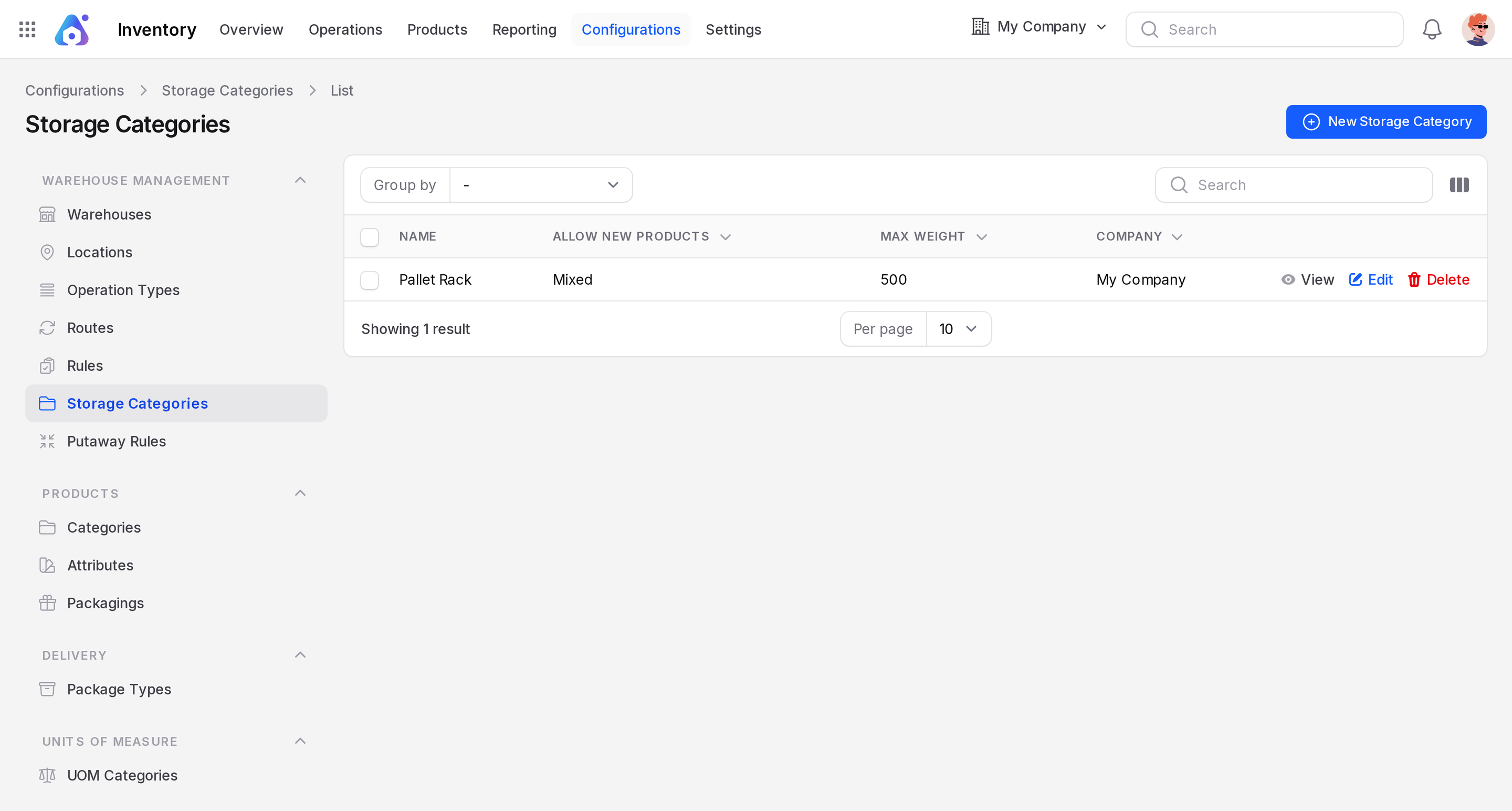
The list shows Name, Allow New Products, Max Weight and Company. You can group by Allow New Products. A new database starts with no categories.
Create a storage category
- Click New Storage Category.
- Fill the form.
- Click Create.
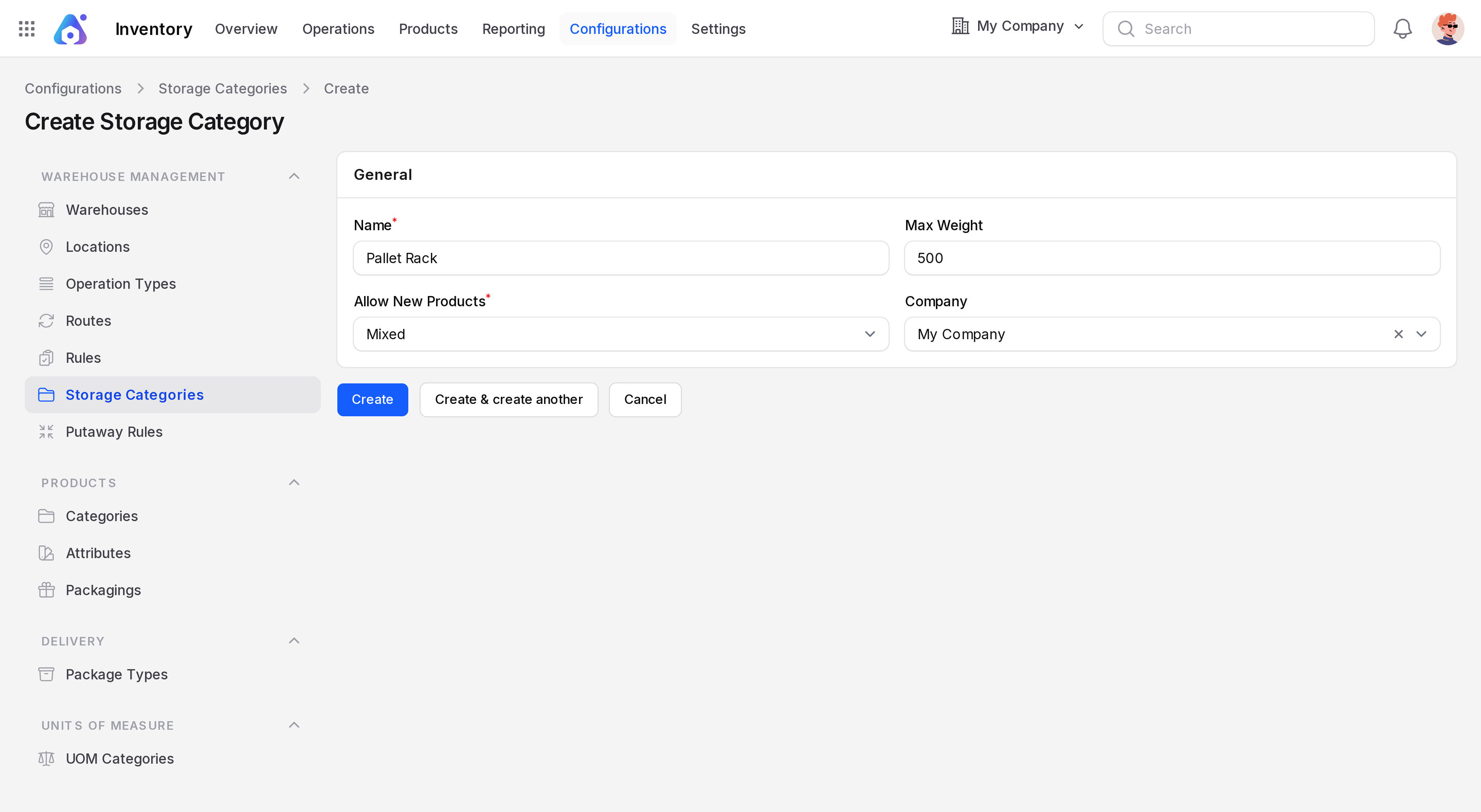
- Name: For example Pallet Rack. Required.
- Max Weight: The most weight a location of this category may hold. The default is 0.
- Allow New Products: Required. Choose Empty, Same or Mixed. The default is Mixed.
- Company: Your current company by default.
What Allow New Products means
| Option | Meaning |
|---|---|
| Empty | Put new products here only when the location is empty. |
| Same | Put new products here only when it already holds the same product. |
| Mixed | Put any product here. |
Capacity tabs
After you save, open the record. The top of the page has the tabs View, Edit, Capacity By Packages, Capacity By Products and Locations. The View tab is read only. Each capacity tab opens its own page where you add and change rows.
Capacity by packages
- Open the Capacity By Packages tab.
- Click Add Package Type Capacity. The Create Storage Category Capacity window opens.
- Choose the Package Type and enter the Quantity. Both are required.
- Click Create. The row is saved at once.
Each row has Edit and Delete links.
Example: a pallet rack holds 4 Pallet packages.
Capacity by products
- Open the Capacity By Products tab.
- Click Add Product Capacity. The Create Storage Category Capacity window opens.
- Choose the Product and enter the Quantity. Both are required.
- Click Create. The row is saved at once.
Each row has Edit and Delete links.
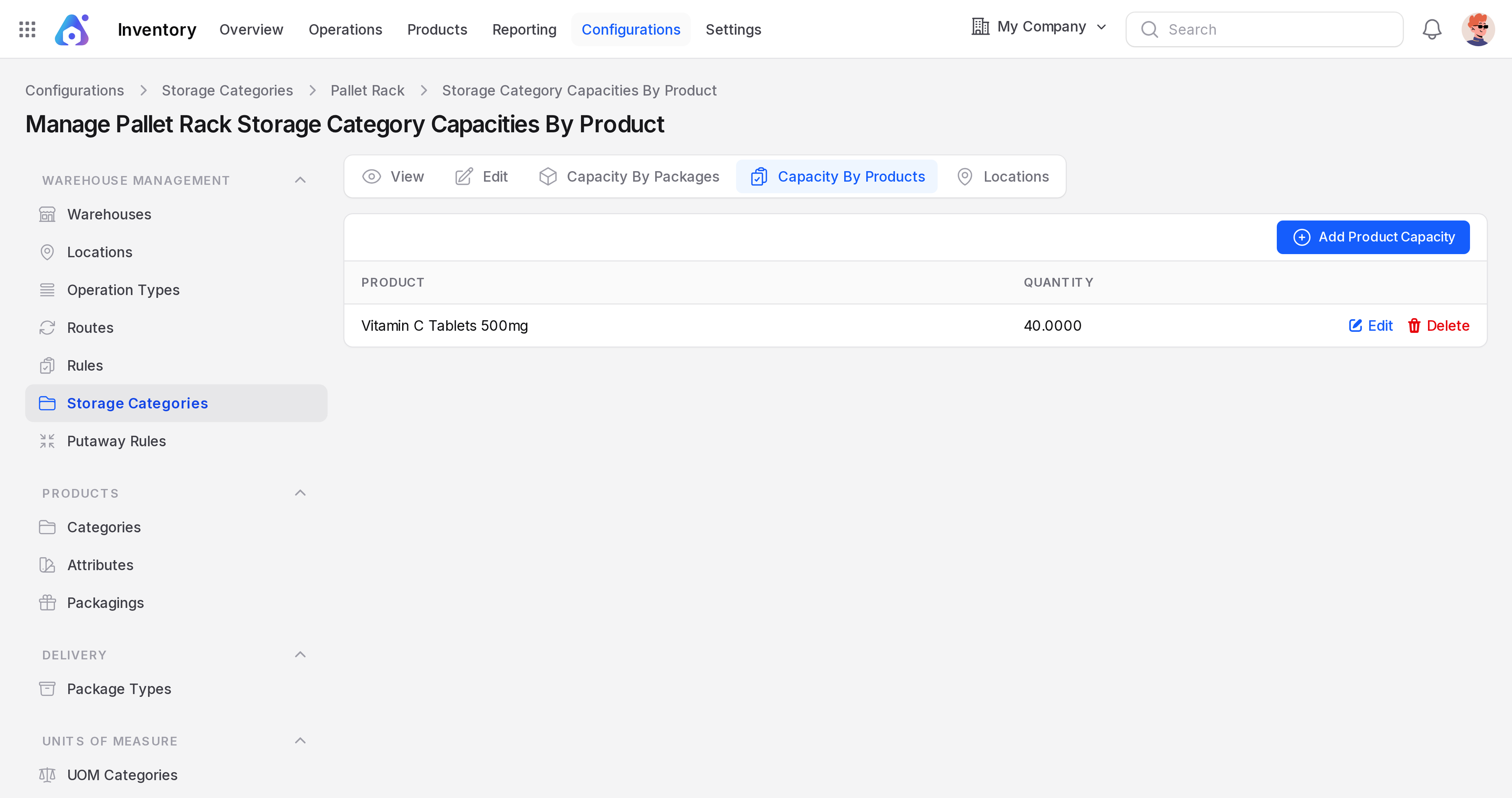
Example: a bin holds at most 40 Vitamin C Tablets 500mg.
Locations tab
The Locations tab lists the locations that use this category. Click Create Location to add one with the category already set. You can also pick the category on any internal location. See Locations.
Use it with putaway rules
A putaway rule can name a storage category. When goods arrive, the system sends them to a location of that category. See Putaway rules.
TIP
Start with weight only. Add package or product capacity once the basic flow works.