

Products
A product is anything you sell at the till. It can be a physical item, such as a Glide Wireless Mouse, or a service. The POS Products page is the normal product list with the extra settings that decide whether a product shows in POS.
In simple words: Products are the items on your shelf. Switch on Available in POS and they appear on the till.
Overview
Go to Point of Sale → Products.
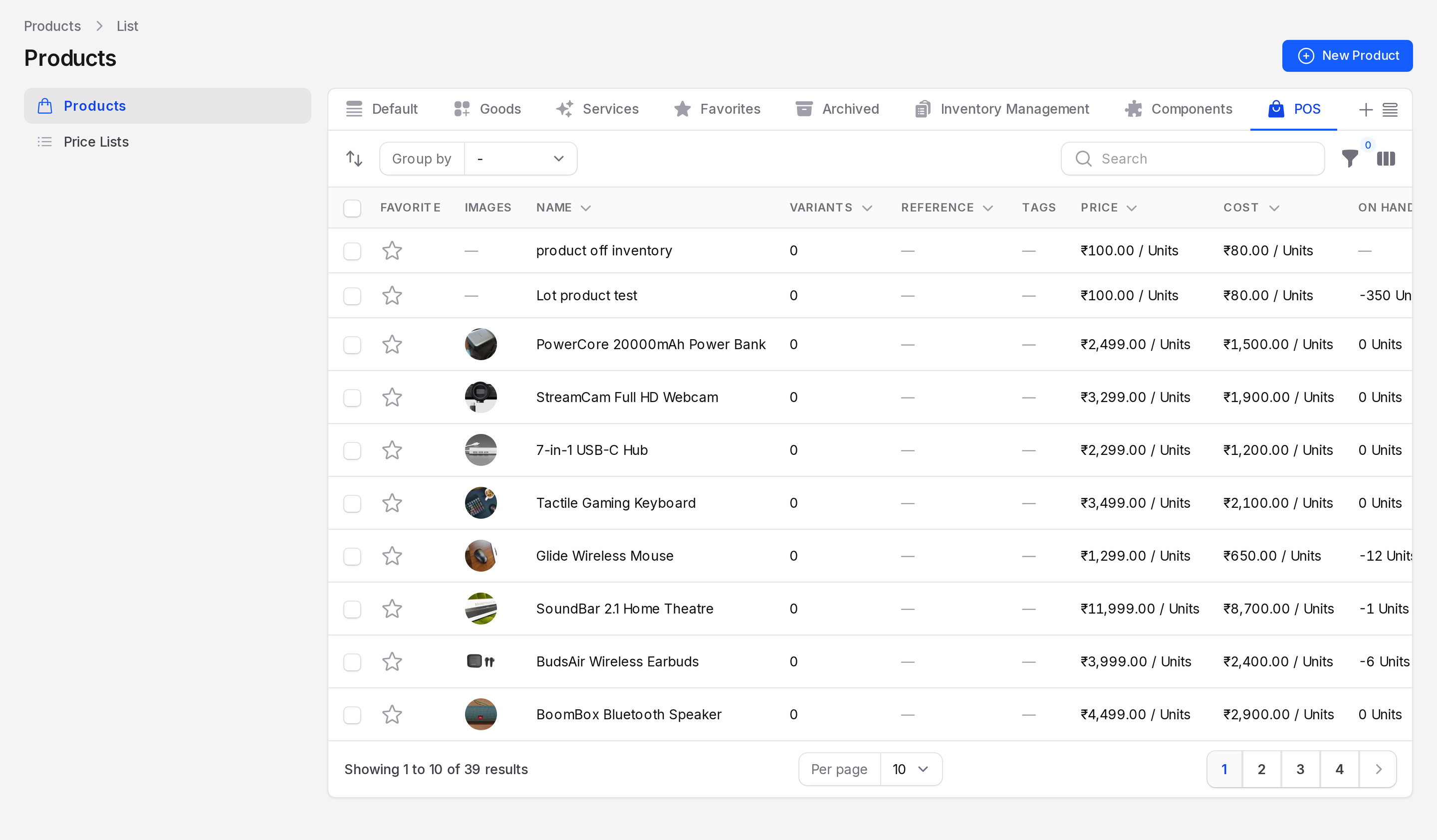
The page opens on the POS tab. It has these tabs:
- Goods: Physical products.
- Services: Products of type service.
- Favorites: Products you starred.
- Archived: Products you archived.
- Inventory Management: Products that track stock.
- Components: Products used as parts of other products.
- POS: Products with Available in POS switched on.
Columns
- Favorite: A star you can click.
- Images: The product picture.
- Name: The product name.
- Variants: The number of variants.
- Reference and Tags.
- Price: The sale price with its unit, such as 1,299.00 per Units.
- Cost: What the product costs you.
- On Hand and Forecasted: Stock now and expected stock.
Use Group by for Type, Category or Created At.
Make a product show in POS
Go to
Point of Sale → Products.Click a product, for example Glide Wireless Mouse, then click Edit.
Find the Point of Sale section.
Switch on Available in POS. The hint reads "Make this product available in the Point of Sale terminals".
In PoS Product Categories, pick one or more categories, for example Accessories. This field shows only when Available in POS is on.

Click Save changes.
The product now appears on the terminal under its category tile.
INFO
Products without a PoS category still sell. Cashiers find them with search instead of a tile.
Create a product
Click New Product.
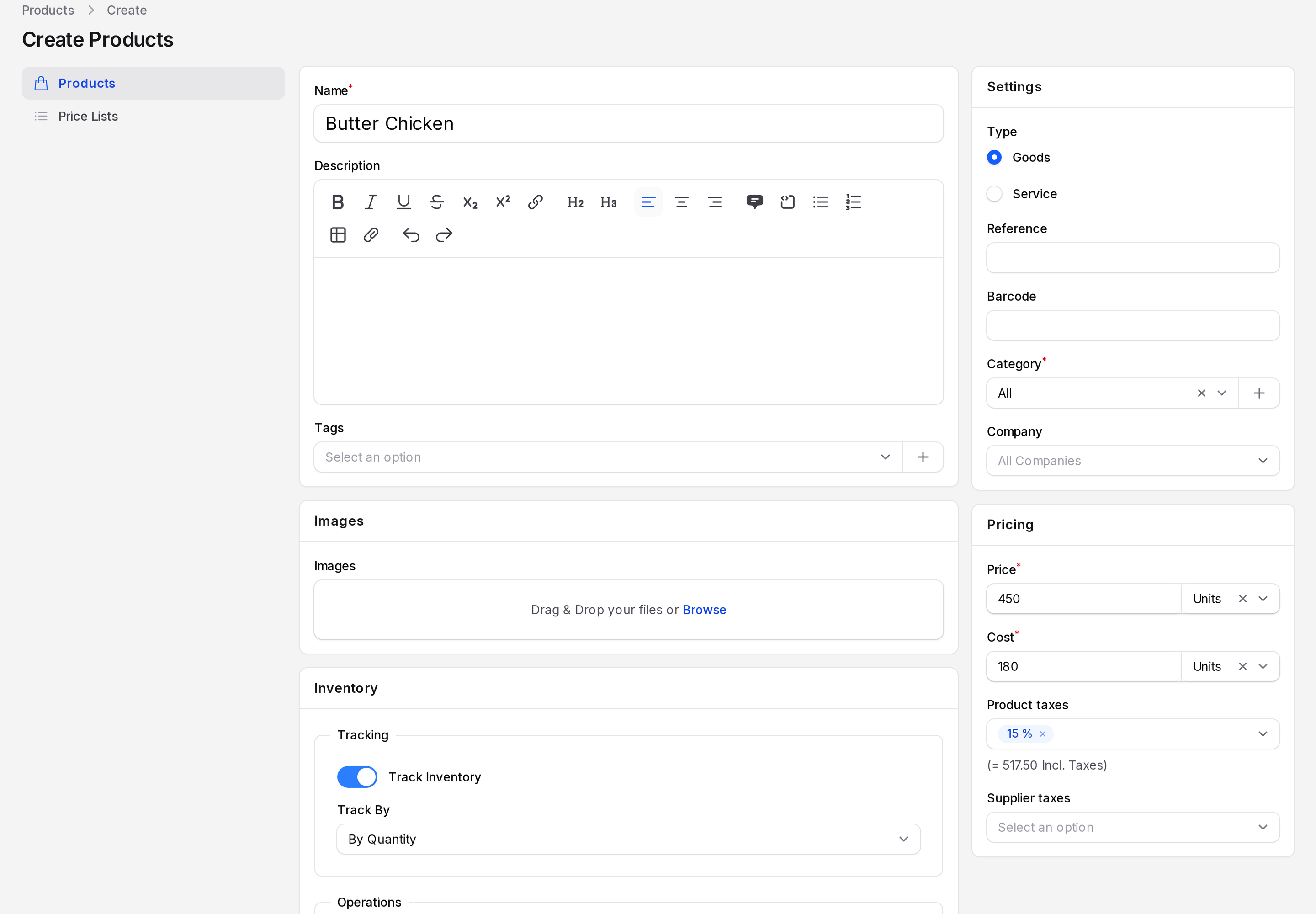
Fill in the main fields.
- Name: Required. For example Butter Chicken.
- Description, Tags and Images.
- Type: Goods or Service.
- Reference and Barcode: A barcode lets cashiers scan the item.
- Category: Required. The product category used by Inventory and Sales.
- Price: Required. The selling price.
- Cost: Required. What the product costs you.
- Product taxes and Supplier taxes: The taxes on sale and purchase.
Fill in the Inventory section if you track stock. Choose Track Inventory, then Track By unique serial number, lots or quantity.
In Point of Sale, switch on Available in POS and pick PoS Product Categories.
- Click Create.
The other sections cover logistics (Responsible, Weight, Volume, Customer Lead Time (Days)), Invoice Policy and Account Properties (Income Account, Expense Account). See Manage products for them.
View a product
Open a product to see its details. The view page shows the Point of Sale section, with Available in POS and the categories. The header buttons are Update Quantity, Print Labels and Delete.

Example
TechNest Electronics sells Glide Wireless Mouse at 1,299 with a cost of 650. The shop switched on Available in POS and picked Accessories. At the till, the cashier taps the Accessories tile and then the mouse. Phones such as the Nova X5 Smartphone sit under Mobiles & Tablets.
TIP
Use the POS tab to check your till catalogue. Every product in that list is sellable at the till.