

Stages
Stages show how far a record has moved through a process. A maintenance request moves from new to repaired. A job application moves from first contact to hired. A task moves from to do to done. Stages are the same idea in every module, so you learn them once.
In simple words: A stage is a step on the way to finished. You decide the steps, and you move each record from one step to the next.
Where stages are used
| Module | Stages for | Menu path |
|---|---|---|
| Maintenance | Maintenance requests | Maintenance → Configurations → Stages |
| Recruitment | Job applications | Recruitment → Configuration → Stages |
| Project | Projects | Project → Configurations → Project Stages |
| Project | Tasks | Project → Configurations → Task Stages |
INFO
Project stages are off by default. Turn them on before you use them. See Turn on project stages.
Change stages
Every stage page works the same way:
- Open the menu path from the table above.
- Click New to add a stage, or click Edit on a row to change one.
- Fill in the fields and save.
The list shows the stages in the order they appear in the process. To change the order, use the drag handle on a row and drop it in its new place. Click Delete to remove a stage.
WARNING
A stage that is still used by records cannot always be deleted. Move those records to another stage first.
Fields by module
Maintenance stages
- Name: The name of the stage, for example
New RequestorIn Progress. - Done: Turn on for the last step. A request in a done stage counts as finished.
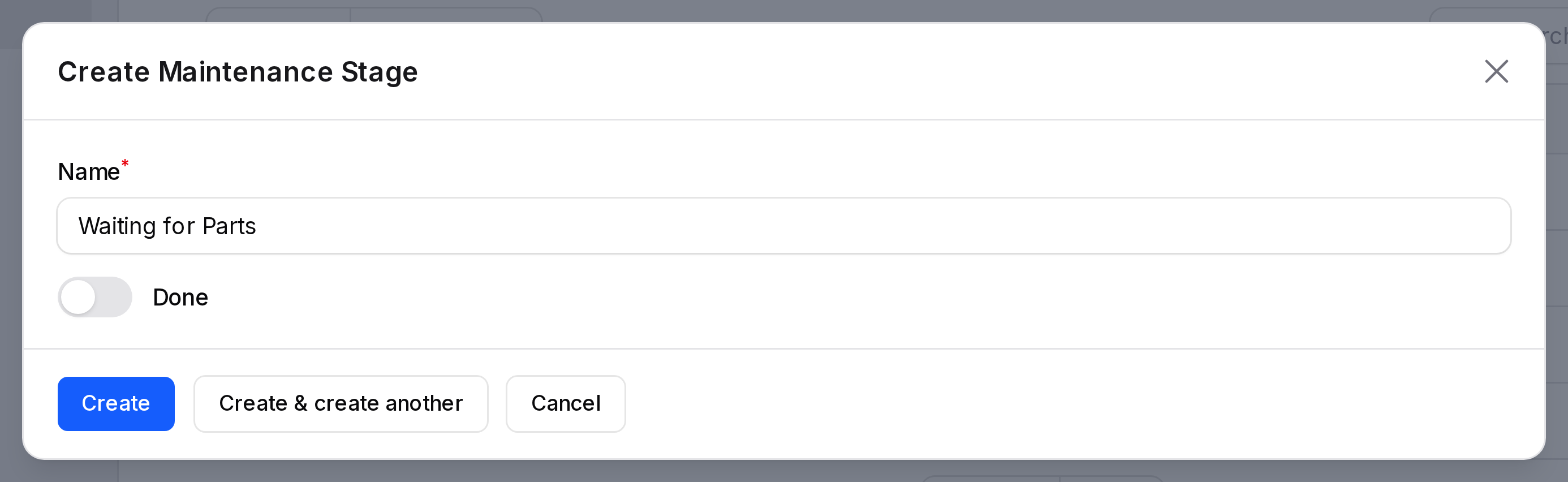
See Maintenance requests for how requests move between stages.
Recruitment stages
- Stage Name: The name of the stage, for example
Interview. - Sequence Order: The position of the stage in the list.
- Requirements: Notes on what must be done before a candidate leaves this stage.
- Gray Label, Red Label, Green Label: Your own text for the three status marks on an application in this stage.
- Job Positions: Limit the stage to chosen jobs. Leave it empty to use the stage for all jobs.
- Folded: Collapse this stage on the board.
- Hired Stage: Mark the stage that means the candidate is hired.
- Default Stage: Use this stage for every new application.

Project and task stages
- Name: The name of the stage, for example
PlanningorIn Review. - Project: Tasks stages only. The project the stage belongs to. This field is required.

Turn on project stages
- Go to
Project → Settings → Manage Tasks. - Turn on Enable Project Stages.
- Save the changes.
The Project Stages page then appears under Configurations.