

Convert a lead
Converting a lead tells Aureus that the enquiry is real and worth chasing. The lead becomes an opportunity and appears on your pipeline board. You also choose which customer the opportunity belongs to and who owns it.
In simple words: Convert a lead when you decide to chase the sale. It is the same record, now called an opportunity.
You can convert one lead from its page, or many leads from the list. If Aureus finds duplicates, it can merge them during the conversion.
About the example
The lead ERP implementation for textile manufacturing unit from Sharma Textiles Pvt. Ltd. is ready. You convert it and give it to yourself.
Convert one lead
- Go to
CRM → Leads → Leads. - Open the lead ERP implementation for textile manufacturing unit.
- Click Convert to Opportunity in the header.
- In the Convert to opportunity window, fill in the fields below.
- Click Create Opportunity.
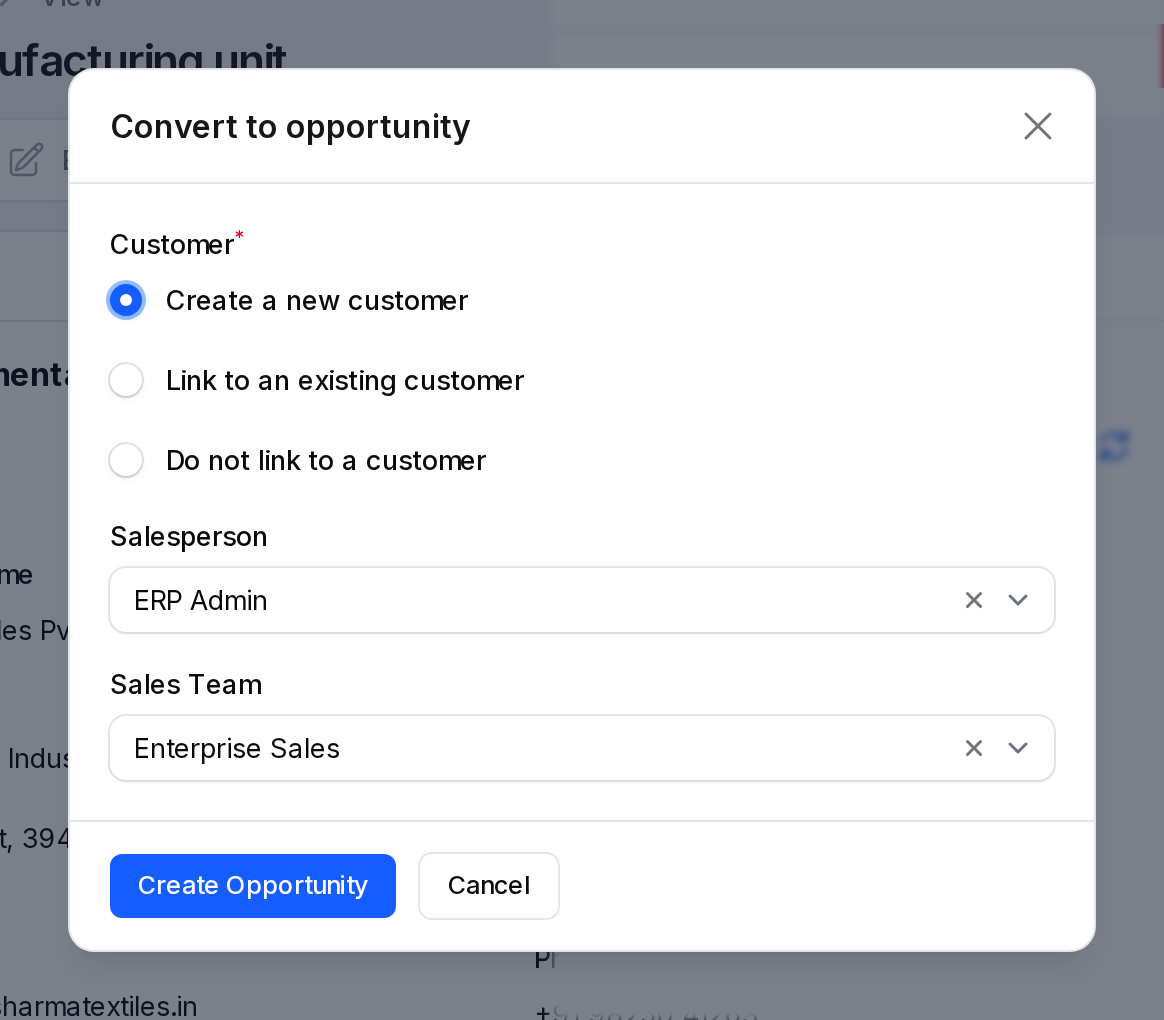
You can also use Convert to Opportunity in the row menu of the list.
Conversion action
- Conversion action: Choose Convert to opportunity or Merge with existing opportunities. This choice shows only when Aureus finds similar leads or opportunities. It starts as Convert to opportunity.
- Similar leads and opportunities to merge: A list of tick boxes. It shows only after you choose Merge with existing opportunities. Required then. All similar records start ticked.
Each row shows the name, whether it is a lead or an opportunity, the stage (or Lost) and the salesperson. See Merge similar records.
Customer
- Customer: Required. Choose one option.
- Create a new customer: Aureus adds a contact from the lead data.
- Link to an existing customer: You pick a contact you already have.
- Do not link to a customer: The opportunity has no customer yet.
- Existing Customer: The contact to link. It shows, and is required, only when you choose Link to an existing customer. Type to search by name.
Aureus suggests an option for you. If the lead already has a customer, it picks Link to an existing customer. If the lead has a company name or contact name, it picks Create a new customer. Otherwise it picks Do not link to a customer.
Example: Keep Create a new customer. Sharma Textiles is not in Contacts yet.
Assignment
- Salesperson: The owner of the opportunity. It starts as the salesperson on the lead. Only active users of the lead company are listed.
- Sales Team: The team that will work the deal. It starts as the team on the lead.
Example: Keep yourself as Salesperson. Choose the team Sales.
After you click Create Opportunity, Aureus shows the message Converted to opportunity and opens the opportunity.
Convert many leads
Use this when a campaign brought a batch of leads that you want to move together.
- Go to
CRM → Leads → Leads. - Tick the leads you want.
- Open the bulk actions and click Convert to Opportunities.
- Fill in the Convert to opportunities window.
- Click Convert.
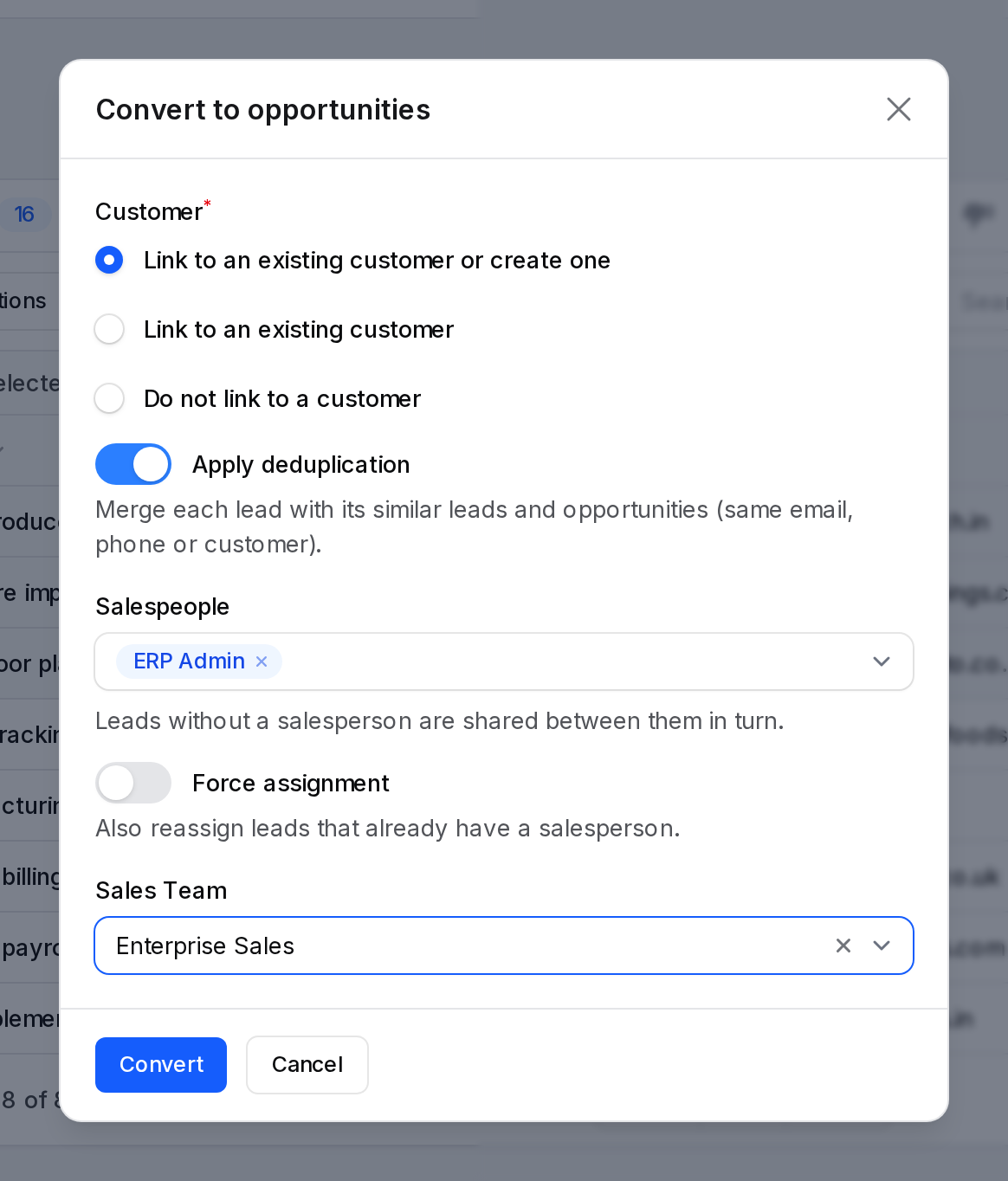
- Customer: Required. It starts as Link to an existing customer or create one. The other options are Link to an existing customer and Do not link to a customer.
- Apply deduplication: On by default. Aureus merges each lead with its similar leads and opportunities, found by the same email, phone or customer.
- Salespeople: Pick one or more users. Leads without a salesperson are shared between them in turn.
- Force assignment: Also reassign leads that already have a salesperson.
- Sales Team: Put every converted lead in this team. Leave it empty to keep each lead's own team.
When the customer option links to an existing customer, Aureus looks for a contact with the same email address. If it finds none and you chose to create one, it adds a new contact.
When it finishes, a message tells you how many leads were converted, how many similar records were merged, and how many were skipped. Rows that are not open leads are skipped.
Merge similar records
Two records are similar when they belong to the same company and share an email address, a phone number or a customer. Phone numbers are compared by their digits.
The Similar Leads tab on a lead lists them. You can merge in two ways.
- During conversion, choose Merge with existing opportunities and tick the records to join.
- From the Leads list, tick two or more rows and click Merge.
The Merge similar leads and opportunities window has these fields.
- Records to merge: A table with the name, type, stage, email and salesperson of each record. Remove a row to leave that record out. At least two must remain.
- Record to keep: The record whose details stay. Required. Aureus suggests one.
- Salesperson and Sales Team: They appear only when the records have different values. Choose the one the merged record keeps.
Empty fields of the kept record are filled from the others. Their notes, tags, messages, activities and attachments move to it. The other records are then deleted. The result is an opportunity if any of them was one, and it is active even if some were lost. A note in Chatter lists what was merged.
WARNING
You must be allowed to edit the kept record and to delete the others. Only records of the same company can be merged.
Behind the scenes
- The record type changes from Lead to Opportunity. It is the same record, so notes, activities and tags stay.
- The opportunity appears on the pipeline board in
CRM → Sales → My Pipeline. See Manage opportunities. - The conversion date is stored on the record.
- Create a new customer adds a contact. For a company lead, the contact is a company named after Company Name. Otherwise it is a person named after the contact or the lead. The email, phone, website, address and country are copied.
- The lead disappears from the Leads list. It shows in the pipeline instead.
- Automatic assignment can also convert a lead for you. When a team uses opportunities and a salesperson receives a lead, Aureus converts it without creating a customer. See Assign and track.
Actions and statuses
| Button | What it does |
|---|---|
| Create Opportunity | Converts the lead and opens the opportunity. |
| Convert | Converts all ticked leads in the bulk window. |
| Merge | Joins the records you chose into one. |
| Cancel | Closes the window. The lead stays as it is. |
If the lead is not worth chasing, click Lost on the lead instead. See Create a lead.
TIP
Choose Link to an existing customer when the company is already in Contacts. It avoids duplicate contacts.
WARNING
A lead with a probability of 100 % cannot be converted. You see the message A lead at 100% probability cannot be converted. Lower its probability first.