

Transfers
Every movement of stock in Aureus is a transfer. A receipt, a delivery, an internal move and a dropship all use the same screen, the same states and the same buttons. Learn it once and you can run all four.
In simple words: A transfer is a document that says "move these products from here to there". You check it, then click Validate to make the stock really move.
Open Inventory → Operations → Transfers. The Operations sidebar has two groups. Transfers holds Receipts, Deliveries, Internal Transfers and Dropships. Adjustments holds Quantities and Scraps.
The four transfer types
| Menu item | Used for | Moves stock | Prefix |
|---|---|---|---|
| Receipts | Goods coming in from vendors | Partners/Vendors to your warehouse | IN |
| Deliveries | Goods going out to customers | Your warehouse to Partners/Customers | OUT |
| Internal Transfers | Moves inside your site | One location to another | PICK, PACK, STOR, QC, INT |
| Dropships | Vendor ships straight to the customer | Vendors to Customers | DS |
Internal Transfers needs Locations on. Dropships needs Dropshipping on. See Inventory settings.
Numbers come from one shared counter, so a warehouse can show WH/IN/00024, WH/IN/12 and WH/OUT/42. Other prefixes in the dev data are WH/PICK, WH/PACK, WH/STOR, WH/QC and WH/PC for manufacturing components. Point of sale uses WH/POS and WH/POSRET.
The life of a transfer
Draft ──> Waiting ──> Ready ──> Done
   \         \          \
└─────────┴──────────┴──> Cancelled| State | Meaning | What moves it on |
|---|---|---|
| Draft | Created but not confirmed. Nothing is reserved. | Mark as Todo. It goes to Waiting, or straight to Ready when stock is available. |
| Waiting | Confirmed, but some stock is not yet available. | Stock arrives, or Check Availability |
| Ready | All stock is reserved and can be processed. | Validate |
| Done | The stock has moved. | Nothing, except Return |
| Canceled | Stopped. No stock moved. | Nothing |
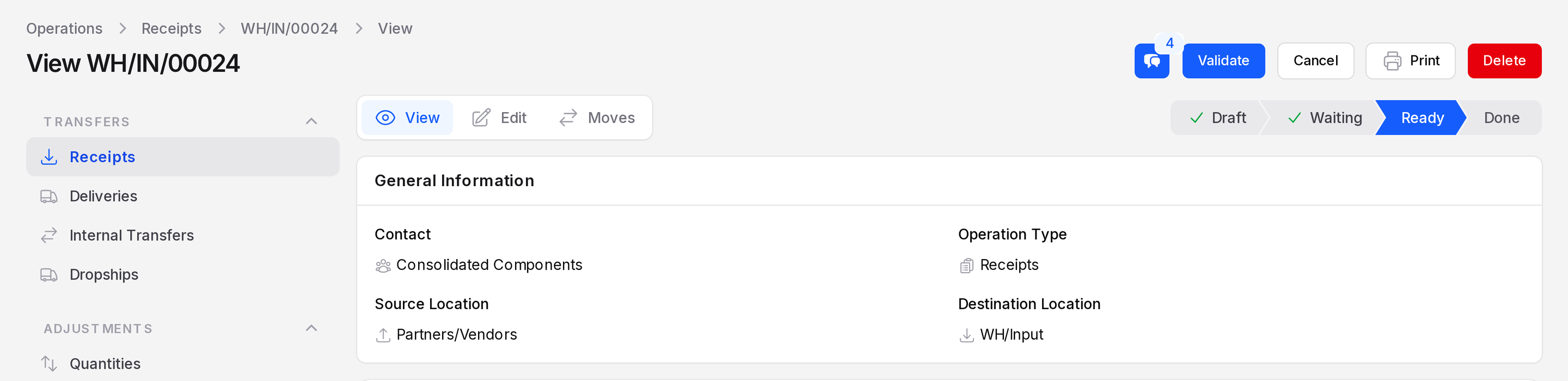
The state bar at the top of a record shows Draft, Waiting, Ready, Done and Canceled. The current state is highlighted.
A transfer created from an order starts as Waiting or Ready. You rarely see Draft.
Buttons by state
| Button | Draft | Waiting | Ready | Done | Canceled |
|---|---|---|---|---|---|
| Mark as Todo | Yes | - | - | - | - |
| Check Availability | - | Yes | - | - | - |
| Validate | Yes | Yes | Yes | Hidden | Hidden |
| Cancel | Yes | Yes | Yes | Hidden | Hidden |
| Return | - | - | - | Yes | - |
| Next Transfer | - | - | - | Yes, if a next step exists | - |
| Yes | Yes | Yes | Yes | Yes | |
| Delete | Yes | Yes | Yes | Hidden | Yes |
Check Availability shows only on Waiting transfers, such as a delivery whose source location has no stock yet. A Ready transfer does not show it. On a Done delivery, only Return and Print remain. A Canceled transfer shows only Print and Delete.
The record page
Each record has a switcher at the top with three tabs: View, Edit and Moves. Moves lists the stock move lines with product, lot, package, from, to and quantity.
The form has a General section (contact, operation type, locations) and three tabs: Operations, Additional and Note. After you click Create on a new transfer, you stay on the Edit page. The Operations table lists each product with Demand, Quantity and Picked. See Stock moves and lots.
The list page
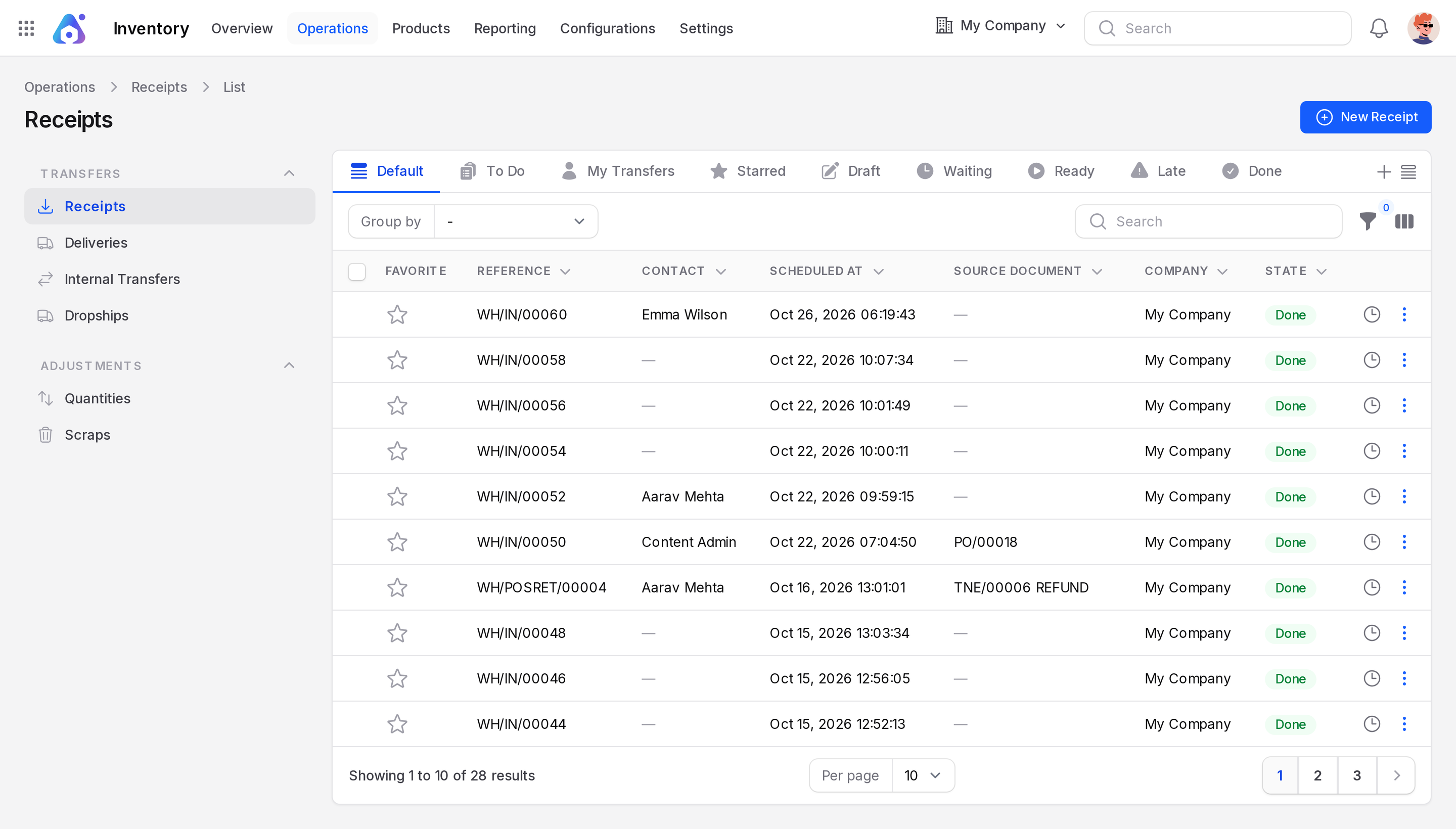
Preset tabs sit above every list: Default, To Do, My Transfers, Starred, Draft, Waiting, Ready, Late and Done. Late shows transfers past their scheduled date.
- Columns: Favorite, Reference, Contact, Scheduled At, Source Document, Company, State. The column manager adds From, To, Responsible, Deadline, Closed At and Operation Type.
- Group by: State, Source Document, Operation Type, Schedule At and Created At.
- Filters: build rules on fields such as operation type, state, partner, locations and dates, then click Apply filters.
Pages in this group
- Receipts and Deliveries: the two main flows.
- Internal transfers and Dropships.
- Stock moves and lots: the move lines inside a transfer.
- Backorders and returns.
- Print documents.