

Accounting Overview
The Overview is the home page of the Accounting app. It shows one card for each journal, so you can see at a glance what waits for you: invoices to validate, bills to pay and the money moving through your bank. Each card also has a New button to start a new document in that journal.
In simple words: The Overview is your finance dashboard. Look at the cards, click a number to see the documents behind it, click New to add one.
Open the Overview
Go to Accounting → Overview. This page exists only in the Accounting app.
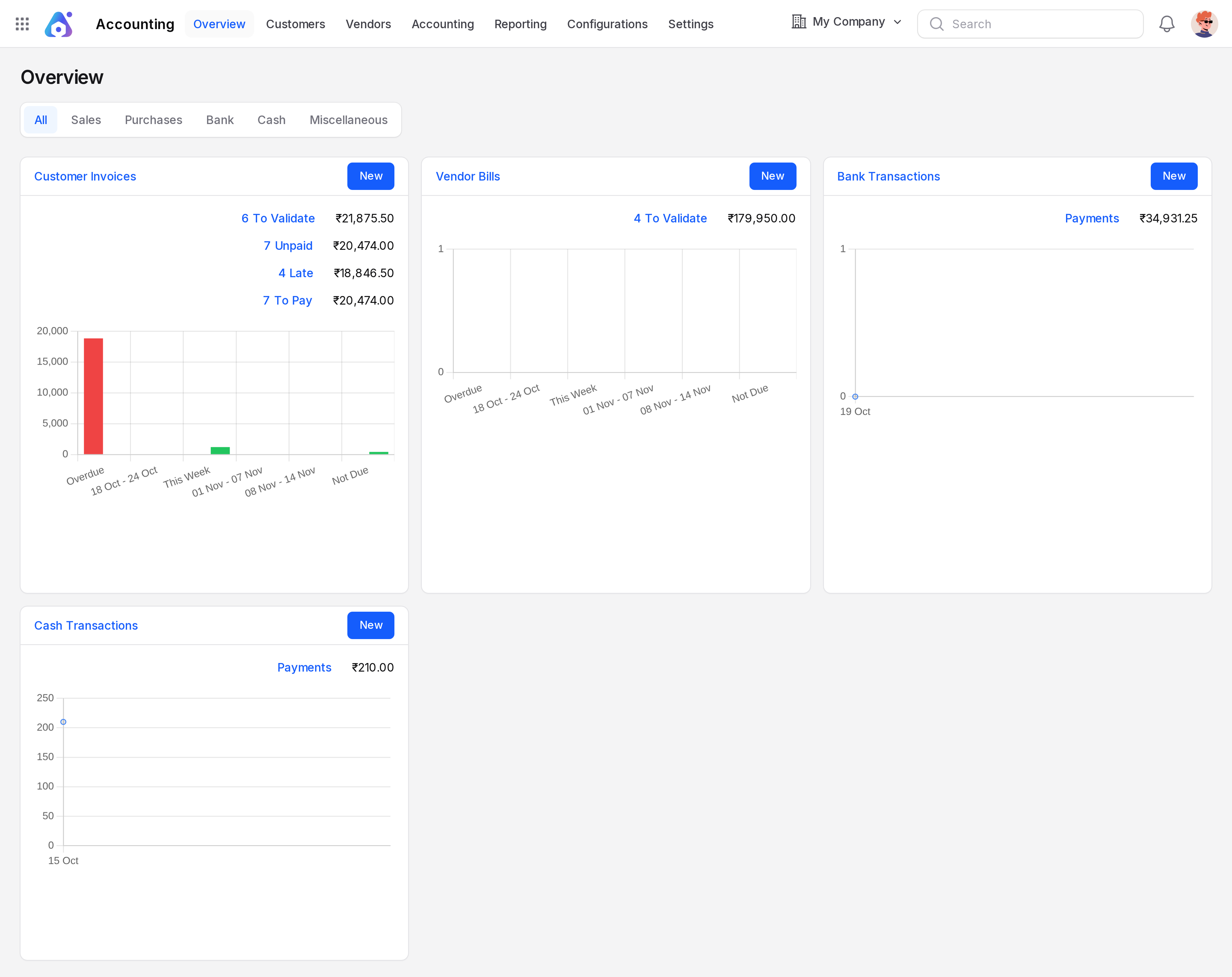
The tabs
The tabs at the top filter the cards by journal type.
- All: every journal.
- Sales: journals of type Sale, such as Customer Invoices.
- Purchases: journals of type Purchase, such as Vendor Bills.
- Bank: bank journals.
- Cash: cash journals.
- Miscellaneous: general journals, such as Miscellaneous Operations.
Only journals that are shown on the dashboard get a card. The default journals are all shown.
Read a journal card
The card title is the journal name. Click it to open the list of documents for that journal. The card type decides what the numbers mean.
Sale journals (Customer Invoices)
- To Validate: the number of draft invoices and their total. Click it to open the Draft view.
- Unpaid: posted invoices that still have an amount due and are not yet paid or in payment. The amount is the total still due.
- Late: posted invoices that are not paid and past their due date. This line shows only when there are late invoices.
- To Pay: posted invoices that are Not paid or Partial, with the amount still due.
Purchase journals (Vendor Bills)
The card shows To Validate, Late and To Pay. They work like the sale card, for bills.
Bank and cash journals
The card shows Payments: the total of all posted entries in the journal. The chart is a line of the running balance over the last weeks.
Miscellaneous journals
The card shows Entries, the number of entries in the journal.
A line with no count and no amount stays hidden. A new company therefore shows empty cards.
The chart
Sale and purchase cards show a bar chart of the amounts still due, grouped by due date: Overdue, the previous week, This Week, the next two weeks and Not Due. Red bars are late amounts. Green bars are amounts that are not late yet.
The New button
New on a card opens the create form for that journal type.
- Sale journal: New Invoice.
- Purchase journal: New Bill.
- Bank, cash and other liquidity journals: New Payment.
- Miscellaneous journal: New Entry.
Example
In the sample data, the Customer Invoices card shows the number of draft invoices under To Validate, the invoices still unpaid under Unpaid, the overdue ones under Late and the amount waiting for payment under To Pay. The bars in the chart group the open amounts by due date, from Overdue to Not Due.
TIP
Use the numbers as shortcuts. Click To Validate each morning to confirm drafts, and Late to chase customers.