

Your profile
Your profile holds your own account details: your name, photo, email, language and password. Every user can change their own profile. You do not need any special permission.
In simple words: Your profile is the page where you manage your own account.
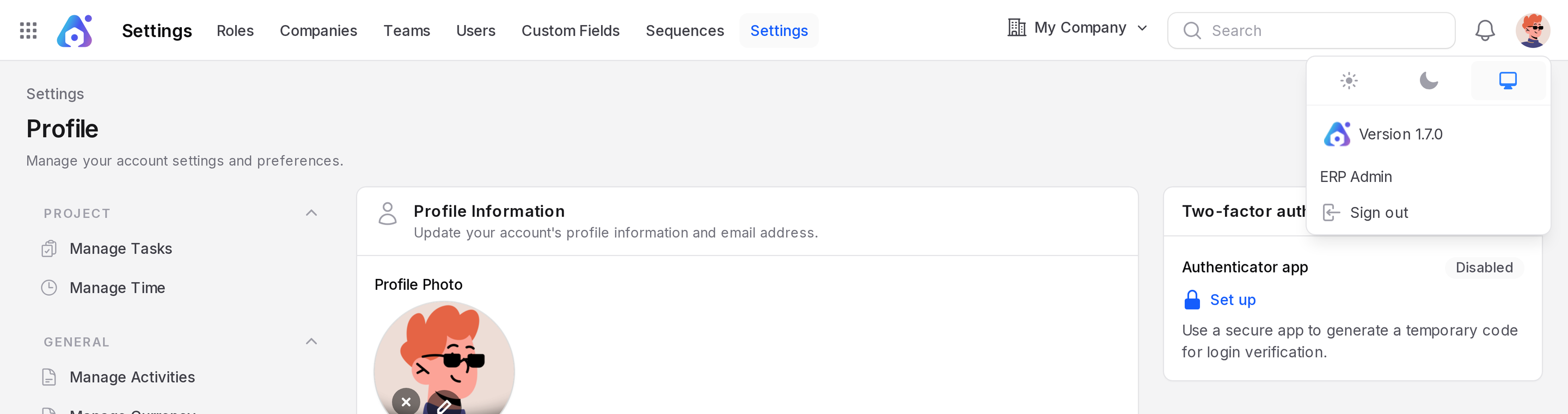
Open your profile
- Click your picture at the right end of the top bar.
- Click your name in the menu that opens.
Update your details
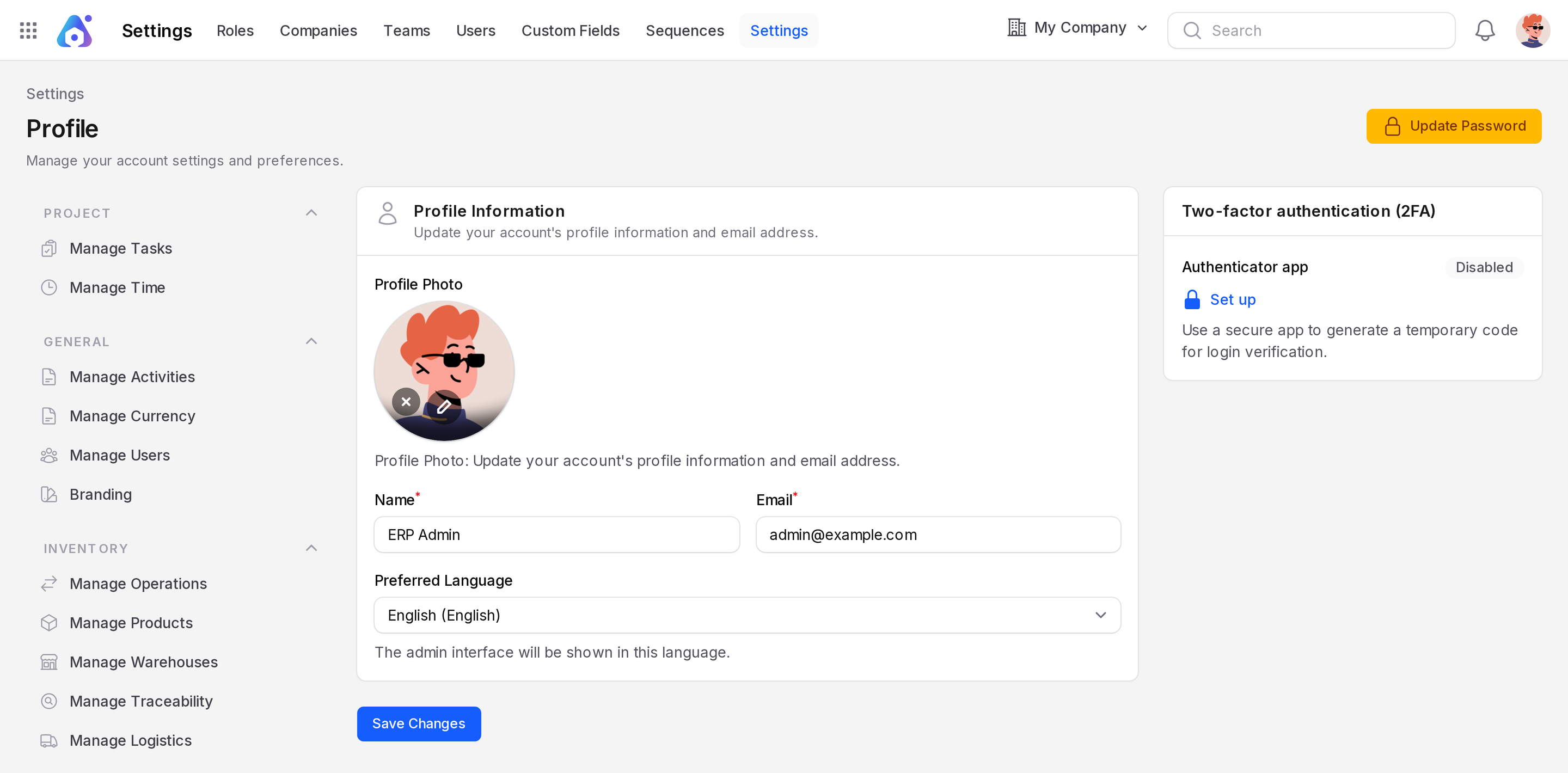
In Profile Information:
- Profile Photo: Upload a square picture. You can crop it. Allowed types are JPEG, PNG and WebP, up to 2 MB.
- Name: Your full name.
- Email: The email address you sign in with. It must be unique.
- Preferred Language: The language of the interface. The change applies to you only.
Click Save Changes.
Change your password
Click Update Password at the top right of the page. A window opens.
- Enter your Current Password.
- Enter a New Password. Choose a long password that is hard to guess.
- Enter it again in Confirm Password.
- Click Save Changes.
The new password must be different from the current one. After the change, you are signed out and must sign in again.
Add a second step to sign in
The same page has a Two-factor authentication (2FA) card with an Authenticator app entry that adds a second step to your sign-in. See Two-factor authentication.