

Request time off
A time off request asks for one or more days away from work. You choose the leave type, the dates and an optional reason. Aureus counts the working days, checks your balance and saves the request for approval.
In simple words: Pick the type and dates, check the duration, and save. The request waits as To Approve.
Menu: Time Off → My Time → Dashboard (click New Time Off), or Time Off → My Time → My Time off (click New My Time off, the name the app uses). Managers can also use Time Off → Management → Time off and click New Time off.
Before you start
- The leave type exists.
- If that type requires an allocation, the employee has an approved balance. See Allocations.
Worked example
Sarah Mitchell needs Monday 19 to Wednesday 21 October 2026 off for a family function.
- Open
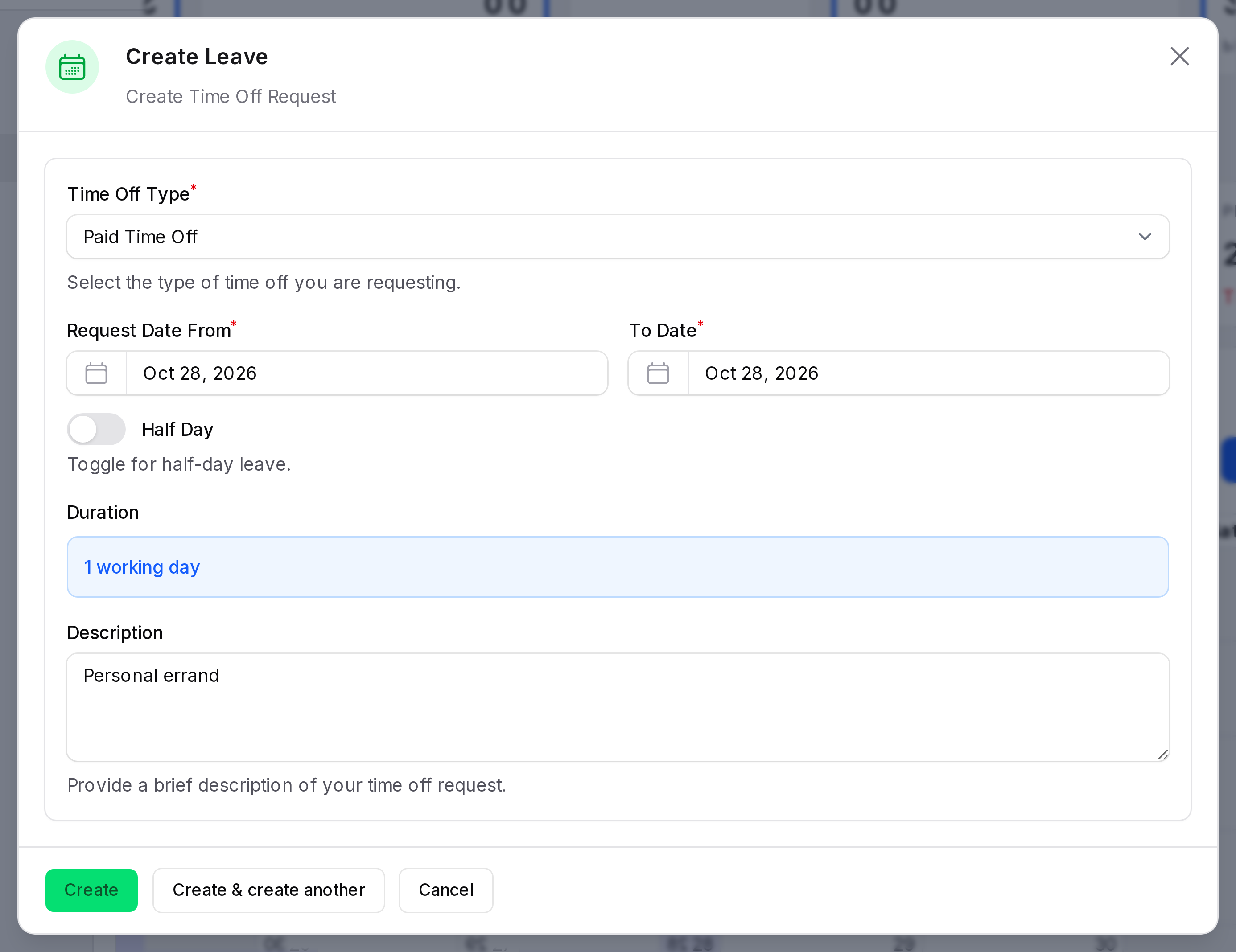
Time Off → My Time → Dashboard. Click New Time Off. A window titled Create Leave opens.
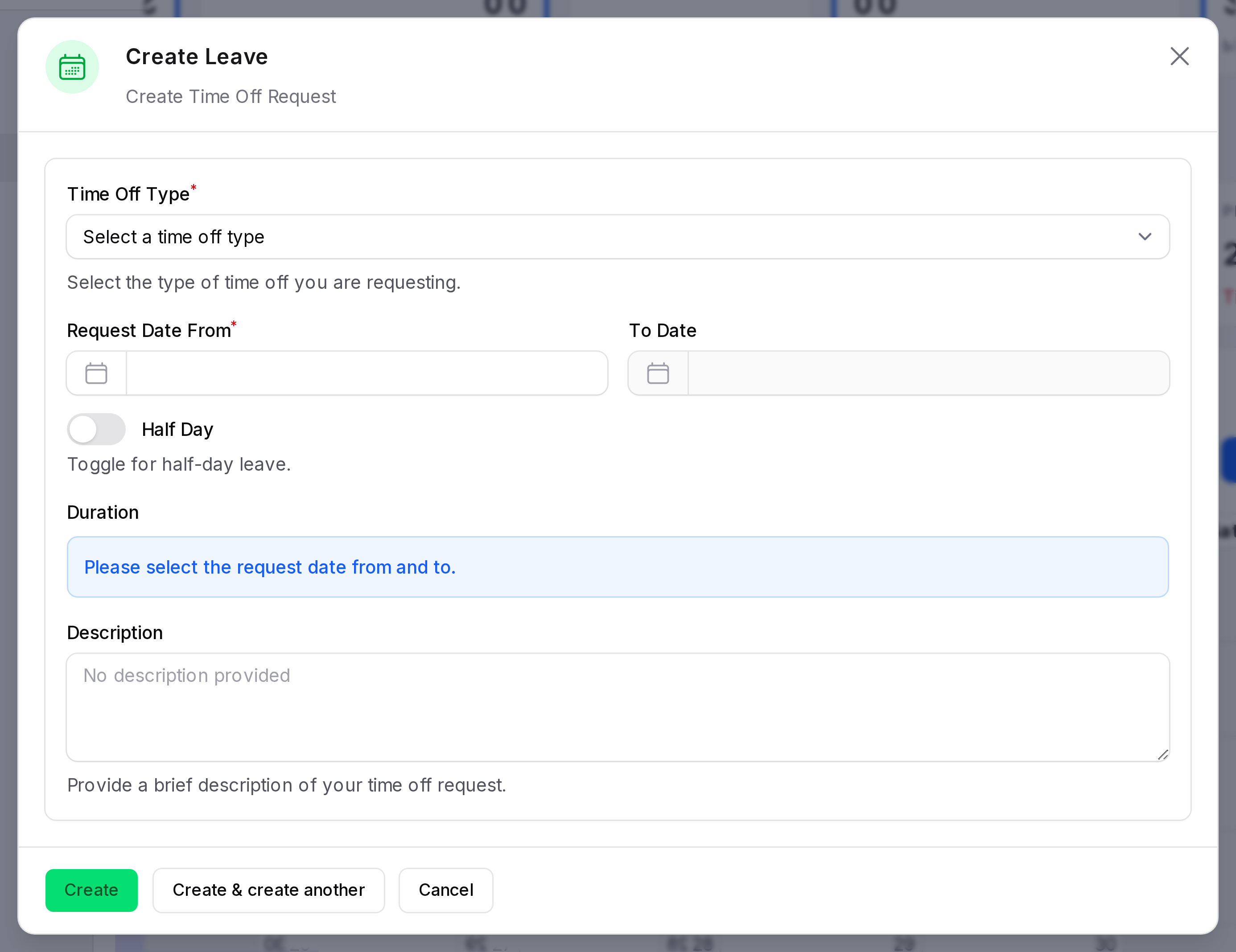
- Choose Paid Time Off in Time Off Type.
- Set Request Date From to 19 October 2026 and To Date to 21 October 2026.
- Check Duration. It reads
3 working days. - Type Family function in Description.
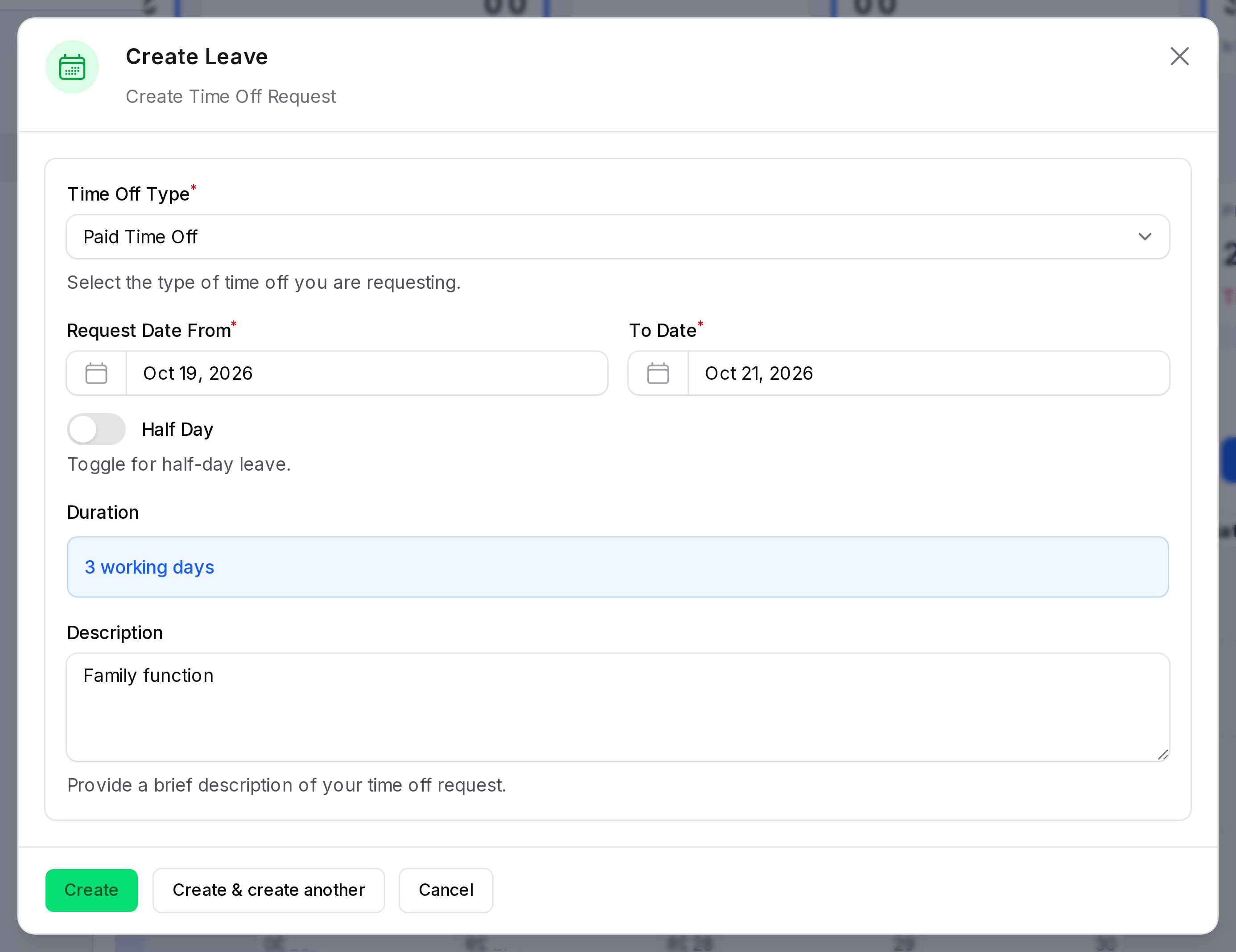
- Click Create. Aureus saves the request with the status To Approve. Your Paid Time Off balance drops by 3 at once.
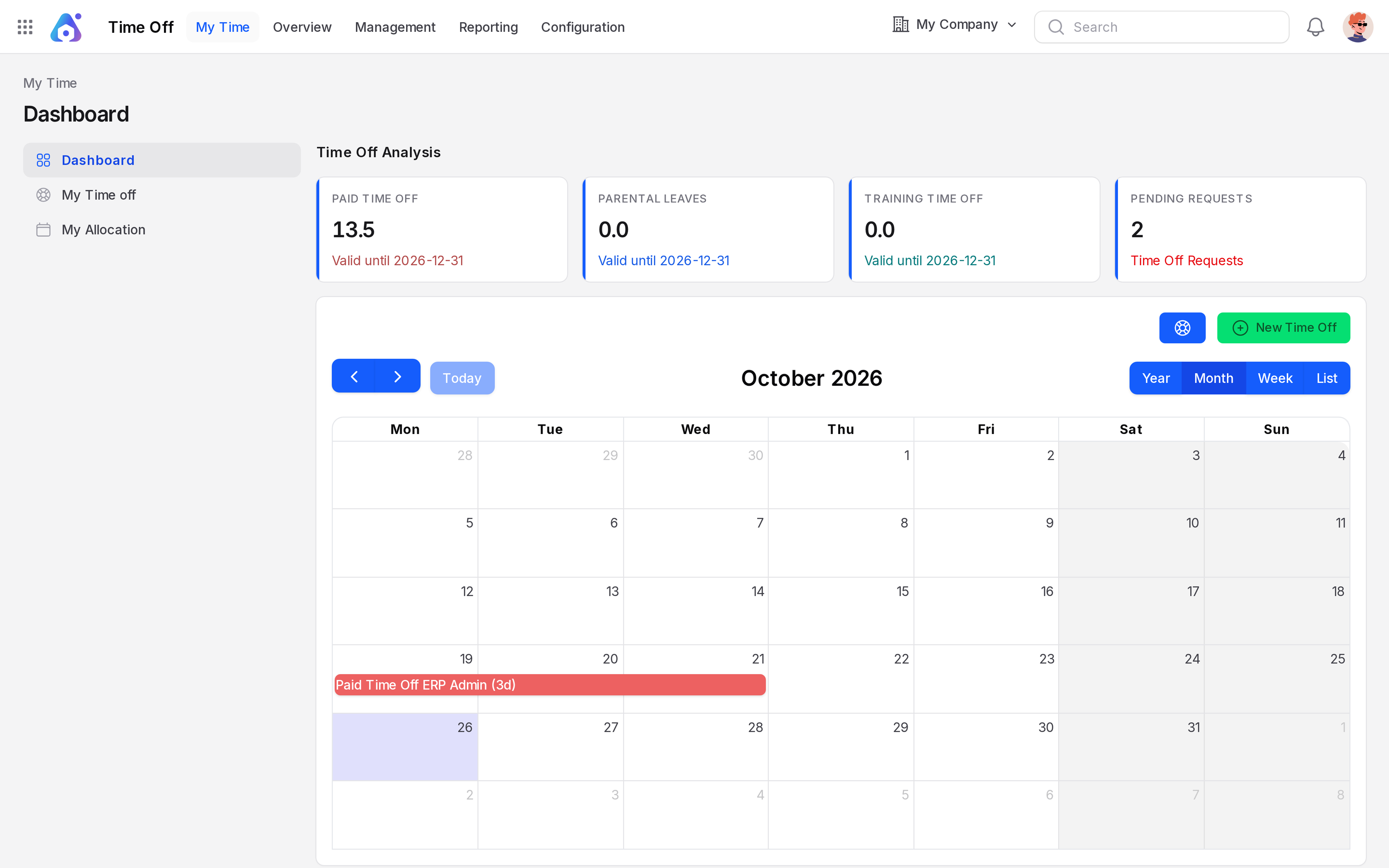
Use Create & create another to save and open a blank form. Click Cancel to close without saving.
Fields
- Employee Name: Required. Shown only in
Management → Time off. Choose who the leave is for. On My Time the employee is you. - Department Name: Required in Management. It fills in from the employee when you choose Employee Name.
- Time Off Type: Required. The kind of leave, for example Paid Time Off or Sick Time Off.
- Request Date From: Required. The first day away.
- To Date: Required, unless Half Day is on. The last day away. On the Management form (a full page, not a window) it unlocks after you pick Request Date From.
- Half Day: A toggle. Turn it on for one half day.
- Period: Required when Half Day is on. Choose Morning or Afternoon. In Management it starts on Morning. In the My Time window you choose it yourself.
- Duration: Read only. Aureus calculates it from your dates.
- Description: Optional. A short reason for your manager.
Half Day
Turn on Half Day to reveal Period and hide To Date. A half day is for a single day only. The image below is from the Management form, because only that form has Employee Name and Department Name.
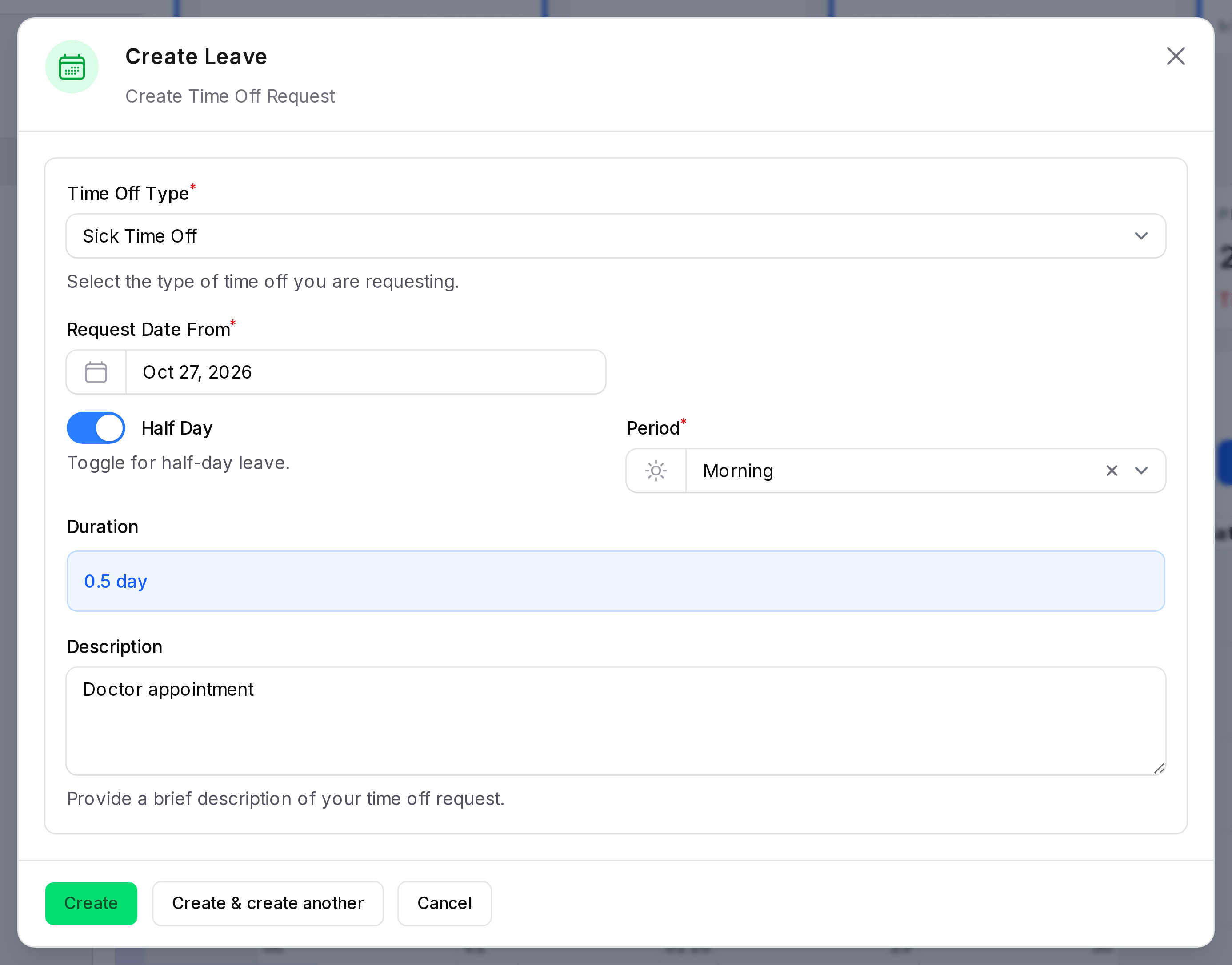
Example: Priya Sharma takes the morning of 27 October as Sick Time Off. Duration shows 0.5 day. The Management form for Priya shows the same fields plus Employee Name (Priya Sharma) and Department Name (Operations).
How Duration is counted
Aureus counts weekdays only. Weekend days inside your dates do not count.
Example: you ask for Monday 19 to Wednesday 21 October. That is three weekdays, so Duration shows 3 working days. A single day shows 1 working day and a half day shows 0.5 day. Your balance drops by the same number.
Until you choose both dates, Duration shows Please select the request date from and to.
Two ways to start
- Button: click New Time Off on the calendar, or New My Time off on the My Time off list.
- Calendar date: click a day on the calendar. The same window opens with both dates filled in and Duration set to
1 working day.
What Aureus checks when you save
- Overlapping dates. You cannot save a request that overlaps another request of yours. Choose different dates.
- Allocation and balance. You need an approved allocation for the leave type. Your days must also fit in the remaining balance.
- Half day. A half day request must cover one day.
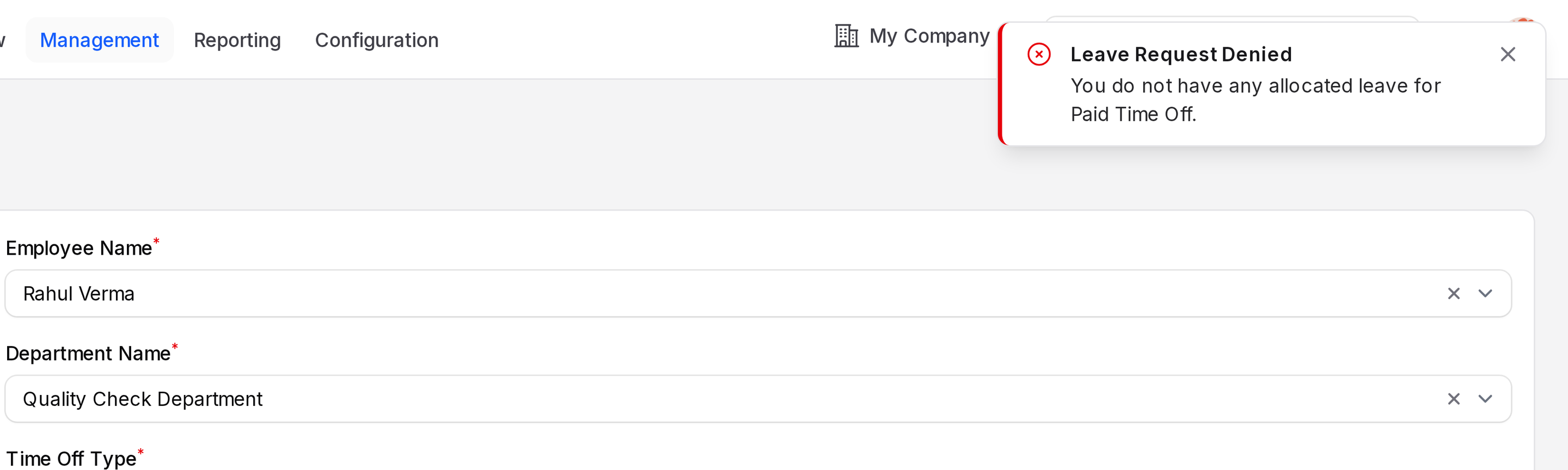
If a check fails, Aureus shows a message and does not save the request. Priya Sharma has no allocation yet, so her first Paid Time Off request is denied. The message Leave Request Denied says You do not have any allocated leave for Paid Time Off.
TIP
Create the allocation first. Then Priya's 2 day request is accepted as To Approve. A Sick Time Off request needs a Sick Time Off allocation in the same way.
Actions and statuses
The window title says Create Leave. It creates a time off request.
A saved request is To Approve. A Time Off created message confirms it. A manager then uses Manage requests to approve or refuse it. If you have no employee record, Aureus asks you to add one to your profile first.
Change or delete a request
Open Time Off → My Time → My Time off. Open the three-dot menu on the row. Click Edit to change it or Delete to remove it. A deleted request no longer lowers your balance.