

Vendor price lists
A vendor price list records what each vendor charges for a product. You can store different prices for different quantities, dates and currencies. When you add the product to an RFQ, Aureus reads the list and fills the price for you.
In simple words: A price sheet for each vendor, kept next to the product.
You can reach the same rows in two places.
Purchase → Configurations → Vendor Price Listsshows every row for every product. The page header shows Product Suppliers. It is the same list.- The Vendors tab of a product shows only the rows for that product.
No setting is needed. The menu is always there.
Overview
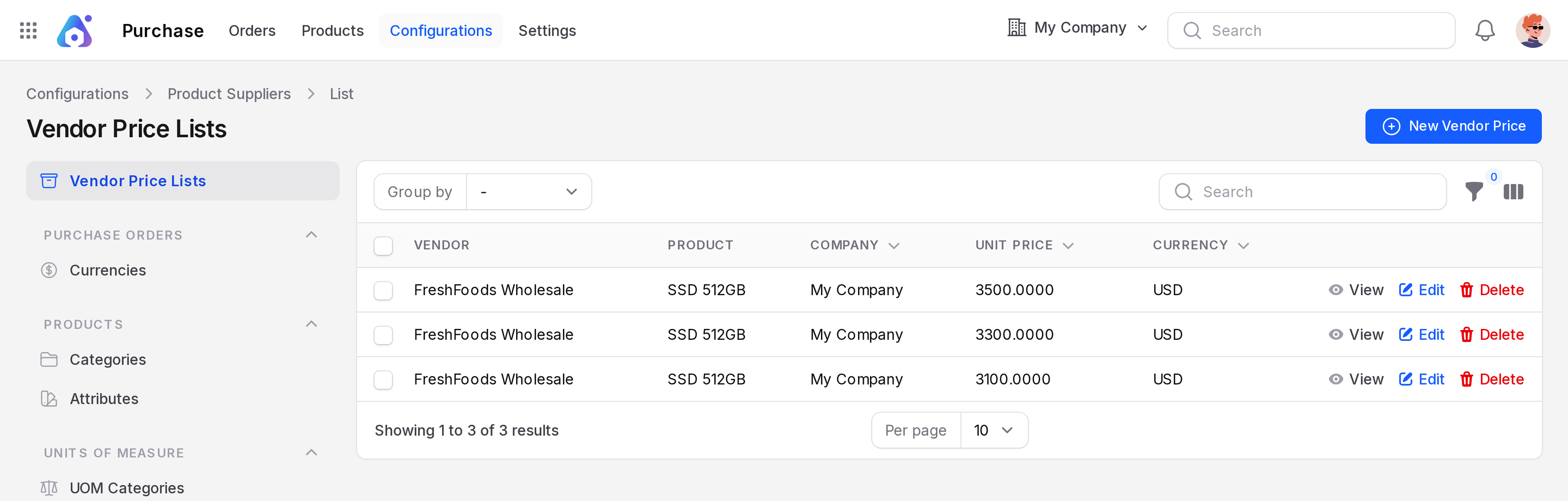
The list has the columns Vendor, Product, Company, Unit Price and Currency. Use Group by to group by Vendor, Product, Created At or Updated At.
Create a vendor price
- Go to
Purchase → Configurations → Vendor Price Lists. - Click New Vendor Price.
- Fill the General section.
General
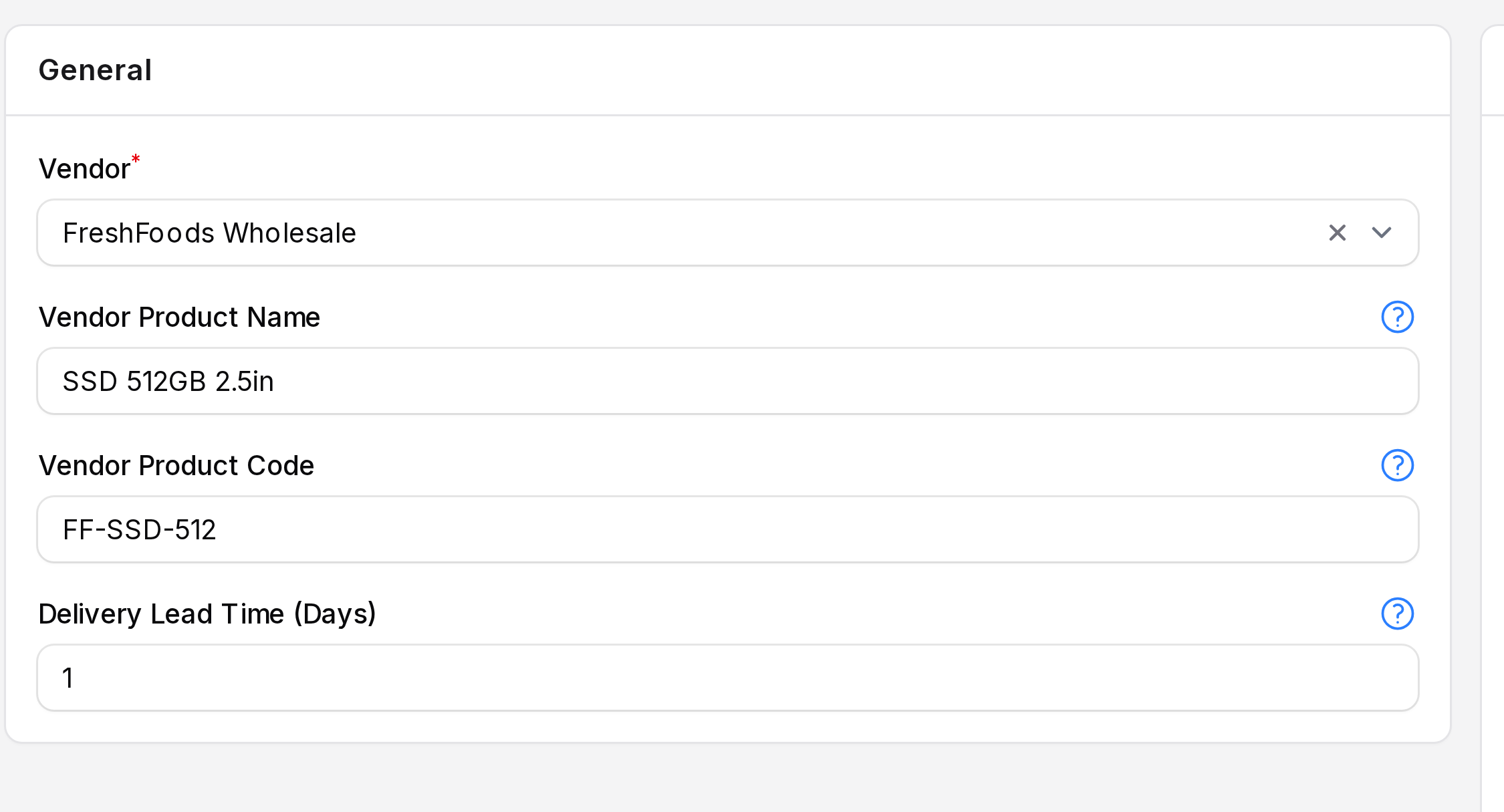
- Vendor: The company that sells it. Required.
- Vendor Product Name: The name the vendor uses. It prints on the RFQ. Leave it blank to use your own name.
- Vendor Product Code: The vendor's code. It prints on the RFQ. Leave it blank to use your own code.
- Delivery Lead Time (Days): Days from order confirmation to goods in your warehouse. The default is 1.
- Fill the Prices section.
Prices
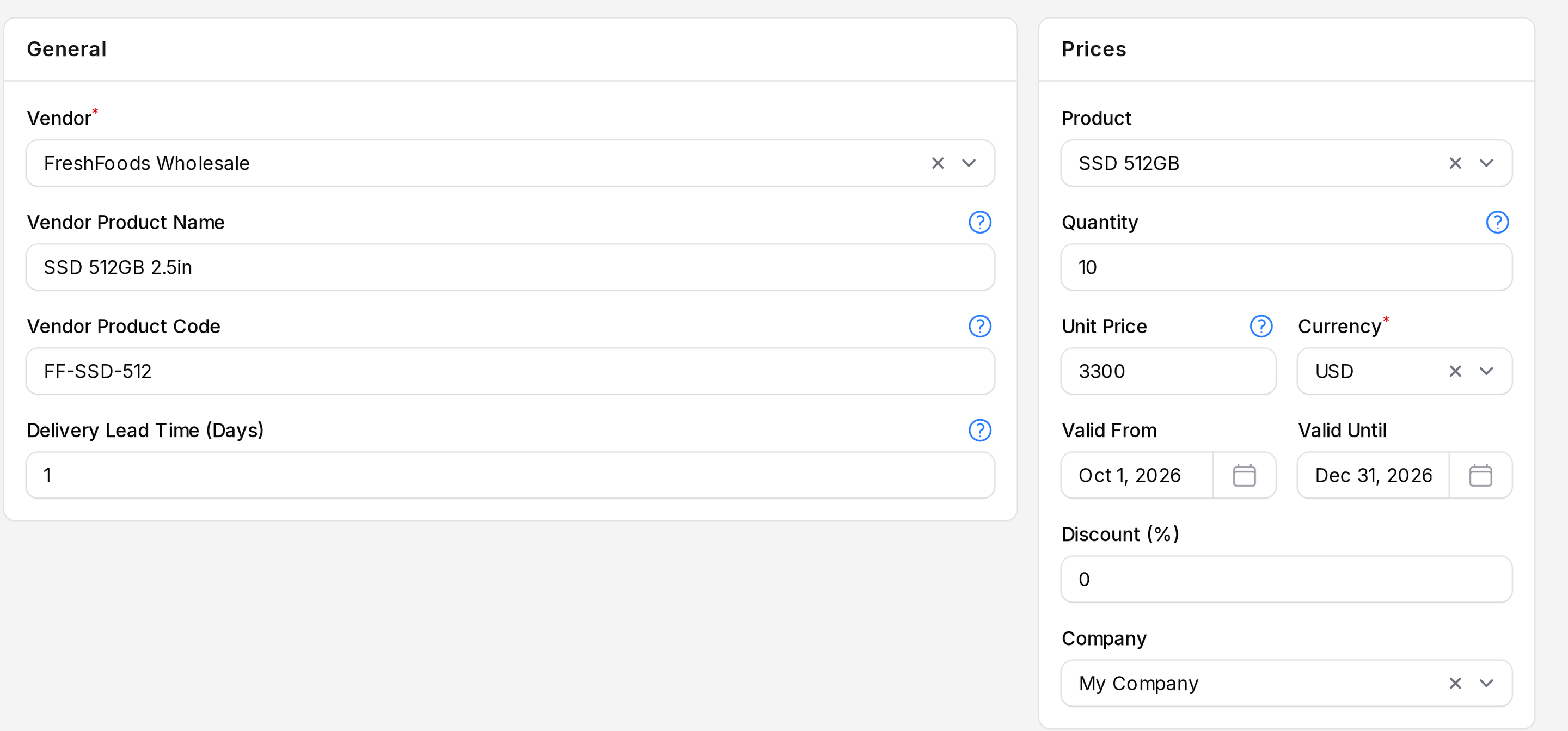
- Product: The product this price applies to. On a product's Vendors tab this field is hidden, because the product is known. With variants, you choose the variant.
- Quantity: The minimum quantity that earns this price. The default is 0.
- Unit Price: Price for one unit, in the unit of measure of the product.
- Currency: The currency of the vendor price. Required. It defaults to your company currency.
- Valid From: and Valid Until: The dates of the price period. Leave both empty for a price with no end.
- Discount (%): An optional percentage off this price.
- Company: The company that owns the row. It defaults to the current company.
- Click Create.
TIP
Fill Valid From and Valid Until for seasonal deals. They tell your team when the quote ends.
Price tiers by quantity
Add one row per tier. Each row sets the lowest quantity for its price.
| Vendor | Product | Quantity | Unit Price |
|---|---|---|---|
| FreshFoods Wholesale | SSD 512GB | 1 | 3500 |
| FreshFoods Wholesale | SSD 512GB | 10 | 3300 |
| FreshFoods Wholesale | SSD 512GB | 50 | 3100 |
How a line price is picked
When you choose a product on an order line, Aureus follows these steps.
- It looks at the price rows of that product.
- If you chose a vendor on the order, it keeps only that vendor's rows.
- It keeps rows whose Quantity is at or below the line quantity.
- It takes the best matching row and uses its Unit Price, converted to the order currency.
- If no row matches, it uses the product Cost, or the product Price when cost is empty.
Product + Vendor + Quantity  →  matching price rows  →  Unit Price on the line
                                   no match         →  Cost (then Price)
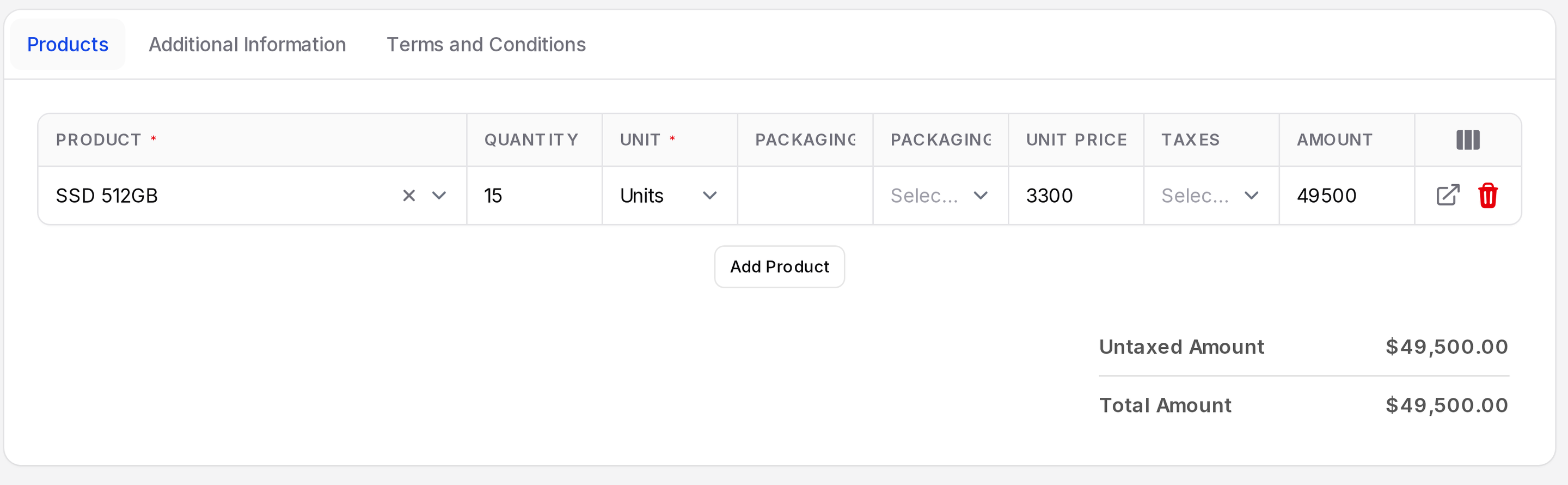
Change the line Quantity and the price is checked again. With 15 units of SSD 512GB, the row for 10 units applies.
WARNING
You can always type over the Unit Price on a line. The vendor price list only gives the starting value.
Edit or delete a price
- Open the row from the list or from the product Vendors tab.
- Click Edit, change the values and save.
- To remove a row, use the delete action on the row.
Behind the scenes: Price rows are stored per product and vendor. The list in Configurations and the product tab show the same records.