

Inventory overview
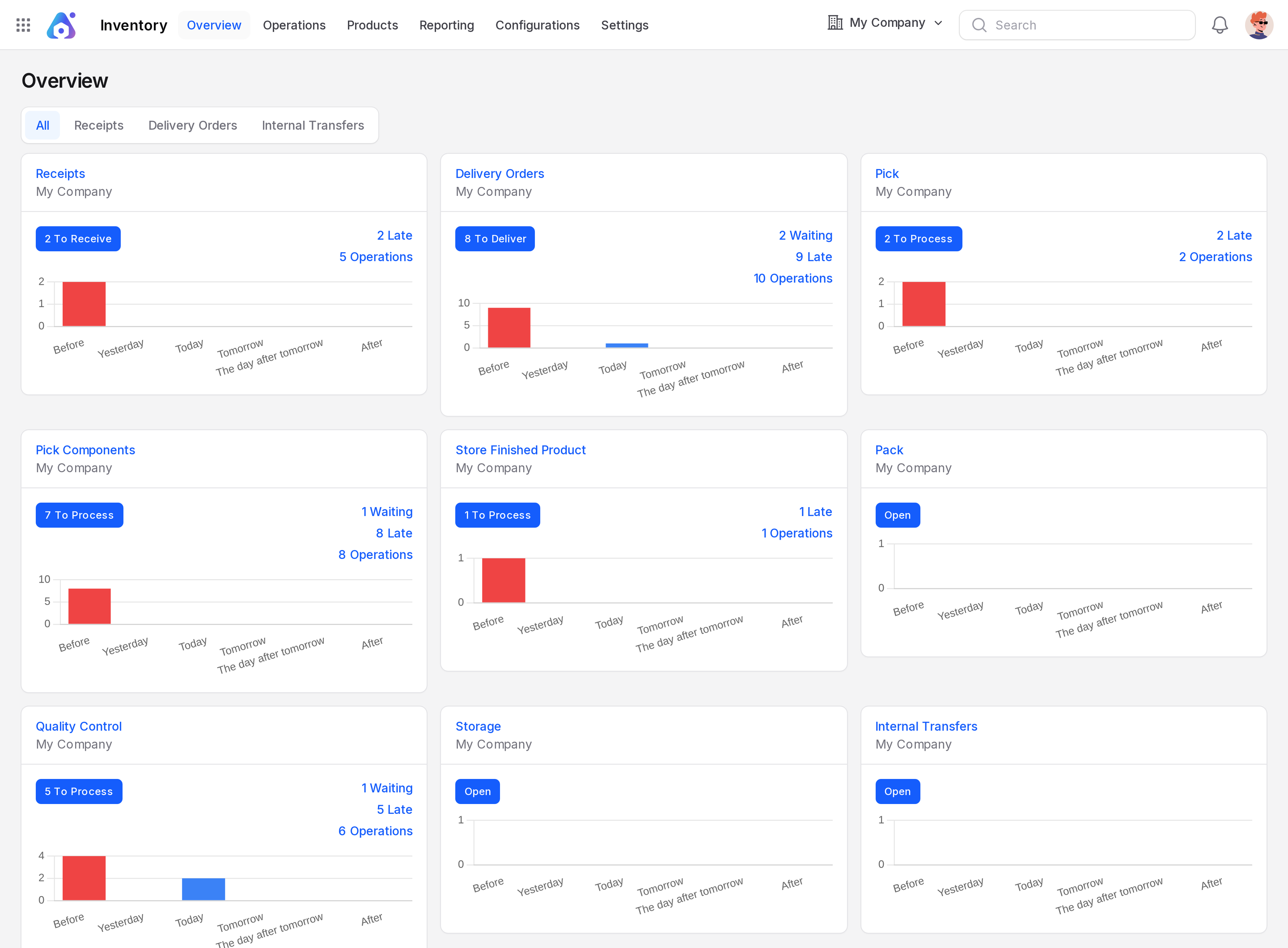
The Overview is the first screen of Inventory. It shows one card for each type of operation, such as Receipts or Delivery Orders. Each card tells you how much work is waiting and lets you jump straight to it.
In simple words: The Overview is your daily to-do board for the warehouse.
Open it with Inventory → Overview.
Tabs
The tabs at the top filter the cards by kind of operation.
- All: Every card.
- Receipts: Cards that bring goods in, such as Receipts and PoS Returns.
- Delivery Orders: Cards that send goods out, such as Delivery Orders and PoS Orders.
- Internal Transfers: Cards that move goods inside the warehouse, such as Pick, Pack, Quality Control and Storage.
Read a card
Each card is one operation type. The heading is a link to the list of that operation. The small grey text under it is the warehouse.
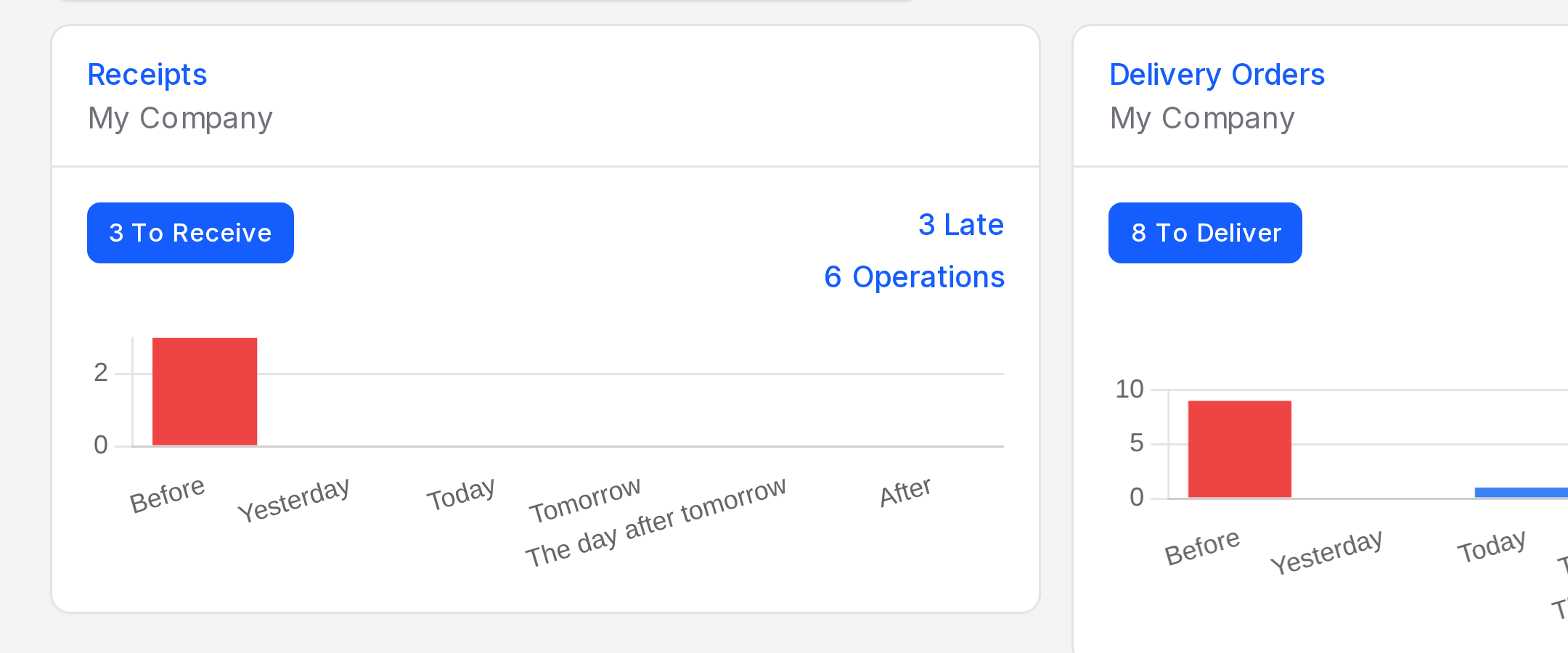
| Item | Meaning |
|---|---|
| Open | Nothing is ready. Click to open the list anyway. |
| N To Receive | N receipts are Ready. Click to see them. |
| N To Deliver | N deliveries are Ready. |
| N To Process | N internal transfers are Ready. |
| N Waiting | N operations wait for stock or for another step. |
| N Late | N operations are past their scheduled date. |
| N Back Orders | N operations have a backorder behind them. |
| N Operations | All open operations of this type. |
A link only shows when its number is above zero. Every link opens the matching list, already filtered.
The bar chart
Under each card, a small chart counts open operations by scheduled day. The bars are Before, Yesterday, Today, Tomorrow, The day after tomorrow and After. Red bars are late, blue is today and green is in the future. Grey bars mean there is no data yet.
Menu tour
The top bar holds six menus.
| Menu | What it holds |
|---|---|
| Overview | This dashboard |
| Operations | Receipts, Deliveries, Internal Transfers, Dropships, Quantities and Scraps |
| Products | Products, Packages, Lots / Serial Numbers |
| Reporting | Moves History and Locations (stock report) |
| Configurations | Warehouse Management, Products, Delivery, Units of Measure |
| Settings | Five settings pages |
Which setting reveals which menu
| You see this menu | When this setting is on |
|---|---|
| Operations → Dropships | Dropshipping |
| Products → Packages | Packages |
| Products → Lots / Serial Numbers | Lots & Serial Numbers |
| Configurations → Locations | Locations |
| Configurations → Routes and Rules | Multi Steps Routes |
| Configurations → Attributes | Variants |
| Configurations → Packagings | Packagings |
| Configurations → Package Types | Packages |
| Configurations → UOM Categories | Unit of Measure |
INFO
The Configurations menu has four groups: Warehouse Management (Warehouses, Locations, Operation Types, Routes, Rules, Storage Categories, Putaway Rules), Products (Categories, Attributes, Packagings), Delivery (Package Types) and Units of Measure (UOM Categories).
Behind the scenes
The cards are built from your operation types. When you add a warehouse with more steps, new cards such as Pick, Pack or Storage appear. They live under the Internal Transfers tab.