

Purchase orders
A purchase order (PO) is a confirmed order. You are now committed to buy, and Aureus plans the receipt. Small orders confirm at once. Big orders can wait for a manager to approve them.
In simple words: A purchase order is an RFQ you said yes to.
Open Purchase → Orders → Purchase Orders.
Settings
Two options in Purchase → Settings → Manage Orders change what happens on confirm.
- Purchase Order Approval: Turn on to hold big orders. Then set Minimum Amount. The default is 5000.
- Lock Confirmed Orders: Turn on to send confirmed orders straight to Locked.
Overview
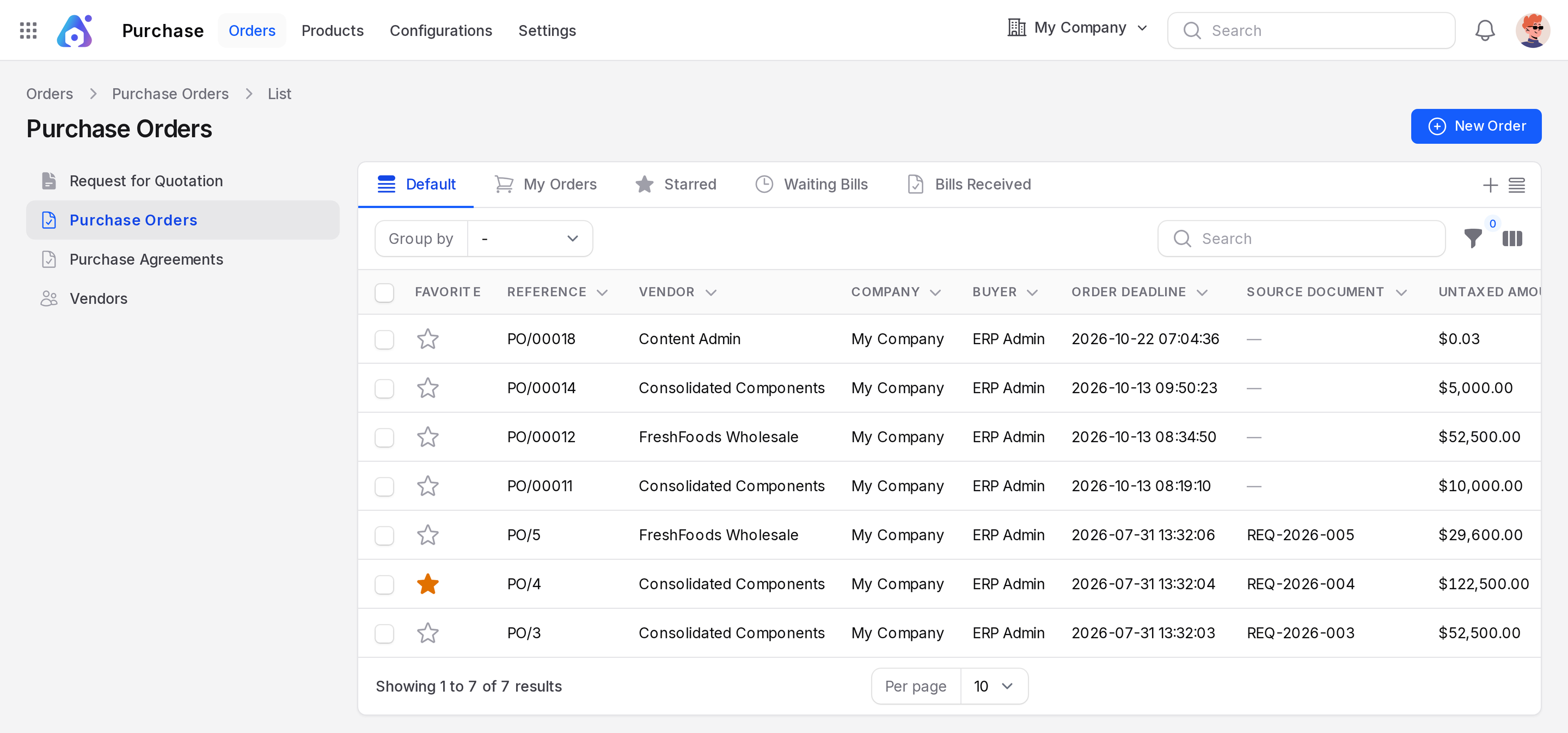
The list shows orders in the Purchase Order and Locked states only.
- Tabs: Default, My Orders, Starred, Waiting Bills, Bills Received.
- Group by: Vendor, Buyer, State, Created At, Updated At.
- New Order: starts a new order directly.
Confirm an order
Scenario: open PO/3 from Consolidated Components, with 15 SSD 512GB and 10 Laptop Battery.
- Open the RFQ and click Confirm Order.

- The state bar moves to Purchase Order. The Confirmation Date is filled.
- The Receipts tab shows a new receipt, WH/IN/11. See Receipts.

Approval workflow
With Purchase Order Approval on, the total decides what happens.
Total below Minimum Amount  → Purchase Order
Total at or above it, you are an approver → Purchase Order
Total at or above it, you are not → To Approve
An approver is a user whose resource permission is Global or Group. When an approver clicks Confirm Order on a To Approve order, it moves on. It becomes Locked if Lock Confirmed Orders is on. Otherwise it becomes Purchase Order.
INFO
Receipts are planned only after approval, not while the order is To Approve.
Send and print
- Send PO By Email: emails the confirmed order with the PDF. The state does not change.
- Print PO: downloads the PDF.
Lock and unlock
Locking protects a confirmed order from edits.
- Click Lock on a Purchase Order. It becomes Locked.
- Click Unlock on a Locked order. It returns to Purchase Order.

Cancel an order
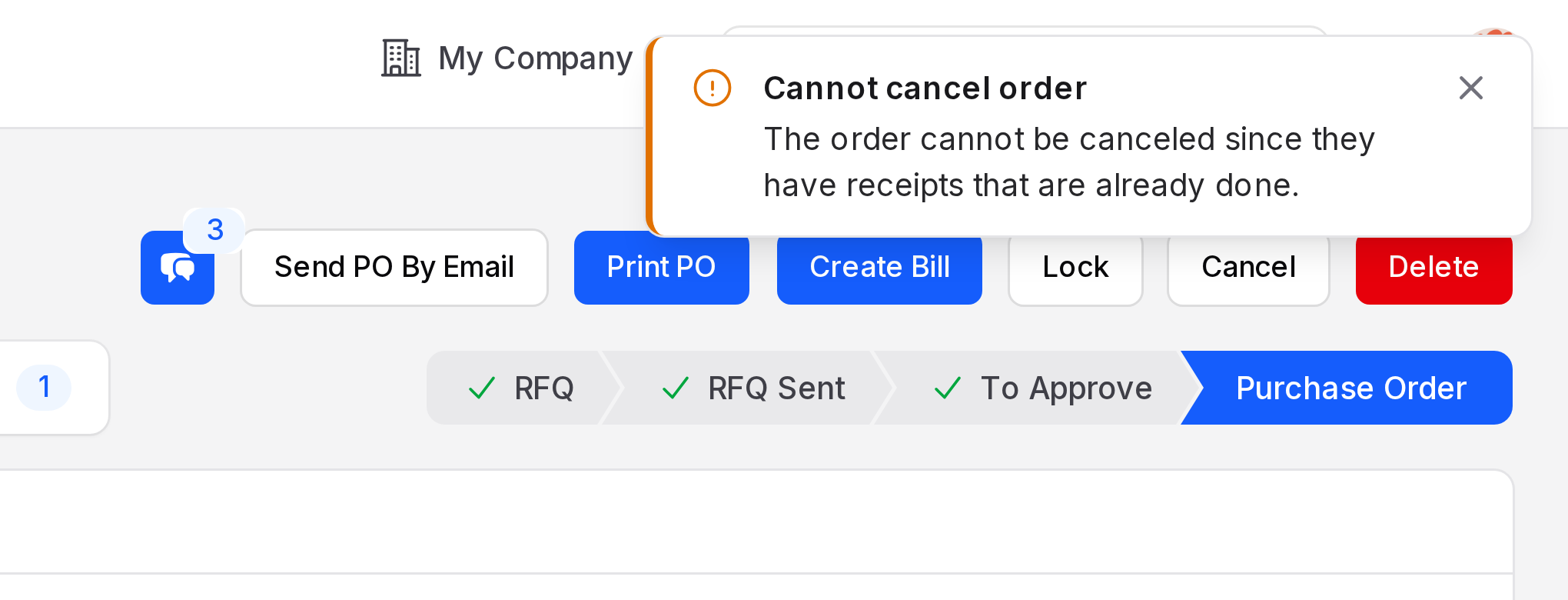
Click Cancel. The state becomes Canceled and planned receipts are canceled. Aureus refuses in two cases.
- The order cannot be canceled since they have receipts that are already done. Return the goods first.
- The order cannot be canceled. You must first cancel their related vendor bills. Cancel the bills, then try again.
Set to Draft
A Canceled order shows Set to Draft. Click it to return the order to RFQ. You can edit and send it again.
Quantity rules
After confirmation, Aureus protects what you already received.
| Message | Cause |
|---|---|
| Cannot Reduce Quantity | You set a quantity below the Received quantity. |
| Cannot Delete Product | You removed a line from a confirmed order. |
| Quantity Exceeds Blanket Order Limit | The line is above the linked blanket order. |
Raising a quantity is allowed. The planned receipt grows with it.
Actions and statuses
| Button | Shown in | Result |
|---|---|---|
| Confirm Order | RFQ, RFQ Sent, To Approve | Purchase Order, Locked or To Approve |
| Send PO By Email | Purchase Order | Emails the vendor. No state change. |
| Print PO | Purchase Order | Downloads the PDF. |
| Create Bill | Purchase Order, Locked | Makes a vendor bill. See Vendor bills. |
| Lock | Purchase Order | Locked |
| Unlock | Locked | Purchase Order |
| Cancel | Not Locked | Canceled, unless refused |
| Set to Draft | Canceled | RFQ |
| Delete | Most states | Removes the order. |